Webmail - Folders management
Find out how to subscribe to a Folder to make it show in your e-mail folder list, how to unsubscribe from a Folder and hide it or how to create a new folder.
Step-by-step guide
Subscribe to a Folder
Subscribing to a folder will make it show in your e-mail folder list (usually on the left side of your Webmail or e-mail client). Some e-mail clients will show by default all folders, even the unsubscribed ones.
To subscribe to a folder, log in to your Webmail and
- Go to the E-mail tab.
- Right-click on the folders list on the left side of your panel
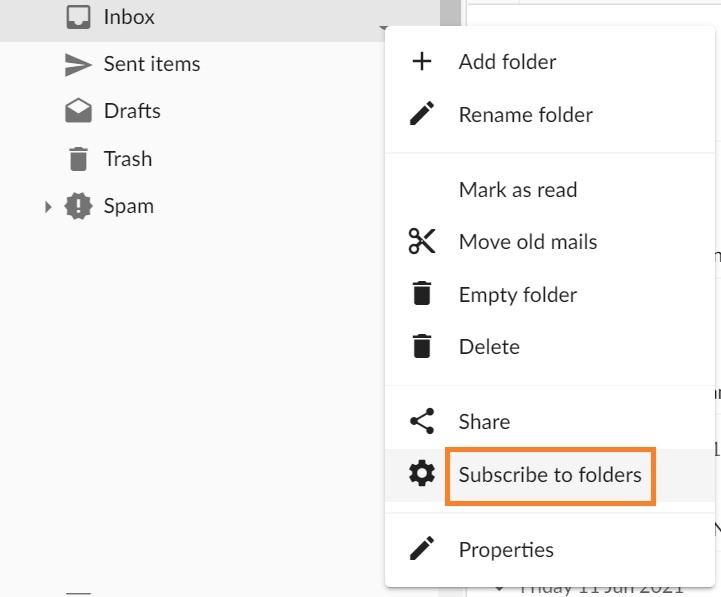
- Click on the Subscribe to folders option to access the Folder settings
- Find the folder in the list
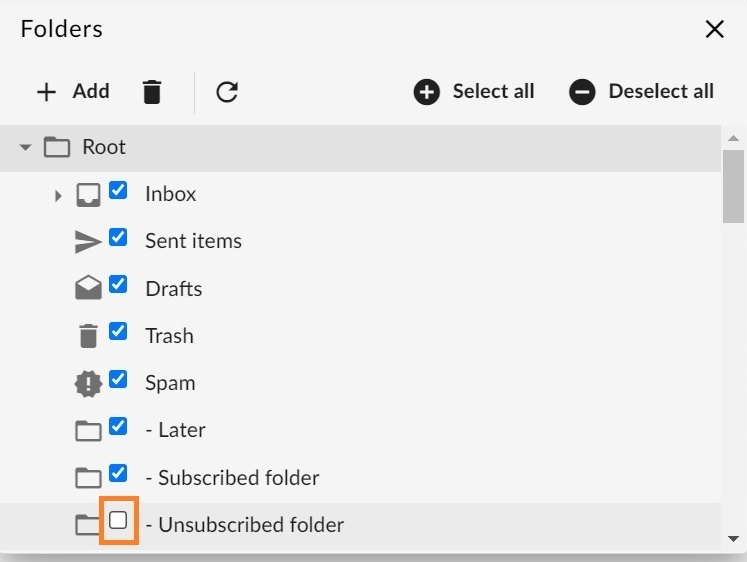
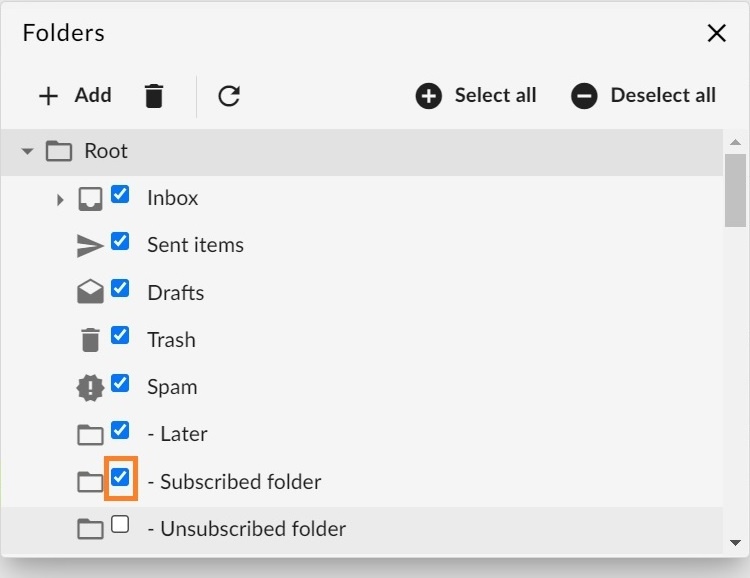
- Select the checkmark next to the desired folder (if a folder is checked, you are subscribed to that folder).
Unsubscribe from a Folder
Unsubscribing from a folder will hide it from your e-mail folder list (usually on the left side of your Webmail or e-mail client). Some e-mail clients will show by default all folders, even the unsubscribed ones.
To unsubscribe to a folder, log in to your Webmail and
- Go to the E-mail tab.
- Right-click on the folders list on the left side of your panel
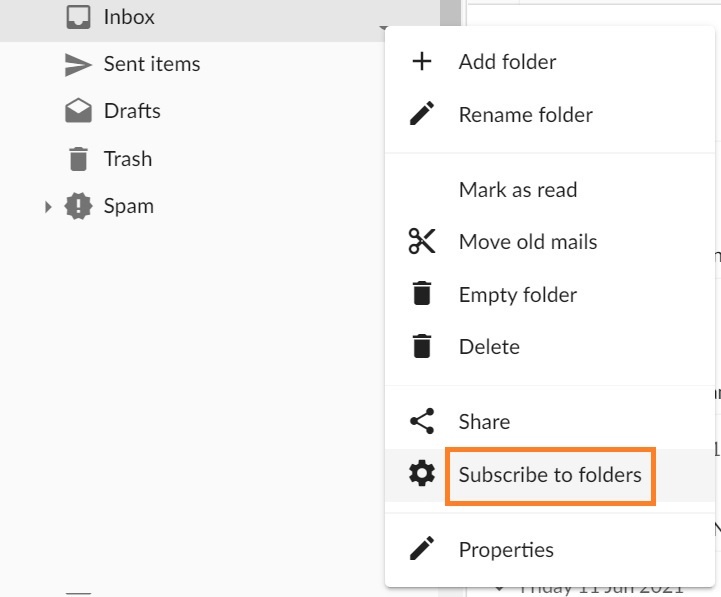
- Click on the Subscribe to folders option to access the Folder settings
- Find the folder in the list
- Select the checkmark next to the desired folder to unsubscribe (if a folder is unchecked, you are unsubscribed from that folder).
Add a Folder
The easiest way to add a new folder to your mailbox is from the E-mail tab.
Log in to your Webmail and
- Go to the E-mail tab.
- Right-click on the folders list on the left side of the panel
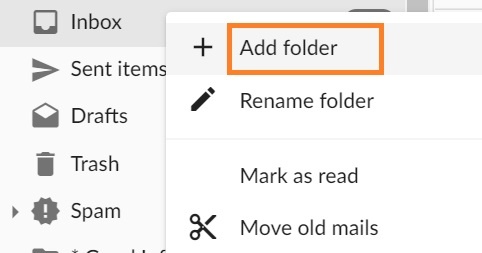
- Click on the Add folder option from the menu
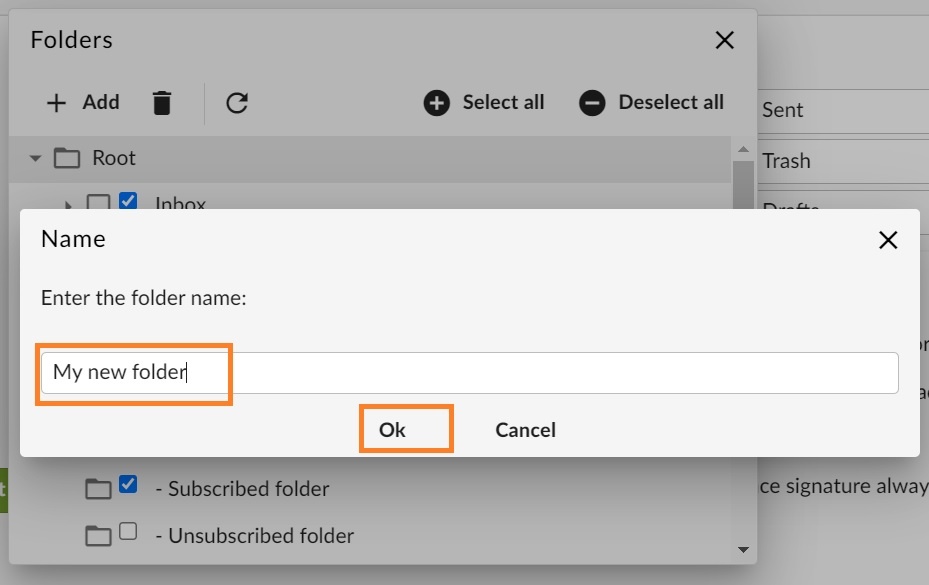
- Enter the folder name and click on the OK button.
Another option to add a new folder is from the Folders advanced menu. To access it, log in to your Webmail and
- Go to the E-mail tab.
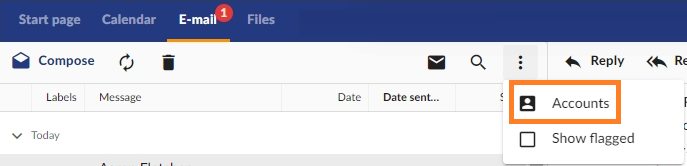
- Click on the three dots button on the right of the email panel and then click on Accounts.
- Double click the desired email account
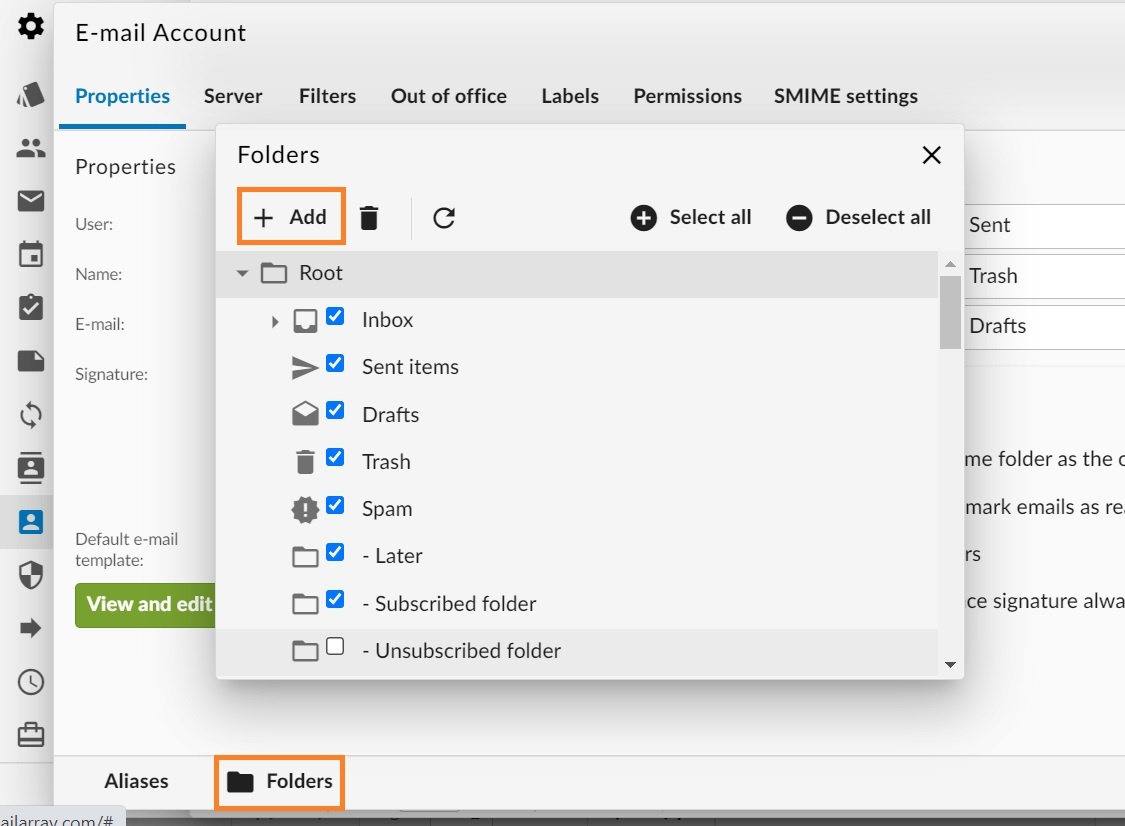
- Click on the Folders button
- Click on the Add button
- Enter the folder name and click on the OK button to create the folder.