# Webmail - Files and Folder Sharing Guide

Whether you need to send a single document or collaborate on an entire project, sharing is simple and flexible. You have two main options:

- **Share a single file:** Generate a secure URL to allow others to download or co-edit a specific document.
- **Share multiple files:** Share a folder with your team so they can access and collaborate on multiple files at once.

<span data-path-to-node="5,0">The Webmail allows you to share folders with other members of your organization, enabling seamless collaboration</span><span data-path-to-node="5,1"><sup class="superscript"></sup></span><span data-path-to-node="5,2">. With the latest updates, you have precise control over how you distribute your work, whether collaborating internally or sharing documents externally.</span>

## Document Editing and Collaboration

The ability to interact with documents depends on your active mailbox type.

<div _ngcontent-ng-c2793046848="" class="container" id="bkmrk-basic-mailboxes%3A-use"><div _ngcontent-ng-c2921796212="" aria-busy="false" aria-live="polite" class="markdown markdown-main-panel enable-updated-hr-color" dir="ltr" inline-copy-host="">- **Basic Mailboxes:** Users can only upload and view documents.
- **Enhanced Mailboxes:** Users can edit and collaborate on documents in real-time.

</div></div>The live editing environment is powered by the OnlyOffice integration. Supported formats include Word documents, spreadsheets, presentations, and PDFs.

<div _ngcontent-ng-c2793046848="" class="container" id="bkmrk-"><div _ngcontent-ng-c2921796212="" aria-busy="false" aria-live="polite" class="markdown markdown-main-panel enable-updated-hr-color" dir="ltr" id="bkmrk--1" inline-copy-host=""></div></div>
## Sharing Folders

Folder sharing is restricted to internal use only, meaning you can only share folders with users within your domain.


#### How to Share a Folder

Follow these steps to activate sharing for a specific folder within your Webmail:

1. **Select the Folder:** In the Webmail files section, right-click on the folder you wish to share and select **Properties**.  
      
    [![Webmail - files - click on properties.PNG](https://wikidev.emailarray.com/uploads/images/gallery/2026-01/scaled-1680-/webmail-files-click-on-properties.PNG)](https://wikidev.emailarray.com/uploads/images/gallery/2026-01/webmail-files-click-on-properties.PNG)
2. **Activate Sharing:** In the **Properties** tab, check the box labeled **Activate sharing**. This enables the sharing functionality for that specific directory.  
      
    [![Webmail - files - click on activate sharing.PNG](https://wikidev.emailarray.com/uploads/images/gallery/2026-01/scaled-1680-/webmail-files-click-on-activate-sharing.PNG)](https://wikidev.emailarray.com/uploads/images/gallery/2026-01/webmail-files-click-on-activate-sharing.PNG)
3. **Configure Notifications (Optional):** You may also choose to:
    
    
    - **Notify me about changes in this folder:** Receive alerts when others modify files.
    - **Apply the folder's display settings for everyone:** Standardize the view for all collaborators.
4. **Save Changes:** Click **Apply** or **Save**.


#### Managing Permissions

Once sharing is active, you can define exactly **who has access and what level of control they have**.

1. Navigate to the **Permissions** tab within the **Properties** window.
2. **Add Members:** Click the **plus (+)** icon to add new users or groups to the folder. The default permission for new users is **read-only**.  
      
    Group sharing: you also have the optional choice to share the folder with everyone in your group for faster onboarding  
      
    [![Webmail-enable-share-for-folder-step-3-default-permission-is-readonly.png](https://wikidev.emailarray.com/uploads/images/gallery/2026-06/scaled-1680-/webmail-enable-share-for-folder-step-3-default-permission-is-readonly.png)](https://wikidev.emailarray.com/uploads/images/gallery/2026-06/webmail-enable-share-for-folder-step-3-default-permission-is-readonly.png)
3. **Change Access Levels:** Double-click the permission level next to a user name to change it.  
      
    [![Webmail-enable-share-for-folder-step-4-double-click-permission-name-to-change.png](https://wikidev.emailarray.com/uploads/images/gallery/2026-06/scaled-1680-/webmail-enable-share-for-folder-step-4-double-click-permission-name-to-change.png)](https://wikidev.emailarray.com/uploads/images/gallery/2026-06/webmail-enable-share-for-folder-step-4-double-click-permission-name-to-change.png)
    
    
    - **Read only:** Users can view and download files but cannot make changes.
    - **Read and Create only:** Users can view files and upload new content but cannot delete or modify existing files.
    - **Write**: view, upload or edit existing files.
    - **Write and delete**: view, upload, edit or delete existing files.
    - **Manage:** Full access to view, upload, edit, delete and share content.
4. **Remove Access:** To stop sharing with a specific user, select their name and click the **trash icon**.
5. **Finalize:** Click **Save** to apply the permissions.


#### Accessing Shared Content

<span data-path-to-node="13,0">When a folder is shared with you, it will appear under the **Shared** section in your file navigation sidebar. </span><span data-path-to-node="13,2"><span class="citation-124">This allows teams to maintain a central repository for shared documents, images, and project files</span></span><span data-path-to-node="13,3"><span class="citation-124 citation-end-124"><sup class="superscript" data-turn-source-index="4"></sup><sup class="superscript" data-turn-source-index="4"></sup><sup class="superscript" data-turn-source-index="4"></sup><sup class="superscript" data-turn-source-index="4"></sup></span></span><span data-path-to-node="13,4">.</span>

<span data-path-to-node="13,4">[![Webmail-view-folders-shared-with-me.png](https://wikidev.emailarray.com/uploads/images/gallery/2026-06/scaled-1680-/webmail-view-folders-shared-with-me.png)](https://wikidev.emailarray.com/uploads/images/gallery/2026-06/webmail-view-folders-shared-with-me.png)</span>

## <span data-path-to-node="13,4">Sharing Files</span>

You can share individual files with internal or external collaborators by creating secure, time-limited download links.

<p class="callout warning">Please use caution when sharing the URL, as anyone with the link can access the file.</p>


#### Creating a Secure Download Link

To generate a link that allows others to download a specific file:

1. **Locate your file:** Navigate to the **Files** section in your Webmail.
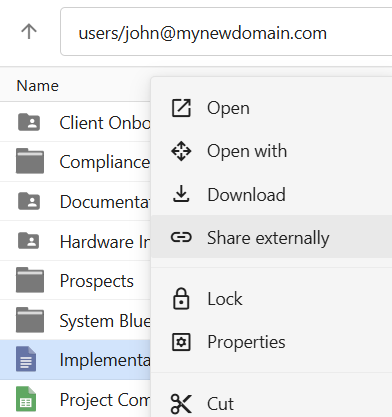
2. **Open the sharing window:** Right-click on the file you wish to share and click on **Share Externally**. This will open the sharing menu.  
      
    [![Webmail-enable-share-for-file-right-click-share-externally.png](https://wikidev.emailarray.com/uploads/images/gallery/2026-06/scaled-1680-/webmail-enable-share-for-file-right-click-share-externally.png)](https://wikidev.emailarray.com/uploads/images/gallery/2026-06/webmail-enable-share-for-file-right-click-share-externally.png)
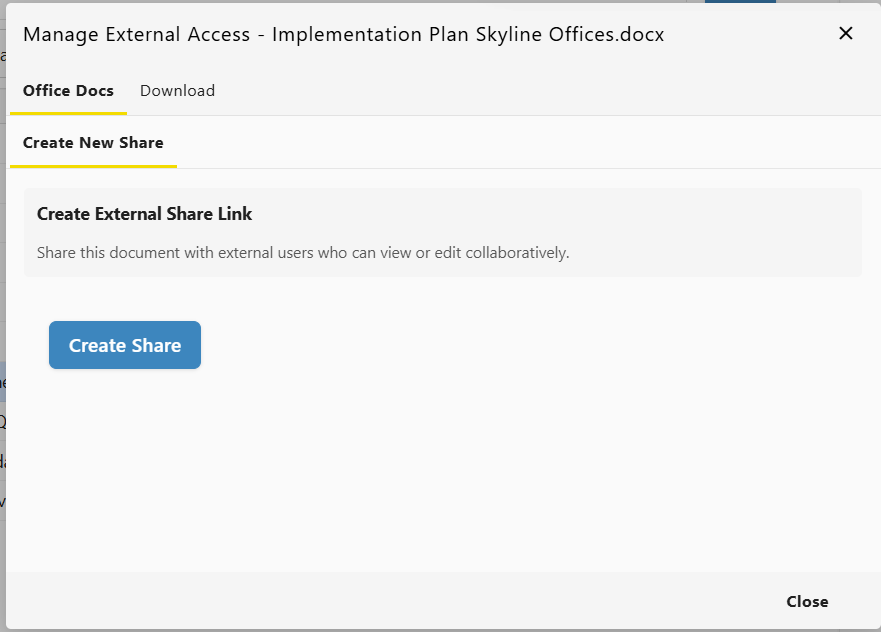
3. **Generate the link:** Click **Create Share** button from the new window.  
      
    [![Webmail-enable-share-for-file.png](https://wikidev.emailarray.com/uploads/images/gallery/2026-06/scaled-1680-/webmail-enable-share-for-file.png)](https://wikidev.emailarray.com/uploads/images/gallery/2026-06/webmail-enable-share-for-file.png)
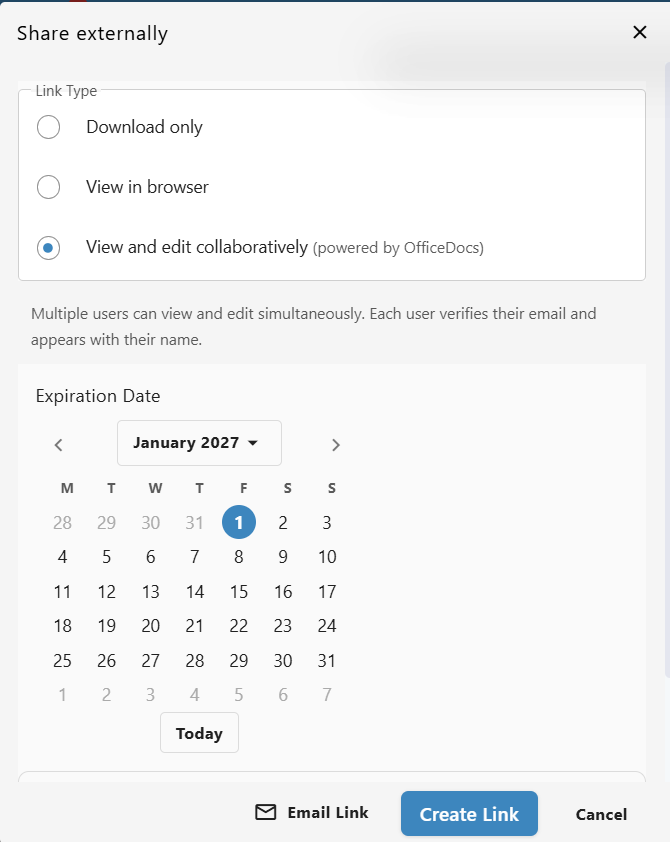
4. **Configure Access:** Set your desired permissions and choose an expiration date for the link.  
      
    **Download only**: Users will download the file to their device.  
    **View in browser**: Users can view the document online (read-only).  
    **View and edit collaboratively**: Multiple users can view and edit simultaneously. Each user verifies their email and appears with their name.  
      
    [![Webmail-enable-share-for-file-set-permissions-and-expiration-date.png](https://wikidev.emailarray.com/uploads/images/gallery/2026-06/scaled-1680-/webmail-enable-share-for-file-set-permissions-and-expiration-date.png)](https://wikidev.emailarray.com/uploads/images/gallery/2026-06/webmail-enable-share-for-file-set-permissions-and-expiration-date.png)
5. **Distribute the link:** Once generated, you can copy this link and send it via email or chat.  
      
    [![Webmail-check-status-for-share-for-file.png](https://wikidev.emailarray.com/uploads/images/gallery/2026-06/scaled-1680-/webmail-check-status-for-share-for-file.png)](https://wikidev.emailarray.com/uploads/images/gallery/2026-06/webmail-check-status-for-share-for-file.png)
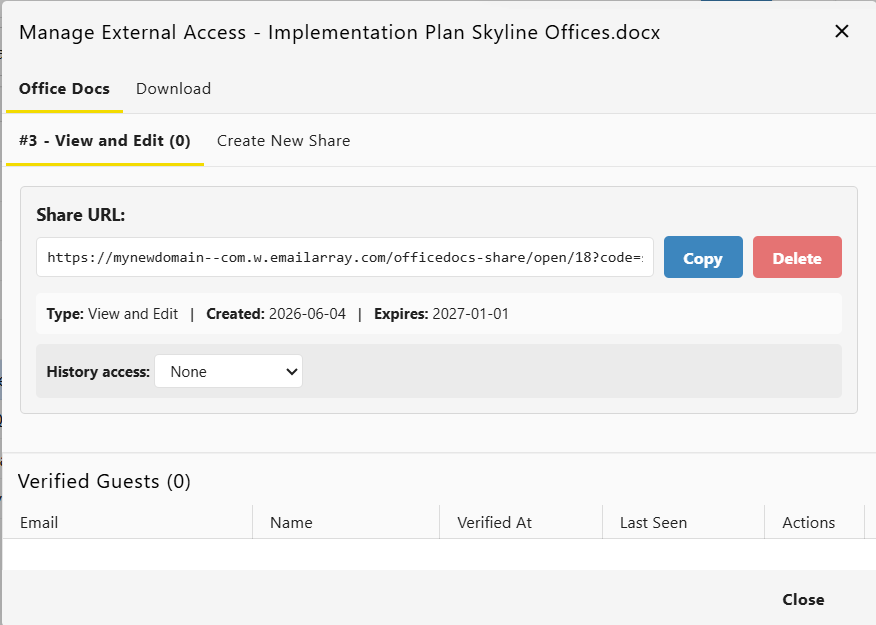
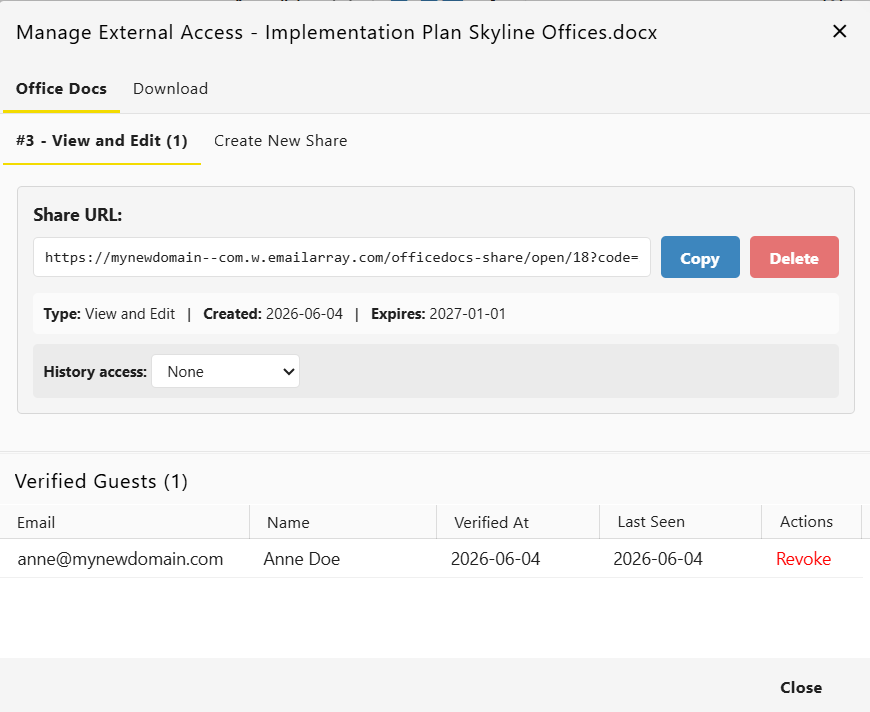
6. **Manage Links**: You can check the status of your active sharing links at any time


#### Viewing File Details and Active Links

You can review file information and manage active sharing links at any time, by:

[![Webmail-check-status-for-share-for-file-manage-external-access.png](https://wikidev.emailarray.com/uploads/images/gallery/2026-06/scaled-1680-/webmail-check-status-for-share-for-file-manage-external-access.png)](https://wikidev.emailarray.com/uploads/images/gallery/2026-06/webmail-check-status-for-share-for-file-manage-external-access.png)
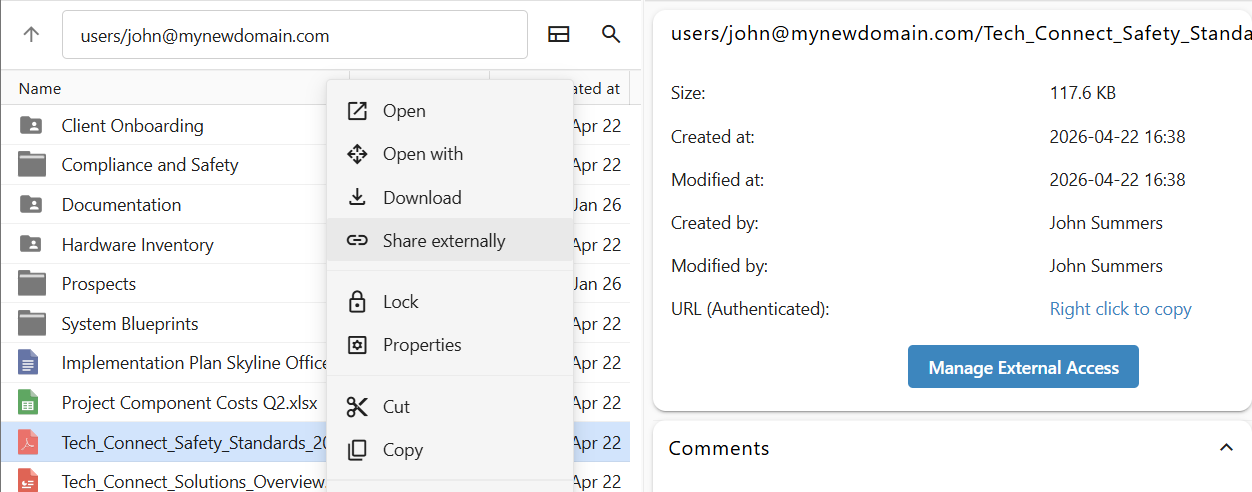
- Right-click on the file and click on **Share externally** to show the sharing stats window.
- Click once on a file to open the details side-pane and click on **Manage External Access** to show the sharing stats window.  
    [![Webmail-check-file-sharing-status.png](https://wikidev.emailarray.com/uploads/images/gallery/2026-06/scaled-1680-/webmail-check-file-sharing-status.png)](https://wikidev.emailarray.com/uploads/images/gallery/2026-06/webmail-check-file-sharing-status.png)

#### Additional Sharing Options

When you right-click a file, you also have access to:

- **Email files:** Attach the file directly to a new email message.

## Bonus: Remote Editing Applications

You do not need to be logged into the web interface to stay productive. You can use the free OnlyOffice application to edit documents from any device, including laptops, tablets and phones.

Follow these simple steps to connect your account to the OnlyOffice app:

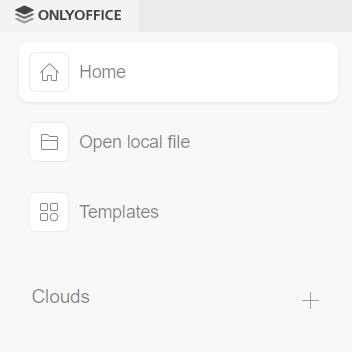
1. Add a cloud of type "OnlyOffice".  
      
    [![Onlyoffice - add a cloud.png](https://wikidev.emailarray.com/uploads/images/gallery/2026-06/scaled-1680-/onlyoffice-add-a-cloud.png)](https://wikidev.emailarray.com/uploads/images/gallery/2026-06/onlyoffice-add-a-cloud.png)[![Onlyoffice - connect to an existing cloud-version-2.png](https://wikidev.emailarray.com/uploads/images/gallery/2026-06/scaled-1680-/onlyoffice-connect-to-an-existing-cloud-version-2.png)](https://wikidev.emailarray.com/uploads/images/gallery/2026-06/onlyoffice-connect-to-an-existing-cloud-version-2.png)
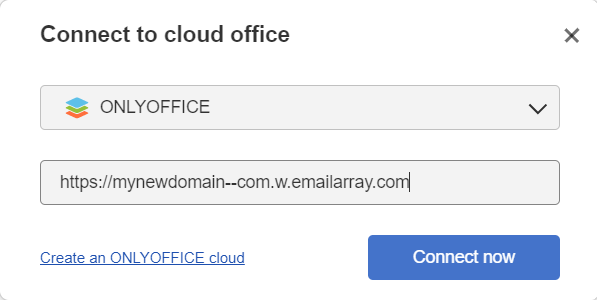
2. Fill in your webmail URL (for example: [https://mynewdomain--com.w.emailarray.com](https://mynewdomain--com.w.emailarray.com)).
3. You will be redirected to a login page. Use your email address and password to connect.
4. The dashboard will display the files section from your webmail inside the OnlyOffice app, keeping everything in sync.