Video Meeting Features
The Video Meeting window includes the main viewing area, participant thumbnails, meeting information, and a toolbar with controls for managing the session. This page explains the main parts of the interface and describes the available meeting buttons.
Meeting Interface Overview
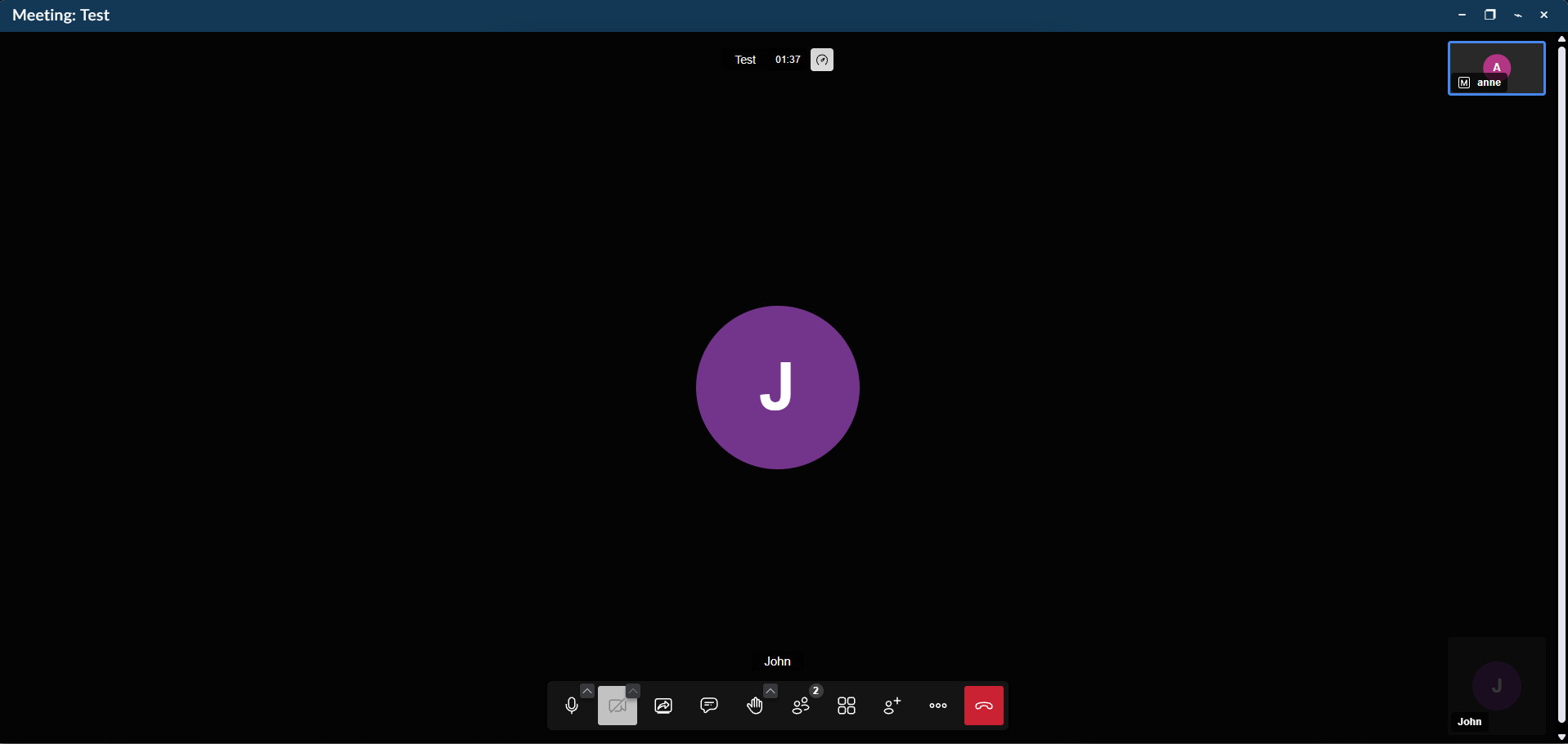
The meeting window is divided into several main areas:
- The main stage displays the active participant or avatar.
- The top area shows the meeting title and meeting duration.
- The right side displays participant thumbnails.
- The bottom toolbar contains the main meeting controls.
Main Meeting Area
The main meeting area displays the current speaker or participant in focus. If a participant does not have a camera enabled, their avatar or profile initials may appear instead of a live video feed.
Participant Thumbnails
Participant thumbnails appear on the right side of the meeting window. These thumbnails help you see who is currently in the meeting and may indicate which participant is active or selected.
Meeting Information
The top section of the window shows the meeting name and the elapsed meeting time. This helps users confirm which meeting they joined and how long the meeting has been running.
Meeting Controls
The toolbar at the bottom of the meeting window contains the main controls used during the meeting.
- Microphone: Turn your microphone on or off.
- Camera: Turn your camera on or off.
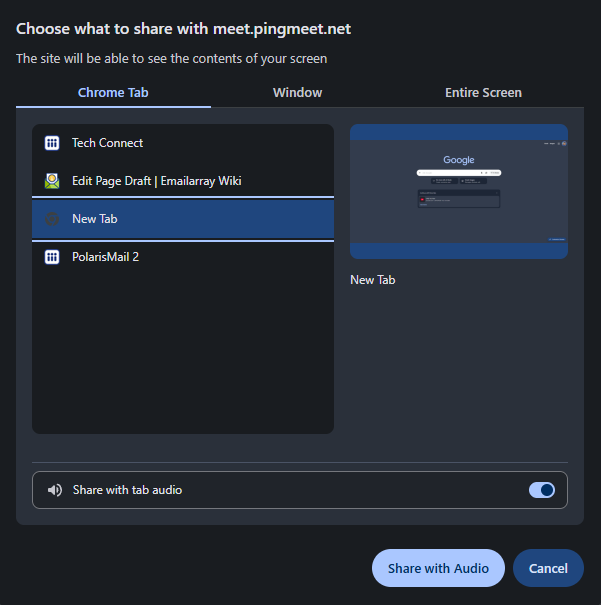
- Screen Sharing: Share your screen or another presentation source with meeting participants.

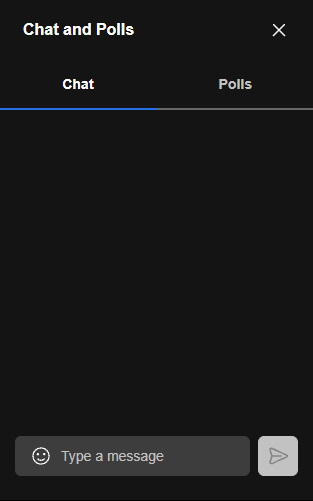
- Chat: Open the meeting chat to send and read messages or create polls during the session.

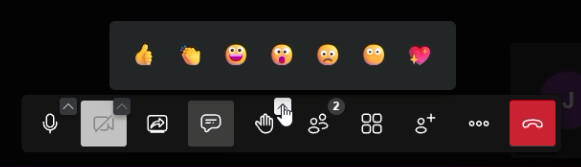
- Raise Hand: Raise your hand to let others know you want to speak, or use the arrow to send an emoji in the chat.

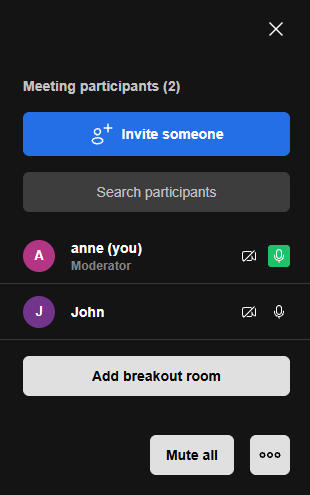
- Participants: Open the participants panel to view everyone in the meeting, invite someone new, search participants, mute all attendees, or create a breakout room.

- Tile View: Change how participants are displayed in the meeting window.
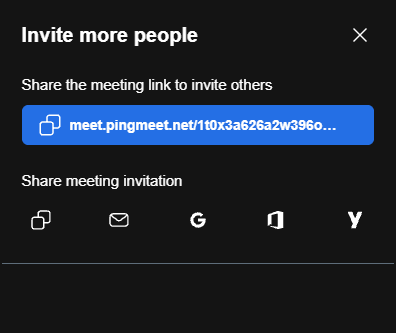
- Invite: Add or invite more users to the meeting.

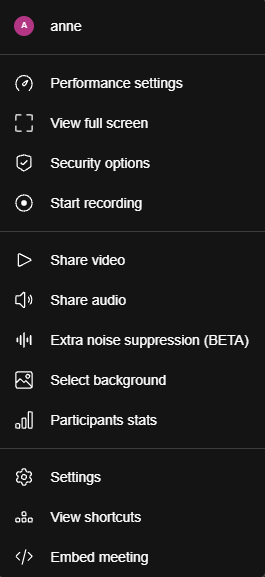
- More Actions: Open additional meeting actions and settings.

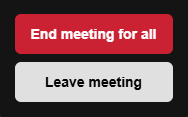
- Leave Meeting: Leave or end the meeting.

Using the Main Button

To manage your audio and video during a meeting:
- Click the Microphone button to mute or unmute yourself.
- Click the Camera button to turn your camera on or off.
To interact with participants during a meeting:
- Click the Chat button to open the meeting chat.
- Click the Raise Hand button if you want to speak.
- Click the Participants button to view the participant list.
To manage the meeting view and sharing options:
- Click the Screen Sharing button to share your screen.
- Click the Tile View button to change the meeting view.
- Click the Invite button to add more participants.
- Click More Actions to access additional meeting settings.
To exit the meeting:
- Click the Leave Meeting button.
HD Video and Audio
Video meetings provide high-definition video and audio for clearer communication. This helps improve call quality and makes conversations easier to follow.
Troubleshooting
Microphone or camera does not work
- Make sure your device is connected and detected correctly.
- Check whether the browser or application has permission to use your microphone and camera.
- Confirm that the microphone or camera is not disabled in system settings.
Screen sharing does not start
- Make sure screen sharing is allowed in your browser or desktop application.
- Confirm that you selected the correct screen or window to share.
Can't hear other participants
- Check your speaker or headset connection.
- Make sure the meeting audio is not muted.
- Verify that the correct playback device is selected on your computer.