Notes Sharing
Sharing your notebooks helps your team collaborate on ideas, meeting minutes, and project outlines. You can easily grant colleagues access to view your notes or give them permission to edit and manage the content directly.
How to Share Your Notes
Follow these steps to give other users or groups access to your notebooks:
-
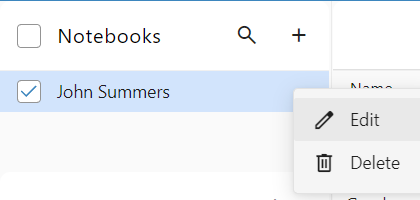
Open Notebook Settings: Navigate to your Notes page, click the menu icon next to the specific notebook you want to share, and select Edit.

-
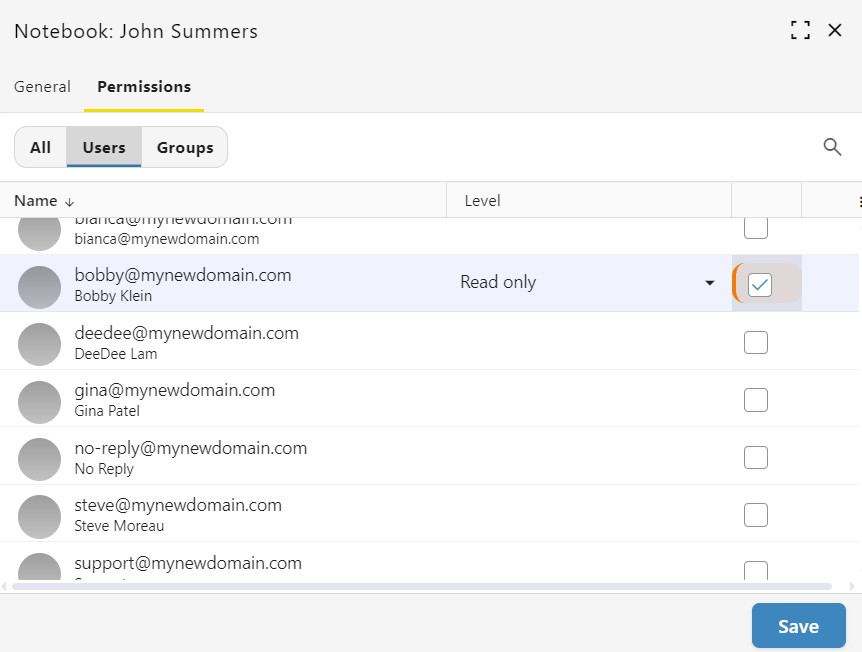
Select Users: Locate the colleague you want to share with and check the box on the far right side of their name.

-
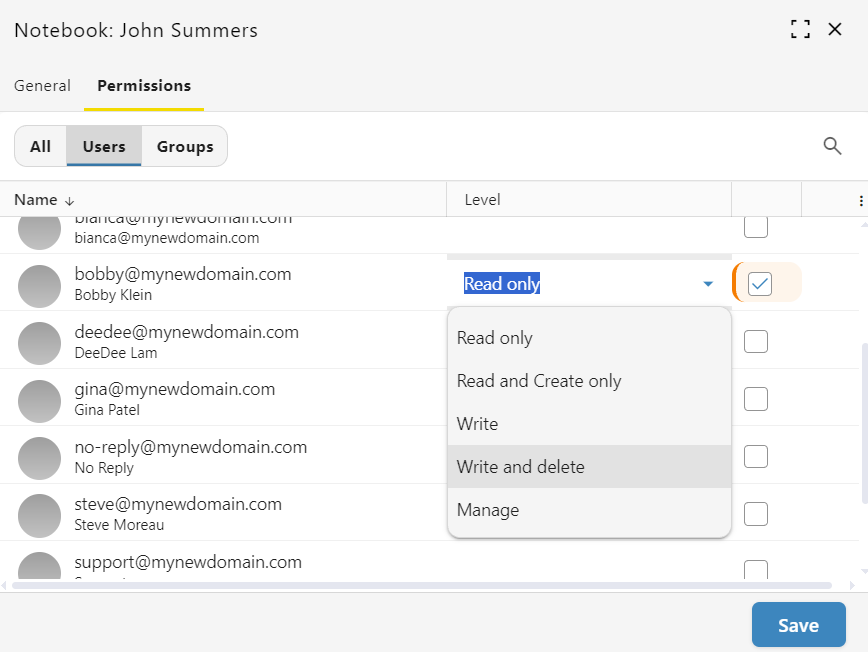
Adjust Access Levels: The system assigns "Read only" access by default. Click the permission drop-down menu next to their name to change their access level to options like "Write and delete".

-
Save Your Changes: Click the Save button at the bottom of the window to apply your updates.