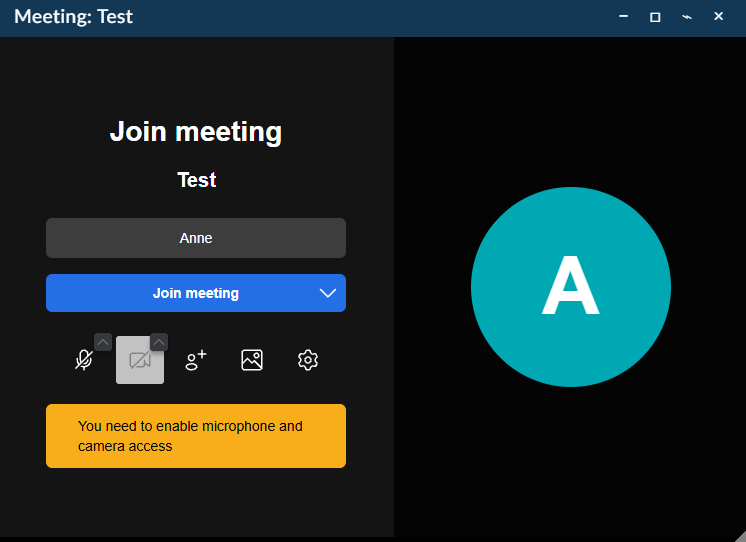
Getting Started: Acessing Chat & Meetings
Adding Contacts
Before sending emails, you need to add contacts to your account. You can add contacts individually from the Chat section.
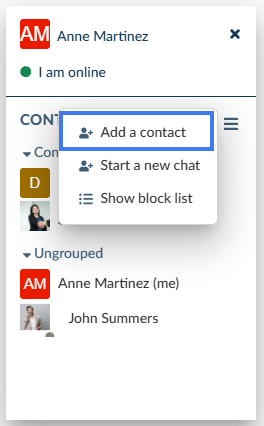
- Open the Chat button at the bottom right of each page.

- Click Add Contact.

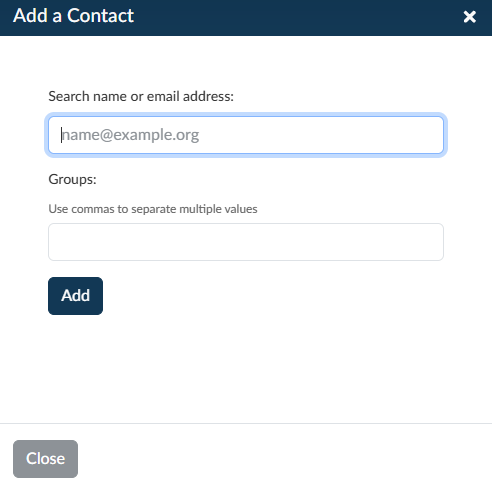
- Enter the contact details in that exact format "Name <username@example.org>" for example John Summers <john@mynewdomain.com>

- Assign the contact to a Group if needed.
- Click Add to create the contact.

Make sure the email address is valid before saving the contact.
Chatting with Contacts
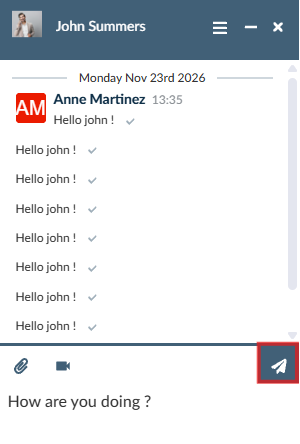
Use the chat feature to communicate directly with your contacts. You can open a conversation from the contacts panel and send messages in the chat window.
- Open the Chat panel.
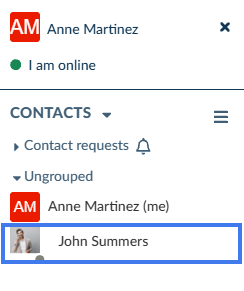
- Find the contact you want to message.

- Click the contact name to open the chat window.
- Type your message in the message field.
- Click the Send button to send the message.


Starting a Video Meeting
Use the meeting feature to start a live conversation with your contacts. You can create a meeting, invite participants, and begin the session from the meeting window.
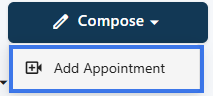
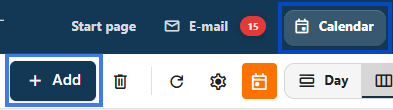
- Click Compose arrow and select Add Appointment or clicl Add in the Calendar tab.


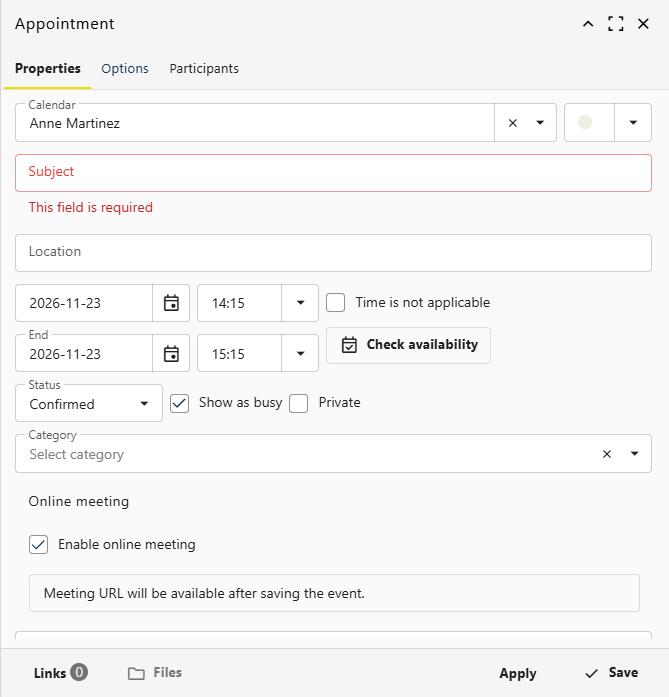
- Enter all the details in the appointement page.

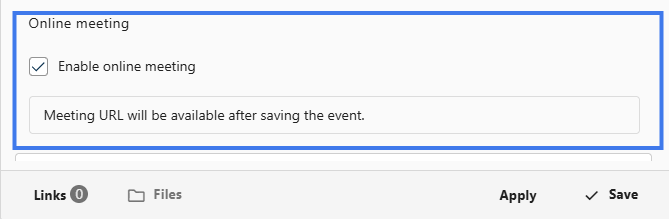
- In the Online meeting section, select Enable online meeting.

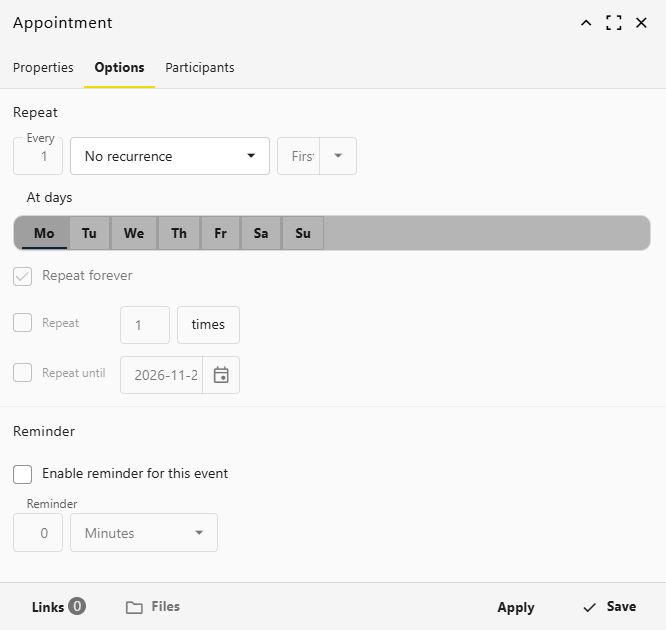
- Click the Options tab to configure recurrence or enable a reminder if needed.

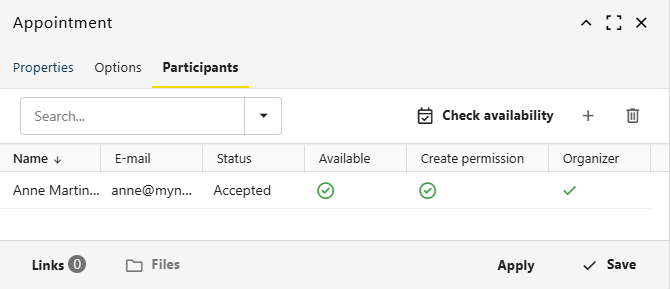
- Open the Participants tab and add the contacts you want to invite.

- Click Apply then Save to create the meeting.
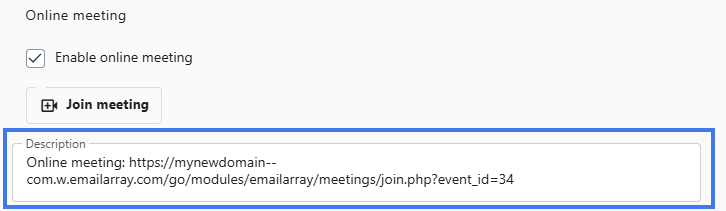
- After the appointment is saved, the meeting URL becomes available in the event details. You can share this link with other users so they can also join the meeting.
Starting a Meeting with a Contact
You can start a meeting directly from the contacts section when you want to connect with one person quickly. This option is useful for starting a conversation without creating a general appointment first.
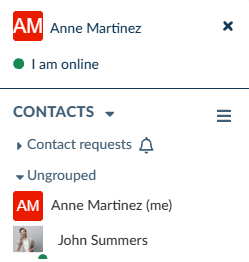
- Open the Contacts section.

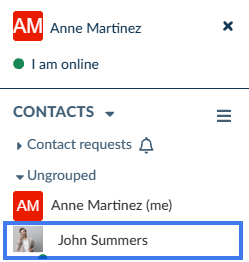
- Browse the contact list and select the person you want to contact.
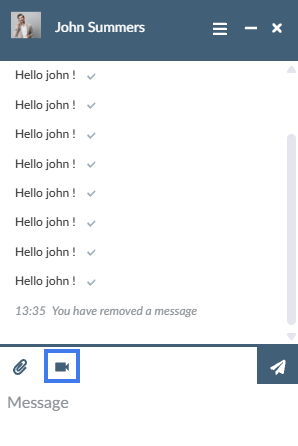
- Click the contact to open the chat window.

- In the lower part of the chat window, click the Video button.

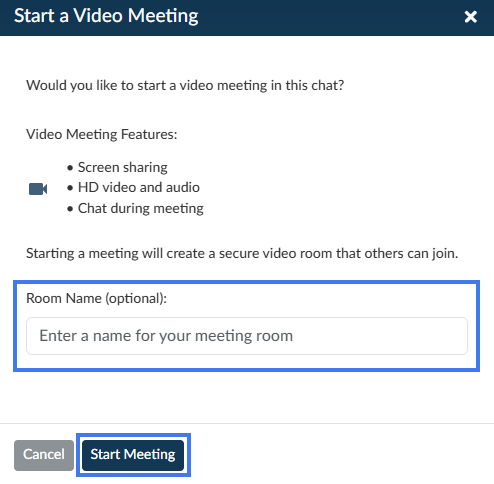
- Enter a room name for your meeting then press Start Meeting.

- Join the meeting and wait for the contact to join the session.