Getting Started: Accessing Chat & Meetings
This guide will help you get started with our new integrated Chat and Video Meetings feature within Webmail.
Good news! The Chat and Video Meetings feature is activated by default every time you log into your Webmail account. You'll find the chat panel conveniently located within the Webmail interface.
Building Your Contact List - How to Add a Contact
Upon your first login, your contacts list will be empty. You'll need to manually add people you wish to chat or meet with.
1. Locate the CONTACTS section in the chat panel.
2. Click on the three horizontal lines (hamburger menu) next to CONTACTS.
3. Select "Add a contact" from the dropdown menu.
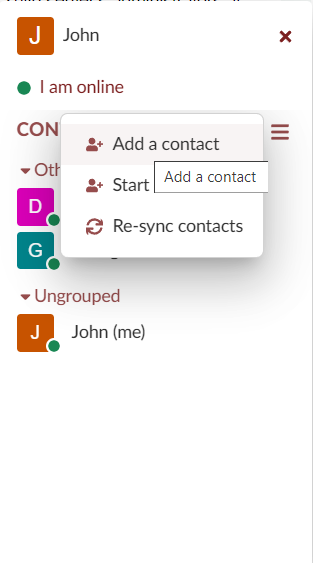
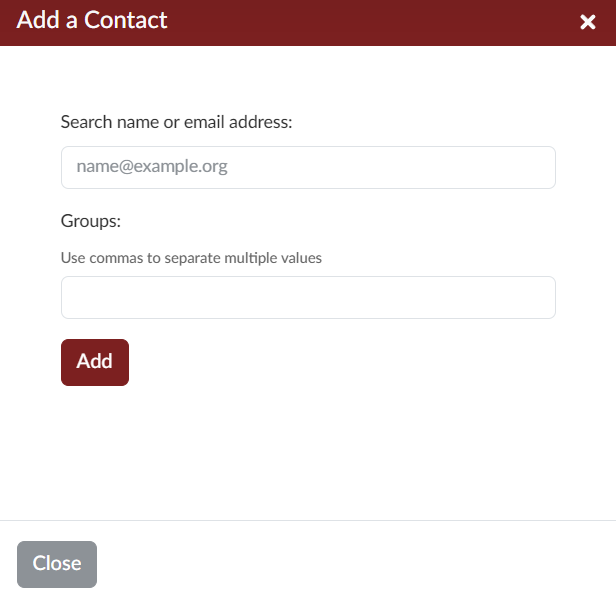
4. A new pop-up window will appear.
- For users within our organization: You can search for a contact by their name or email address.
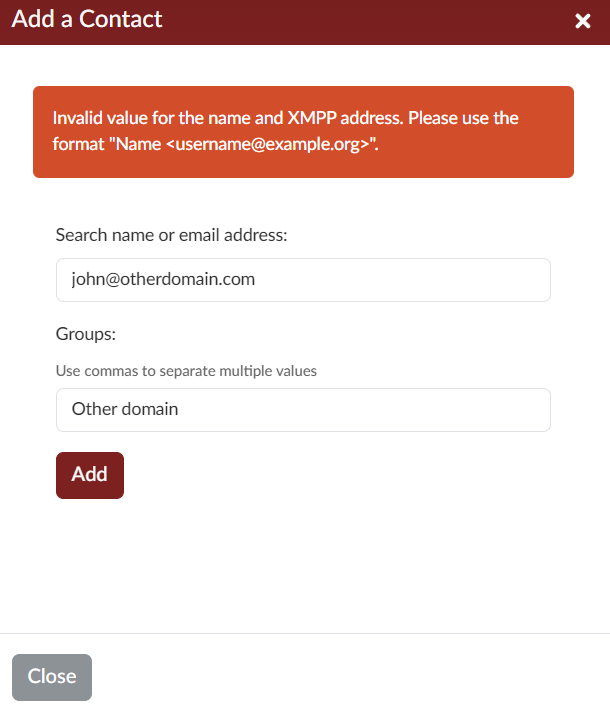
- For users from other domains (external users): These users may not appear in the search results. To add them, you must manually enter their details in the "Search name or email address" field using the following specific format:
FullName <email@otherdomain.com>For example:John Doe <john@otherdomain.com>You will see an error message "Invalid value for the name and XMPP address. Please use the format 'Name <username@example.org>'" if this format is not followed correctly for external users. - Optionally, you can assign the contact to a Group by typing group names, separated by commas if there are multiple.
- Click the Add button.
5. The contact will now appear in your list.
The other user must accept the invitation before you can chat with each other.
Important Note: If a user's name (from within our organization) appears in red during your search, it means they have not yet logged into their Webmail account, and their Chat account hasn't been enabled. You won't be able to add them as a contact until they log in for the first time. This does not apply to external domain users you are adding manually.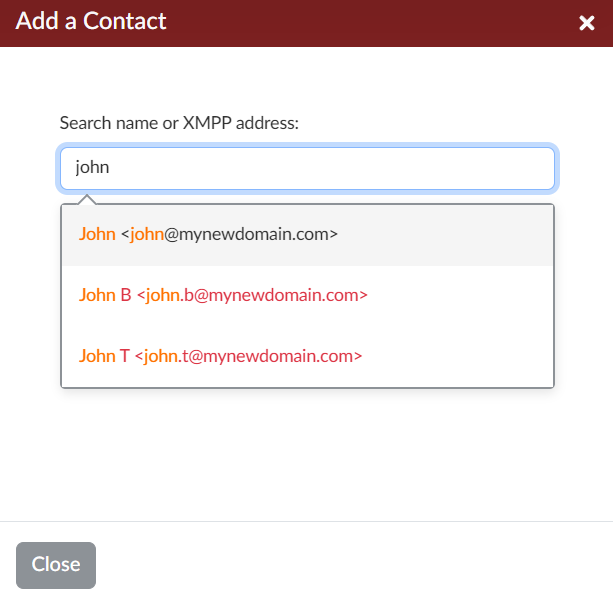
Starting a Chat
Once you have contacts in your list:
- Click on a contact's name in your CONTACTS list.
- A chat window will open, and you can start typing your message.
Starting a Video Meeting
You can easily initiate a video meeting with anyone in your Contacts list or even invite external participants.
How to Start a Video Meeting:
- Click on a contact's name in your CONTACTS list. A chat window will open.
- Click on the camera button. A new pop-up window will appear.
- Optional Room Name: You can give your meeting room a specific name if desired.
- Click the Start Meeting button
- Starting a meeting will create a secure video room and the link to this meeting room will be shared with your contact.
Meeting Link & Joining Options:
- Upon starting a video meeting, a unique meeting link will be generated.
- You can share this link with anyone you want to invite, even if they are not in your contact list.
- Flexible Timing: You can start the meeting immediately or use the link to begin at a later time.
- Integrated Experience:
- Conduct the meeting directly within the same Webmail window.
- Utilize the minimize/maximize options for the meeting pop-up window, allowing you to continue using Webmail simultaneously.
- Alternatively, you can choose to open the meeting in a new browser tab for a more focused view.