# Webmail - How To

Features available in our Webmail GroupOffice - available for **Basic** and **Enhanced** mailboxes.

To access your webmail you have a few options:

- Automatically, by adding a CNAME in your DNS: webmail.mydomain.com -&gt; webredirect.emailarray.com.
- Directly, by going to [login.emailarray.com](https://login.emailarray.com/).
- From the **Admin Panel**, **Users** page, click on the little envelope and you'll be redirected to your webmail. You can save the link for future reference.
- Manually: if your domain is **mydomain.com**, in your browser you can go to **mydomain--com***.w.emailarray.com*. Make sure you replace mydomain--com with your own domain name.

**[Webmail - How to access it](https://wikidev.emailarray.com/books/1-configure-a-new-e-mail-address-getting-started/page/webmail-access)**

# Webmail - Demo

[![Webmail Demo - example for branding.gif](https://wikidev.emailarray.com/uploads/images/gallery/2026-03/webmail-demo-example-for-branding.gif)](https://wikidev.emailarray.com/uploads/images/gallery/2026-03/webmail-demo-example-for-branding.gif)

# Webmail - Customization

#### Personalizing Your Webmail Experience

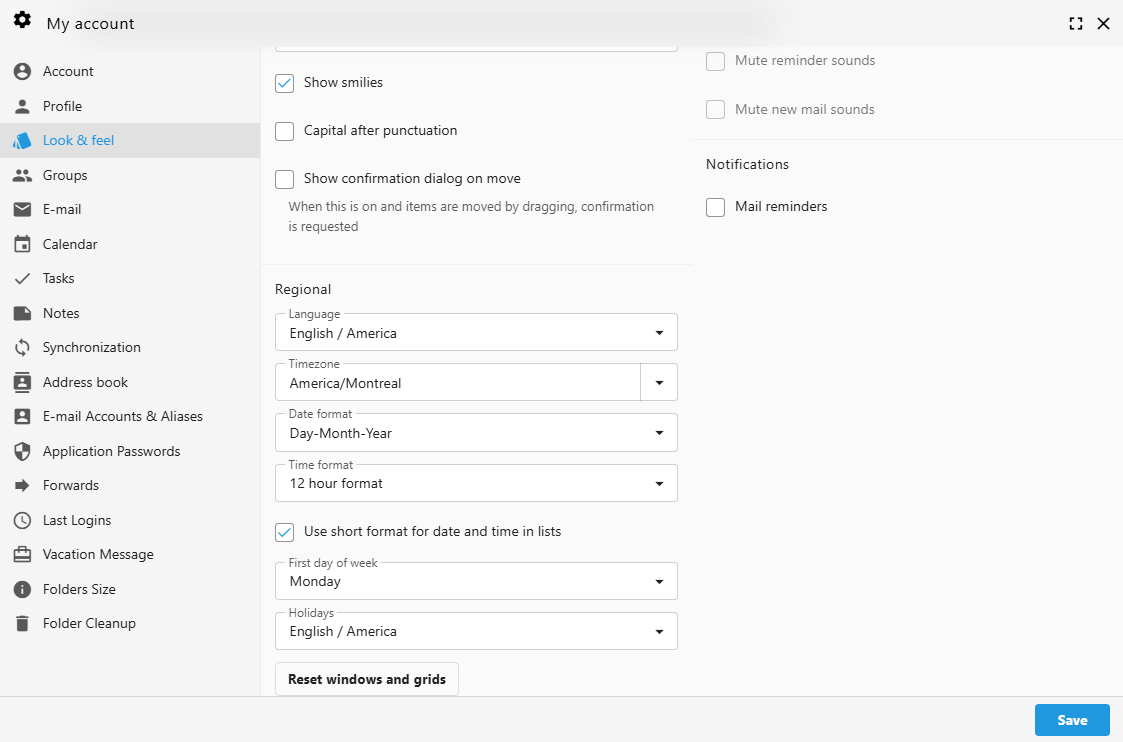
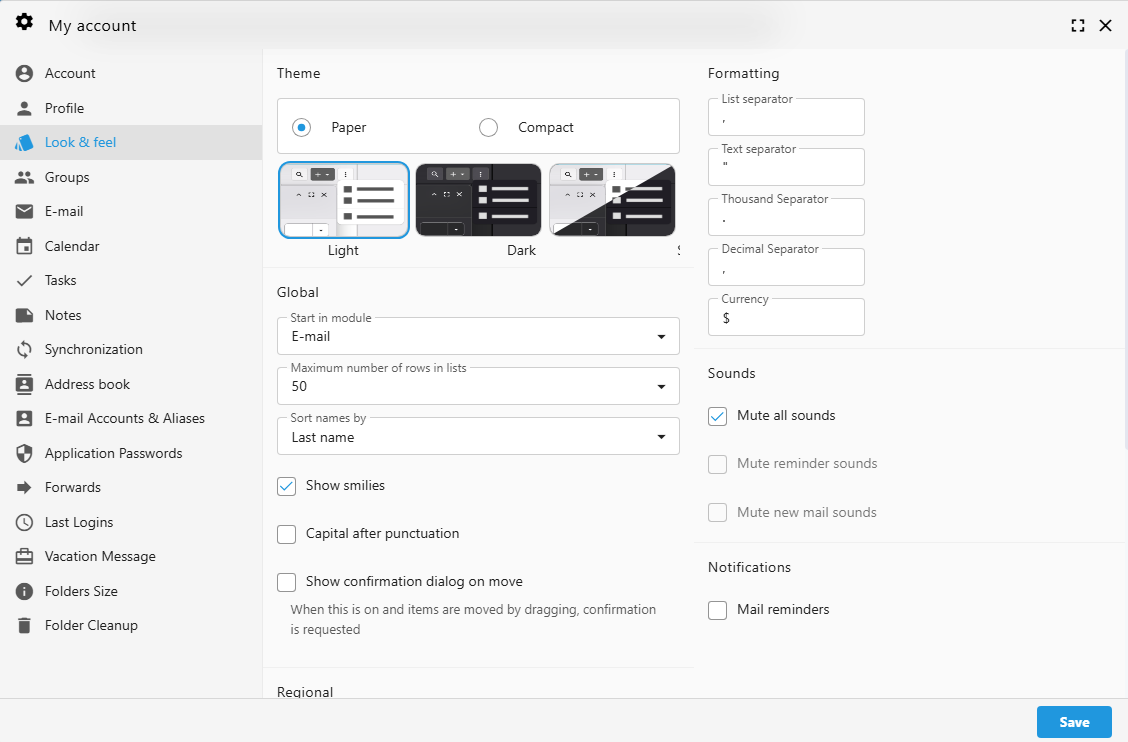
<span data-path-to-node="5,1"><span class="citation-23">We believe your inbox should work exactly the way you do</span></span><span data-path-to-node="5,2"><span class="citation-23 citation-end-23"><sup class="superscript" data-turn-source-index="1"></sup></span></span><span data-path-to-node="5,3">. While your administrator can set global defaults (like timezone and date formats) from the **Admin Panel -&gt; Settings -&gt; Localization**, you have full control over your personal "Look &amp; Feel" directly within the Webmail interface.</span>

<table border="1" id="bkmrk-" style="border-collapse: collapse; width: 100%;"><colgroup><col style="width: 50%;"></col><col style="width: 50%;"></col></colgroup><tbody><tr><td>[![Webmail - Customization.png](https://wikidev.emailarray.com/uploads/images/gallery/2026-01/scaled-1680-/webmail-customization.png)](https://wikidev.emailarray.com/uploads/images/gallery/2026-01/webmail-customization.png)</td><td>[![Webmail - Customization - 2.png](https://wikidev.emailarray.com/uploads/images/gallery/2026-01/scaled-1680-/webmail-customization-2.png)](https://wikidev.emailarray.com/uploads/images/gallery/2026-01/webmail-customization-2.png)</td></tr></tbody></table>

## Accessing Your Webmail Settings

To begin customizing your experience:

1. <span data-path-to-node="9,0,0,1"><span class="citation-22">Log in to your </span>**<span class="citation-22">Webmail</span>**<span class="citation-22"> account</span></span>
2. Click the **User Icon (Settings)** in the top right navigation bar.
3. Select **"My account"** from the menu.
4. Navigate to the **"Look &amp; feel"** tab in the left-hand sidebar.

---

### Visual Themes and Layout

Personalize the interface to match your workspace environment.

#### 1. Theme Selection

Choose a visual style that is easiest on your eyes:

- **Paper:** A classic, clean look for high readability.
- **Compact:** Reduces whitespace to show more information on the screen at once.
- **Mode:** Switch between **Light**, **Dark**, or **System** (which follows your device settings).

#### 2. Global Display Options

Fine-tune how you interact with your mail and lists:

- **Start in module:** Choose which app opens first (e.g., E-mail, Calendar, or Tasks).
- **Rows in lists:** Set the maximum number of items (up to 50) displayed per page.
- **Sort names by:** Organize your contacts by First or Last name.
- **Show smilies:** Enable or disable the conversion of text emoticons into graphics.

---

### Regional and Localization Settings

While these may be pre-configured by your administrator, you can override them to suit your specific location or preference.

- **Language:** Select your preferred interface language (e.g., English / America).
- **Timezone:** Ensure your calendar invites and timestamps are accurate (e.g., America/Montreal).
- **Date &amp; Time Format:** Choose between Day-Month-Year or Month-Day-Year, and 12-hour or 24-hour clocks.
- **First Day of Week:** Set your calendar to start on Sunday, Monday, or any day you prefer.

<p class="callout info">**Pro Tip:** If you've moved things around and want to return to the original layout, use the **"Reset windows and grids"** button at the bottom of the page.</p>

---

### Notifications and Sounds

Manage how your Webmail alerts you to new activity.

- **Mute all sounds:** Silence all audio alerts with one click.
- **Individual Toggles:** Specifically mute reminder sounds or new mail alerts.
- **Mail Reminders:** Enable browser-based notifications to stay updated even when the tab isn't active.

---

### Formatting and Separators

For users dealing with international data or specific spreadsheet needs, you can customize how numbers and lists are displayed:

## Other Webmail Personalization

####  

### Customizing Your Message List

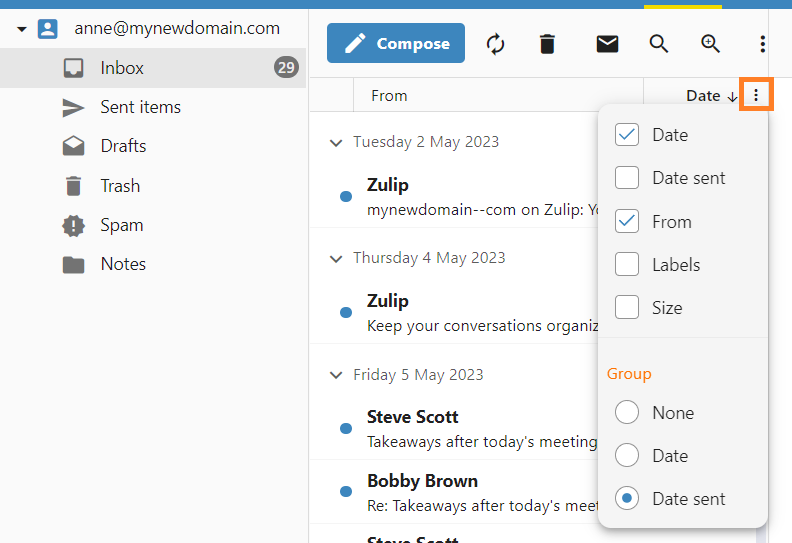
[![webmail - message list - visible columns and group by.png](https://wikidev.emailarray.com/uploads/images/gallery/2026-03/scaled-1680-/webmail-message-list-visible-columns-and-group-by.png)](https://wikidev.emailarray.com/uploads/images/gallery/2026-03/webmail-message-list-visible-columns-and-group-by.png)
#### Visible Columns

The message list can be tailored to show only the information that matters most to you. You can add or remove columns to change how much detail is visible at a glance.

- **Open the Options Menu:** Click the **three vertical dots** in the header of your message list, next to **Date** column.
- **Toggle Information:** Check or uncheck the boxes next to the available fields, such as **Date**, **From**, **Labels**, or **Size**.
- **Instant Update:** The list will refresh immediately, showing your selected columns and helping you manage your inbox more efficiently.

#### Managing How Emails are Grouped

By default, your messages are organized into chronological groups to help you navigate your inbox quickly. You can change this behavior or disable grouping entirely to see a continuous list of emails.

**To change your grouping preferences:**

- **Open the Options Menu:** Click the **three vertical dots** in the header of your message list, next to **Date** column.
- **Select Your View:**
    
    
    - **None:** Select this to remove all separators for a single, continuous list of messages.
    - **Date:** Groups messages based on the day they were received.
    - **Date sent:** Groups messages based on when they were officially sent.

# Webmail - Folders management

Find out how to subscribe to a Folder to make it show in your e-mail folder list, how to unsubscribe from a Folder and hide it or how to create a new folder.

### Step-by-step guide

#### Subscribe to a Folder

Subscribing to a folder will make it show in your e-mail folder list (usually on the left side of your Webmail or e-mail client). Some e-mail clients will show by default all folders, even the unsubscribed ones.

To **subscribe to a folder**, log in to your Webmail and

- Go to the **E-mail** tab.
- Right-click on the folders list on the left side of your panel
- Click on the **Subscribe to folders** option to access the Folder settings

[![Webmail - Email tab - Folders advanced menu.jpg](https://wikidev.emailarray.com/uploads/images/gallery/2024-08/scaled-1680-/webmail-email-tab-folders-advanced-menu.jpg)](https://wikidev.emailarray.com/uploads/images/gallery/2024-08/webmail-email-tab-folders-advanced-menu.jpg)
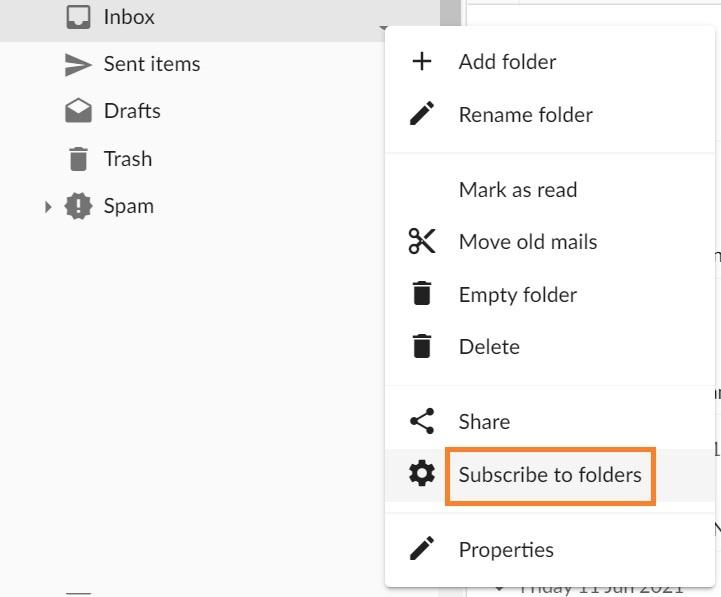
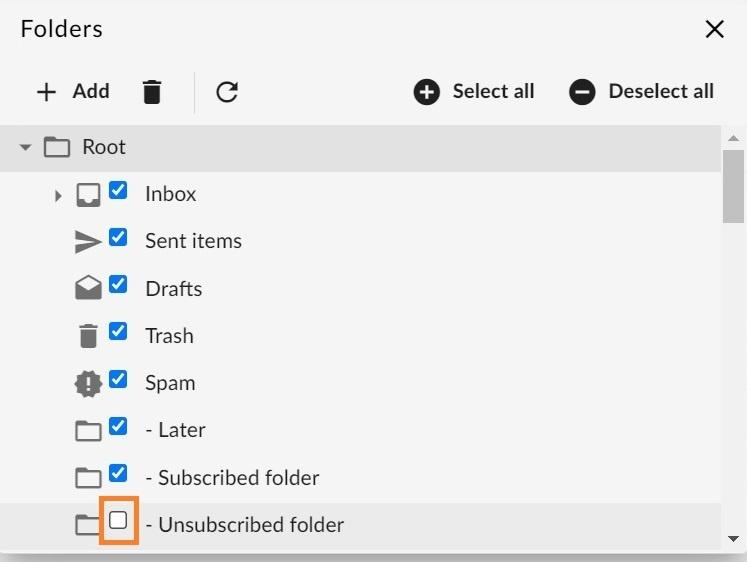
- Find the folder in the list
- Select the checkmark next to the desired folder (if a folder is checked, you are subscribed to that folder).

[![Webmail - Email tab - subscribe to folder.jpg](https://wikidev.emailarray.com/uploads/images/gallery/2024-08/scaled-1680-/webmail-email-tab-subscribe-to-folder.jpg)](https://wikidev.emailarray.com/uploads/images/gallery/2024-08/webmail-email-tab-subscribe-to-folder.jpg)
#### Unsubscribe from a Folder

Unsubscribing from a folder will hide it from your e-mail folder list (usually on the left side of your Webmail or e-mail client). Some e-mail clients will show by default all folders, even the unsubscribed ones.

To **unsubscribe to a folder**, log in to your Webmail and

- Go to the **E-mail** tab.
- Right-click on the folders list on the left side of your panel
- Click on the **Subscribe to folders** option to access the Folder settings

 [![Webmail - Email tab - Folders advanced menu (3).jpg](https://wikidev.emailarray.com/uploads/images/gallery/2024-08/scaled-1680-/webmail-email-tab-folders-advanced-menu-3.jpg)](https://wikidev.emailarray.com/uploads/images/gallery/2024-08/webmail-email-tab-folders-advanced-menu-3.jpg)
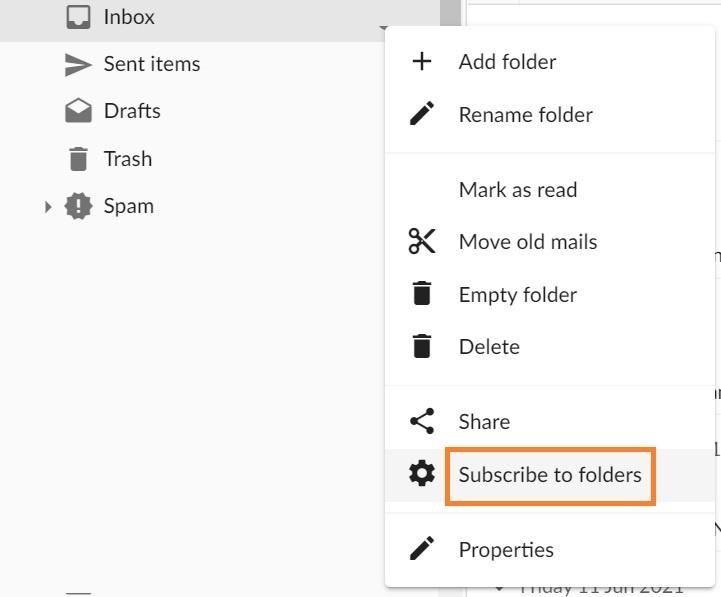
- Find the folder in the list
- Select the checkmark next to the desired folder to unsubscribe (if a folder is unchecked, you are unsubscribed from that folder).

<span class="confluence-embedded-file-wrapper confluence-embedded-manual-size">![](https://wiki.emailarray.com/download/attachments/51544101/Webmail%20-%20Email%20tab%20-%20unsubscribe%20from%20folder.jpg?version=1&modificationDate=1646242137000&api=v2)</span>

#### Add a Folder

The easiest way to **add a new folder** to your mailbox is from the E-mail tab.

Log in to your Webmail and

- Go to the **E-mail** tab.
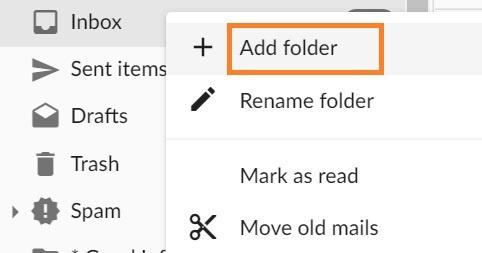
- Right-click on the folders list on the left side of the panel
- Click on the **Add folder** option from the menu
- Enter the folder name and click on the **OK** button.

 [![Webmail - Email tab - add folder.jpg](https://wikidev.emailarray.com/uploads/images/gallery/2024-08/scaled-1680-/webmail-email-tab-add-folder.jpg)](https://wikidev.emailarray.com/uploads/images/gallery/2024-08/webmail-email-tab-add-folder.jpg)
Another option to **add a new folder** is from the **Folders** advanced menu. To access it, log in to your Webmail and

- Go to the **E-mail** tab.
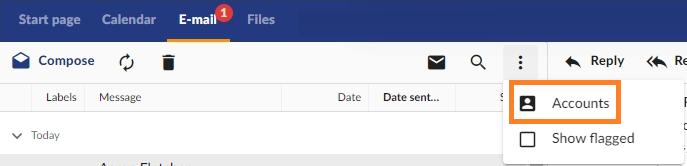
- Click on the **three dots** button on the right of the email panel and then click on **Accounts.**

 **[![webmail - Email tab - email account settings.png](https://wikidev.emailarray.com/uploads/images/gallery/2024-08/scaled-1680-/webmail-email-tab-email-account-settings.png)](https://wikidev.emailarray.com/uploads/images/gallery/2024-08/webmail-email-tab-email-account-settings.png)**
- **Double click** the desired email account
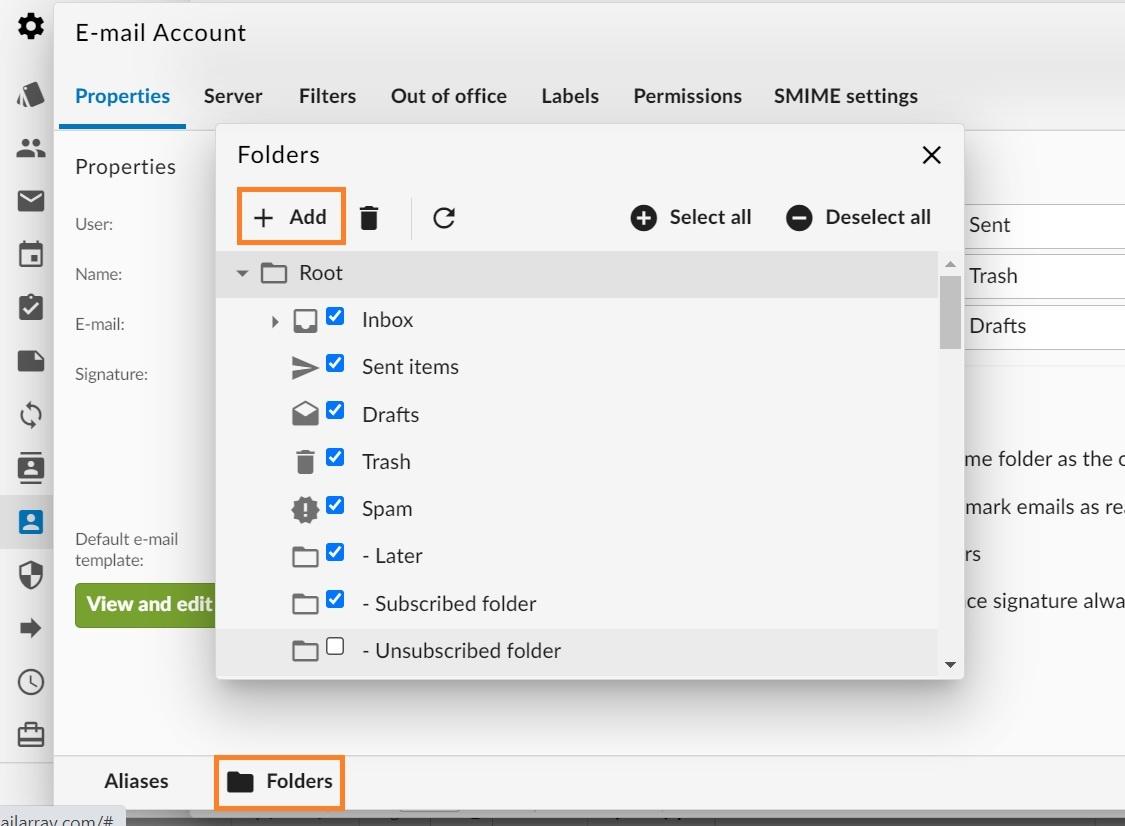
- Click on the **Folders** button
- Click on the **Add** button

 [![Webmail - Email tab - email account properties - Folders - add folder.jpg](https://wikidev.emailarray.com/uploads/images/gallery/2024-08/scaled-1680-/webmail-email-tab-email-account-properties-folders-add-folder.jpg)](https://wikidev.emailarray.com/uploads/images/gallery/2024-08/webmail-email-tab-email-account-properties-folders-add-folder.jpg)
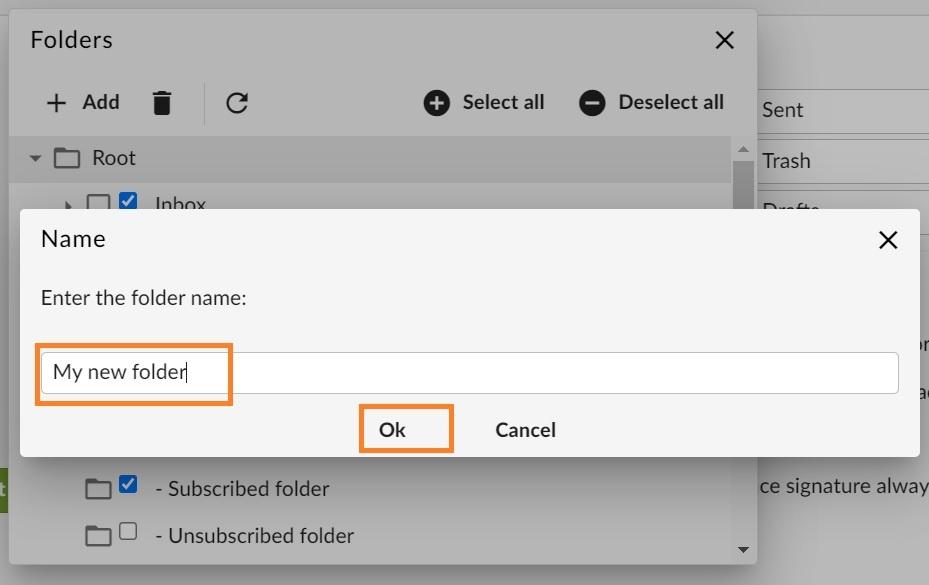
- Enter the folder name and click on the **OK** button to create the folder.

[![Webmail - Email tab - email account properties - Folders - enter the folder name.jpg](https://wikidev.emailarray.com/uploads/images/gallery/2024-08/scaled-1680-/webmail-email-tab-email-account-properties-folders-enter-the-folder-name.jpg)](https://wikidev.emailarray.com/uploads/images/gallery/2024-08/webmail-email-tab-email-account-properties-folders-enter-the-folder-name.jpg)
# Webmail - Send as Alias

When you have one or more Aliases for your email address, you might want to be able to send from one of the Aliases. This is possible by adding the Alias to your Webmail.

### Step-by-step guide

<div class="confluence-information-macro confluence-information-macro-information conf-macro output-block" data-hasbody="true" data-macro-name="info" id="bkmrk-you-must-create-the-"><div class="confluence-information-macro-body">You must create the Alias before adding it to the Webmail.</div></div>After you log in to your Webmail,

- Go to the **E-mail** tab.
- Click on the **three dots** button on the right of the email panel and then click on **Accounts.**

[![webmail - Email tab - email account settings.png](https://wikidev.emailarray.com/uploads/images/gallery/2024-08/scaled-1680-/c4Dwebmail-email-tab-email-account-settings.png)](https://wikidev.emailarray.com/uploads/images/gallery/2024-08/c4Dwebmail-email-tab-email-account-settings.png)

- **Double click** the email account that has the Alias.
- Click on the **Aliases** button.

[![webmail - Email tab - email account properties.jpg](https://wikidev.emailarray.com/uploads/images/gallery/2024-08/scaled-1680-/webmail-email-tab-email-account-properties.jpg)](https://wikidev.emailarray.com/uploads/images/gallery/2024-08/webmail-email-tab-email-account-properties.jpg)

- **Fill in** the Alias information: 
    - **Name**: the name you want to appear in your "From" field
    - **Email**: your full Alias address
    - **Signature**: is optional

[![webmail - Email tab - add alias account.png](https://wikidev.emailarray.com/uploads/images/gallery/2024-08/scaled-1680-/webmail-email-tab-add-alias-account.png)](https://wikidev.emailarray.com/uploads/images/gallery/2024-08/webmail-email-tab-add-alias-account.png)

- Click on the **Save** button.

# Webmail - Signature: create, load and set one as default

When you want to end your emails with a custom greeting or add your company info and logo, you can add a default signature in your GroupOffice webmail.

### Step-by-step guide

After you log in to your Webmail:

### Create a signature

- Click on your profile image and select **My Account** from the menu:

[![webmail GroupOffice - go to My Account settings.jpg](https://wikidev.emailarray.com/uploads/images/gallery/2024-08/scaled-1680-/webmail-groupoffice-go-to-my-account-settings.jpg)](https://wikidev.emailarray.com/uploads/images/gallery/2024-08/webmail-groupoffice-go-to-my-account-settings.jpg)

- From the left pane, click on the **Email** tab and scroll to the **Templates** section. Click on the **Add** button to create a new one.

[![webmail GroupOffice - Email - add a new Template for email signatures.jpg](https://wikidev.emailarray.com/uploads/images/gallery/2024-08/scaled-1680-/webmail-groupoffice-email-add-a-new-template-for-email-signatures.jpg)](https://wikidev.emailarray.com/uploads/images/gallery/2024-08/webmail-groupoffice-email-add-a-new-template-for-email-signatures.jpg)

- Create your signature and copy-paste your logo. If you want to edit the <u>HTML source code</u> of the signature, you will find this option when you click the three dots.
- You can use the values from the right tab (**Autodata**) to personalize your message.
- Click on the **Save** button when you are finished.

[![webmail GroupOffice - Email - create the Template for email signatures.jpg](https://wikidev.emailarray.com/uploads/images/gallery/2024-08/scaled-1680-/webmail-groupoffice-email-create-the-template-for-email-signatures.jpg)](https://wikidev.emailarray.com/uploads/images/gallery/2024-08/webmail-groupoffice-email-create-the-template-for-email-signatures.jpg)

### Load a signature or set one as default

- In the webmail, from the **Compose** email window, click on the **Templates** icon (the last icon before the three dots).
- Select one of the signatures to load it in the message.
- Click on the **Set current template as default for this email account** option to make it the default one.

[![webmail GroupOffice - Email - load the Template as email signature and make it default.jpg](https://wikidev.emailarray.com/uploads/images/gallery/2024-08/scaled-1680-/webmail-groupoffice-email-load-the-template-as-email-signature-and-make-it-default.jpg)](https://wikidev.emailarray.com/uploads/images/gallery/2024-08/webmail-groupoffice-email-load-the-template-as-email-signature-and-make-it-default.jpg)

# CalDAV / CardDAV allow delete via Synchronization

<table border="1" id="bkmrk-the-caldav-%2F-carddav" style="font-family: var(--font-body); font-size: 14px; width: 100%;"><colgroup><col style="width: 99.881%;"></col></colgroup><tbody><tr><td>The CalDAV / CardDAV features are available only for Enhanced mailboxes.</td></tr></tbody></table>

Due to a bug in Android 12 some phones started to delete contacts via Microsoft ActiveSync. Therefore, GroupOffice has implemented a new CalDAV / CardDAV setting that disallows deletes via sync by default now. More info on the bug can be found here: [https://eu.community.samsung.com/t5/galaxy-z-fold-z-flip/outlook-contacts-gone-after-android-12-update/td-p/4567744/page/2](https://eu.community.samsung.com/t5/galaxy-z-fold-z-flip/outlook-contacts-gone-after-android-12-update/td-p/4567744/page/2).

<table border="1" id="bkmrk-because-this-option-" style="border-collapse: collapse; width: 100%;"><colgroup><col style="width: 99.881%;"></col></colgroup><tbody><tr><td>Because this option is disabled by default, you might now receive this error in your CalDAV / CardDAV client:

**Deleting is disabled by user sync settings**

</td></tr></tbody></table>

### To enable delete via synchronization:

- Go to the **[Webmail](https://wiki.emailarray.com/display/Support/Webmail+client)**
- Log in using your full **e-mail address** and your **current e-mail password**
- Click on the **User** icon from the top right to activate the menu. Then click on **My account**

[![Webmail - how to access advanced settings for your email account.jpg](https://wikidev.emailarray.com/uploads/images/gallery/2024-08/scaled-1680-/etxwebmail-how-to-access-advanced-settings-for-your-email-account.jpg)](https://wikidev.emailarray.com/uploads/images/gallery/2024-08/etxwebmail-how-to-access-advanced-settings-for-your-email-account.jpg)

- In the **Synchronization** tab, find the **Allow delete via synchronization** section.

[![Webmail User Settings - Synchronization - CalDAV CardDAV allow delete.png](https://wikidev.emailarray.com/uploads/images/gallery/2024-08/scaled-1680-/webmail-user-settings-synchronization-caldav-carddav-allow-delete.png)](https://wikidev.emailarray.com/uploads/images/gallery/2024-08/webmail-user-settings-synchronization-caldav-carddav-allow-delete.png)

- Enable the feature using the checkmark
- Click on the **Save** button.

# Webmail - mark email as Spam or block a sender

Sometimes you might receive unsolicited emails that you wish to mark as Spam. You can do so straight from the Webmail interface. Our system will be trained to mark future emails from this sender as Spam, and all such emails will be delivered to your Spam folder.

If you wish to block a sender completely, you can further use the option to Blacklist it, and all incoming emails from that sender will be rejected.

### Mark email as Spam

After you log in to your Webmail:

- From the **Inbox**, right-click on the unsolicited email.
- Click on the **Move to spam** **folder** option to mark the email as Spam.
- All incoming emails from this sender will be marked as Spam and delivered to your Spam folder.

 [![Webmail - move to Spam.jpg](https://wikidev.emailarray.com/uploads/images/gallery/2024-08/scaled-1680-/webmail-move-to-spam.jpg)](https://wikidev.emailarray.com/uploads/images/gallery/2024-08/webmail-move-to-spam.jpg)

###  

### Block a sender

After you log in to your Webmail:

- From the **Spam** folder, right-click on the Spam email you wish to block completely.
- Click on the **Blacklist** option to block the sender.
- All incoming emails from this sender will be rejected, and no copy will ever be saved on our side.

 [![Webmail - blacklist a sender.jpg](https://wikidev.emailarray.com/uploads/images/gallery/2024-08/scaled-1680-/webmail-blacklist-a-sender.jpg)](https://wikidev.emailarray.com/uploads/images/gallery/2024-08/webmail-blacklist-a-sender.jpg)

# Webmail - mark email as legit (Not Spam)

If our system has marked an incoming email as Spam, but you are sure it is a legit email, you can whitelist the sender straight from the Webmail.

### Mark email as legit (Not Spam)

After you log in to your Webmail:

- From the **Spam** folder, right-click on the Spam email you wish to mark as legit.
- Click on the **Move to Inbox folder** option to whitelist the sender.
- All incoming emails from this sender will be delivered to your Inbox (or another folder if you have set up a rule).

 [![Webmail - not Spam - mark email as legit.jpg](https://wikidev.emailarray.com/uploads/images/gallery/2024-08/scaled-1680-/webmail-not-spam-mark-email-as-legit.jpg)](https://wikidev.emailarray.com/uploads/images/gallery/2024-08/webmail-not-spam-mark-email-as-legit.jpg)

If you have whitelisted a sender, but incoming emails are still delivered to your Spam folder, [make sure there is no Blacklist entry for this sender or domain](https://wikidev.emailarray.com/books/3-admin-panel-manage-users-domains-aliases-and-more/page/manage-whitelists-and-blacklists).

# Chat and Video Meetings

This guide will help you get started with our new integrated Chat and Video Meetings feature within Webmail.

# Getting Started: Accessing Chat & Meetings

This guide will help you get started with our new integrated Chat and Video Meetings feature within Webmail.

Good news! The Chat and Video Meetings feature is **activated by default** every time you log into your Webmail account. You'll find the chat panel conveniently located within the Webmail interface.

### Building Your Contact List - How to Add a Contact


Upon your first login, your contacts list will be empty. You'll need to manually add people you wish to chat or meet with.

1\. Locate the **CONTACTS** section in the chat panel.

2\. Click on the **three horizontal lines (hamburger menu)** next to CONTACTS.

3\. Select "**Add a contact**" from the dropdown menu.

 [![Chat - click on add a contact.PNG](https://wikidev.emailarray.com/uploads/images/gallery/2025-06/scaled-1680-/chat-click-on-add-a-contact.PNG)](https://wikidev.emailarray.com/uploads/images/gallery/2025-06/chat-click-on-add-a-contact.PNG)

4\. A new pop-up window will appear.

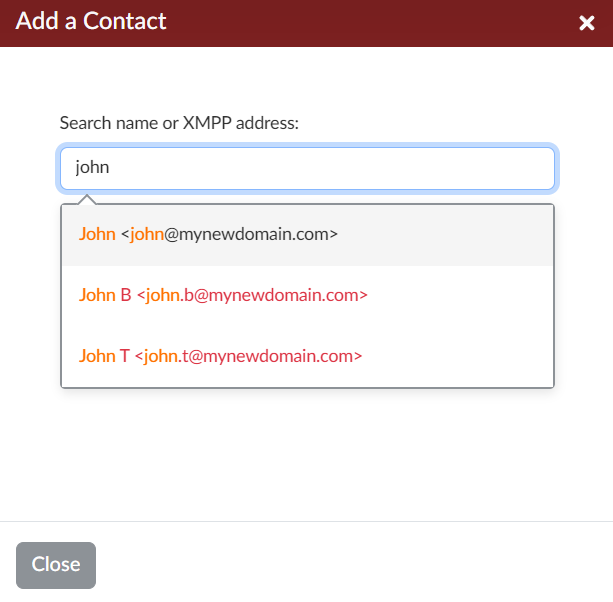
- **For users within our organization:** You can **search for a contact by their name or email address**.
- **For users from other domains (external users):** These users may not appear in the search results. To add them, you must manually enter their details in the "Search name or email address" field using the following specific format: **`FullName <email@otherdomain.com>`** For example: `John Doe <john@otherdomain.com>` *You will see an error message "Invalid value for the name and XMPP address. Please use the format 'Name &lt;username@example.org&gt;'" if this format is not followed correctly for external users.*
- Optionally, you can assign the contact to a **Group** by typing group names, separated by commas if there are multiple.
- Click the **Add** button.

[![Chat - add a contact pop-up window.PNG](https://wikidev.emailarray.com/uploads/images/gallery/2025-06/scaled-1680-/chat-add-a-contact-pop-up-window.PNG)](https://wikidev.emailarray.com/uploads/images/gallery/2025-06/chat-add-a-contact-pop-up-window.PNG)[![Chat - add users from other domains.PNG](https://wikidev.emailarray.com/uploads/images/gallery/2025-06/scaled-1680-/chat-add-users-from-other-domains.PNG)](https://wikidev.emailarray.com/uploads/images/gallery/2025-06/chat-add-users-from-other-domains.PNG)

5\. The contact will now appear in your list.

<p class="callout info">The other user must accept the invitation before you can chat with each other.</p>

<p class="callout warning">**Important Note:** If a user's name (from within our organization) appears in **red** during your search, it means they have not yet logged into their Webmail account, and their Chat account hasn't been enabled. You won't be able to add them as a contact until they log in for the first time. This does not apply to external domain users you are adding manually.  
[![Chat - search for a new contact.PNG](https://wikidev.emailarray.com/uploads/images/gallery/2025-06/scaled-1680-/chat-search-for-a-new-contact.PNG)](https://wikidev.emailarray.com/uploads/images/gallery/2025-06/chat-search-for-a-new-contact.PNG)</p>
### Starting a Chat

Once you have contacts in your list:

1. Click on a contact's name in your **CONTACTS** list.
2. A chat window will open, and you can start typing your message.

### Starting a Video Meeting

You can easily initiate a video meeting with anyone in your Contacts list or even invite external participants.

**How to Start a Video Meeting:**

1. Click on a contact's name in your **CONTACTS** list. A chat window will open.
2. Click on the camera button. A new pop-up window will appear. 
    - **Optional Room Name:** You can give your meeting room a specific name if desired.
    - Click the **Start Meeting** button
3. Starting a meeting will create a secure video room and the link to this meeting room will be shared with your contact.

**Meeting Link &amp; Joining Options:**

- Upon starting a video meeting, a unique **meeting link** will be generated.
- You can share this link with anyone you want to invite, **even if they are not in your contact list**.
- **Flexible Timing:** You can start the meeting immediately or use the link to begin at a later time.
- **Integrated Experience:**
    - Conduct the meeting directly **within the same Webmail window**.
    - Utilize the **minimize/maximize** options for the meeting pop-up window, allowing you to continue using Webmail simultaneously.
    - Alternatively, you can choose to **open the meeting in a new browser tab** for a more focused view.

# Video Meetings Features

Our video meetings are packed with useful features to enhance your collaboration:

- **HD Video and Audio:** Experience clear and high-quality communication.
- **Screen Sharing:** Easily share your entire screen or specific application windows with participants.
- **Chat During Meeting:** Continue the conversation with text-based chat within the meeting interface.
- **Recording:** Capture your meeting for later reference (if enabled).
- **Security Features:**
    - **Password Protect:** Secure your meeting by setting a password.
    - **Lobby (Manual Approval):** Control who enters by enabling a lobby where participants wait for moderator approval.
- **Moderator Controls:** Grant moderator rights to other participants to help manage the meeting.

# Using Chat and Meetings on Other Apps (XMPP)

You can also connect your Webmail chat and meeting account to other desktop or mobile applications that support the **XMPP protocol** (e.g., Thunderbird, eM Client).

**Login Details for XMPP Apps:**

- **Username/JID:** Your full Webmail email address
- **Password:** Your Webmail password
- Server Host name: xmpp.emailarray.com

### Connecting Your Chat Account to eM Client (XMPP)

You can integrate your Webmail chat directly into the eM Client application. Follow these steps to set it up:

**1. Open eM Client Account Settings:**

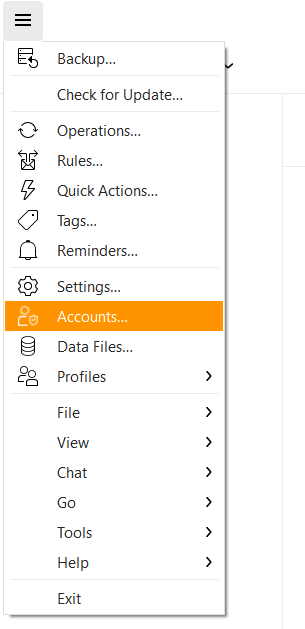
- In eM Client, click on the **Menu** icon (usually three horizontal lines) in the top-left corner.
- Select "**Accounts...**" from the dropdown menu.

[![eM Client - go to Accounts.PNG](https://wikidev.emailarray.com/uploads/images/gallery/2025-06/scaled-1680-/em-client-go-to-accounts.PNG)](https://wikidev.emailarray.com/uploads/images/gallery/2025-06/em-client-go-to-accounts.PNG)
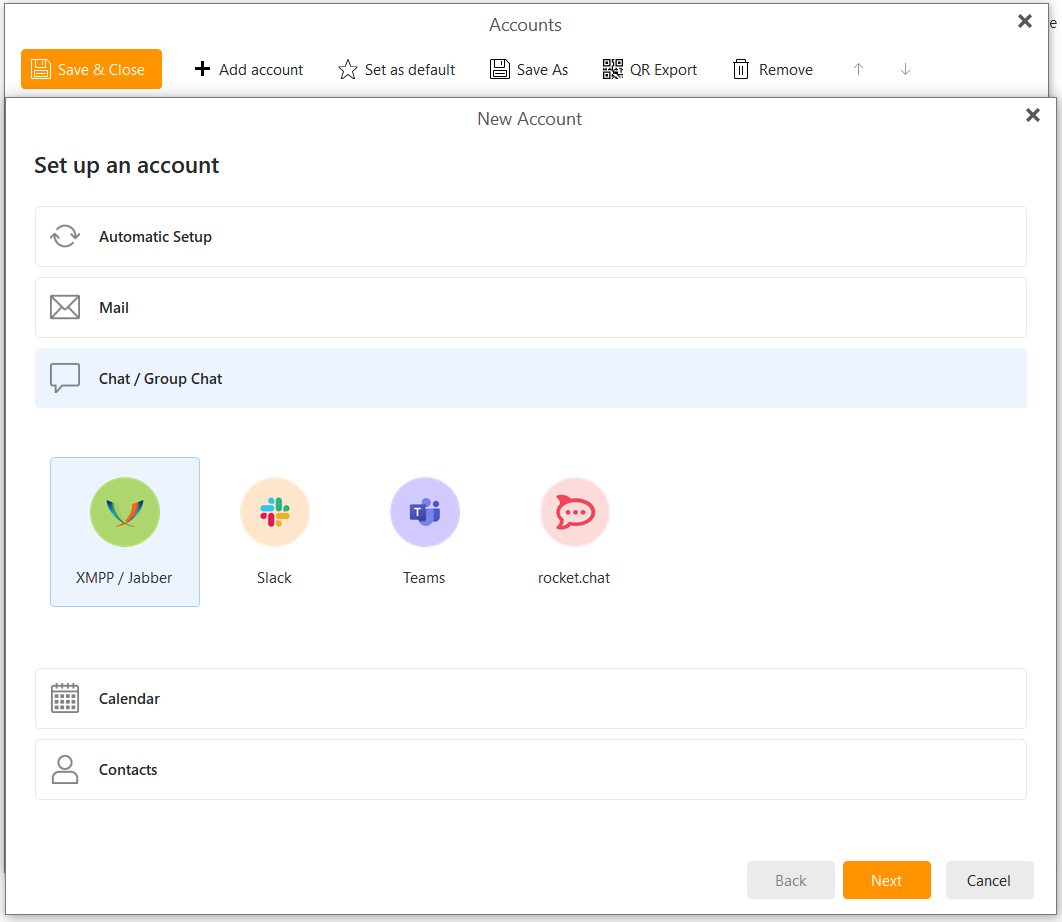
**2. Add a New Chat Account:**

- In the "Accounts" window, click on the "**+ Add account**" button.
- Under "Set up an account," choose "**Chat / Group Chat**."
- From the options provided, select "**XMPP / Jabber**."
- Click the "**Next**" button.

[![eM Client - go to add account and select new Chat Group Chat - new XMPP Jabber account.PNG](https://wikidev.emailarray.com/uploads/images/gallery/2025-06/scaled-1680-/em-client-go-to-add-account-and-select-new-chat-group-chat-new-xmpp-jabber-account.PNG)](https://wikidev.emailarray.com/uploads/images/gallery/2025-06/em-client-go-to-add-account-and-select-new-chat-group-chat-new-xmpp-jabber-account.PNG)
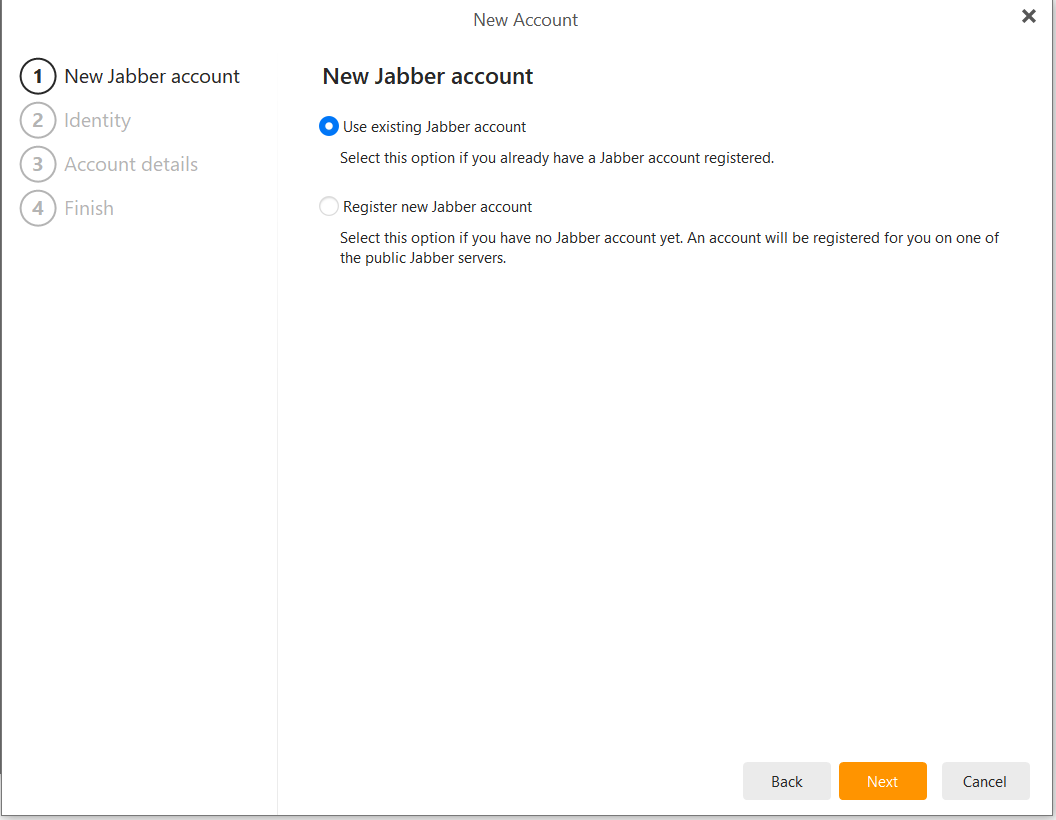
**3. Specify New Jabber Account:**

- On the "New Jabber account" screen, ensure the option "**Use existing Jabber account**" is selected. This indicates you already have a chat account through Webmail.
- Click the "**Next**" button

[![eM Client XMPP - use existing.PNG](https://wikidev.emailarray.com/uploads/images/gallery/2025-06/scaled-1680-/em-client-xmpp-use-existing.PNG)](https://wikidev.emailarray.com/uploads/images/gallery/2025-06/em-client-xmpp-use-existing.PNG)
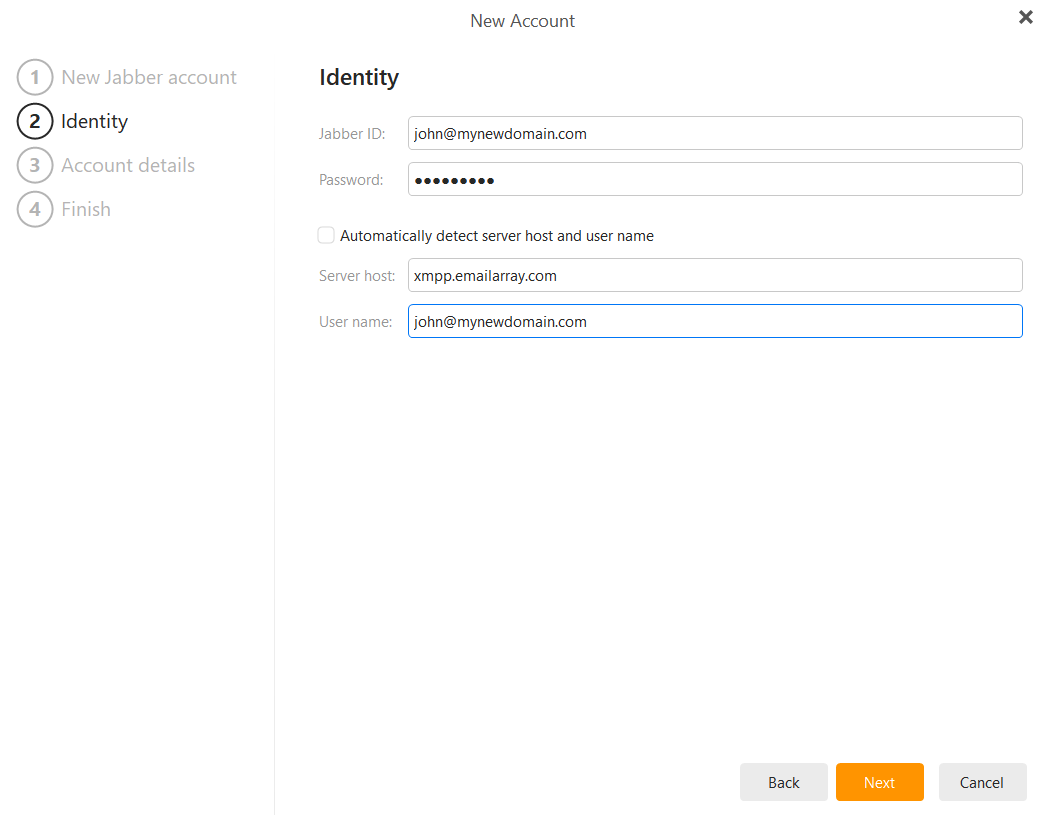
**4. Enter Your Account Credentials (Identity):**

You will now be on the "Identity" screen. Fill in the following details:

- **Jabber ID:** Enter your **full Webmail email address** (e.g., `john@mynewdomain.com`).
- **Password:** Enter your **Webmail password**.
- **Server host:**
- Uncheck the box for "Automatically detect server host and user name" if it is checked. This will allow you to enter the server information manually.
- Enter the XMPP server address: `xmpp.emailarray.com`.
- **User name:** Enter your **full Webmail email address** (e.g., `john@mynewdomain.com`).

[![eM Client XMPP - credentials and host.PNG](https://wikidev.emailarray.com/uploads/images/gallery/2025-06/scaled-1680-/em-client-xmpp-credentials-and-host.PNG)](https://wikidev.emailarray.com/uploads/images/gallery/2025-06/em-client-xmpp-credentials-and-host.PNG)
**5. Finalize Setup:**

- After entering all the identity and server details, click the "**Next**" button.
- Review the summary if provided, and then click the "**Finish**" button to complete the setup.

Your Webmail chat account should now be configured in eM Client. You will be able to send and receive messages, see your contacts directly within the application and add new ones.

### Connecting Your Chat Account to Mozilla Thunderbird (XMPP)

You can use your Webmail chat directly within Mozilla Thunderbird. Follow these steps to configure it:

**1. Access the Chat Feature:**

- In Thunderbird, locate and click on the "**Chat**" icon or tab. This is typically found in the main toolbar area or alongside your Inbox and Calendar tabs.

[![Thunderbird - step 1- click on Chat.PNG](https://wikidev.emailarray.com/uploads/images/gallery/2025-06/scaled-1680-/thunderbird-step-1-click-on-chat.PNG)](https://wikidev.emailarray.com/uploads/images/gallery/2025-06/thunderbird-step-1-click-on-chat.PNG)

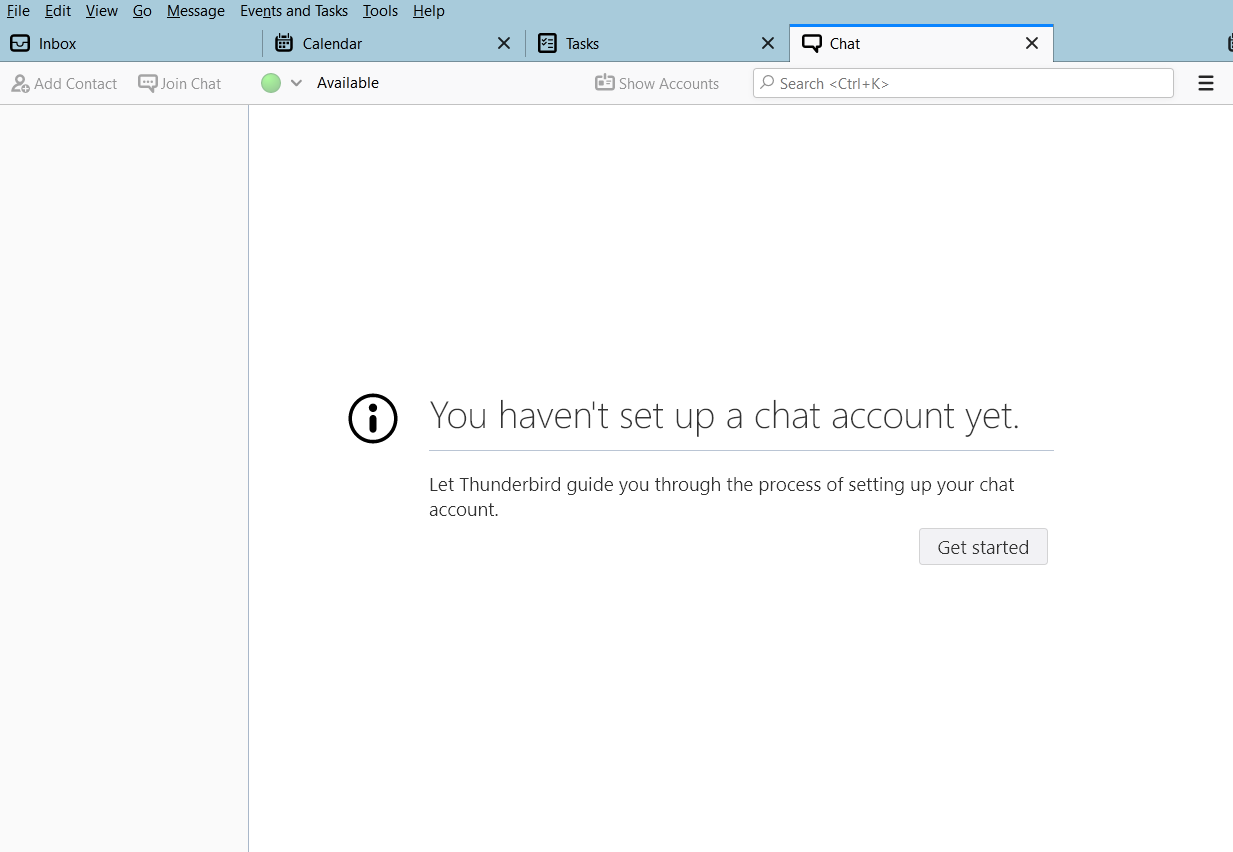
**2. Begin Chat Account Setup:**

- If you haven't set up a chat account in Thunderbird before, you'll see a message saying, "You haven't set up a chat account yet."
- Click the "**Get started**" button to open the Chat Account Wizard.

[![Thunderbird - step 2 - click on get started.PNG](https://wikidev.emailarray.com/uploads/images/gallery/2025-06/scaled-1680-/thunderbird-step-2-click-on-get-started.PNG)](https://wikidev.emailarray.com/uploads/images/gallery/2025-06/thunderbird-step-2-click-on-get-started.PNG)
**3. Choose the Chat Network:**

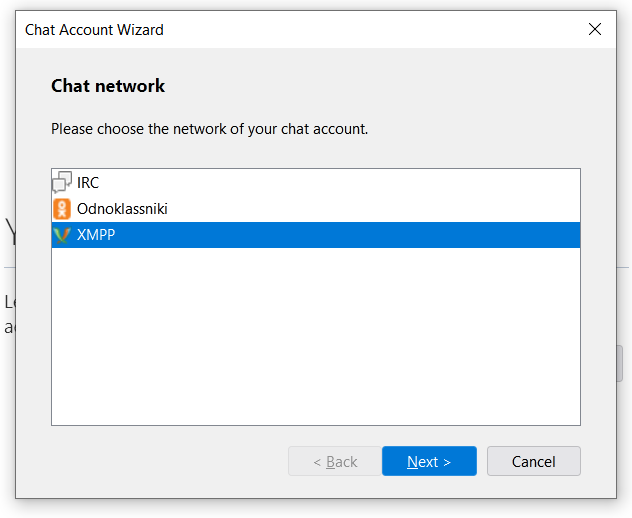
- In the "Chat Account Wizard" window, under "Chat network," select "**XMPP**" from the list of available networks.
- Click the "**Next &gt;**" button.

[![Thunderbird - step 3 - choose XMPP as the network.PNG](https://wikidev.emailarray.com/uploads/images/gallery/2025-06/scaled-1680-/thunderbird-step-3-choose-xmpp-as-the-network.PNG)](https://wikidev.emailarray.com/uploads/images/gallery/2025-06/thunderbird-step-3-choose-xmpp-as-the-network.PNG)

**4. Enter Your Username Details:**

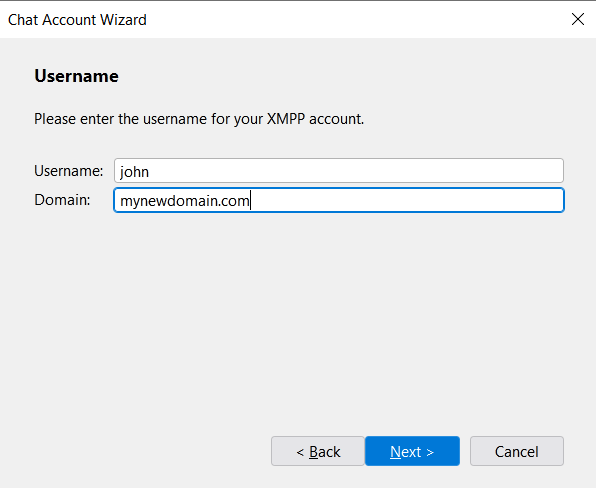
- On the "Username" screen, you need to provide your Webmail email address, split into two parts: 
    - **Username:** Enter the part of your Webmail email address **before** the "@" symbol (e.g., if your email is `john@mynewdomain.com`, enter `john`).
    - **Domain:** Enter the part of your Webmail email address **after** the "@" symbol (e.g., `mynewdomain.com`).
- Click the "**Next &gt;**" button.

[![Thunderbird - step 4 - username.PNG](https://wikidev.emailarray.com/uploads/images/gallery/2025-06/scaled-1680-/thunderbird-step-4-username.PNG)](https://wikidev.emailarray.com/uploads/images/gallery/2025-06/thunderbird-step-4-username.PNG)

**5. Enter Your Password:**

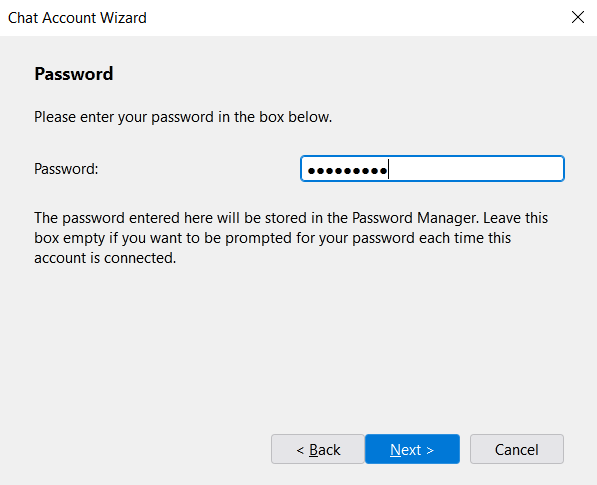
- On the "Password" screen, enter your **Webmail password** in the "Password" field.
- Thunderbird notes that the password will be stored in its Password Manager. If you leave this box empty, you'll be prompted for your password each time the account connects.
- Click the "**Next &gt;**" button.

[![Thunderbird - step 5 - optional password or get prompted every time.PNG](https://wikidev.emailarray.com/uploads/images/gallery/2025-06/scaled-1680-/thunderbird-step-5-optional-password-or-get-prompted-every-time.PNG)](https://wikidev.emailarray.com/uploads/images/gallery/2025-06/thunderbird-step-5-optional-password-or-get-prompted-every-time.PNG)

**6. Configure Advanced Options (XMPP Options):**

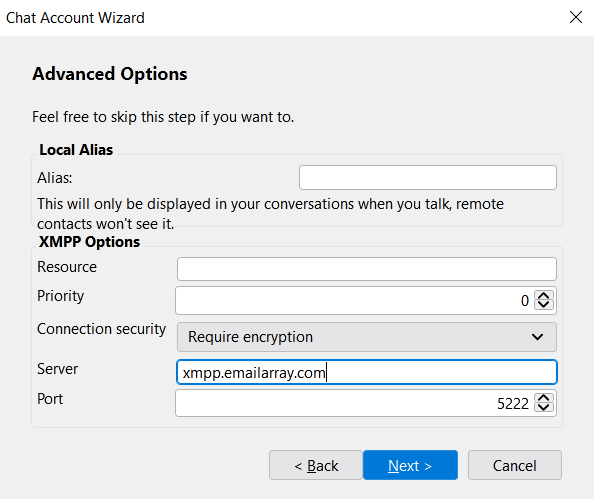
- This screen allows you to set advanced XMPP options. While Thunderbird says, "Feel free to skip this step if you want to," providing these details is often necessary for a successful connection: 
    - **Alias:** (Optional) You can set a local alias that will be displayed in your conversations.
    - **XMPP Options:**
        - **Resource:** (Optional) You can leave this blank.
        - **Priority:** (Optional) You can leave this as the default.
        - **Connection security:** It's recommended to use encryption. Select an option like "**Require encryption**" if available and appropriate for your server.
        - **Server:** Enter the XMPP server address for your Webmail: `xmpp.emailarray.com`.
        - **Port:** Enter the port number for the XMPP server: `5222`.
- Click the "**Next &gt;**" button.

[![Thunderbird - step 6 - server host name.PNG](https://wikidev.emailarray.com/uploads/images/gallery/2025-06/scaled-1680-/thunderbird-step-6-server-host-name.PNG)](https://wikidev.emailarray.com/uploads/images/gallery/2025-06/thunderbird-step-6-server-host-name.PNG)

**7. Review Summary and Finish:**

- The "Summary" screen will display the information you've entered (Network, Username, Password (masked), Server).
- **Please check these details carefully** to ensure they are correct. Your full username should appear here (e.g., `john@mynewdomain.com`).
- Make sure the checkbox for "**Connect this account now.**" is checked if you want Thunderbird to log into your chat account immediately.
- Click the "**Finish**" button.

[![Thunderbird - step 7 - summary.PNG](https://wikidev.emailarray.com/uploads/images/gallery/2025-06/scaled-1680-/thunderbird-step-7-summary.PNG)](https://wikidev.emailarray.com/uploads/images/gallery/2025-06/thunderbird-step-7-summary.PNG)
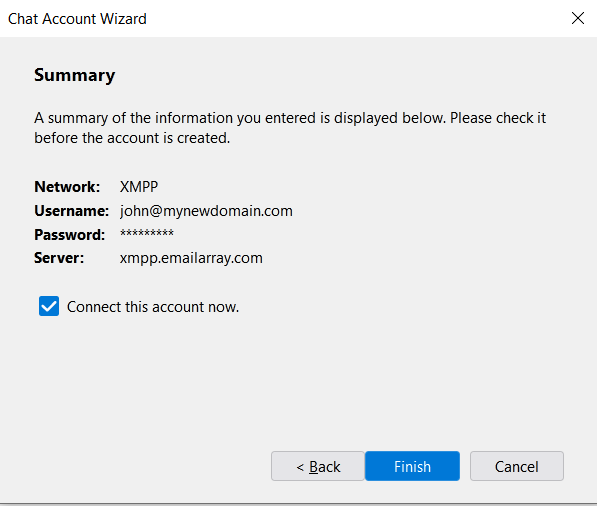
Your Webmail chat account should now be configured in Thunderbird. You'll be able to manage your contacts, send and receive messages, and see your online status directly within the Thunderbird interface.

# Files

# Webmail - Files and Folder Sharing Guide

Whether you need to send a single document or collaborate on an entire project, sharing is simple and flexible. You have two main options:

- **Share a single file:** Generate a secure URL to allow others to download or co-edit a specific document.
- **Share multiple files:** Share a folder with your team so they can access and collaborate on multiple files at once.

<span data-path-to-node="5,0">The Webmail allows you to share folders with other members of your organization, enabling seamless collaboration</span><span data-path-to-node="5,1"><sup class="superscript"></sup></span><span data-path-to-node="5,2">. With the latest updates, you have precise control over how you distribute your work, whether collaborating internally or sharing documents externally.</span>

## Document Editing and Collaboration

The ability to interact with documents depends on your active mailbox type.

<div _ngcontent-ng-c2793046848="" class="container" id="bkmrk-basic-mailboxes%3A-use"><div _ngcontent-ng-c2921796212="" aria-busy="false" aria-live="polite" class="markdown markdown-main-panel enable-updated-hr-color" dir="ltr" inline-copy-host="">- **Basic Mailboxes:** Users can only upload and view documents.
- **Enhanced Mailboxes:** Users can edit and collaborate on documents in real-time.

</div></div>The live editing environment is powered by the OnlyOffice integration. Supported formats include Word documents, spreadsheets, presentations, and PDFs.

<div _ngcontent-ng-c2793046848="" class="container" id="bkmrk-"><div _ngcontent-ng-c2921796212="" aria-busy="false" aria-live="polite" class="markdown markdown-main-panel enable-updated-hr-color" dir="ltr" id="bkmrk--1" inline-copy-host=""></div></div>
## Sharing Folders

Folder sharing is restricted to internal use only, meaning you can only share folders with users within your domain.


#### How to Share a Folder

Follow these steps to activate sharing for a specific folder within your Webmail:

1. **Select the Folder:** In the Webmail files section, right-click on the folder you wish to share and select **Properties**.  
      
    [![Webmail - files - click on properties.PNG](https://wikidev.emailarray.com/uploads/images/gallery/2026-01/scaled-1680-/webmail-files-click-on-properties.PNG)](https://wikidev.emailarray.com/uploads/images/gallery/2026-01/webmail-files-click-on-properties.PNG)
2. **Activate Sharing:** In the **Properties** tab, check the box labeled **Activate sharing**. This enables the sharing functionality for that specific directory.  
      
    [![Webmail - files - click on activate sharing.PNG](https://wikidev.emailarray.com/uploads/images/gallery/2026-01/scaled-1680-/webmail-files-click-on-activate-sharing.PNG)](https://wikidev.emailarray.com/uploads/images/gallery/2026-01/webmail-files-click-on-activate-sharing.PNG)
3. **Configure Notifications (Optional):** You may also choose to:
    
    
    - **Notify me about changes in this folder:** Receive alerts when others modify files.
    - **Apply the folder's display settings for everyone:** Standardize the view for all collaborators.
4. **Save Changes:** Click **Apply** or **Save**.


#### Managing Permissions

Once sharing is active, you can define exactly **who has access and what level of control they have**.

1. Navigate to the **Permissions** tab within the **Properties** window.
2. **Add Members:** Click the **plus (+)** icon to add new users or groups to the folder. The default permission for new users is **read-only**.  
      
    Group sharing: you also have the optional choice to share the folder with everyone in your group for faster onboarding  
      
    [![Webmail-enable-share-for-folder-step-3-default-permission-is-readonly.png](https://wikidev.emailarray.com/uploads/images/gallery/2026-06/scaled-1680-/webmail-enable-share-for-folder-step-3-default-permission-is-readonly.png)](https://wikidev.emailarray.com/uploads/images/gallery/2026-06/webmail-enable-share-for-folder-step-3-default-permission-is-readonly.png)
3. **Change Access Levels:** Double-click the permission level next to a user name to change it.  
      
    [![Webmail-enable-share-for-folder-step-4-double-click-permission-name-to-change.png](https://wikidev.emailarray.com/uploads/images/gallery/2026-06/scaled-1680-/webmail-enable-share-for-folder-step-4-double-click-permission-name-to-change.png)](https://wikidev.emailarray.com/uploads/images/gallery/2026-06/webmail-enable-share-for-folder-step-4-double-click-permission-name-to-change.png)
    
    
    - **Read only:** Users can view and download files but cannot make changes.
    - **Read and Create only:** Users can view files and upload new content but cannot delete or modify existing files.
    - **Write**: view, upload or edit existing files.
    - **Write and delete**: view, upload, edit or delete existing files.
    - **Manage:** Full access to view, upload, edit, delete and share content.
4. **Remove Access:** To stop sharing with a specific user, select their name and click the **trash icon**.
5. **Finalize:** Click **Save** to apply the permissions.


#### Accessing Shared Content

<span data-path-to-node="13,0">When a folder is shared with you, it will appear under the **Shared** section in your file navigation sidebar. </span><span data-path-to-node="13,2"><span class="citation-124">This allows teams to maintain a central repository for shared documents, images, and project files</span></span><span data-path-to-node="13,3"><span class="citation-124 citation-end-124"><sup class="superscript" data-turn-source-index="4"></sup><sup class="superscript" data-turn-source-index="4"></sup><sup class="superscript" data-turn-source-index="4"></sup><sup class="superscript" data-turn-source-index="4"></sup></span></span><span data-path-to-node="13,4">.</span>

<span data-path-to-node="13,4">[![Webmail-view-folders-shared-with-me.png](https://wikidev.emailarray.com/uploads/images/gallery/2026-06/scaled-1680-/webmail-view-folders-shared-with-me.png)](https://wikidev.emailarray.com/uploads/images/gallery/2026-06/webmail-view-folders-shared-with-me.png)</span>

## <span data-path-to-node="13,4">Sharing Files</span>

You can share individual files with internal or external collaborators by creating secure, time-limited download links.

<p class="callout warning">Please use caution when sharing the URL, as anyone with the link can access the file.</p>


#### Creating a Secure Download Link

To generate a link that allows others to download a specific file:

1. **Locate your file:** Navigate to the **Files** section in your Webmail.
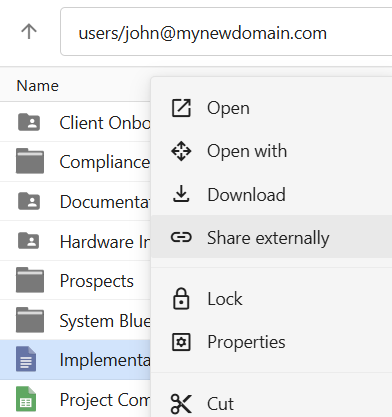
2. **Open the sharing window:** Right-click on the file you wish to share and click on **Share Externally**. This will open the sharing menu.  
      
    [![Webmail-enable-share-for-file-right-click-share-externally.png](https://wikidev.emailarray.com/uploads/images/gallery/2026-06/scaled-1680-/webmail-enable-share-for-file-right-click-share-externally.png)](https://wikidev.emailarray.com/uploads/images/gallery/2026-06/webmail-enable-share-for-file-right-click-share-externally.png)
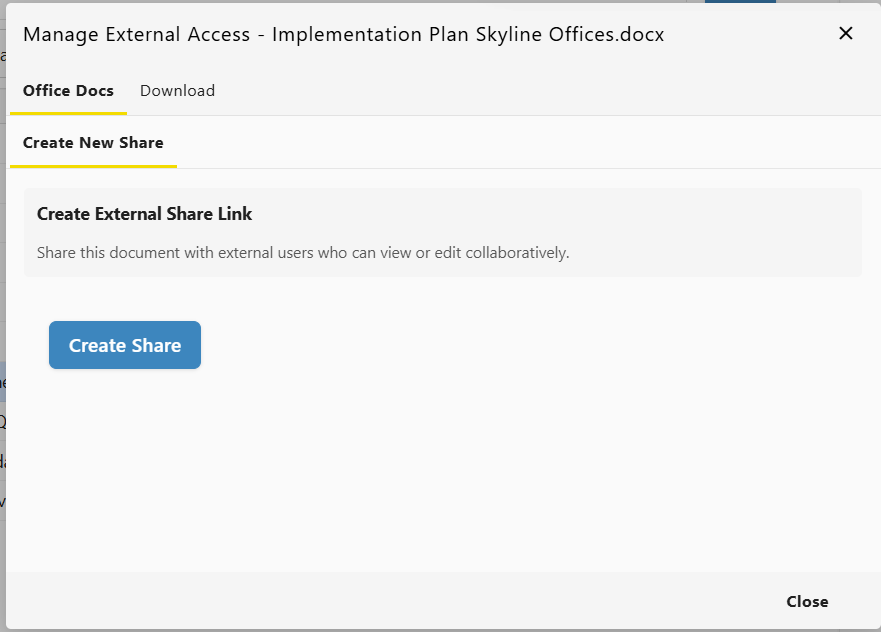
3. **Generate the link:** Click **Create Share** button from the new window.  
      
    [![Webmail-enable-share-for-file.png](https://wikidev.emailarray.com/uploads/images/gallery/2026-06/scaled-1680-/webmail-enable-share-for-file.png)](https://wikidev.emailarray.com/uploads/images/gallery/2026-06/webmail-enable-share-for-file.png)
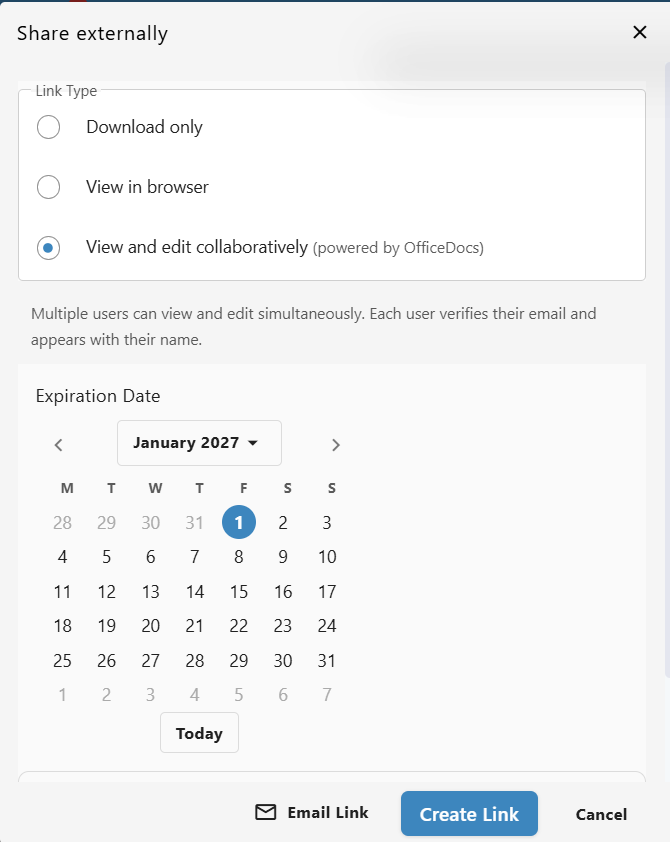
4. **Configure Access:** Set your desired permissions and choose an expiration date for the link.  
      
    **Download only**: Users will download the file to their device.  
    **View in browser**: Users can view the document online (read-only).  
    **View and edit collaboratively**: Multiple users can view and edit simultaneously. Each user verifies their email and appears with their name.  
      
    [![Webmail-enable-share-for-file-set-permissions-and-expiration-date.png](https://wikidev.emailarray.com/uploads/images/gallery/2026-06/scaled-1680-/webmail-enable-share-for-file-set-permissions-and-expiration-date.png)](https://wikidev.emailarray.com/uploads/images/gallery/2026-06/webmail-enable-share-for-file-set-permissions-and-expiration-date.png)
5. **Distribute the link:** Once generated, you can copy this link and send it via email or chat.  
      
    [![Webmail-check-status-for-share-for-file.png](https://wikidev.emailarray.com/uploads/images/gallery/2026-06/scaled-1680-/webmail-check-status-for-share-for-file.png)](https://wikidev.emailarray.com/uploads/images/gallery/2026-06/webmail-check-status-for-share-for-file.png)
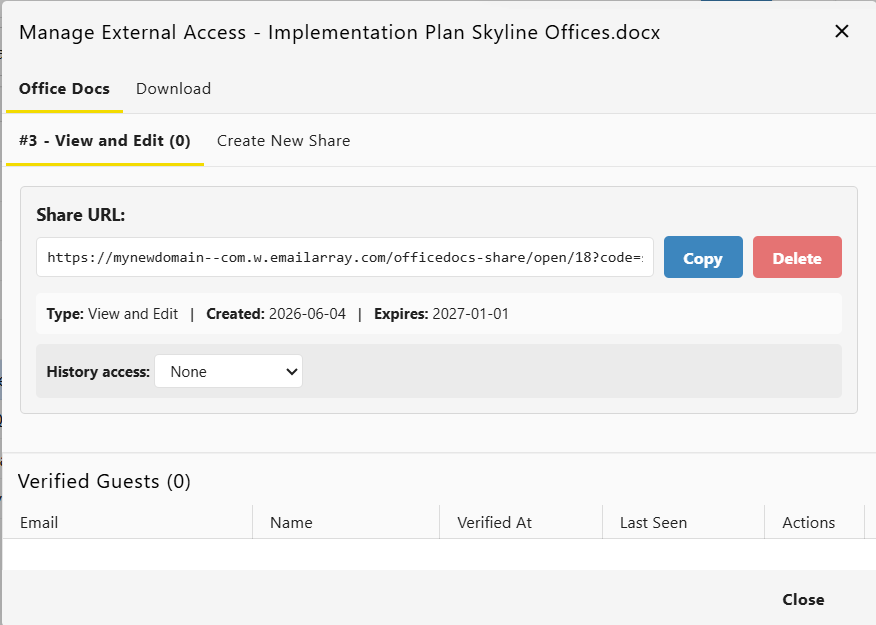
6. **Manage Links**: You can check the status of your active sharing links at any time


#### Viewing File Details and Active Links

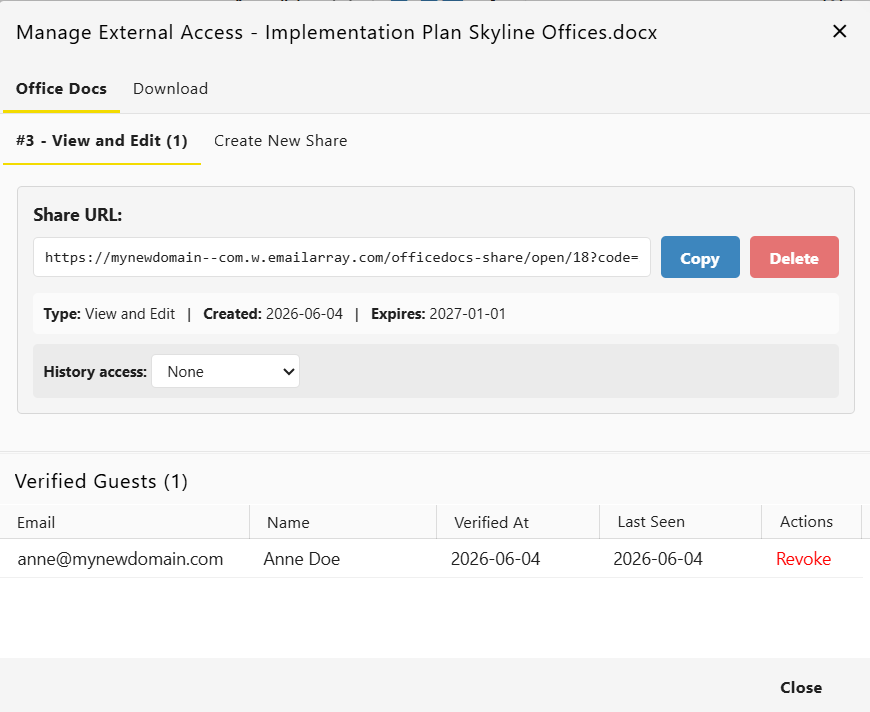
You can review file information and manage active sharing links at any time, by:

[![Webmail-check-status-for-share-for-file-manage-external-access.png](https://wikidev.emailarray.com/uploads/images/gallery/2026-06/scaled-1680-/webmail-check-status-for-share-for-file-manage-external-access.png)](https://wikidev.emailarray.com/uploads/images/gallery/2026-06/webmail-check-status-for-share-for-file-manage-external-access.png)
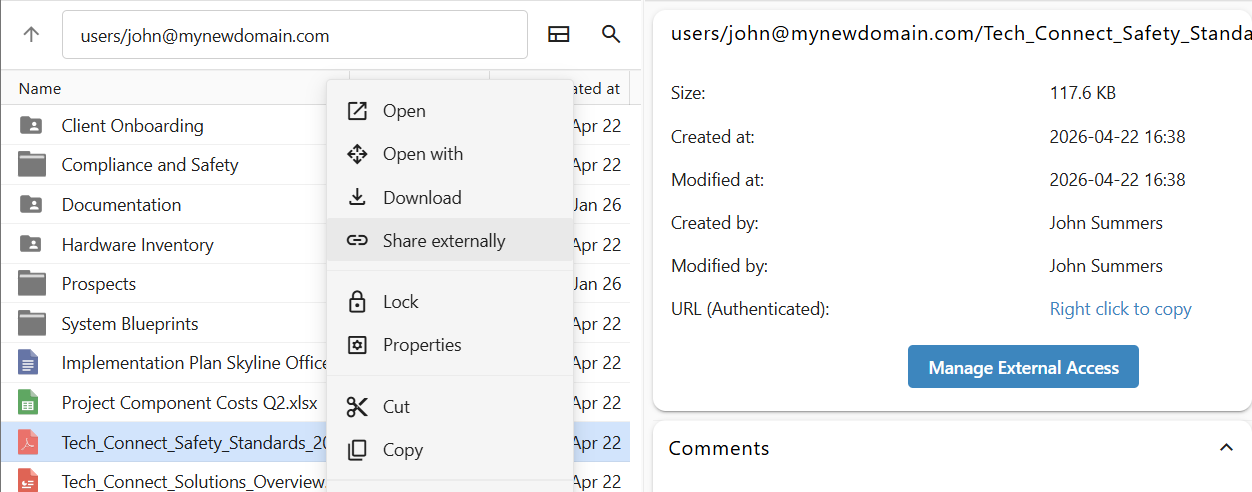
- Right-click on the file and click on **Share externally** to show the sharing stats window.
- Click once on a file to open the details side-pane and click on **Manage External Access** to show the sharing stats window.  
    [![Webmail-check-file-sharing-status.png](https://wikidev.emailarray.com/uploads/images/gallery/2026-06/scaled-1680-/webmail-check-file-sharing-status.png)](https://wikidev.emailarray.com/uploads/images/gallery/2026-06/webmail-check-file-sharing-status.png)

#### Additional Sharing Options

When you right-click a file, you also have access to:

- **Email files:** Attach the file directly to a new email message.

## Bonus: Remote Editing Applications

You do not need to be logged into the web interface to stay productive. You can use the free OnlyOffice application to edit documents from any device, including laptops, tablets and phones.

Follow these simple steps to connect your account to the OnlyOffice app:

1. Add a cloud of type "OnlyOffice".  
      
    [![Onlyoffice - add a cloud.png](https://wikidev.emailarray.com/uploads/images/gallery/2026-06/scaled-1680-/onlyoffice-add-a-cloud.png)](https://wikidev.emailarray.com/uploads/images/gallery/2026-06/onlyoffice-add-a-cloud.png)[![Onlyoffice - connect to an existing cloud-version-2.png](https://wikidev.emailarray.com/uploads/images/gallery/2026-06/scaled-1680-/onlyoffice-connect-to-an-existing-cloud-version-2.png)](https://wikidev.emailarray.com/uploads/images/gallery/2026-06/onlyoffice-connect-to-an-existing-cloud-version-2.png)
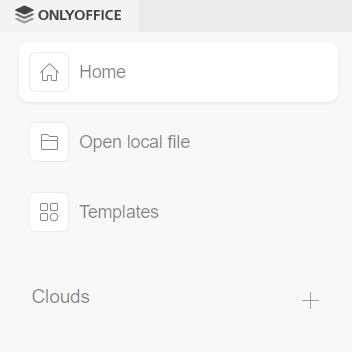
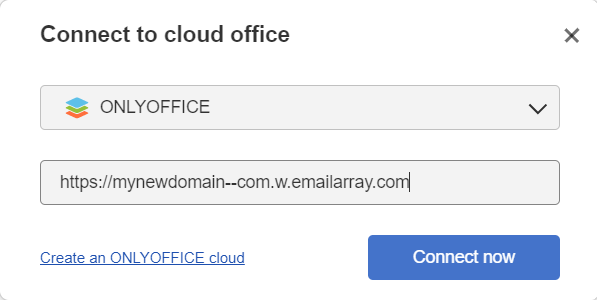
2. Fill in your webmail URL (for example: [https://mynewdomain--com.w.emailarray.com](https://mynewdomain--com.w.emailarray.com)).
3. You will be redirected to a login page. Use your email address and password to connect.
4. The dashboard will display the files section from your webmail inside the OnlyOffice app, keeping everything in sync.

# Webmail - Account Consolidation for Enhanced Mailboxes

<span data-path-to-node="1,1"><span class="citation-877">Enhanced mailboxes offer the flexibility to manage multiple email accounts through a single Webmail interface</span></span><span data-path-to-node="1,2"><span class="citation-877 citation-end-877"><sup class="superscript" data-turn-source-index="1"></sup><sup class="superscript" data-turn-source-index="1"></sup><sup class="superscript" data-turn-source-index="1"></sup><sup class="superscript" data-turn-source-index="1"></sup></span></span><span data-path-to-node="1,3">. By consolidating your accounts, you can read and send messages from various internal or external addresses without needing to log in to separate profiles.</span>

#### Before You Begin

This feature allows an **Enhanced mailbox** to add other accounts, whether they are **Basic** or **Enhanced**, into one view. Ensure you have the following details for the account you wish to add:

- The full email address and password.
- The IMAP (Incoming) and SMTP (Outgoing) server names.

### Step-by-Step Consolidation Guide

1. <span data-path-to-node="9,0,0,1"><span class="citation-22">Log in to your </span>**<span class="citation-22">Webmail</span>**<span class="citation-22"> account</span></span>
2. Click the **User Icon (Settings)** in the top right navigation bar.
3. Select **My account** from the menu.
4. Navigate to the **E-mail Accounts &amp; Aliases** tab in the left-hand sidebar.
5. Click the **Manage E-mail Accounts and Aliases** button.
6. **Add New Account**: In the Accounts window, click the **plus (+)** button in the top right corner.  
      
    [![Webmail - add a new email account - click on plus button.PNG](https://wikidev.emailarray.com/uploads/images/gallery/2026-03/scaled-1680-/webmail-add-a-new-email-account-click-on-plus-button.PNG)](https://wikidev.emailarray.com/uploads/images/gallery/2026-03/webmail-add-a-new-email-account-click-on-plus-button.PNG)
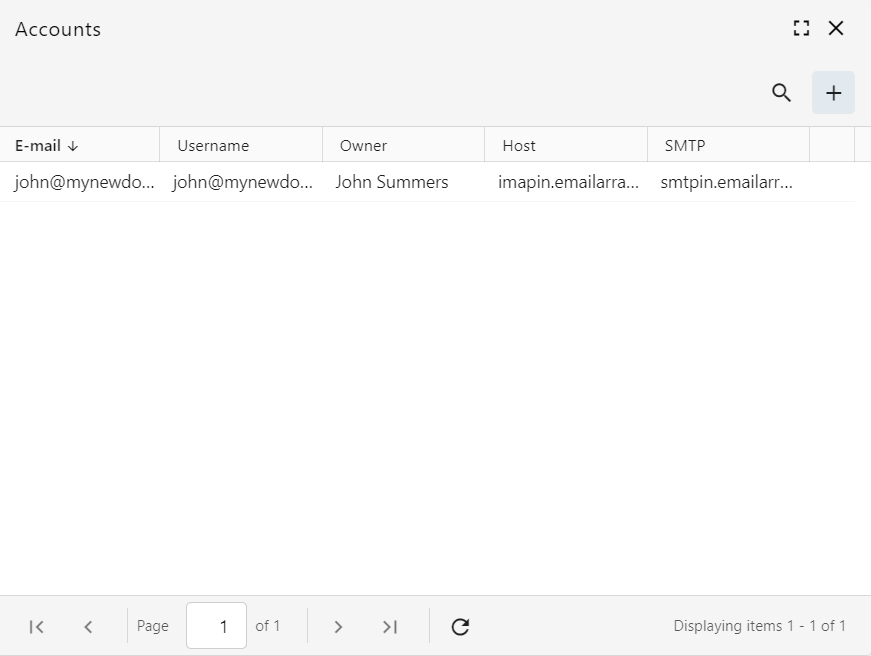
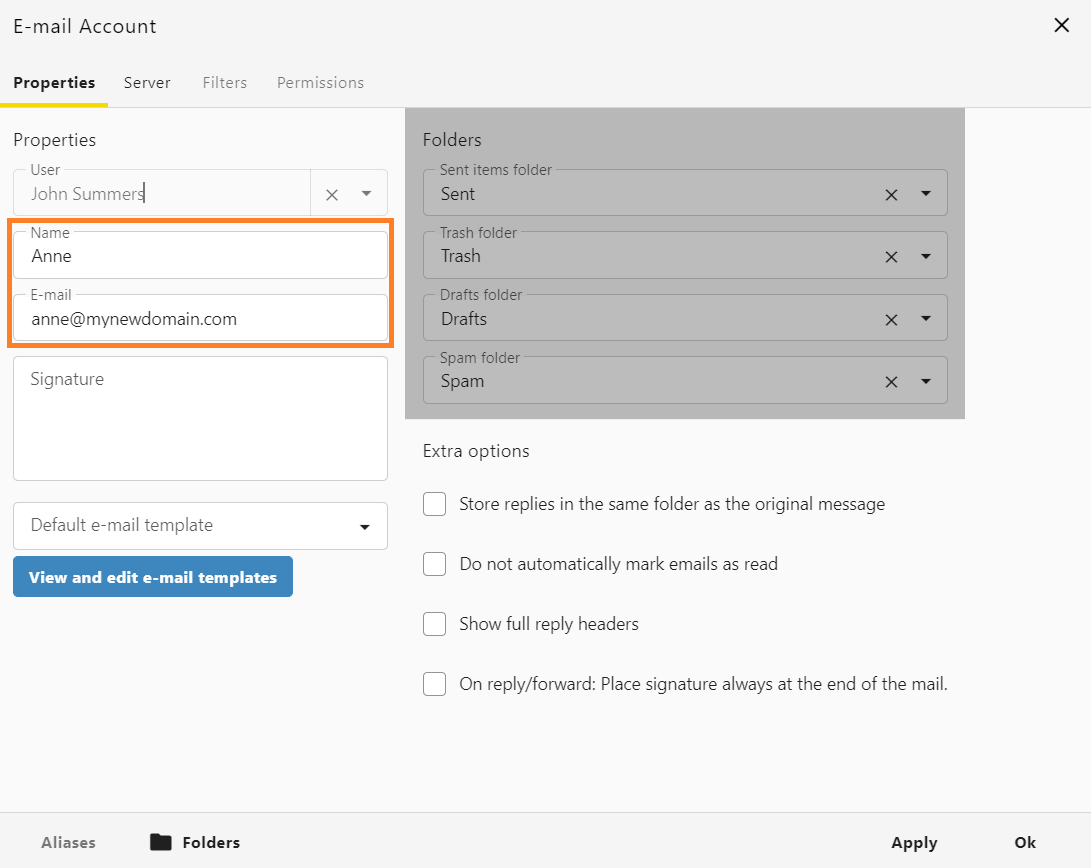
7. **Configure the email account**:
    
    
    - On the **Properties** tab, fill in the "**Name**" (how you want to appear to recipients) and the full "**E-mail**" address.  
          
        [![Webmail - add a new email account - properties tab.PNG](https://wikidev.emailarray.com/uploads/images/gallery/2026-03/scaled-1680-/webmail-add-a-new-email-account-properties-tab.PNG)](https://wikidev.emailarray.com/uploads/images/gallery/2026-03/webmail-add-a-new-email-account-properties-tab.PNG)
    - Click the **Server** tab to enter the connection information:  
          
        [![Webmail - add a new email account - server tab - internal mailboxes with SSL.PNG](https://wikidev.emailarray.com/uploads/images/gallery/2026-03/scaled-1680-/webmail-add-a-new-email-account-server-tab-internal-mailboxes-with-ssl.PNG)](https://wikidev.emailarray.com/uploads/images/gallery/2026-03/webmail-add-a-new-email-account-server-tab-internal-mailboxes-with-ssl.PNG)
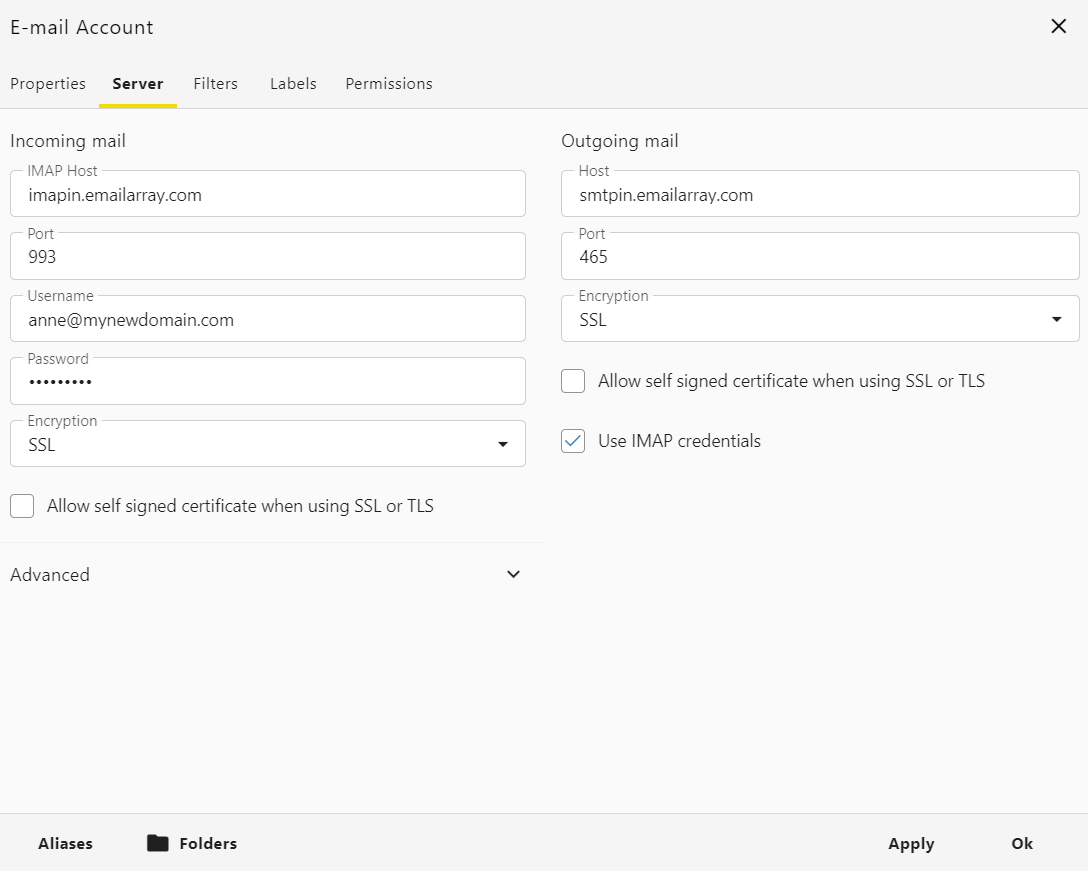
        
        
        - **Encryption**: choose **SSL** for *Incoming mail* and *Outgoing mail*
        - **Internal Accounts (Hosted with us)**:
            
            
            - `imapin.emailarray.com` for the IMAP Host
            - `smtpin.emailarray.com` for the SMTP Host
            - You may also use the standard `imap.emailarray.com` and `smtp.emailarray.com`.
        - **External Accounts**: Enter the specific IMAP and SMTP server names provided by your external email provider.
        - **Credentials**: Enter the **username** and **password** for the secondary account.
        - For *Outgoing mail* settings, please check **Use IMAP credentials**.
8. **Save Changes**: Click **Apply** and then **Ok** to finalize the setup.

# EasyMeet

Introducing EasyMeet - a professional appointment scheduling powered by Cal.com, built directly into your webmail. Just seamless online scheduling where you already work. Available for **Enhanced** mailboxes only.

- No separate apps
- No data sharing
- Seamless Webmail integration
- **Lives directly in your Webmail**, and syncs with all your calendars to prevent double-bookings
- **Share your availability** with a single link
- Your clients see your real-time calendar and **book a meeting in the slot that’s open for both of you**

# Set Your Availability


# EasyMeet - Online Appointment Scheduling

**EasyMeet** is an integrated scheduling tool that eliminates the back and forth of finding the perfect meeting time. By sharing a public link, you allow clients and partners to view your availability and book appointments directly into your calendar.

You can set your working hours, create event types, share a public booking link, and view bookings from the Webmail.

<p class="callout success">**Note:** This feature is available exclusively for **Enhanced** accounts.</p>

### Before you start

Log in to the **Webmail** before following these steps. If you need help, see [How to log in to the Webmail](https://wikidev.emailarray.com/books/1-configure-a-new-e-mail-address-getting-started/page/webmail-access).

## Getting Started

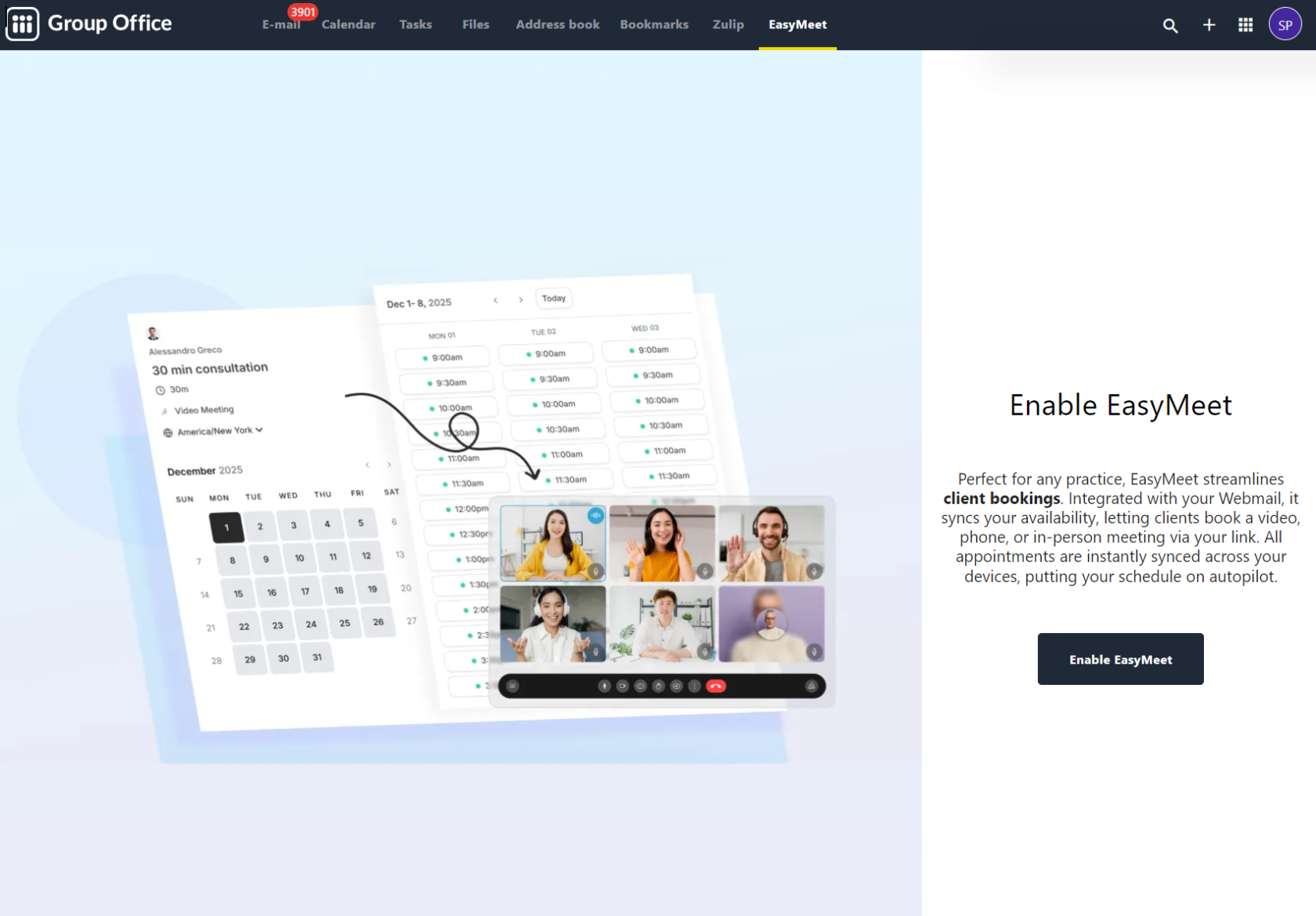
To begin using EasyMeet, log in to your Webmail and look for the **EasyMeet** tab in the top navigation bar. If you are using it for the first time, you will see an enablement screen. Click **Enable EasyMeet** to activate the feature for your mailbox.  
  
[![EasyMeet - enable from the webmail if you have an Enhanced mailbox.PNG](https://wikidev.emailarray.com/uploads/images/gallery/2026-05/scaled-1680-/easymeet-enable-from-the-webmail-if-you-have-an-enhanced-mailbox.PNG)](https://wikidev.emailarray.com/uploads/images/gallery/2026-05/easymeet-enable-from-the-webmail-if-you-have-an-enhanced-mailbox.PNG)
## Configuring Your Availability

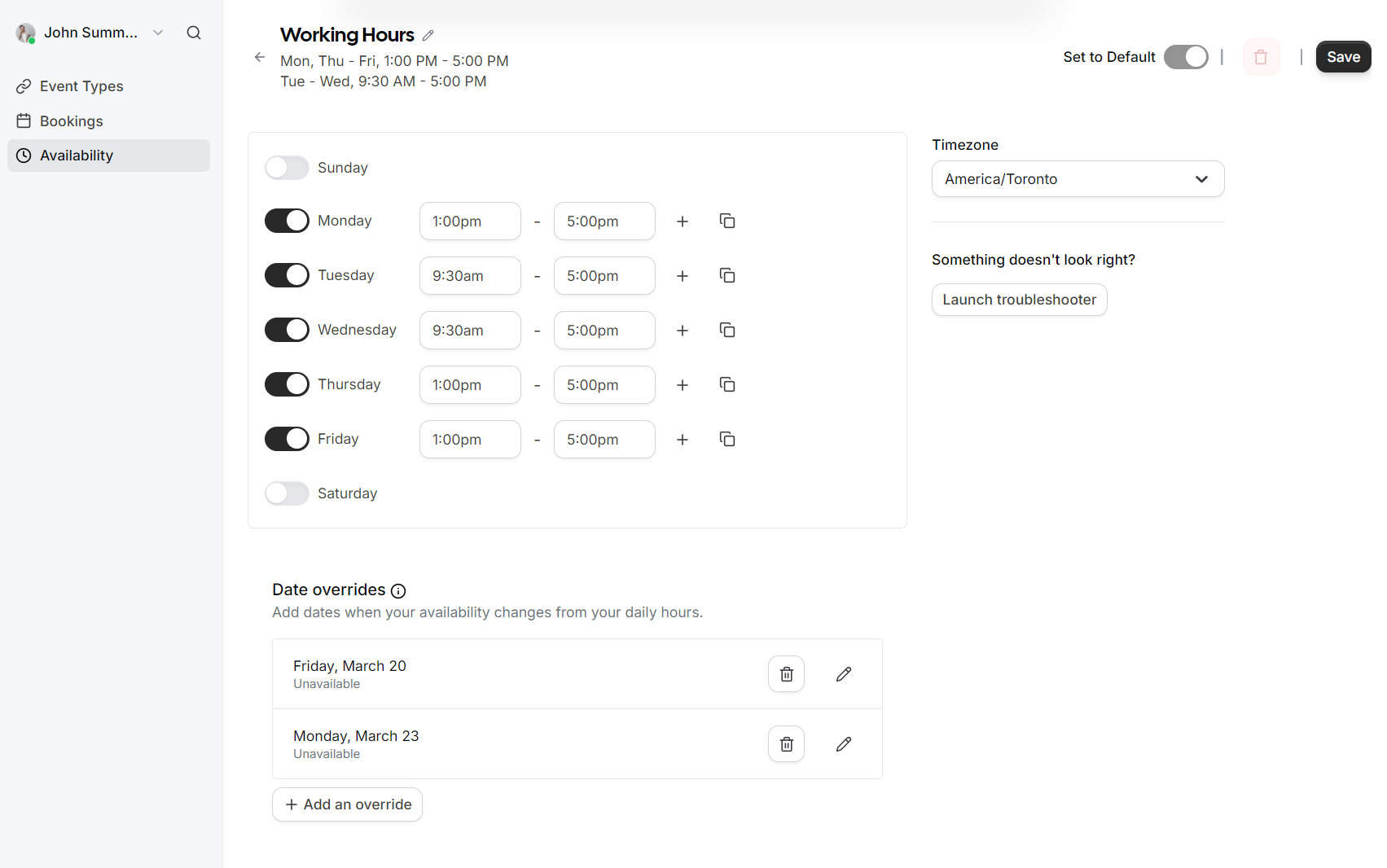
Your availability determines when guests can book time with you. You can manage this under the **Availability** section in the left sidebar.

### Setting Working Hours

1. Select the **Availability** tab.
2. Toggle the days of the week you are available.
3. Define your time slots for each day (e.g., 9:30 AM to 5:00 PM).
4. Select your correct **Timezone** from the dropdown menu to ensure appointments are synced accurately for both you and your guests.
5. Click **Save** to apply your schedule.  
      
    [![EasyMeet - 1 - availability schedule with date overrides.PNG](https://wikidev.emailarray.com/uploads/images/gallery/2026-05/scaled-1680-/easymeet-1-availability-schedule-with-date-overrides.PNG)](https://wikidev.emailarray.com/uploads/images/gallery/2026-05/easymeet-1-availability-schedule-with-date-overrides.PNG)
### Date Overrides

If you have specific days where your schedule differs from your standard working hours (such as holidays or a one-off afternoon off), you can use **Date overrides**.

- Click **Add an override**.
- Select the specific date on the calendar.  
      
    [![EasyMeet - 1 - setup your working hours - add an exception to override the existing schedule.PNG](https://wikidev.emailarray.com/uploads/images/gallery/2026-05/scaled-1680-/easymeet-1-setup-your-working-hours-add-an-exception-to-override-the-existing-schedule.PNG)](https://wikidev.emailarray.com/uploads/images/gallery/2026-05/easymeet-1-setup-your-working-hours-add-an-exception-to-override-the-existing-schedule.PNG)
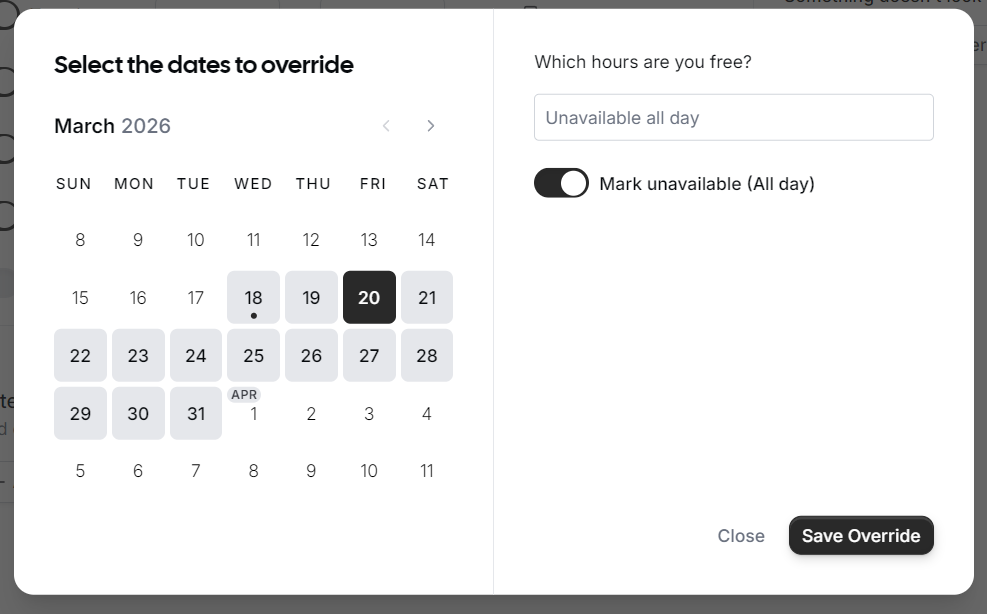
- Choose to either mark yourself as **Unavailable (All day)** or set specific custom hours for that date only.
- Click **Save Override**.

## Managing Event Types

Event Types allow you to define different kinds of meetings, such as a 15-minute "Quick Chat" or a 60-minute "Consultation."

[![EasyMeet - 2 - Add event types - type of meetings your customers can schedule.PNG](https://wikidev.emailarray.com/uploads/images/gallery/2026-05/scaled-1680-/easymeet-2-add-event-types-type-of-meetings-your-customers-can-schedule.PNG)](https://wikidev.emailarray.com/uploads/images/gallery/2026-05/easymeet-2-add-event-types-type-of-meetings-your-customers-can-schedule.PNG)
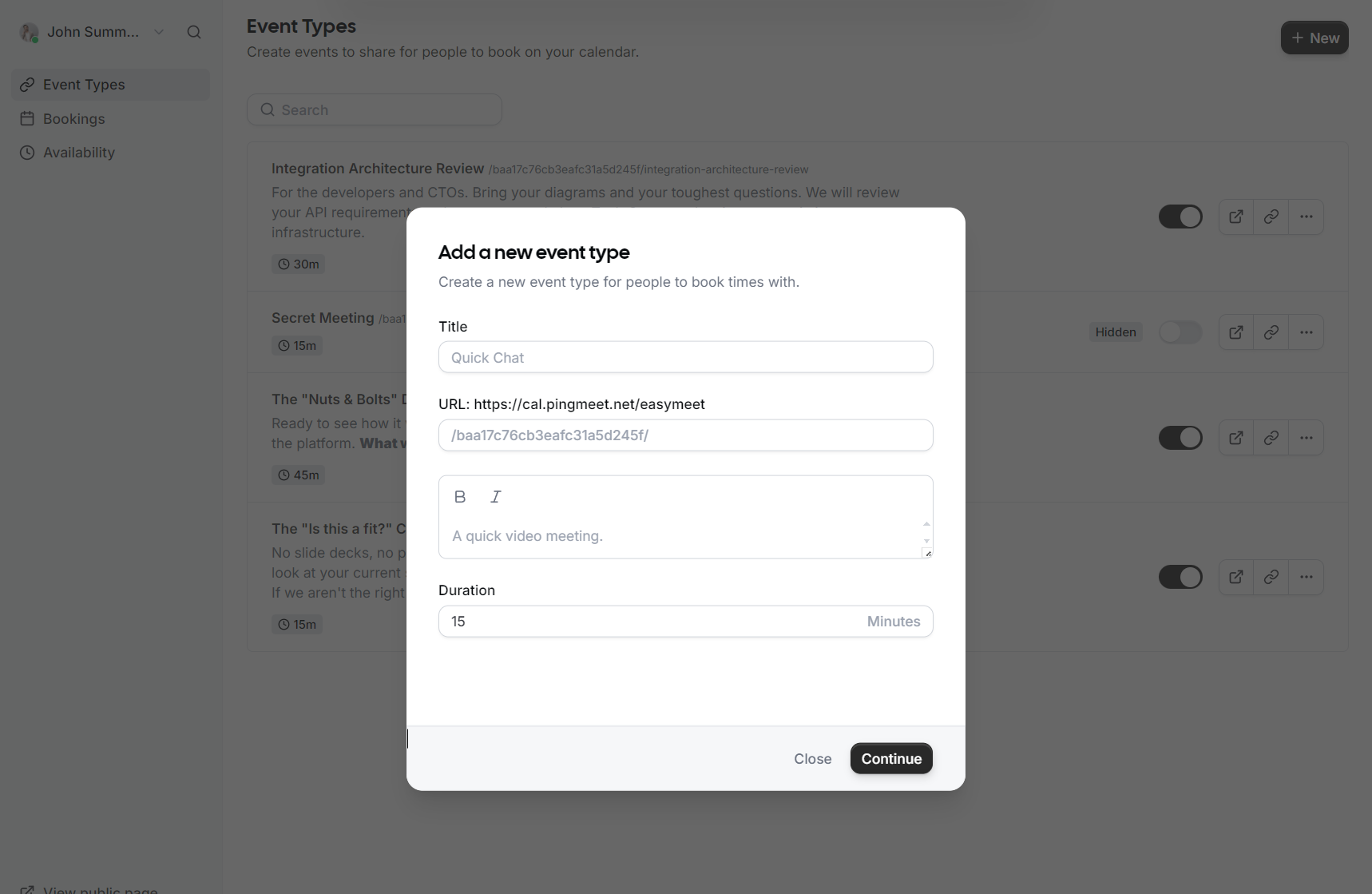
1. Navigate to **Event Types** in the sidebar.
2. Click **+ New** to create a meeting type.
3. Provide a **Title** and a brief **Description** so your guests know what the meeting is about.
4. Set the **Duration** (e.g., 15, 30, or 60 minutes).
5. Choose a **Location** (e.g., Video Meeting).
6. Customize the **URL** slug for this specific event.
7. Click **Continue** or **Save** to publish the event type.

## Sharing Your Link

Once your event types are set up, you can share them with the world:

[![EasyMeet - 3 - get your public link.png](https://wikidev.emailarray.com/uploads/images/gallery/2026-05/scaled-1680-/easymeet-3-get-your-public-link.png)](https://wikidev.emailarray.com/uploads/images/gallery/2026-05/easymeet-3-get-your-public-link.png)
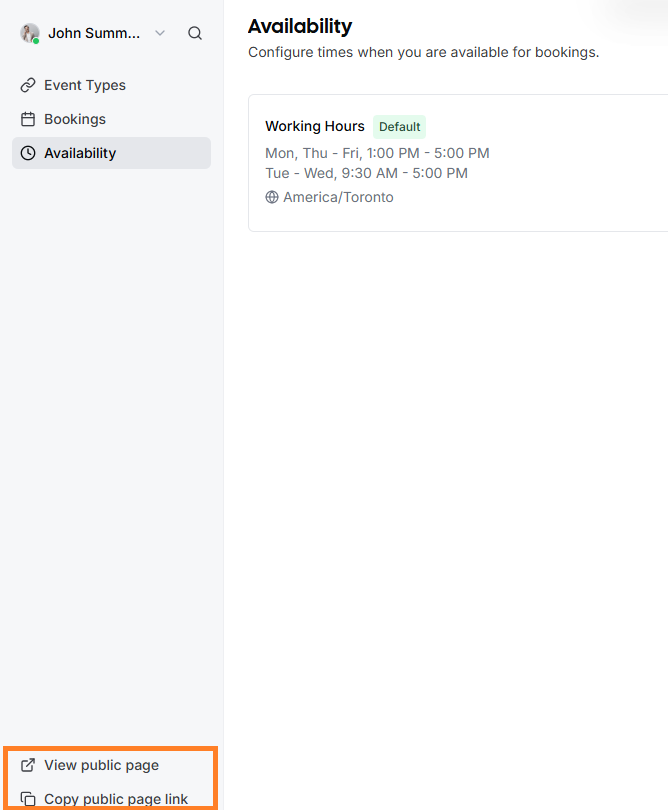
- **Public Page:** In the bottom left corner of the EasyMeet interface, click **View public page** to see what your customers see.
- **Copy Link:** Use the **Copy public page link** to grab your URL and add it to your email signature or share it directly in a chat.

## Managing Bookings

When a guest books a meeting, you will receive an email notification, and the event will automatically appear in your calendar.

[![EasyMeet - 3 - public link - event confirmed.PNG](https://wikidev.emailarray.com/uploads/images/gallery/2026-05/scaled-1680-/easymeet-3-public-link-event-confirmed.PNG)](https://wikidev.emailarray.com/uploads/images/gallery/2026-05/easymeet-3-public-link-event-confirmed.PNG)
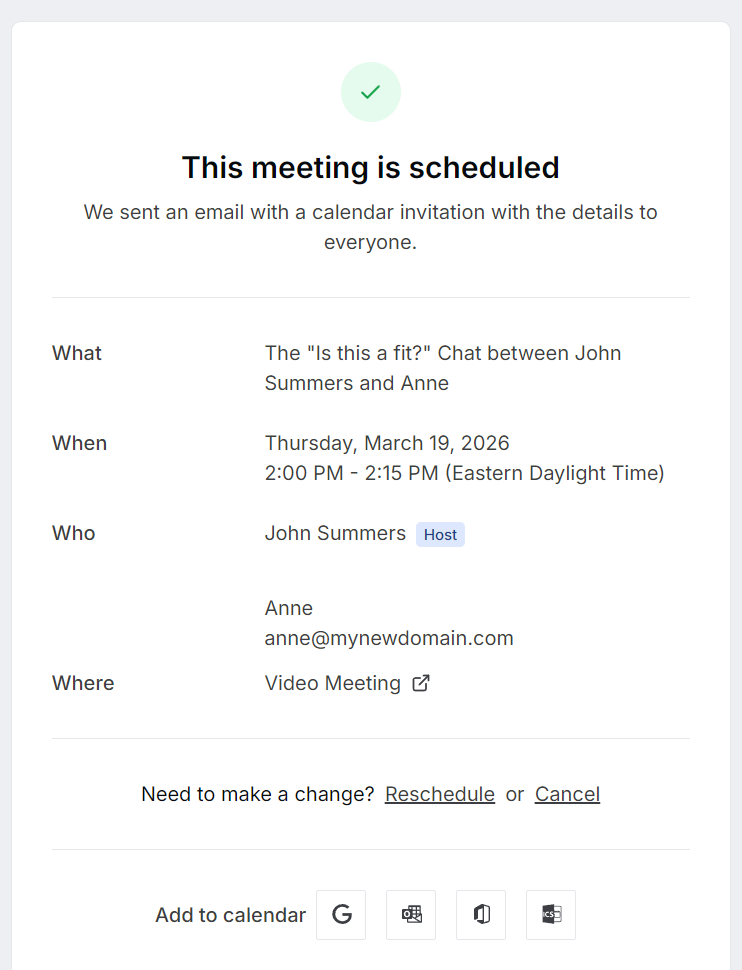
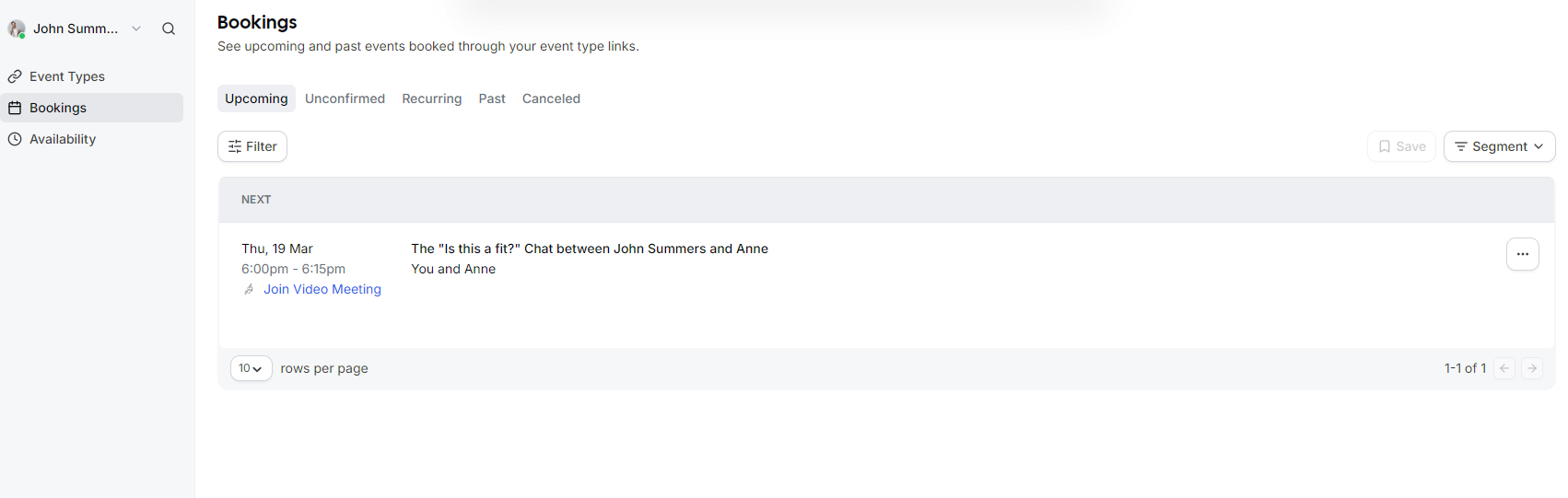
- To view a list of all scheduled meetings, go to the **Bookings** tab.
- You can filter between **Upcoming**, **Past**, and **Canceled** events.
- Each booking includes a direct link to the **Video Meeting** if applicable.
- If you need to change a meeting, you can use the **Reschedule** or **Cancel** options directly from the booking details.  
      
    [![EasyMeet - 3 - list bookings.PNG](https://wikidev.emailarray.com/uploads/images/gallery/2026-05/scaled-1680-/easymeet-3-list-bookings.PNG)](https://wikidev.emailarray.com/uploads/images/gallery/2026-05/easymeet-3-list-bookings.PNG)
# Event Advanced Setup

This guide details how to configure your **Event Types** to perfectly match your meeting requirements, from basic setup to advanced booking rules.

---

## Creating a New Event Type

To start, navigate to the **Event Types** tab and click the **+ New** button. A modal will appear where you can define the core parameters of your meeting:

- **Title**: Give your event a clear name, such as "Consultation" or "Quick Chat".
- **URL**: Customize the specific link slug guests will use to book this event.
- **Description**: Briefly explain what the meeting is for so guests know what to expect.
- **Duration**: Select how long the meeting will last in minutes.

[![EasyMeet - 2 - Add event types - type of meetings your customers can schedule.PNG](https://wikidev.emailarray.com/uploads/images/gallery/2026-05/scaled-1680-/easymeet-2-add-event-types-type-of-meetings-your-customers-can-schedule.PNG)](https://wikidev.emailarray.com/uploads/images/gallery/2026-05/easymeet-2-add-event-types-type-of-meetings-your-customers-can-schedule.PNG)

---

## Event Setup

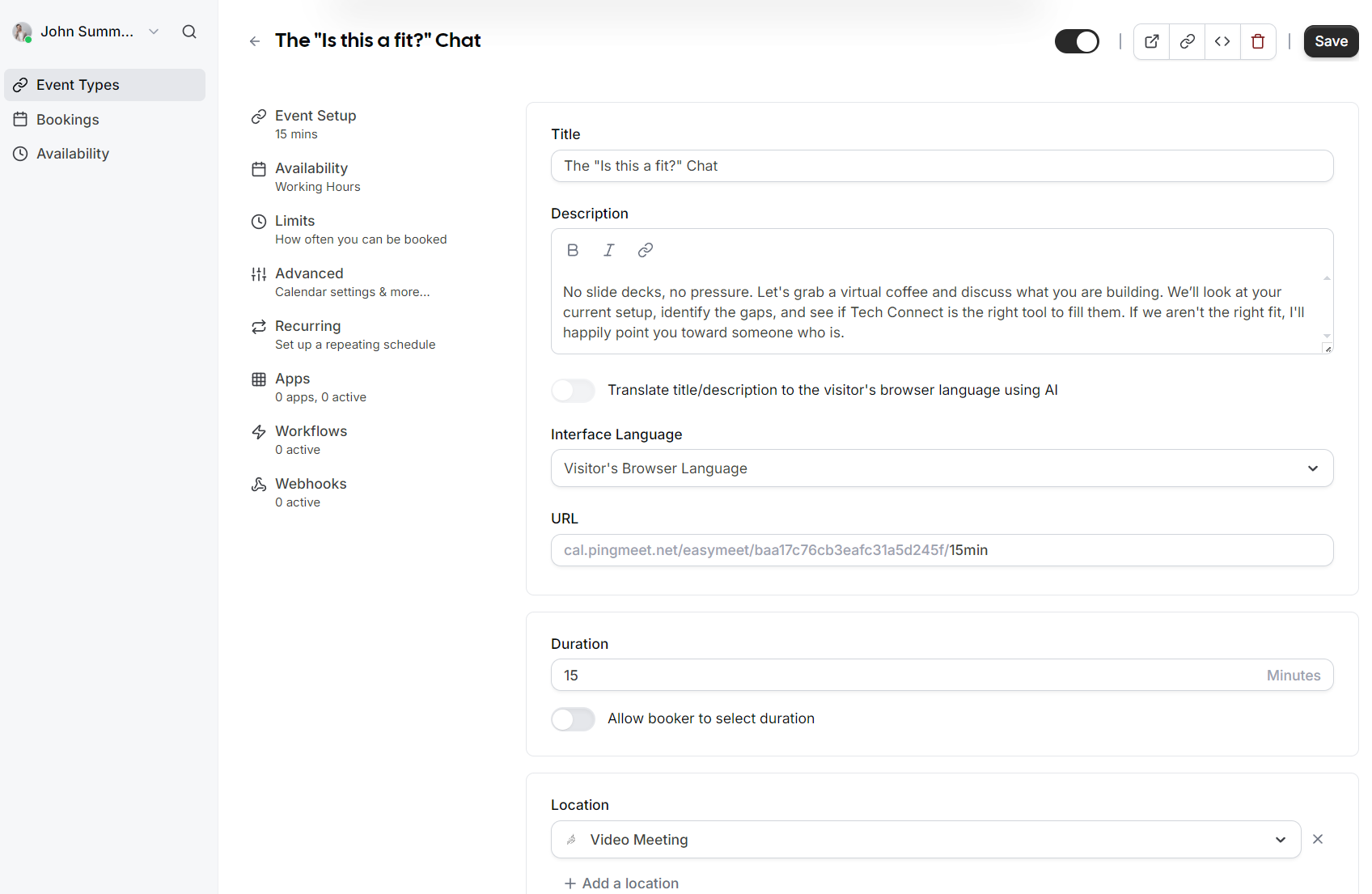
Once the event is created, you can access more granular settings in the **Event Setup** section:

- **AI Translation**: You can toggle an option to automatically translate your title and description to the visitor's browser language using AI.
- **Interface Language**: Set the default language for the booking interface or allow it to match the visitor's browser language.
- **Duration Flexibility**: In addition to a fixed duration, you can enable an option that allows the booker to select their preferred meeting length.
- **Location**: Define where the meeting takes place, such as a **Video Meeting**.

[![EasyMeet - 2 - Add event types - event setup.PNG](https://wikidev.emailarray.com/uploads/images/gallery/2026-05/scaled-1680-/easymeet-2-add-event-types-event-setup.PNG)](https://wikidev.emailarray.com/uploads/images/gallery/2026-05/easymeet-2-add-event-types-event-setup.PNG)
---


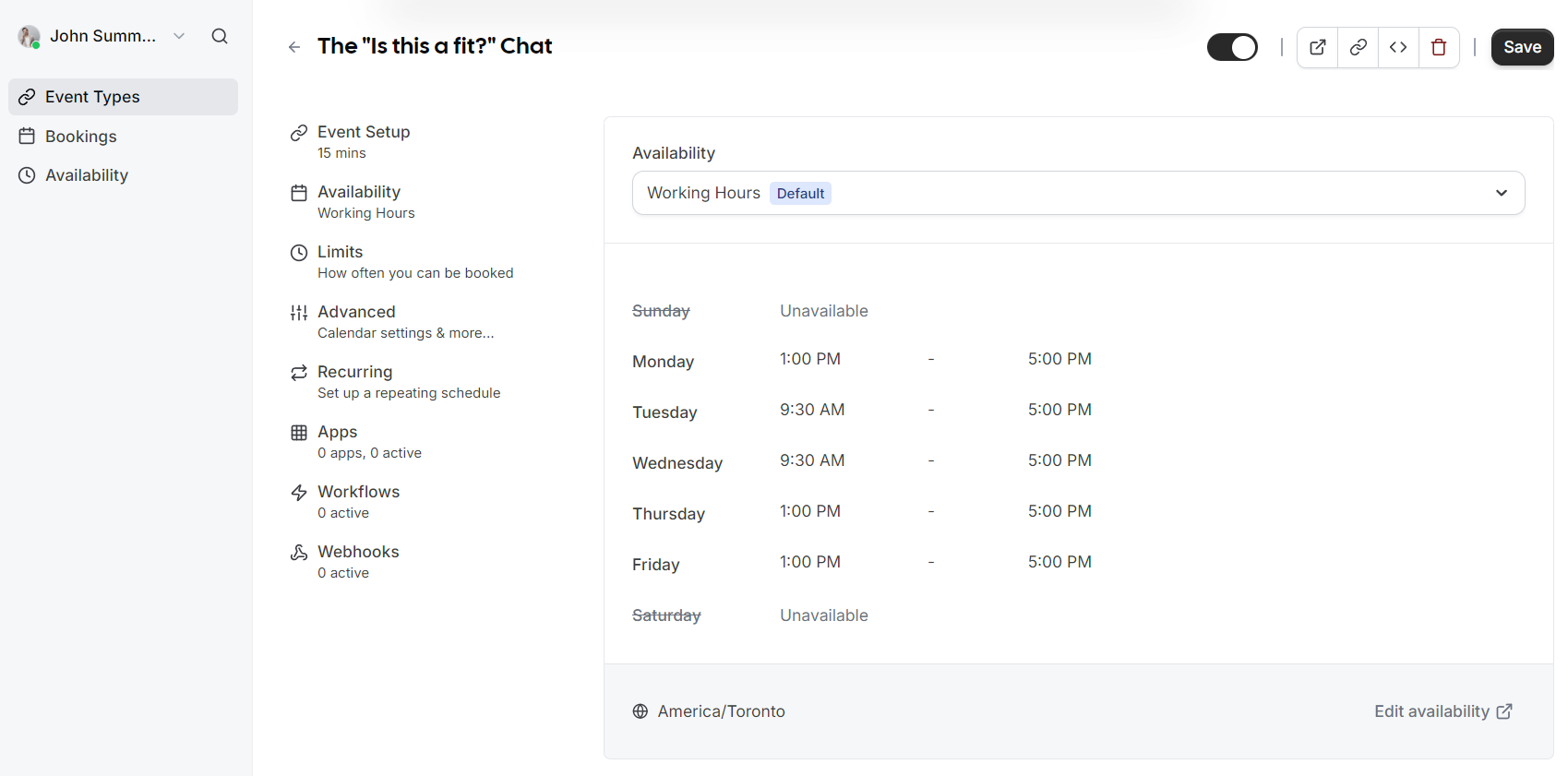
## Availability

Assign which schedule this event type should follow. By default, this uses your standard **Working Hours**, but you can select different schedules if you have created them.

[![EasyMeet 2 - Add event types - availability.PNG](https://wikidev.emailarray.com/uploads/images/gallery/2026-05/scaled-1680-/easymeet-2-add-event-types-availability.PNG)](https://wikidev.emailarray.com/uploads/images/gallery/2026-05/easymeet-2-add-event-types-availability.PNG)
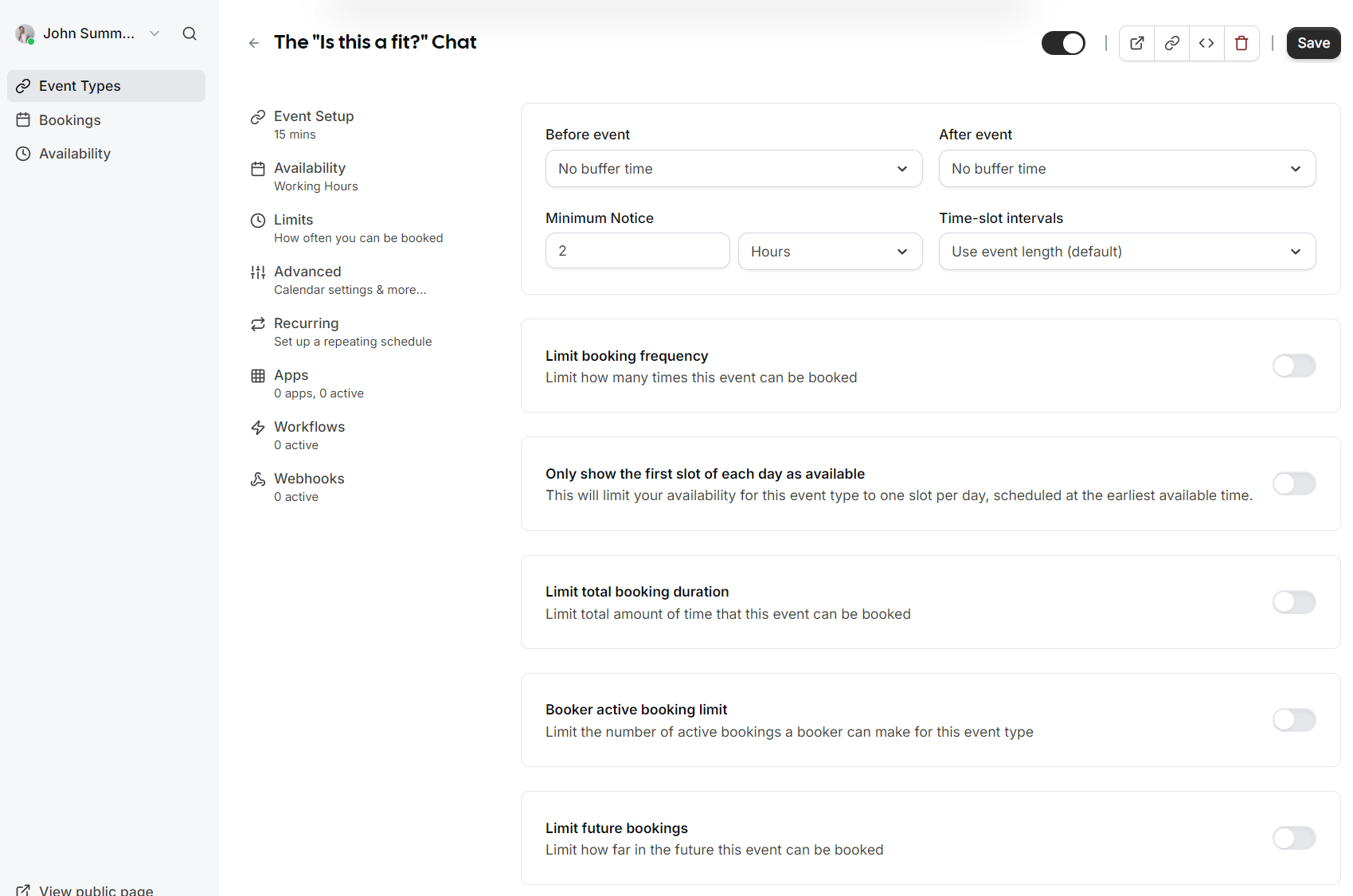
## Limits

- **Buffers**: Add "No buffer time" or specific intervals before and after events to prevent back to back meetings.
- **Minimum Notice**: Prevent last minute surprises by requiring a minimum amount of notice (e.g., 2 hours) before someone can book.
- **Time-slot intervals**: Choose how frequently slots are displayed (e.g., every 15 minutes or based on event length).
- **Booking Frequency**: Limit how many times this specific event can be booked overall.
- **Future Bookings**: Set a limit on how far into the future guests are allowed to schedule a meeting.

[![EasyMeet 2 - Add event types - limits.PNG](https://wikidev.emailarray.com/uploads/images/gallery/2026-05/scaled-1680-/easymeet-2-add-event-types-limits.PNG)](https://wikidev.emailarray.com/uploads/images/gallery/2026-05/easymeet-2-add-event-types-limits.PNG)
---

## Advanced Options

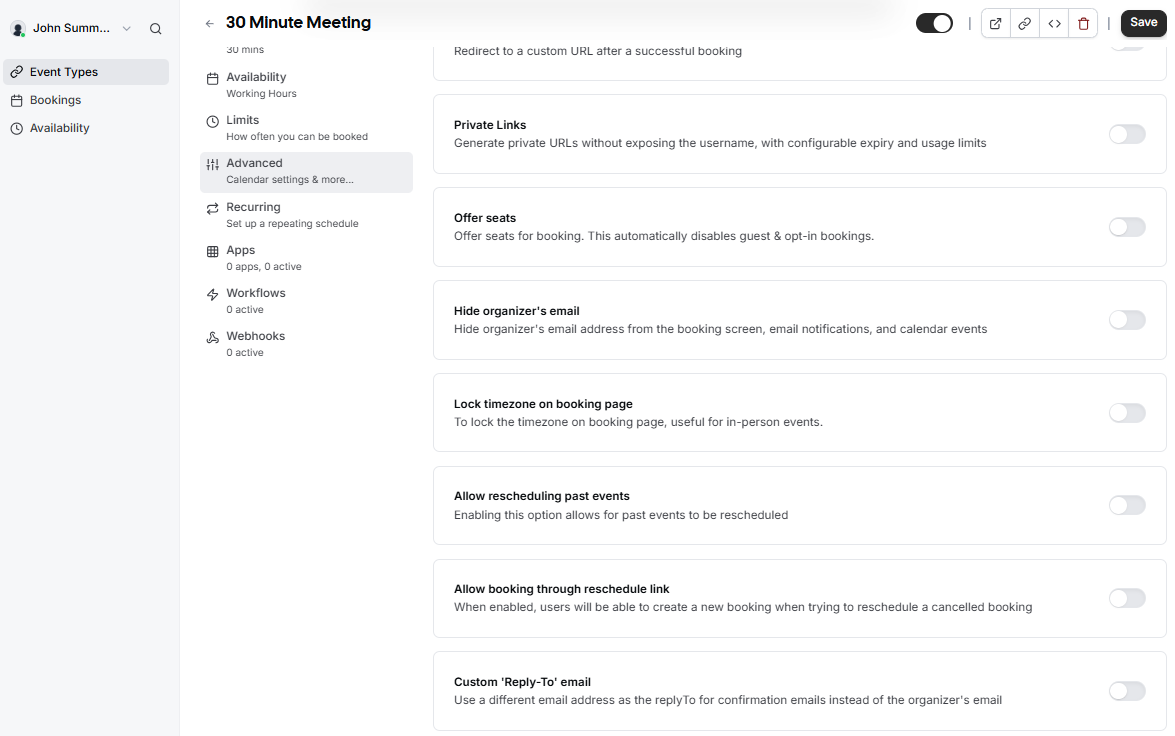
<table border="1" id="bkmrk--9" style="border-collapse: collapse; width: 100%;"><colgroup><col style="width: 25%;"></col><col style="width: 25%;"></col><col style="width: 25%;"></col><col style="width: 25%;"></col></colgroup><tbody><tr><td>[![EasyMeet - event setup - advanced tab - 1.png](https://wikidev.emailarray.com/uploads/images/gallery/2026-05/scaled-1680-/easymeet-event-setup-advanced-tab-1.png)](https://wikidev.emailarray.com/uploads/images/gallery/2026-05/easymeet-event-setup-advanced-tab-1.png)</td><td>[![EasyMeet - event setup - advanced tab - 2.png](https://wikidev.emailarray.com/uploads/images/gallery/2026-05/scaled-1680-/easymeet-event-setup-advanced-tab-2.png)](https://wikidev.emailarray.com/uploads/images/gallery/2026-05/easymeet-event-setup-advanced-tab-2.png)</td><td>[![EasyMeet - event setup - advanced tab - 3.png](https://wikidev.emailarray.com/uploads/images/gallery/2026-05/scaled-1680-/easymeet-event-setup-advanced-tab-3.png)](https://wikidev.emailarray.com/uploads/images/gallery/2026-05/easymeet-event-setup-advanced-tab-3.png)</td><td>[![EasyMeet - event setup - advanced tab - 4.png](https://wikidev.emailarray.com/uploads/images/gallery/2026-05/scaled-1680-/easymeet-event-setup-advanced-tab-4.png)](https://wikidev.emailarray.com/uploads/images/gallery/2026-05/easymeet-event-setup-advanced-tab-4.png)</td></tr></tbody></table>


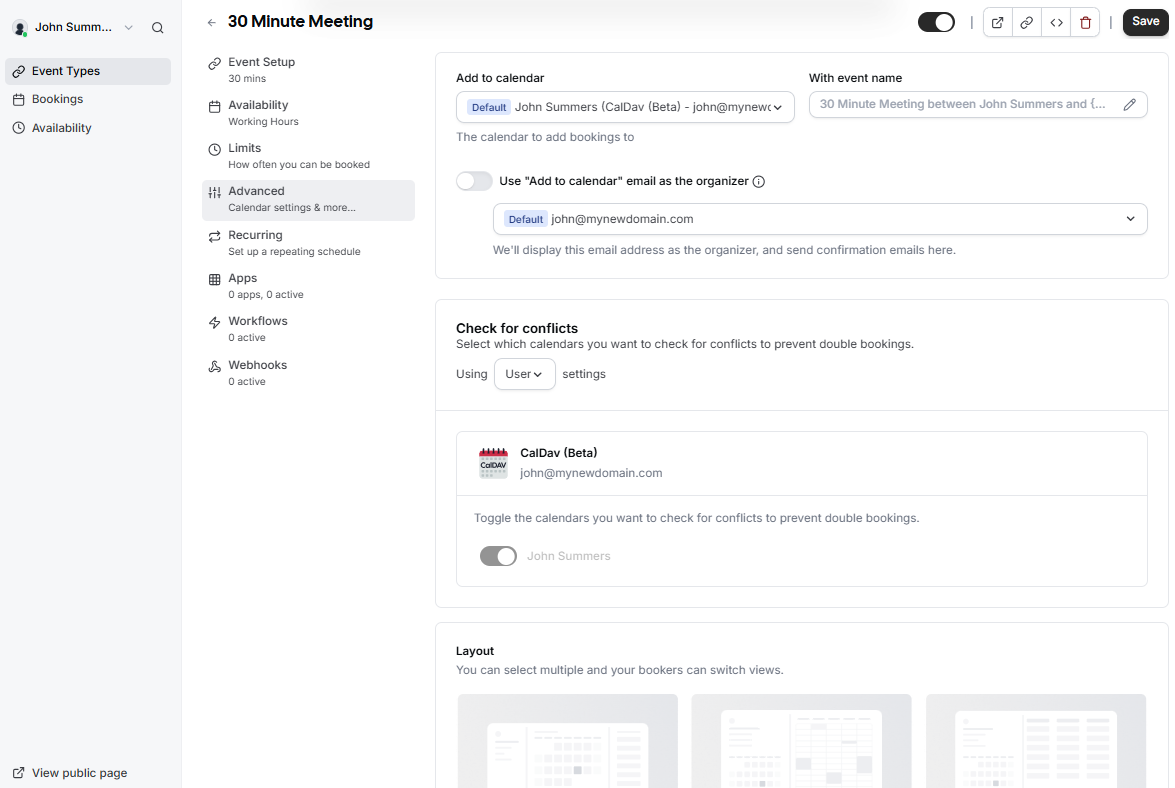
The **Advanced** tab provides granular control over your calendar integration, the booking process, and how your event appears to guests.


#### Calendar and Syncing

Manage how bookings interact with your existing calendar to prevent double bookings.

- **Add to calendar**: Select the specific calendar where new bookings should be recorded.
- **Event name**: Customize the format of the meeting name as it will appear in your calendar.
- **Check for conflicts**: Toggle which calendars the system should monitor to prevent overlapping appointments.
- **Organizer identity**: Choose whether to use the default calendar email as the meeting organizer.


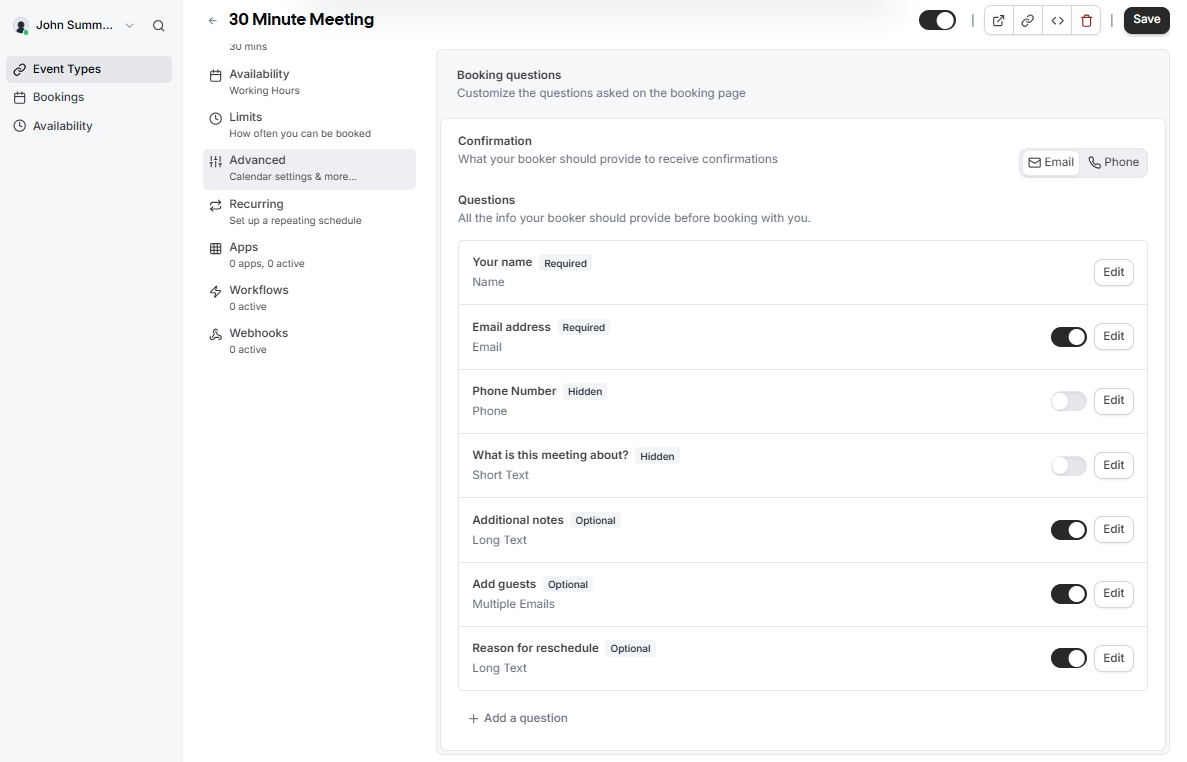
#### Layout and Booking Questions

Customize what your guests see and what information they must provide.

- **Display Layout**: Enable different views like **Month**, **Weekly**, or **Column** to allow bookers to switch their preferred view.
- **Confirmation Method**: Choose whether bookers receive confirmations via **Email** or **Phone**.
- **Custom Questions**: While **Name** and **Email** are required by default, you can add or edit fields for **Phone Number**, **Additional notes**, or **Reason for reschedule**.
- **Guest Invitations**: Enable the **Add guests** option to allow bookers to invite additional attendees during the scheduling process.


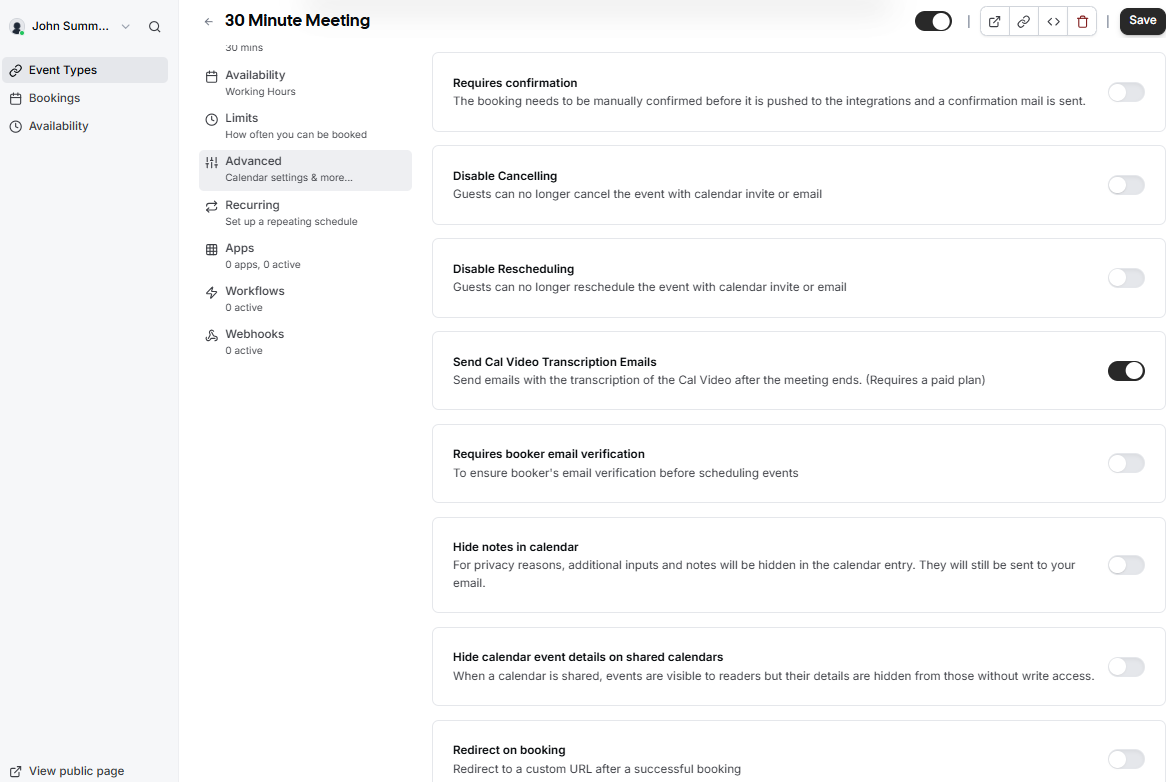
#### Booking Rules and Workflow

Define the logic and restrictions for every appointment.

- **Requires confirmation**: Enable this if you want to manually approve each booking before it is finalized and added to your calendar.
- **Disable Cancel or Reschedule**: Prevent guests from changing or cancelling their appointments through the automated links.
- **Email Verification**: Require bookers to verify their email address before they can successfully schedule an event.
- **Redirect on booking**: Automatically send guests to a custom URL after they finish scheduling.
- **Offer seats**: Use this for group sessions where multiple guests can book the same time slot.


#### Privacy and Advanced Customization

Protect your sensitive data and tailor the communication style.

- **Private Links**: Generate unique URLs with configurable expiry and usage limits to avoid exposing your main username.
- **Hide Personal Details**: You can choose to hide your email address from the booking screen or hide event notes in the calendar entry for privacy reasons.
- **Lock Timezone**: Fix the timezone on the booking page, which is particularly helpful for coordinating in-person events.
- **Custom Reply-To**: Specify a different email address to receive replies to confirmation emails instead of the default organizer email.
- **Rescheduling Logic**: Toggle whether users can reschedule past events or create new bookings through a reschedule link.

#### Administrative Settings

- **Offer Seats**: Enable this for group sessions where multiple guests can book the same time slot.
- **Custom Reply-To**: Use a specific email address for confirmation replies instead of the default organizer email.
- **Event Type Color**: Assign a color to the event type to help differentiate bookings within your internal dashboard.

# AI Assist

AI Assist is designed to help you communicate more effectively and manage your workflow with greater efficiency. By connecting your preferred AI provider, such as Gemini, Anthropic, or OpenAI, you can unlock a range of intelligent features directly within your Webmail.

AI Assist allows you to:

- Draft Messages: Create complete emails from brief descriptions or bullet points.
- Smart Reply: Generate professional, context-aware responses to emails.
- Summarize: Quickly distill long emails into key takeaways.

The AI Assist feature is built on a "Bring Your Own Key" (BYOK) model, which prioritizes your data sovereignty and privacy while giving you several critical advantages:

- Direct Privacy Control: You maintain a direct relationship with the AI provider, allowing you to manage data sharing and memory retention policies through your own provider dashboard.
- Training Protections: Most enterprise AI APIs do not use your data to train their models; using your own key ensures you can verify and enforce these "no-training" policies according to your specific compliance needs.
- Data Retention Management: You can configure advanced settings, such as "Zero Data Retention," directly at the provider level to ensure sensitive information is not stored longer than necessary for processing.
- Full Auditability.

Learn how to configure and master the AI Assist tools in your daily work.

# How to Enable the AI Assist Feature

AI Assist is a powerful tool integrated directly into your Webmail. It allows you to compose emails from short descriptions, generate replies, translate text, and summarize long threads instantly.

This feature operates on a "bring-your-own-key" basis, giving you full control over which AI provider and model you use. You can currently connect with providers such as Gemini, Anthropic, or OpenAI.

### Step 1: Enable AI at the Domain Level

Before individual users can access AI tools, you must configure the AI provider for the entire domain.

1. Log in to your [**Admin Panel**](https://admin.emailarray.com).
2. Navigate to the **Domains** section.
3. Locate the domain you wish to manage and click the **AI Settings** icon (represented by a sparkle symbol) in the actions list.  
      
    [![Admin Panel - Domain list - AI Settings for each domain.PNG](https://wikidev.emailarray.com/uploads/images/gallery/2026-04/scaled-1680-/admin-panel-domain-list-ai-settings-for-each-domain.PNG)](https://wikidev.emailarray.com/uploads/images/gallery/2026-04/admin-panel-domain-list-ai-settings-for-each-domain.PNG)  
      
    [![Admin Panel - Domain list - AI Settings.PNG](https://wikidev.emailarray.com/uploads/images/gallery/2026-04/scaled-1680-/admin-panel-domain-list-ai-settings.PNG)](https://wikidev.emailarray.com/uploads/images/gallery/2026-04/admin-panel-domain-list-ai-settings.PNG)
4. Click the **Add AI Provider** button.
5. Select your preferred **AI Provider** and enter your **API key** to verify the connection.  
      
    [![Admin Panel - Domain list - AI Settings - Add key and choose model.PNG](https://wikidev.emailarray.com/uploads/images/gallery/2026-04/scaled-1680-/admin-panel-domain-list-ai-settings-add-key-and-choose-model.PNG)](https://wikidev.emailarray.com/uploads/images/gallery/2026-04/admin-panel-domain-list-ai-settings-add-key-and-choose-model.PNG)
6. **Select a Model**: You can choose between high-performance complex models or faster, more cost-effective ones.
    
    > **Tip**: For standard email composition and summarizing, a "fast" model (such as a Flash-tier model) typically provides the best balance of speed and cost-efficiency.
7. Click **Save**.

### Step 2: Grant User Permissions

Once the domain is configured, you must specify which users have permission to use the AI tools.

1. In the Admin Panel, go to the **Users** section.
2. Select the relevant domain from the list.
3. Locate the specific user and click the **Permissions** icon (represented by a person with a checkmark).  
      
    [![Admin Panel - User list - access user permissions.PNG](https://wikidev.emailarray.com/uploads/images/gallery/2026-04/scaled-1680-/admin-panel-user-list-access-user-permissions.PNG)](https://wikidev.emailarray.com/uploads/images/gallery/2026-04/admin-panel-user-list-access-user-permissions.PNG)
4. Scroll down to the **AI** section of the permissions window.
5. Check the boxes for the tools you want to enable:
    
    
    - **Webmail Enabled**: Allows the user to use AI for composing, replying, and summarizing within their email interface.
    - **OfficeDocs Enabled**: Enhances productivity by enabling AI assistance within the office document editor.  
          
        [![Admin Panel - Enable AI permissions for the user.PNG](https://wikidev.emailarray.com/uploads/images/gallery/2026-04/scaled-1680-/admin-panel-enable-ai-permissions-for-the-user.PNG)](https://wikidev.emailarray.com/uploads/images/gallery/2026-04/admin-panel-enable-ai-permissions-for-the-user.PNG)
6. Click **Update permissions** to finalize the changes.

### Using AI Assist

Once enabled, users will see the **AI Assist** button in their Webmail interface. It is available in:

- **The Compose Window**: To draft new messages from brief notes.
- **Reply Windows**: To suggest professional responses based on the conversation history.
- **Email Summaries**: To quickly digest long or complex email threads.

[![Webmail - AI Assist feature.PNG](https://wikidev.emailarray.com/uploads/images/gallery/2026-04/scaled-1680-/webmail-ai-assist-feature.PNG)](https://wikidev.emailarray.com/uploads/images/gallery/2026-04/webmail-ai-assist-feature.PNG)

# Calendar

# Import and Export Calendars

## Calendar Management: How to Import and Export Events

Moving your calendar data should be a simple process. Whether you are switching to a new app or backing up your schedule, you can easily move your events using the import and export tools in your webmail.

### Exporting Your Calendar

If you need to move your events to another application, you can download them as a universal calendar file.

1. **Open the Calendar:** In your webmail, navigate to the **Calendar** tab at the top of the screen.
2. **Access Settings:** Click on the **cogwheel** icon to open your calendar settings. This will display a list of all your available calendars.  
      
    [![Webmail - click on the cogwheel to access calendar settings.jpg](https://wikidev.emailarray.com/uploads/images/gallery/2026-05/scaled-1680-/webmail-click-on-the-cogwheel-to-access-calendar-settings.jpg)](https://wikidev.emailarray.com/uploads/images/gallery/2026-05/webmail-click-on-the-cogwheel-to-access-calendar-settings.jpg)
3. **Select a Calendar:** Find the specific calendar you want to export and **double click** it to open the detailed options.  
      
    [![Webmail - calendar settings and options.PNG](https://wikidev.emailarray.com/uploads/images/gallery/2026-05/scaled-1680-/webmail-calendar-settings-and-options.PNG)](https://wikidev.emailarray.com/uploads/images/gallery/2026-05/webmail-calendar-settings-and-options.PNG)
4. **Download the File:** On the **Properties** page, scroll down to the bottom and click the **Export** button. Your browser will download a file ending in **.ics**. This file format is compatible with almost every other calendar application.  
      
    [![Webmail - Calendar - properties with Export option.PNG](https://wikidev.emailarray.com/uploads/images/gallery/2026-05/scaled-1680-/webmail-calendar-properties-with-export-option.PNG)](https://wikidev.emailarray.com/uploads/images/gallery/2026-05/webmail-calendar-properties-with-export-option.PNG)

---

### Importing a Calendar

You can quickly populate your schedule by uploading an existing calendar file from another service.

1. **Navigate to Settings:** Go to the **Calendar** tab and click the **cogwheel** icon.  
      
    [![Webmail - click on the cogwheel to access calendar settings.jpg](https://wikidev.emailarray.com/uploads/images/gallery/2026-05/scaled-1680-/webmail-click-on-the-cogwheel-to-access-calendar-settings.jpg)](https://wikidev.emailarray.com/uploads/images/gallery/2026-05/webmail-click-on-the-cogwheel-to-access-calendar-settings.jpg)
2. **Choose Your Destination:** **Double click** the calendar where you want the new events to appear.  
      
    [![Webmail - calendar settings and options.PNG](https://wikidev.emailarray.com/uploads/images/gallery/2026-05/scaled-1680-/webmail-calendar-settings-and-options.PNG)](https://wikidev.emailarray.com/uploads/images/gallery/2026-05/webmail-calendar-settings-and-options.PNG)
3. **Open the Import Menu:** At the top of the settings window, click the **Import** tab.
4. **Upload Your Data:** Click the **Import** button to select a file from your computer. While the menu may primarily mention **.ics** files, you can also successfully upload **.csv** files to bring in your data.  
      
    [![Webmail - Calendar - properties with Import option.PNG](https://wikidev.emailarray.com/uploads/images/gallery/2026-05/scaled-1680-/webmail-calendar-properties-with-import-option.PNG)](https://wikidev.emailarray.com/uploads/images/gallery/2026-05/webmail-calendar-properties-with-import-option.PNG)

Once the upload is complete, your events will appear automatically in your calendar view.