# EasyMeet

Introducing EasyMeet - a professional appointment scheduling powered by Cal.com, built directly into your webmail. Just seamless online scheduling where you already work. Available for **Enhanced** mailboxes only.

- No separate apps
- No data sharing
- Seamless Webmail integration
- **Lives directly in your Webmail**, and syncs with all your calendars to prevent double-bookings
- **Share your availability** with a single link
- Your clients see your real-time calendar and **book a meeting in the slot that’s open for both of you**

# Set Your Availability


# EasyMeet - Online Appointment Scheduling

**EasyMeet** is an integrated scheduling tool that eliminates the back and forth of finding the perfect meeting time. By sharing a public link, you allow clients and partners to view your availability and book appointments directly into your calendar.

You can set your working hours, create event types, share a public booking link, and view bookings from the Webmail.

<p class="callout success">**Note:** This feature is available exclusively for **Enhanced** accounts.</p>

### Before you start

Log in to the **Webmail** before following these steps. If you need help, see [How to log in to the Webmail](https://wikidev.emailarray.com/books/1-configure-a-new-e-mail-address-getting-started/page/webmail-access).

## Getting Started

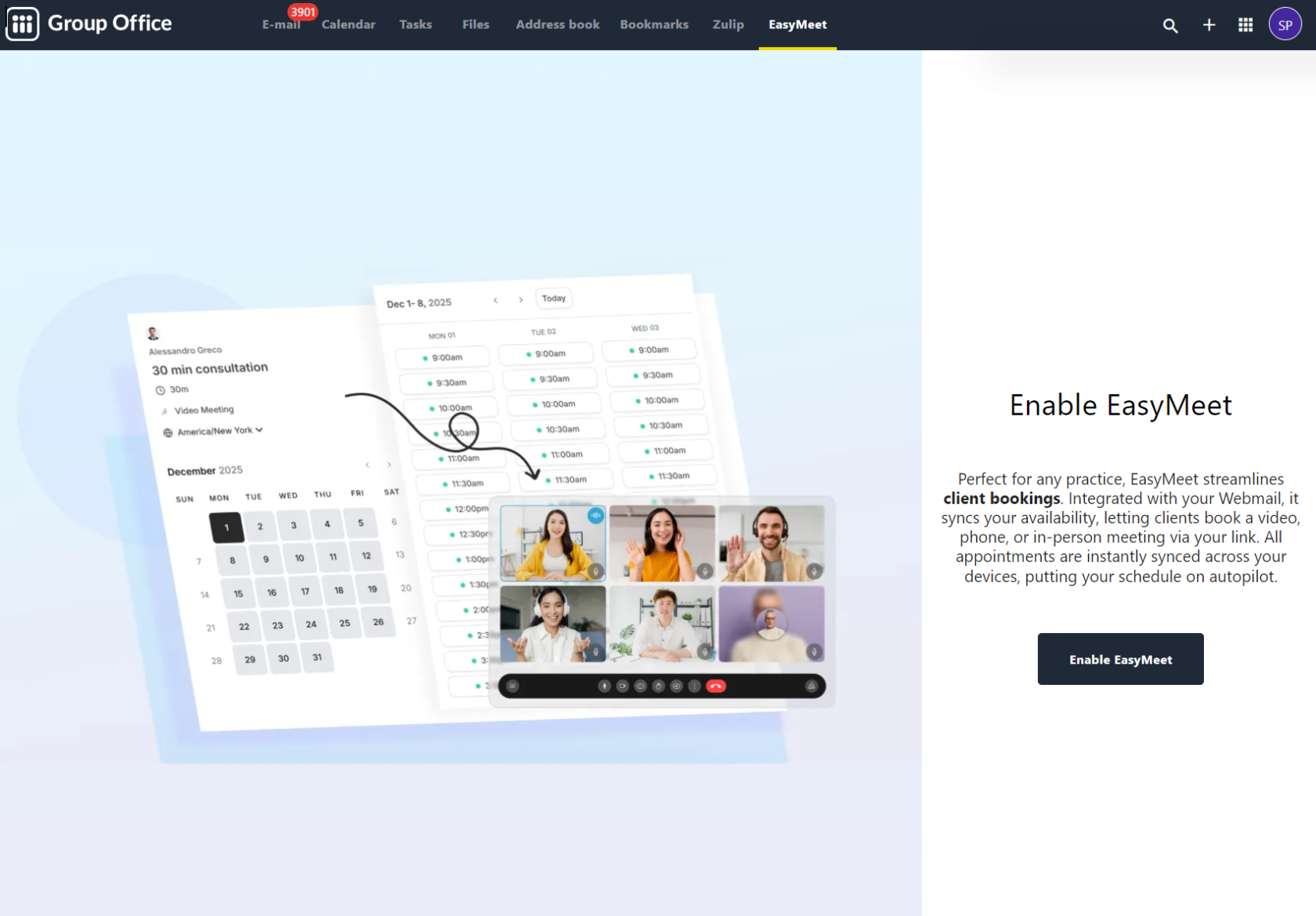
To begin using EasyMeet, log in to your Webmail and look for the **EasyMeet** tab in the top navigation bar. If you are using it for the first time, you will see an enablement screen. Click **Enable EasyMeet** to activate the feature for your mailbox.  
  
[![EasyMeet - enable from the webmail if you have an Enhanced mailbox.PNG](https://wikidev.emailarray.com/uploads/images/gallery/2026-05/scaled-1680-/easymeet-enable-from-the-webmail-if-you-have-an-enhanced-mailbox.PNG)](https://wikidev.emailarray.com/uploads/images/gallery/2026-05/easymeet-enable-from-the-webmail-if-you-have-an-enhanced-mailbox.PNG)
## Configuring Your Availability

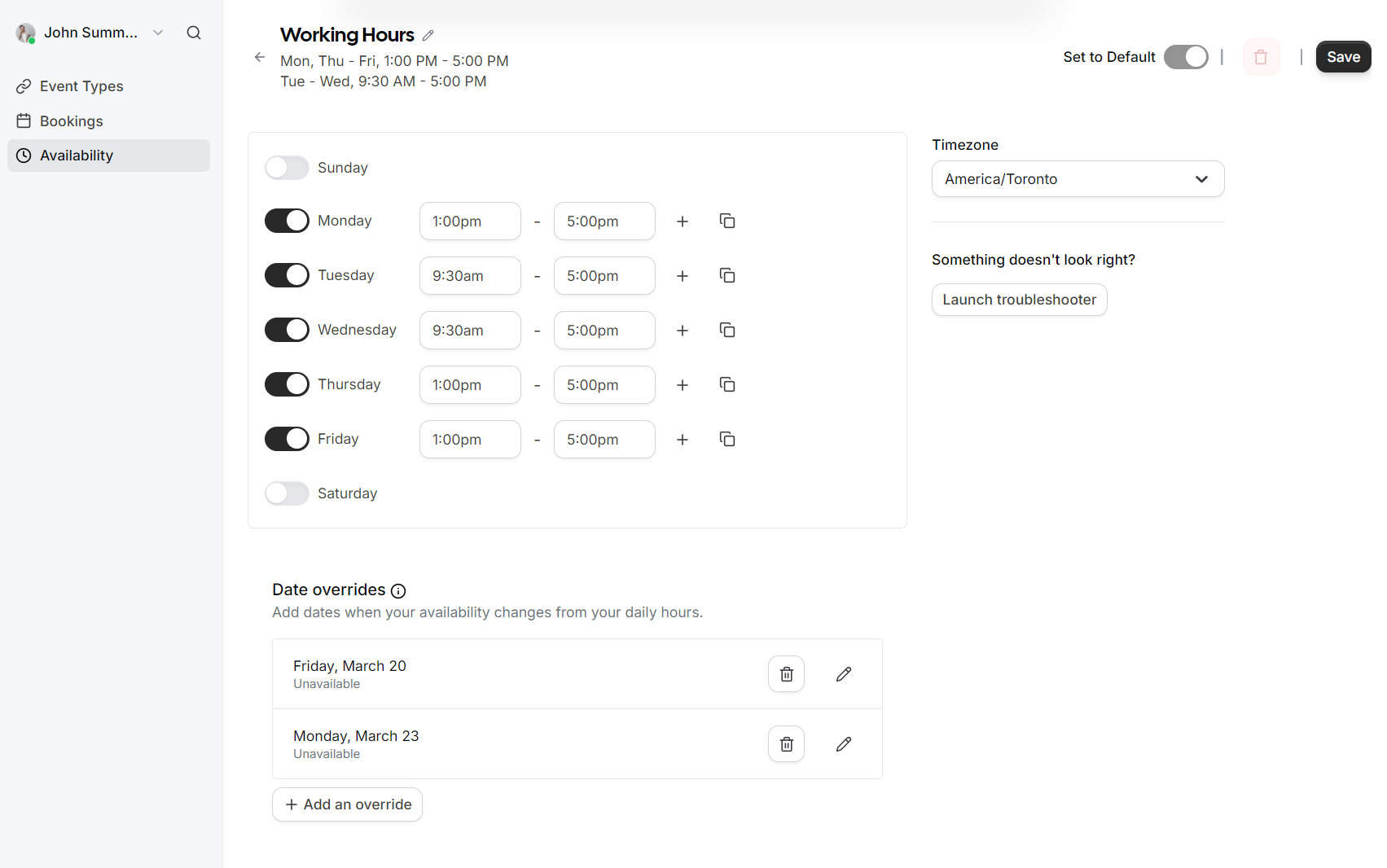
Your availability determines when guests can book time with you. You can manage this under the **Availability** section in the left sidebar.

### Setting Working Hours

1. Select the **Availability** tab.
2. Toggle the days of the week you are available.
3. Define your time slots for each day (e.g., 9:30 AM to 5:00 PM).
4. Select your correct **Timezone** from the dropdown menu to ensure appointments are synced accurately for both you and your guests.
5. Click **Save** to apply your schedule.  
      
    [![EasyMeet - 1 - availability schedule with date overrides.PNG](https://wikidev.emailarray.com/uploads/images/gallery/2026-05/scaled-1680-/easymeet-1-availability-schedule-with-date-overrides.PNG)](https://wikidev.emailarray.com/uploads/images/gallery/2026-05/easymeet-1-availability-schedule-with-date-overrides.PNG)
### Date Overrides

If you have specific days where your schedule differs from your standard working hours (such as holidays or a one-off afternoon off), you can use **Date overrides**.

- Click **Add an override**.
- Select the specific date on the calendar.  
      
    [![EasyMeet - 1 - setup your working hours - add an exception to override the existing schedule.PNG](https://wikidev.emailarray.com/uploads/images/gallery/2026-05/scaled-1680-/easymeet-1-setup-your-working-hours-add-an-exception-to-override-the-existing-schedule.PNG)](https://wikidev.emailarray.com/uploads/images/gallery/2026-05/easymeet-1-setup-your-working-hours-add-an-exception-to-override-the-existing-schedule.PNG)
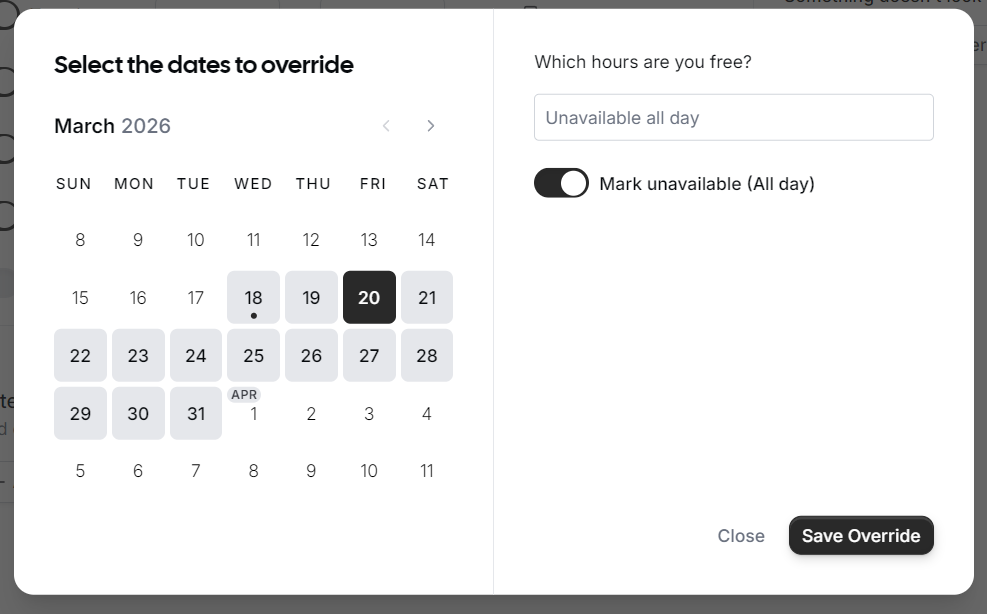
- Choose to either mark yourself as **Unavailable (All day)** or set specific custom hours for that date only.
- Click **Save Override**.

## Managing Event Types

Event Types allow you to define different kinds of meetings, such as a 15-minute "Quick Chat" or a 60-minute "Consultation."

[![EasyMeet - 2 - Add event types - type of meetings your customers can schedule.PNG](https://wikidev.emailarray.com/uploads/images/gallery/2026-05/scaled-1680-/easymeet-2-add-event-types-type-of-meetings-your-customers-can-schedule.PNG)](https://wikidev.emailarray.com/uploads/images/gallery/2026-05/easymeet-2-add-event-types-type-of-meetings-your-customers-can-schedule.PNG)
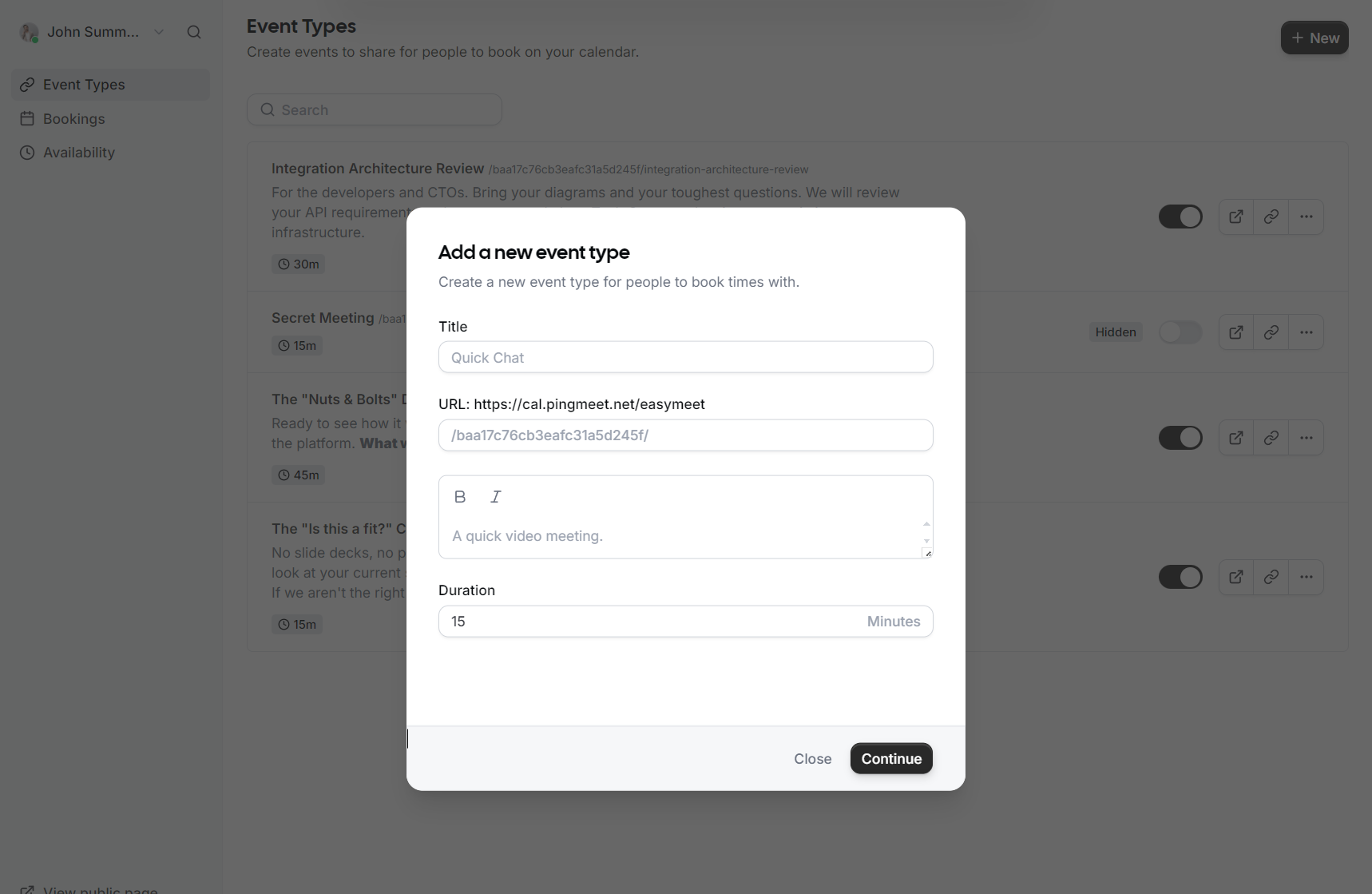
1. Navigate to **Event Types** in the sidebar.
2. Click **+ New** to create a meeting type.
3. Provide a **Title** and a brief **Description** so your guests know what the meeting is about.
4. Set the **Duration** (e.g., 15, 30, or 60 minutes).
5. Choose a **Location** (e.g., Video Meeting).
6. Customize the **URL** slug for this specific event.
7. Click **Continue** or **Save** to publish the event type.

## Sharing Your Link

Once your event types are set up, you can share them with the world:

[![EasyMeet - 3 - get your public link.png](https://wikidev.emailarray.com/uploads/images/gallery/2026-05/scaled-1680-/easymeet-3-get-your-public-link.png)](https://wikidev.emailarray.com/uploads/images/gallery/2026-05/easymeet-3-get-your-public-link.png)
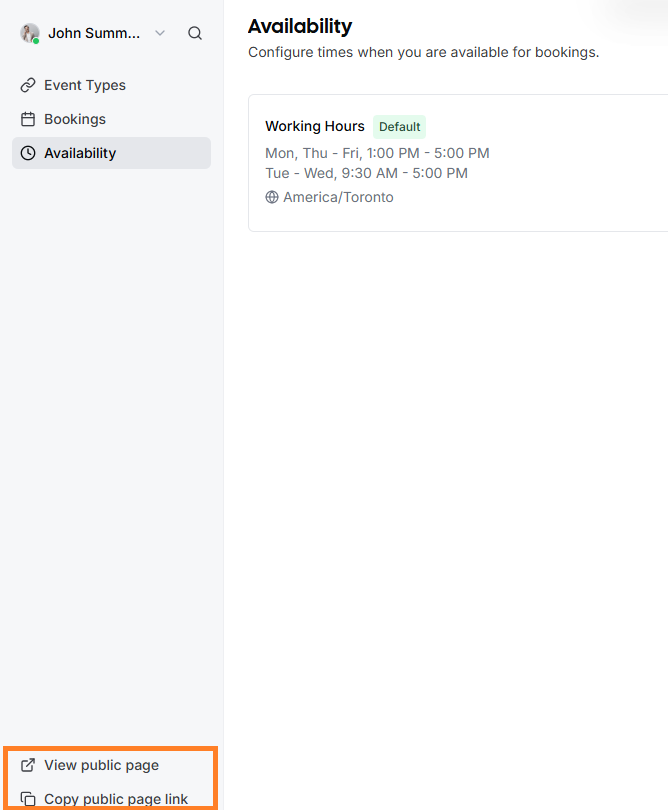
- **Public Page:** In the bottom left corner of the EasyMeet interface, click **View public page** to see what your customers see.
- **Copy Link:** Use the **Copy public page link** to grab your URL and add it to your email signature or share it directly in a chat.

## Managing Bookings

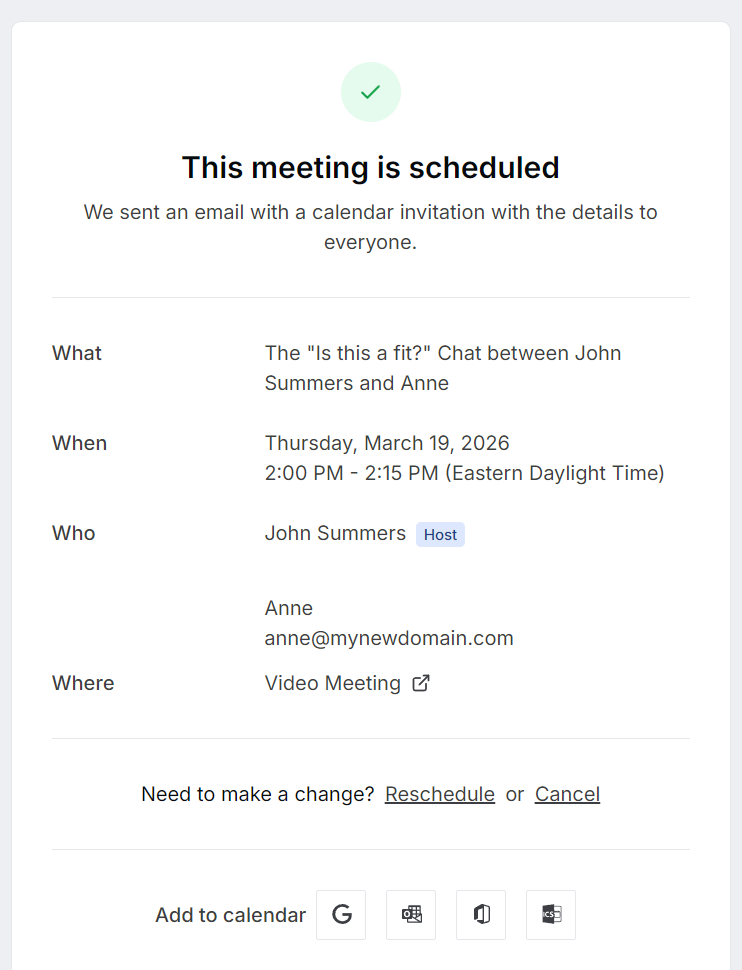
When a guest books a meeting, you will receive an email notification, and the event will automatically appear in your calendar.

[![EasyMeet - 3 - public link - event confirmed.PNG](https://wikidev.emailarray.com/uploads/images/gallery/2026-05/scaled-1680-/easymeet-3-public-link-event-confirmed.PNG)](https://wikidev.emailarray.com/uploads/images/gallery/2026-05/easymeet-3-public-link-event-confirmed.PNG)
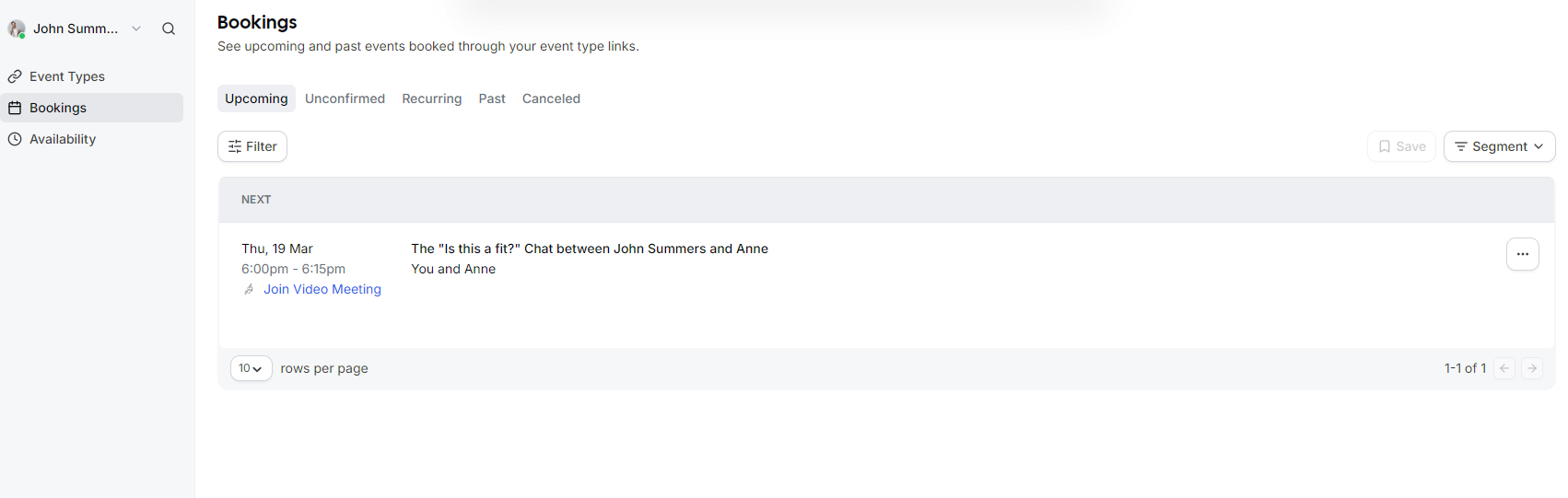
- To view a list of all scheduled meetings, go to the **Bookings** tab.
- You can filter between **Upcoming**, **Past**, and **Canceled** events.
- Each booking includes a direct link to the **Video Meeting** if applicable.
- If you need to change a meeting, you can use the **Reschedule** or **Cancel** options directly from the booking details.  
      
    [![EasyMeet - 3 - list bookings.PNG](https://wikidev.emailarray.com/uploads/images/gallery/2026-05/scaled-1680-/easymeet-3-list-bookings.PNG)](https://wikidev.emailarray.com/uploads/images/gallery/2026-05/easymeet-3-list-bookings.PNG)
# Event Advanced Setup

This guide details how to configure your **Event Types** to perfectly match your meeting requirements, from basic setup to advanced booking rules.

---

## Creating a New Event Type

To start, navigate to the **Event Types** tab and click the **+ New** button. A modal will appear where you can define the core parameters of your meeting:

- **Title**: Give your event a clear name, such as "Consultation" or "Quick Chat".
- **URL**: Customize the specific link slug guests will use to book this event.
- **Description**: Briefly explain what the meeting is for so guests know what to expect.
- **Duration**: Select how long the meeting will last in minutes.

[![EasyMeet - 2 - Add event types - type of meetings your customers can schedule.PNG](https://wikidev.emailarray.com/uploads/images/gallery/2026-05/scaled-1680-/easymeet-2-add-event-types-type-of-meetings-your-customers-can-schedule.PNG)](https://wikidev.emailarray.com/uploads/images/gallery/2026-05/easymeet-2-add-event-types-type-of-meetings-your-customers-can-schedule.PNG)

---

## Event Setup

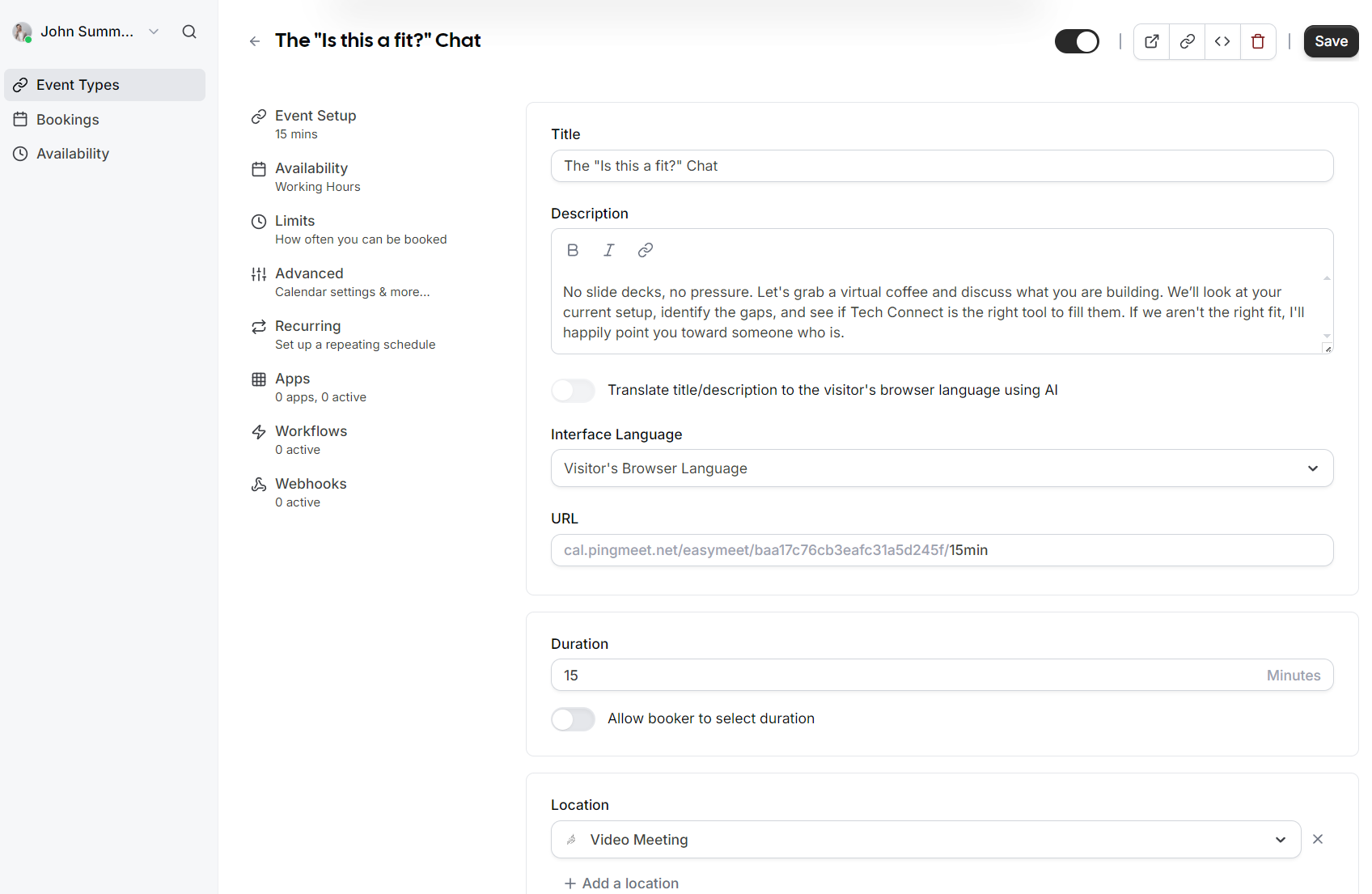
Once the event is created, you can access more granular settings in the **Event Setup** section:

- **AI Translation**: You can toggle an option to automatically translate your title and description to the visitor's browser language using AI.
- **Interface Language**: Set the default language for the booking interface or allow it to match the visitor's browser language.
- **Duration Flexibility**: In addition to a fixed duration, you can enable an option that allows the booker to select their preferred meeting length.
- **Location**: Define where the meeting takes place, such as a **Video Meeting**.

[![EasyMeet - 2 - Add event types - event setup.PNG](https://wikidev.emailarray.com/uploads/images/gallery/2026-05/scaled-1680-/easymeet-2-add-event-types-event-setup.PNG)](https://wikidev.emailarray.com/uploads/images/gallery/2026-05/easymeet-2-add-event-types-event-setup.PNG)
---


## Availability

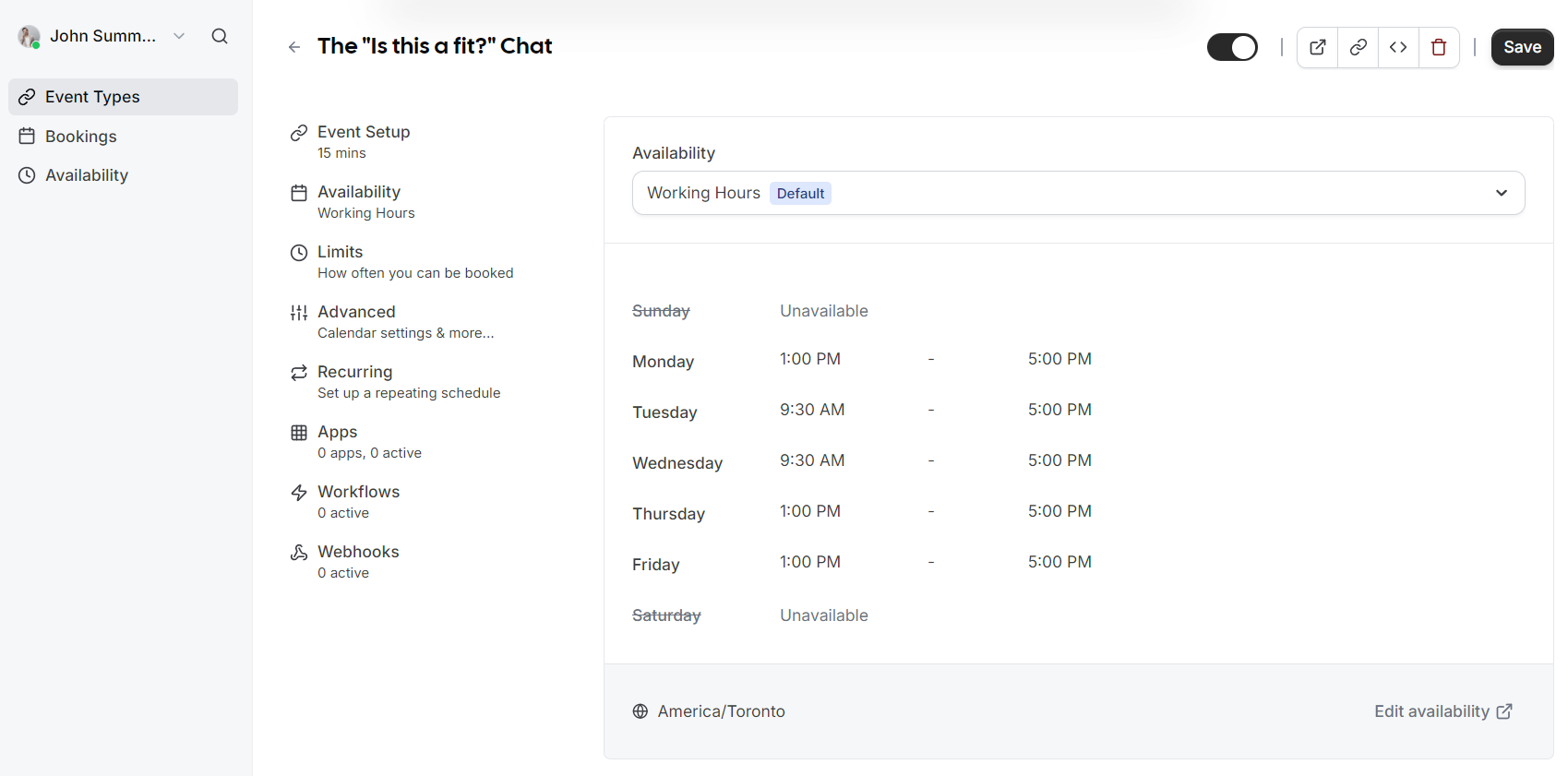
Assign which schedule this event type should follow. By default, this uses your standard **Working Hours**, but you can select different schedules if you have created them.

[![EasyMeet 2 - Add event types - availability.PNG](https://wikidev.emailarray.com/uploads/images/gallery/2026-05/scaled-1680-/easymeet-2-add-event-types-availability.PNG)](https://wikidev.emailarray.com/uploads/images/gallery/2026-05/easymeet-2-add-event-types-availability.PNG)
## Limits

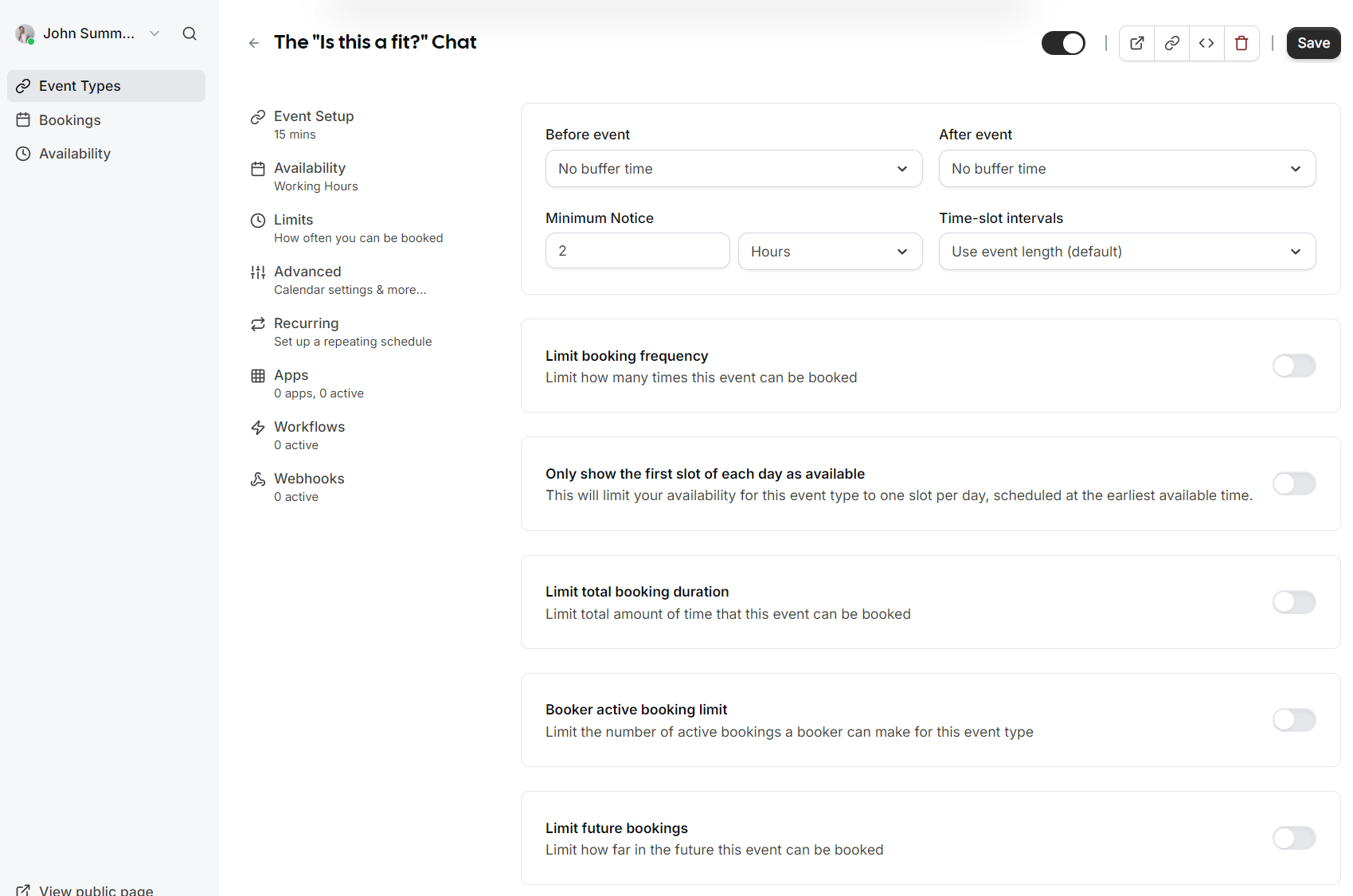
- **Buffers**: Add "No buffer time" or specific intervals before and after events to prevent back to back meetings.
- **Minimum Notice**: Prevent last minute surprises by requiring a minimum amount of notice (e.g., 2 hours) before someone can book.
- **Time-slot intervals**: Choose how frequently slots are displayed (e.g., every 15 minutes or based on event length).
- **Booking Frequency**: Limit how many times this specific event can be booked overall.
- **Future Bookings**: Set a limit on how far into the future guests are allowed to schedule a meeting.

[![EasyMeet 2 - Add event types - limits.PNG](https://wikidev.emailarray.com/uploads/images/gallery/2026-05/scaled-1680-/easymeet-2-add-event-types-limits.PNG)](https://wikidev.emailarray.com/uploads/images/gallery/2026-05/easymeet-2-add-event-types-limits.PNG)
---

## Advanced Options

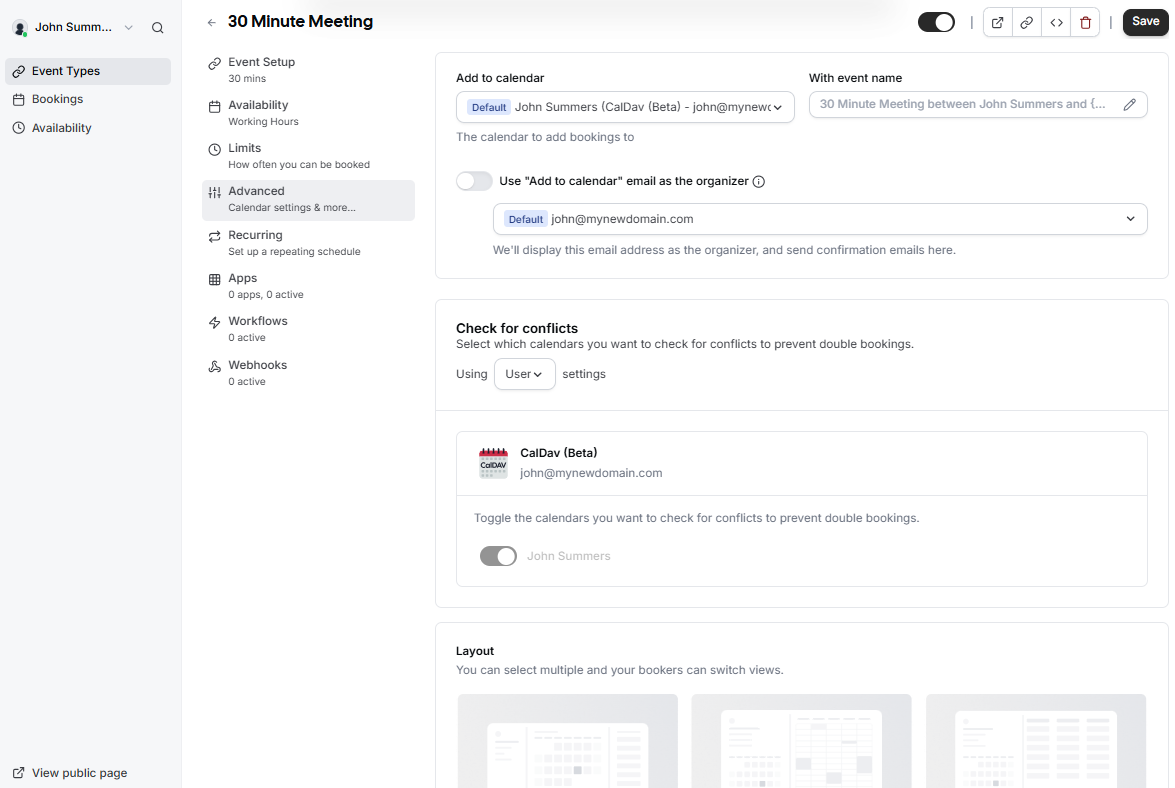
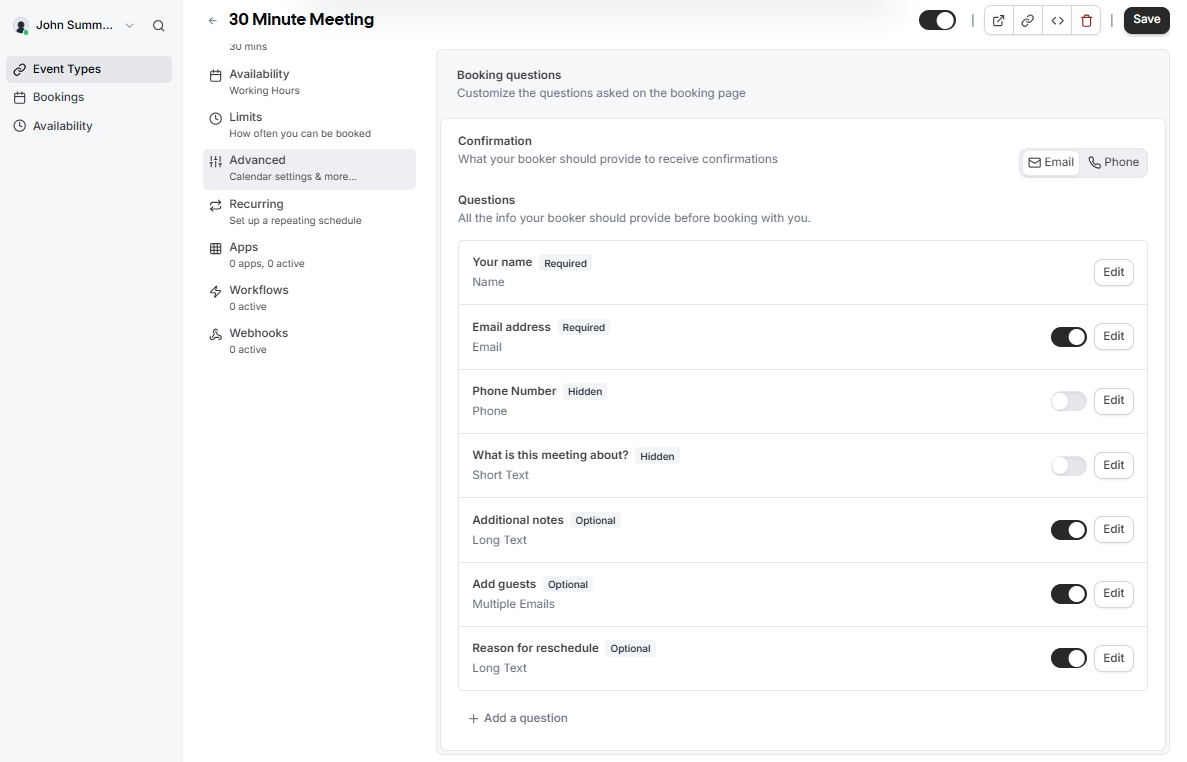
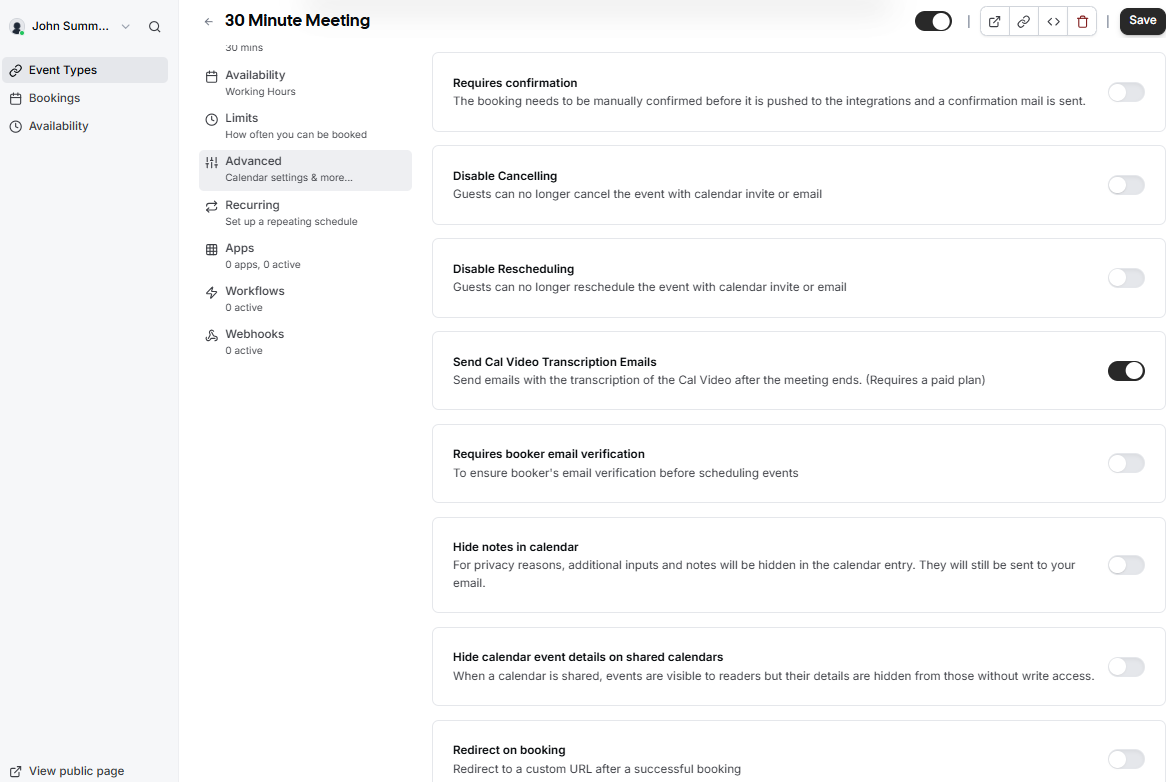
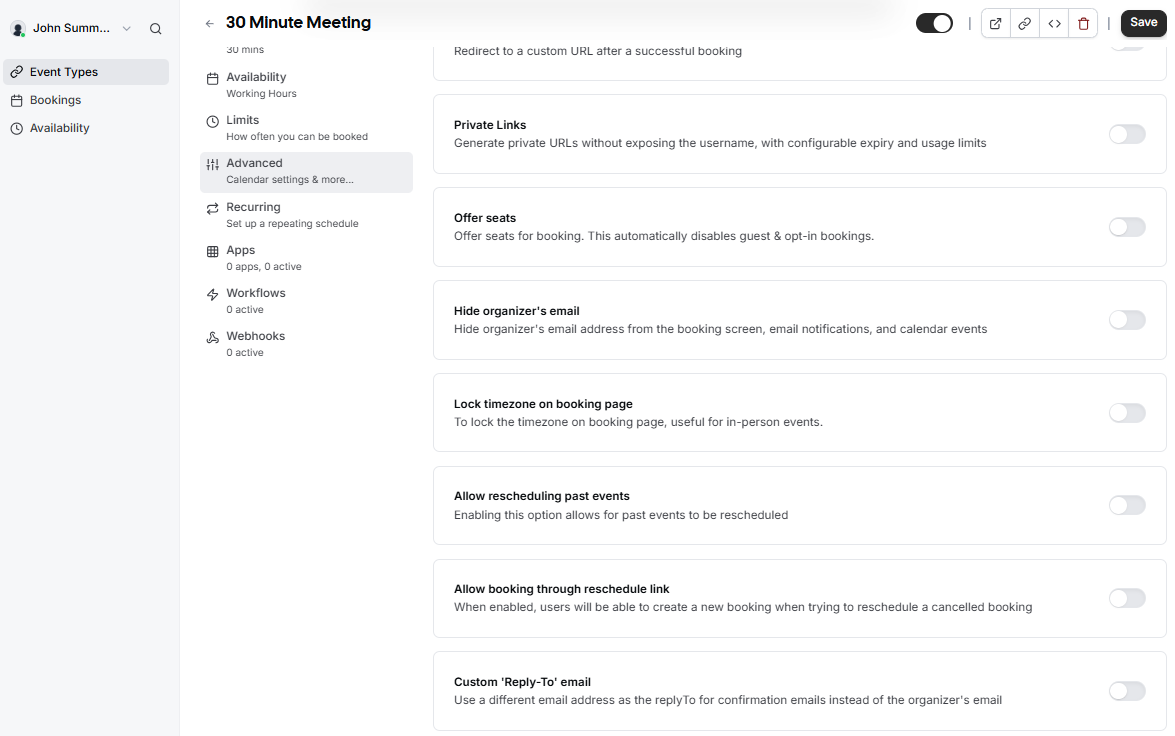
<table border="1" id="bkmrk--9" style="border-collapse: collapse; width: 100%;"><colgroup><col style="width: 25%;"></col><col style="width: 25%;"></col><col style="width: 25%;"></col><col style="width: 25%;"></col></colgroup><tbody><tr><td>[![EasyMeet - event setup - advanced tab - 1.png](https://wikidev.emailarray.com/uploads/images/gallery/2026-05/scaled-1680-/easymeet-event-setup-advanced-tab-1.png)](https://wikidev.emailarray.com/uploads/images/gallery/2026-05/easymeet-event-setup-advanced-tab-1.png)</td><td>[![EasyMeet - event setup - advanced tab - 2.png](https://wikidev.emailarray.com/uploads/images/gallery/2026-05/scaled-1680-/easymeet-event-setup-advanced-tab-2.png)](https://wikidev.emailarray.com/uploads/images/gallery/2026-05/easymeet-event-setup-advanced-tab-2.png)</td><td>[![EasyMeet - event setup - advanced tab - 3.png](https://wikidev.emailarray.com/uploads/images/gallery/2026-05/scaled-1680-/easymeet-event-setup-advanced-tab-3.png)](https://wikidev.emailarray.com/uploads/images/gallery/2026-05/easymeet-event-setup-advanced-tab-3.png)</td><td>[![EasyMeet - event setup - advanced tab - 4.png](https://wikidev.emailarray.com/uploads/images/gallery/2026-05/scaled-1680-/easymeet-event-setup-advanced-tab-4.png)](https://wikidev.emailarray.com/uploads/images/gallery/2026-05/easymeet-event-setup-advanced-tab-4.png)</td></tr></tbody></table>


The **Advanced** tab provides granular control over your calendar integration, the booking process, and how your event appears to guests.


#### Calendar and Syncing

Manage how bookings interact with your existing calendar to prevent double bookings.

- **Add to calendar**: Select the specific calendar where new bookings should be recorded.
- **Event name**: Customize the format of the meeting name as it will appear in your calendar.
- **Check for conflicts**: Toggle which calendars the system should monitor to prevent overlapping appointments.
- **Organizer identity**: Choose whether to use the default calendar email as the meeting organizer.


#### Layout and Booking Questions

Customize what your guests see and what information they must provide.

- **Display Layout**: Enable different views like **Month**, **Weekly**, or **Column** to allow bookers to switch their preferred view.
- **Confirmation Method**: Choose whether bookers receive confirmations via **Email** or **Phone**.
- **Custom Questions**: While **Name** and **Email** are required by default, you can add or edit fields for **Phone Number**, **Additional notes**, or **Reason for reschedule**.
- **Guest Invitations**: Enable the **Add guests** option to allow bookers to invite additional attendees during the scheduling process.


#### Booking Rules and Workflow

Define the logic and restrictions for every appointment.

- **Requires confirmation**: Enable this if you want to manually approve each booking before it is finalized and added to your calendar.
- **Disable Cancel or Reschedule**: Prevent guests from changing or cancelling their appointments through the automated links.
- **Email Verification**: Require bookers to verify their email address before they can successfully schedule an event.
- **Redirect on booking**: Automatically send guests to a custom URL after they finish scheduling.
- **Offer seats**: Use this for group sessions where multiple guests can book the same time slot.


#### Privacy and Advanced Customization

Protect your sensitive data and tailor the communication style.

- **Private Links**: Generate unique URLs with configurable expiry and usage limits to avoid exposing your main username.
- **Hide Personal Details**: You can choose to hide your email address from the booking screen or hide event notes in the calendar entry for privacy reasons.
- **Lock Timezone**: Fix the timezone on the booking page, which is particularly helpful for coordinating in-person events.
- **Custom Reply-To**: Specify a different email address to receive replies to confirmation emails instead of the default organizer email.
- **Rescheduling Logic**: Toggle whether users can reschedule past events or create new bookings through a reschedule link.

#### Administrative Settings

- **Offer Seats**: Enable this for group sessions where multiple guests can book the same time slot.
- **Custom Reply-To**: Use a specific email address for confirmation replies instead of the default organizer email.
- **Event Type Color**: Assign a color to the event type to help differentiate bookings within your internal dashboard.