Transferring Domains Between Admin Accounts
There are times when a customer may start under your direct management but later decides they want to manage their own settings, mailboxes, and quotas. Instead of deleting and recreating everything, you can simply transfer the domain from your Admin account to theirs.
When to Use This Feature
-
Customer Autonomy: A client wants to manage their own mailbox creation and resource allocation.
-
Account Reorganization: You are moving a specific domain to a new sub-admin for better organization.
-
White-Label Handoff: You’ve finished the initial setup for a client and are now handing over the "keys" to their own dashboard.
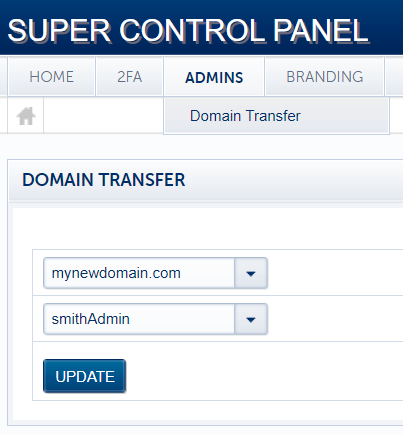
How to Move a Domain
The transfer is handled entirely within the Super Panel and takes effect immediately.
What Happens After the Transfer?
-
Instant Management: The new Admin will immediately see the domain in their own dashboard.
-
Mailbox Preservation: All existing mailboxes, aliases, and data associated with that domain remain intact and move with it.
-
Quota Allocation: The domain will now count against the destination Admin’s domain quota. Ensure the destination Admin has enough "Max Domains" allowed in their settings before you start.
Pro-Tip: Resource Check: Before moving a domain, use the pencil icon in the Admins list to verify that the destination account has enough available Mailbox and Storage quota to support the incoming domain's existing users.