Super Delegates
A Super Delegate is a specialized account that allows you to delegate administrative tasks while maintaining high security for your primary credentials. You can define granular access levels across different sections of the Super Panel, ranging from view-only to full permissions.
Super Delegate Scope Limit: Super Delegates cannot be restricted to manage only specific domains; they have access to the entire account infrastructure.
Common Use Cases
-
Team Collaboration: Assign individual accounts to team members to track actions and limit responsibilities without exposing your primary Super account.
-
Activity Tracking: Monitor the specific actions performed by individual delegates to maintain a clear audit trail of administrative changes.
Best Practices
Internal Team Members Sharing a single Super account is a significant security risk. Instead, create a unique Super Delegate for each team member to ensure accountability and safety:
-
Enable 2FA: Each team member should activate their own two-factor authentication for account security.
-
Tiered Permissions: Assign only the level of access required for their specific role to adhere to the principle of least privilege.
Manage Super Delegates
Add a Super Delegate
-
Go to the Super Panel.
-
Log in using your main Super username and password.
-
Click on Super Delegates in the menu.
-
Click on the New button.
-
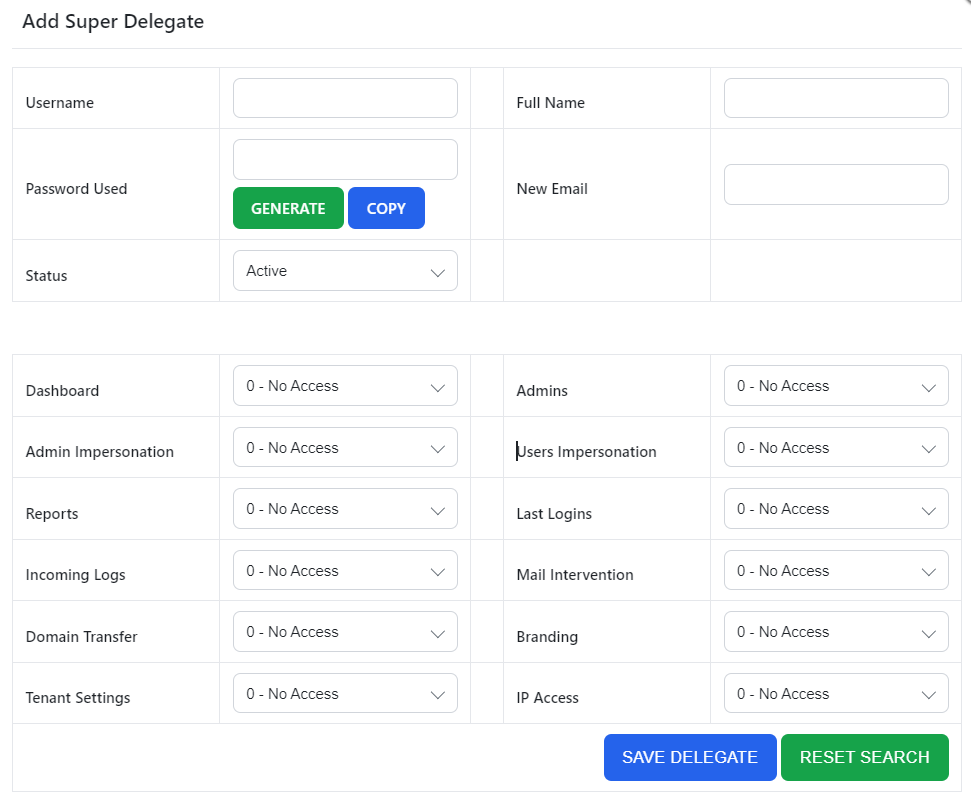
Fill in the details for your new Super Delegate:
-
Username: The desired login name for the delegate.
-
Full Name: The name of the team member.
-
Password Used: Type a secure password, or click GENERATE and then COPY to securely capture an auto-generated password.
-
New Email: The email address that will be used for password recovery.
-
Status: Select Active or Inactive from the dropdown.
-
-
Select the permissions for each section. Options range from "0 - No Access" upwards. You can configure access for the following areas:
-
Dashboard
-
Admin Impersonation
-
Reports
-
Incoming Logs
-
Domain Transfer
-
Tenant Settings
-
Admins
-
Users Impersonation
-
Last Logins
-
Mail Intervention
-
Branding
-
IP Access
-
-
Click the SAVE DELEGATE button to apply your changes.
Remove a Super Delegate
-
Go to the Super Panel.
-
Log in using your main Super username and password.
-
Click on Super Delegates in the menu.
-
Click on the Delete icon next to the Super Delegate you want to remove.
Update a Super Delegate You can update all details and permissions of an existing Super Delegate at any time.
-
Go to the Super Panel.
-
Log in using your main Super username and password.
-
Click on Super Delegates in the menu.
-
Click on the Edit (pencil) button next to the Super Delegate you want to update.
-
Update the necessary details. Leave the Password Used field blank if you want to update permissions but do not want to change their current password.
-
Click the SAVE DELEGATE button to save the changes.
Security Settings
Two-Factor Authentication for Super Delegates Log in as the Super Delegate and follow the standard instructions for enabling two-factor authentication to secure the account.