**Note:** Before you begin, please check your available resources. If you need more mailboxes or storage space, you can easily increase your quota from your billing panel.
### Step 1: Create the Admin Account First, log into your [Super Panel](https://cp.emailarray.com/super) and navigate to the ADMINS tab. 1. Open the Setup Form: Click on New Admin. 2. Basic Information: Enter the administrator's name, choose a unique username, and set a secure password. 3. Set Resource Quotas: You must enter a value for every field (use "0" if a feature isn't needed): - **Mailbox Quotas**: Define how many **Basic or** **Enhanced** they can create. - **Max Domains**: Set the limit for how many domains this admin can manage. *Tip: A standard rule of thumb is one domain per purchased mailbox.* - **Quota (GB)**: Assign the total storage allowance for this customer. You have the flexibility to divide your total storage space however you like among your clients. [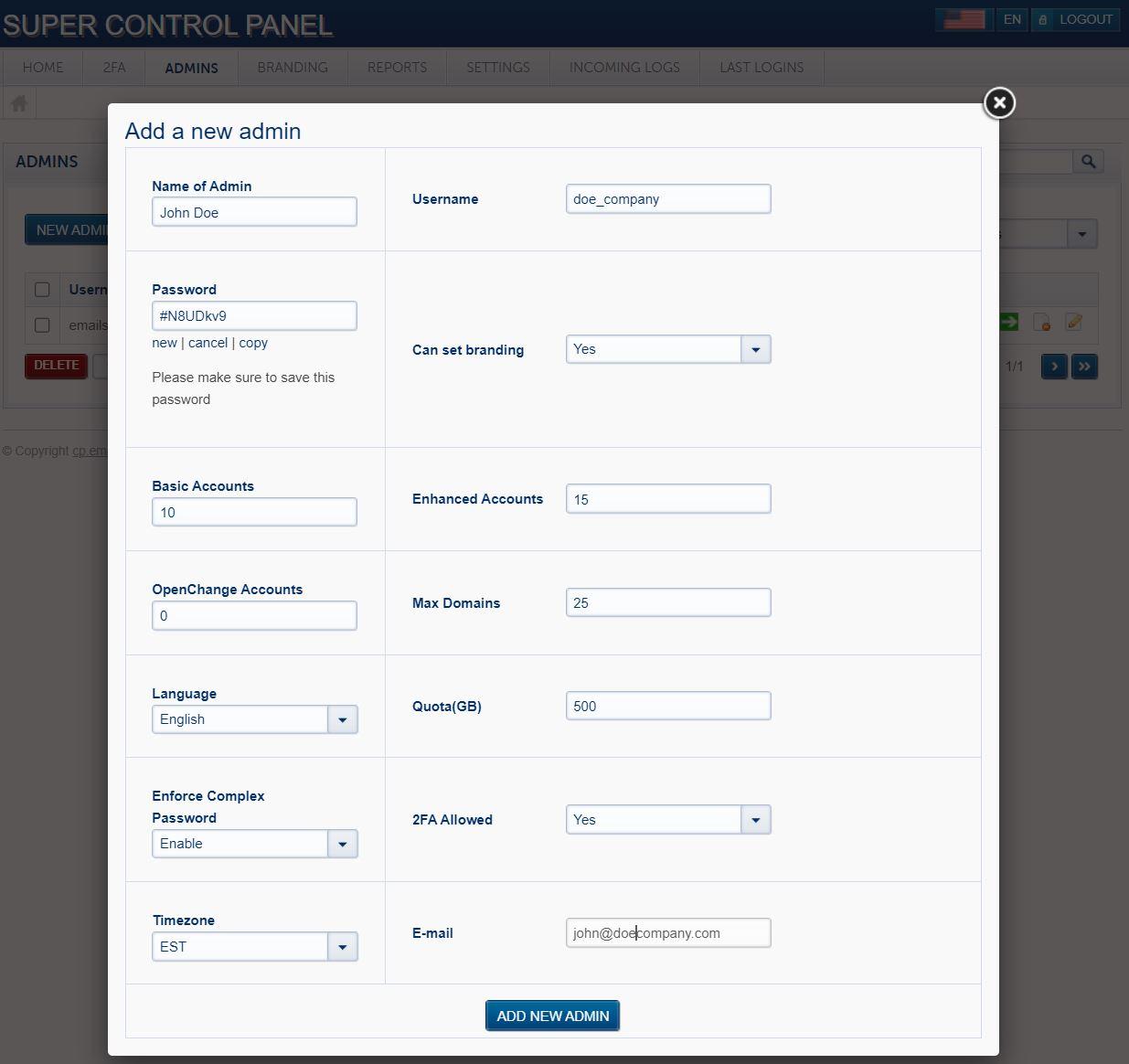](https://wikidev.emailarray.com/uploads/images/gallery/2026-01/example-setup-for-a-new-admin.JPG) 4. Finalize: Choose the default **language** and **timezone** for the admin, then click **Add New Admin**. ### Step 2: Choose Your Onboarding Path Once the account is created, you have two ways to handle the mailbox setup: #### Option A: The Hands-Off Approach (Customer-Led) Provide your customer with their new Admin login credentials. They can then log in and create their own mailboxes at their convenience. #### Option B: The White-Glove Approach (Reseller-Led) If you prefer to set everything up for your client, you can do so without needing their specific password: - Go to the ADMINS tab and click Show All Admins. - Locate your customer in the list. - Click the "Login as" icon (the green arrow) to instantly access their dashboard and create mailboxes on their behalf. [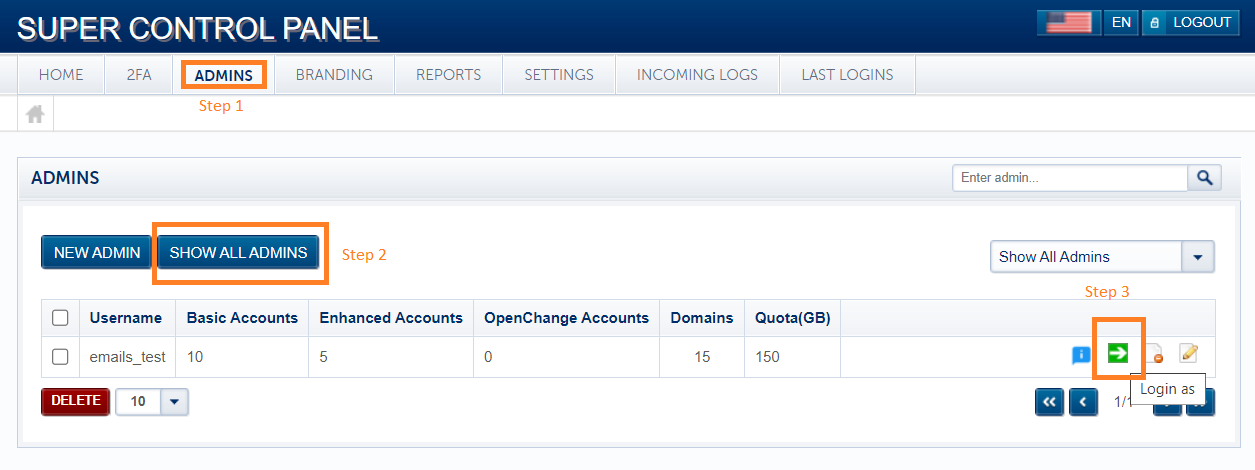](https://wikidev.emailarray.com/uploads/images/gallery/2026-01/login-as-an-admin-from-your-super-panel.PNG)Need help creating the actual mailboxes? We’ve made it super simple. Follow our [Step-by-Step Mailbox Creation Guide](https://wikidev.emailarray.com/books/1-configure-a-new-e-mail-address-getting-started) to get your customer's team up and running in minutes.