Viewing Version History as External User
Depending on how the document was shared, you may be allowed to view or restore previous versions of the document.
Version History Access Levels
Your access depends on the share link settings:
- None — Version history is hidden
- View Only — You can see versions but not restore them
- View & Edit — You can view and restore versions
Viewing Version History
If you have access:
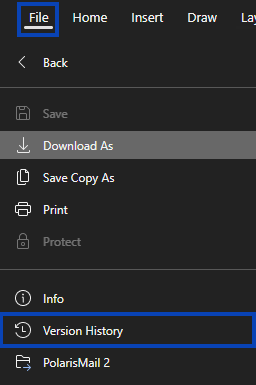
- Look for Version History in the File menu.

- Click to open the version history panel.
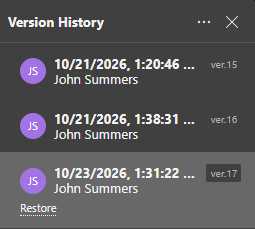
- Browse the list of saved versions.

- Click a version to view it.
What You Can See
- Date and time of each version
- Who made the changes
- Version notes, if they were added
Viewing Past Versions
- Click a version entry.
- The document opens in that historical state.
- Review the content as it was saved at that time.
- Return to the current version when you are done.
Restoring Versions
If your link includes restore permissions:
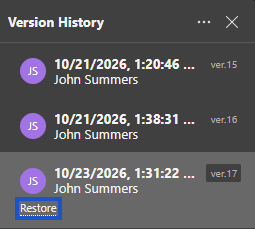
- Select the version you want.
- Click Restore.

- Confirm the restoration.
- The document returns to that version.
Note: Restoring a version affects the live document for everyone who has access to it. It is a good idea to communicate with the document owner first.
Your Contributions
When you edit the document:
- Your changes can create new versions
- Your verified email may identify you as the author
- Other collaborators may be able to see your contributions in version history
No Version History Access
If version history is not available:
- The option does not appear in the menus
- You can only work with the current version
- Contact the document owner if you need additional access
Why It Matters
Version history can help you:
- Review how the document has evolved
- Recover content that was changed or removed
- Understand changes made by other collaborators