Viewing Documents on Mobile
Open and read documents, spreadsheets, presentations, and PDF files directly from your mobile device. The mobile app lets you quickly review content, navigate pages or slides, and switch to editing when you have permission.
Opening a Document
Document Viewing
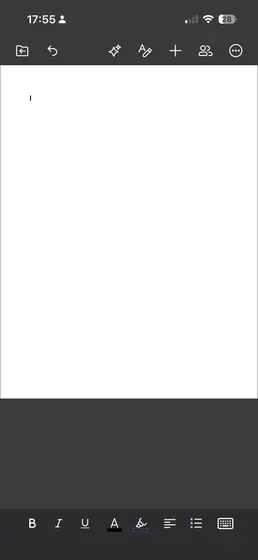
- Scroll up or down to read through pages
- Pinch to zoom in or out
- Double-tap to quickly zoom
- Swipe left or right for page navigation, if that option is enabled
- Tap the page indicator to jump to a specific page
- Use page thumbnails if they are available
- Use search to find specific text in the document
Spreadsheet Viewing
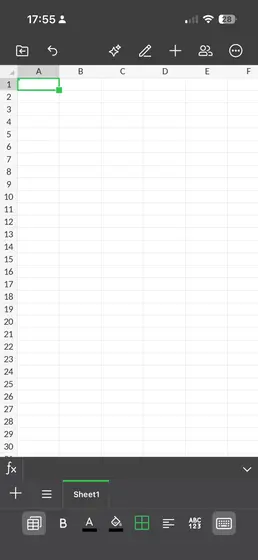
- Scroll horizontally and vertically to move through the sheet
- Pinch to zoom in or out
- Tap sheet tabs to switch between worksheets
Cell Viewing
- Tap a cell to view its contents
- Use the formula bar to see the full cell value
- Freeze panes can help keep large sheets easier to read
Presentation Viewing
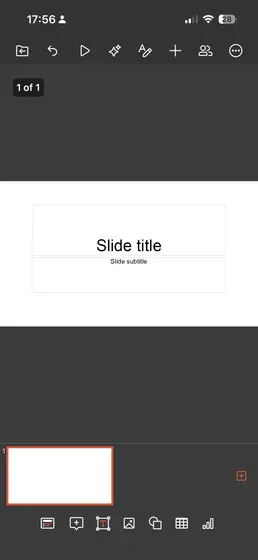
- Swipe left or right to move between slides
- Tap slide thumbnails to jump to a specific slide
- Pinch to zoom in on slide content
Slideshow Mode
- Tap the present or play button to start the slideshow
- Swipe or tap to move to the next slide
- Tap the screen to show presentation controls
- Exit using the back button or your device gesture
PDF Viewing
- Scroll through pages
- Pinch to zoom
- Use page thumbnails for navigation
- Search for text inside the PDF
Search Within Document
- Tap the search icon.
- Enter the word or phrase you want to find.
- Move through the results.
- Tap a result or occurrence to jump to that location.
View Options
Depending on the document type, you may be able to:
- Show or hide formatting marks
- Switch between page view and continuous scroll
- Use dark mode or light mode
- Open the document in full-screen mode
Viewing Comments
- Comments may appear as markers in the document
- Tap a marker to read the comment
- Swipe through multiple comments if available
- Reply to comments if you have permission to do so
Switching to Edit Mode
- Tap the edit or pencil icon.
- The document switches from viewing mode to editing mode.
- Editing tools appear on the screen.
If you need to make changes, switch to edit mode only when you have permission to edit the file.
Closing Documents
- Tap the back arrow
- Or use your device’s back gesture
- You are returned to the file browser
Tips
- Rotate your device for a wider view when reading large content
- Use zoom for detailed sections
- Download large files in advance for smoother viewing
- Use search to find specific content more quickly