Version History in the Editor
Access version history directly from within the OfficeDocs editor without leaving your document. This makes it easier to review saved versions, preview older content, and restore an earlier version when needed.
Accessing Version History from Editor
To open version history from inside the editor:
- Open the document in the editor.
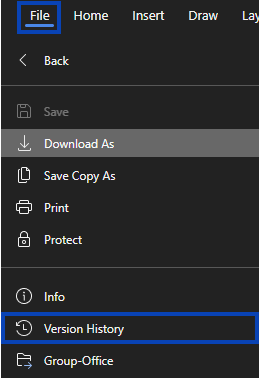
- Click File.
- Select Version History.
- The version history panel opens.
The Version History Panel
The version history panel shows saved versions of the document and helps you review changes over time.
The panel can display:
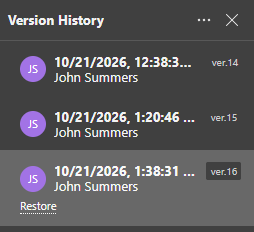
- a list of saved versions
- the date and time of each version
- the author who made the changes
- version notes, if available
Working with Versions in Editor
From the editor, you can review older versions without leaving your current document.
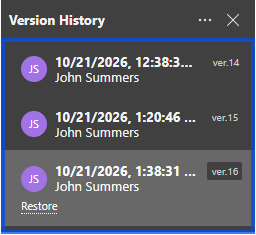
Preview a Version
To preview an earlier version:
- Click a version in the list.
- The document view updates to show that version.
- Review the content at that point in time.
Restore a Version
If you want to make an older version current again:
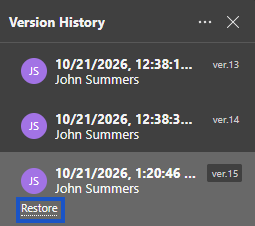
- Select the version you want to restore.
- Click Restore.

- Confirm the restoration.
- The document reverts to that version.
Version History vs. Undo
Both Version History and Undo help you go back, but they are used differently.
Version History
- shows saved versions
- stays available after the document is closed
- shows who made changes
- can restore an older saved version
Undo (Ctrl+Z)
- shows recent unsaved changes
- only works within the current editing flow
- does not show who made changes
- is best for reversing recent edits
Creating Version Checkpoints
To create clearer restore points while editing:
- Make your changes.
- Press Ctrl+S to save.
- A new version or revision may be added to history.
- Add a version note if that option is available.
Closing Version History
When you finish reviewing older versions:
- click the X on the version history panel
- or click Back to editing, if shown
- the current version is displayed again
Tips
- save before major changes to create restore points
- use version notes to describe important updates
- review version history before restoring an older version
- remember that version history may also be available from the file browser