Track Changes
Track Changes records edits made to a document so reviewers can see what was changed, who made the change, and decide whether to keep or reject it. This feature is useful for review, approval, and collaborative editing workflows.
Enabling Track Changes
To start recording edits:
- Open the Collaboration tab.
- Click Track Changes.
- The button becomes active.
- New edits are recorded and marked in the document.
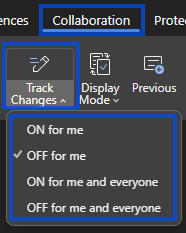
In some cases, Track Changes can also be enabled from the status bar.

How tracked changes appear
Tracked edits are shown directly in the document so you can review them clearly.
- Insertions appear as newly added text

- Deletions appear as removed text with strikeout formatting

- Formatting changes can be shown in the document or in the review details


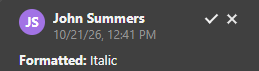
Changes made by different users may appear in different colors.
Viewing tracked changes
You can choose how tracked changes are displayed while reviewing the document.
Display modes
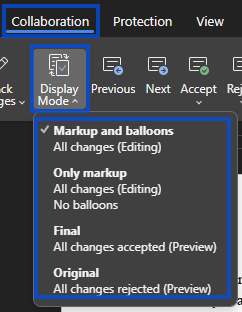
- Markup and balloons shows tracked changes in the document and in balloons
- Only markup shows tracked changes in the document text only
- Final shows how the document looks if all changes are accepted
- Original shows how the document looks if all changes are rejected
These display modes change how the document is shown, but they do not automatically accept or reject changes.
Accepting and rejecting changes
You can review changes one by one or apply an action to all changes.
Individual changes
- Click a tracked change.
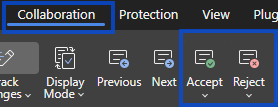
- Click Accept to keep the change.
- Click Reject to remove the change.
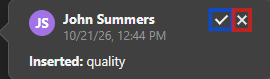
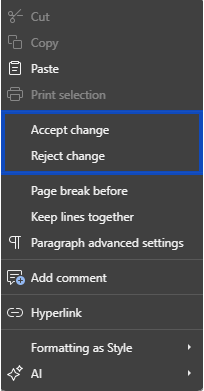
You can also right-click a change and choose Accept Change or Reject Change.
All changes
Use these options when you want to apply the same action to every tracked change in the document.
- Accept All keeps every tracked change
- Reject All removes every tracked change
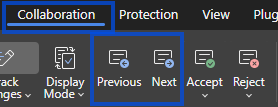
To move through changes one at a time:
- click Next to go to the next change
- click Previous to go to the previous change
Track Changes in collaboration
Track Changes is especially useful when several people work on the same file.
- reviewers can suggest edits without changing the final content directly
- collaborators can review one another’s changes before accepting them
- tracked changes help teams keep a clear approval process
If a document is shared with review-only access, tracking may already be enabled by default.
Finalizing a Document
Once the review is complete, you can finalize the document by applying the remaining tracked changes.
To finalize the document:
- Review all remaining tracked changes.
- Use Accept or Reject for each change, or use Accept All or Reject All if appropriate.
- Switch to Final view if you want to preview the finished version.
- Make sure no unresolved review changes remain.
- Save the document when the review is complete.
This helps ensure the final version is clean and ready to share.
Best practices
These habits can make review work easier:
- Enable Track Changes before sending for review
- Include comments explaining significant changes
- Review changes carefully before accepting
- Always finalize documents before distribution