Sharing with Internal Users
Sharing from File Browser
- Open the folder that contains the file.
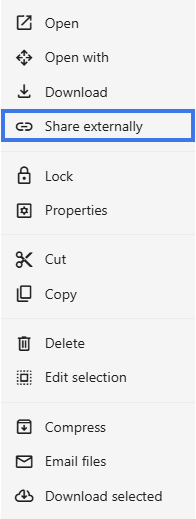
- Right-click the file.
- Select Share externally.

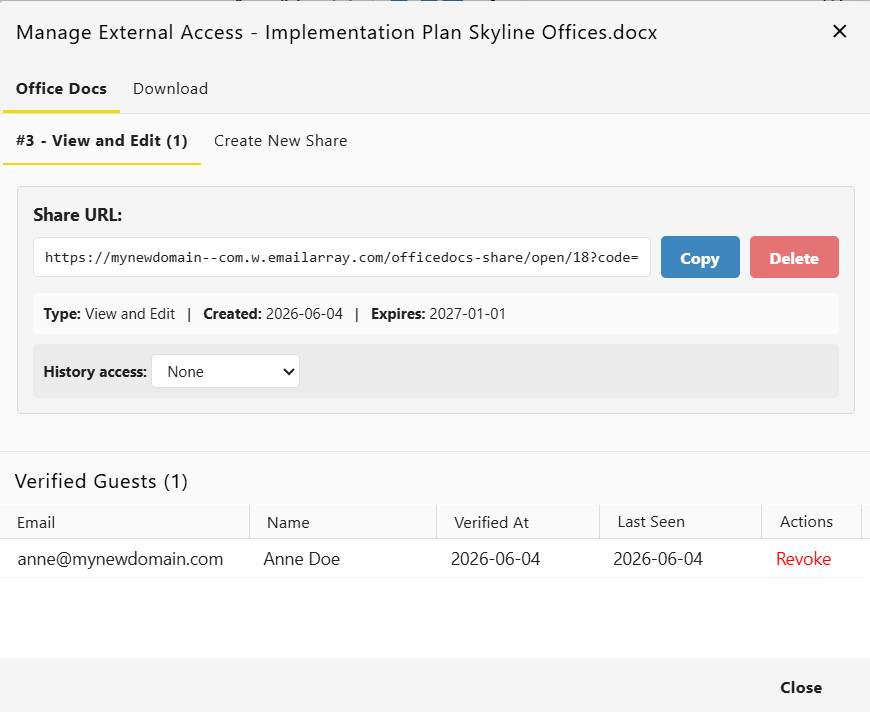
- The sharing window opens.

Adding Users
Use the sharing window to add one or more internal users.
Permission Levels
The available permission levels may vary depending on the file type and workspace settings.
View Only
With view-only access, a user can usually:
- open and read the document
- not make changes to the file
- download the file, if downloading is allowed
- view collaboration details such as comments or version-related information, depending on the file settings
Can Edit
With edit access, a user can usually:
- edit the document
- save changes
- collaborate in real time
- create updates that appear in the document history
Sharing with Groups
If your organization uses groups, you can share with a group instead of adding users one by one.
- Search for the group name.
- Select the group.
- Choose the permission level.
- Save the sharing settings.
All group members then receive access based on the permission level you selected.
Viewing Current Shares
The sharing window also lets you review who already has access.
- Open the sharing window.
- View the list of users and groups with access.
- See each user’s permission level.
- Identify the document owner if shown.
Modifying Permissions
You can update a user’s access level at any time.
- Open the sharing window.
- Find the user in the list.
- Change the permission level using the dropdown or access menu next to their name.
- Changes take effect once the new settings are applied.
Removing Access
If someone no longer needs access, you can remove them from the share list.
- Open the sharing window.
- Find the user you want to remove.
- Click the remove option next to their name.
- Confirm the removal if prompted.
- The user loses access immediately.
Notification Options
When sharing a file, you may have options to:
- send an email notification to the user
- include a custom message
- skip the notification for silent sharing
Folder Sharing
- Right-click a folder.
- Select Share.
- Add users with permissions.
- Users can access all files in the folder.
Permissions may also be inherited by subfolders and files, depending on your folder structure and settings.