Sharing with Groups
What Are Groups
Groups are collections of users created for easier permission management. Depending on your organization, groups may include:
- departments
- teams
- roles
- custom groups for specific purposes
Sharing with a Group
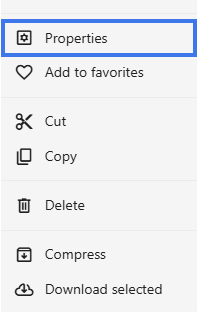
- Right-Click a folder and select Properties.

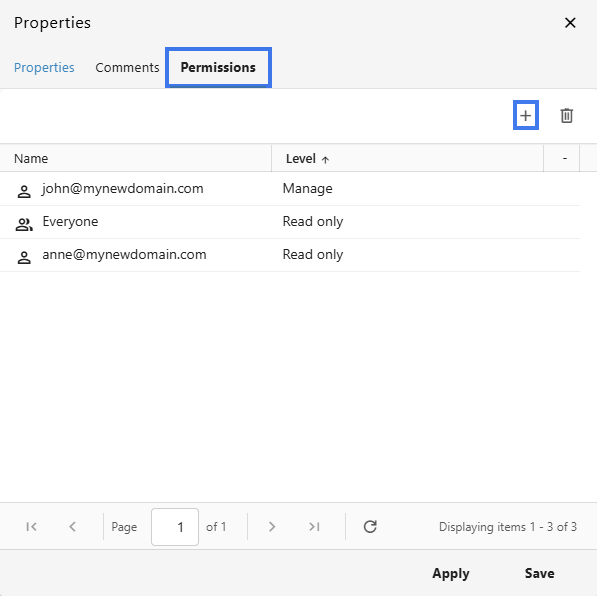
- In the Permissions field click on the + icon to add users.

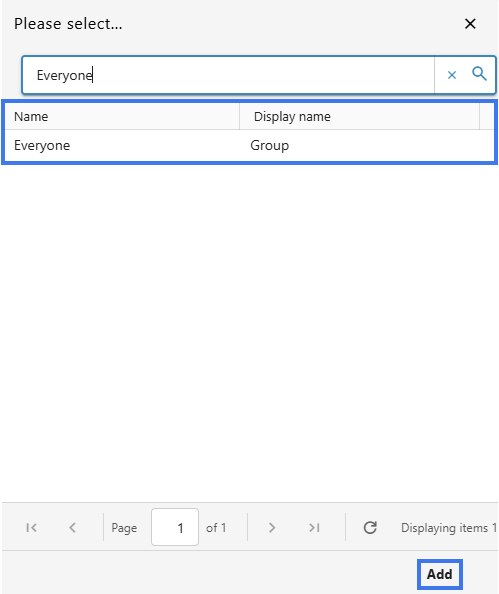
- In the search field, type the group name.

- Select the group from the results.
- Click Add.
- Choose the permission level, Apply then Save.

Group Permissions
- all current group members receive access
- new members added to the group may also receive access automatically
- users removed from the group may lose access
- all members of the group receive the same permission level from that group share
Viewing Group Access
To review which groups already have access:
- Open the sharing dialog.
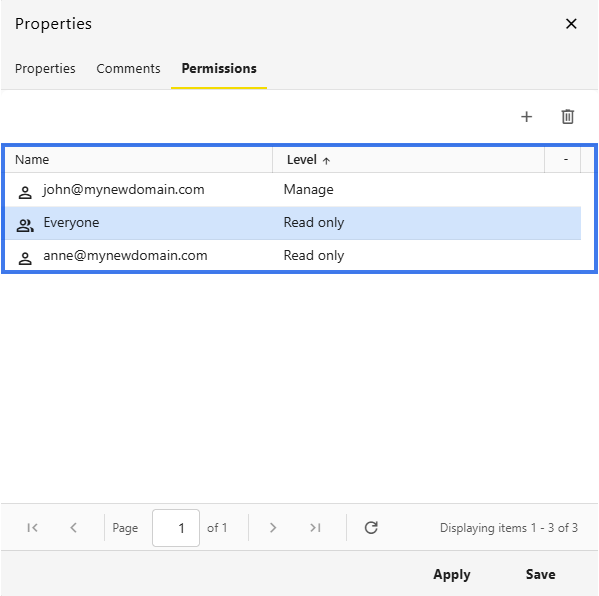
- Look for the group entries in the sharing list.

- Select a group to review its access details.
Changing Group Permissions
You can update a group’s permission level at any time.
- Open the sharing dialog.
- Find the group in the list.
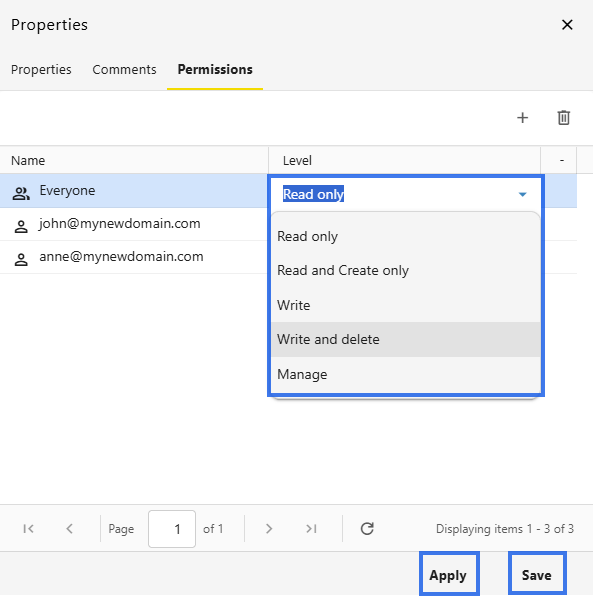
- Double-Click and change the permission level using the dropdown.
- The updated access level applies to the group.
Removing Group Access
If a group no longer needs access:
- Open the sharing dialog.
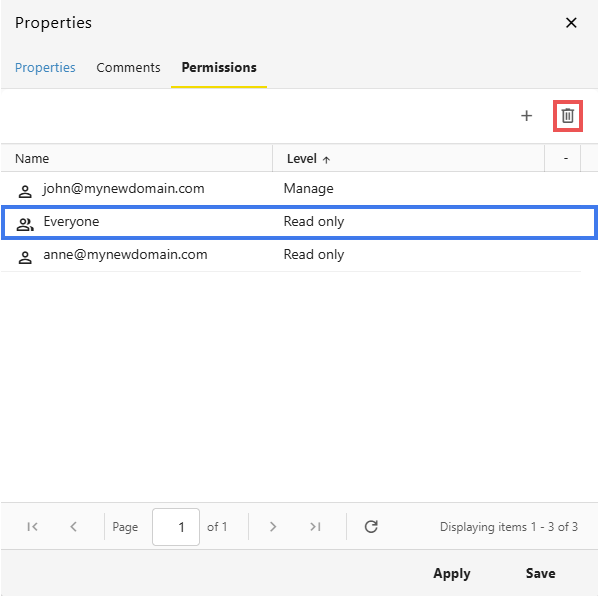
- Find the group you want to remove.
- Click the delete option.

- Confirm the removal if prompted.
- Group members lose access through that group share.
Groups vs. Individual Sharing
Both methods are useful, but they work differently.
Group Sharing
Individual Sharing
Combining Group and Individual Sharing
You can use both group sharing and individual sharing on the same document.
For example, you can:
Best Practices
- use groups for team-wide documents
- keep group membership updated
- review shared group access regularly
- use individual sharing only when different access is needed for specific users