Sharing from Desktop
Accessing Share Options
From File Browser
- Open your connected OfficeDocs files in Desktop Editors.

- Go to the file you want to share.
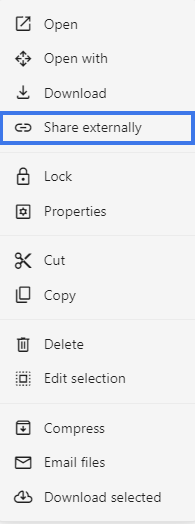
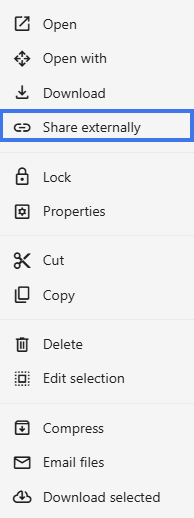
- Right-click the file.
- Select Share externally.

- Create a link and Send it to the destinated user.


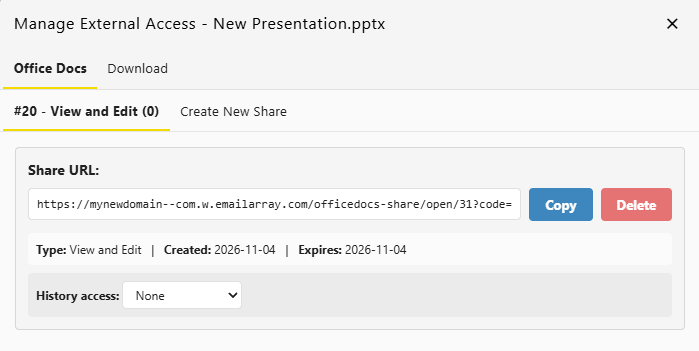
From the file explorer
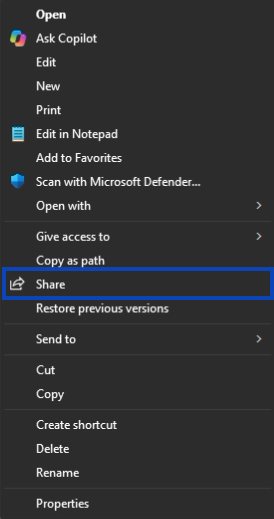
- Right-Click the document you want to share.
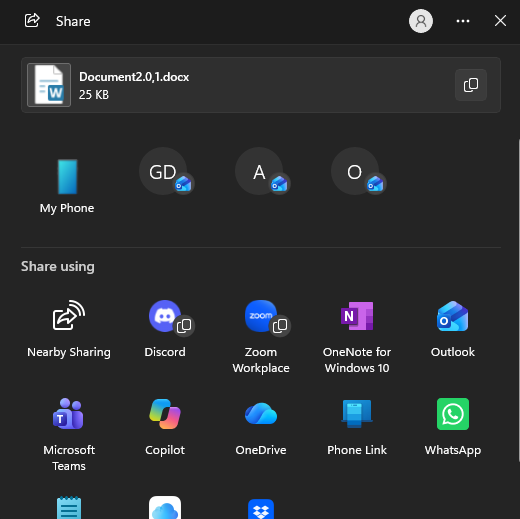
- Click the Share button.

- Sharing window opens then share it.

Creating Share Links
Generate links for external sharing:
- Right-Click the file.
- Look for the Share Externally section.

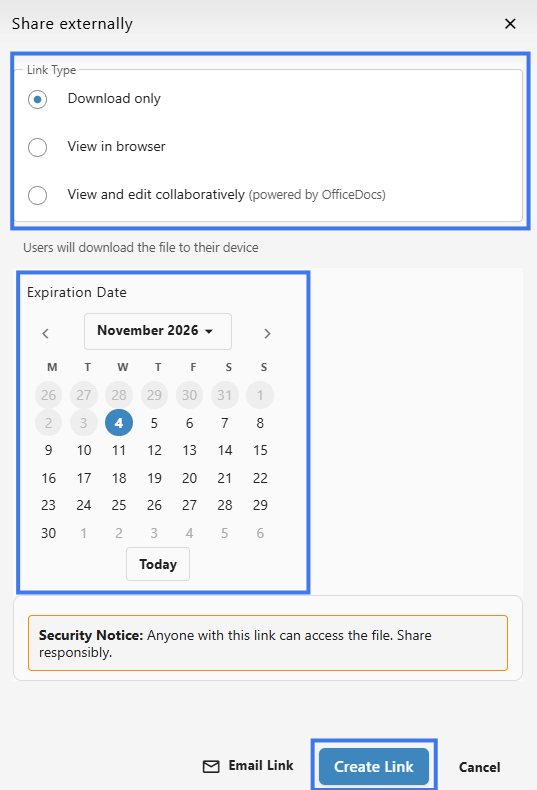
- Select the link type you want, such as view or edit.

- Create the link.
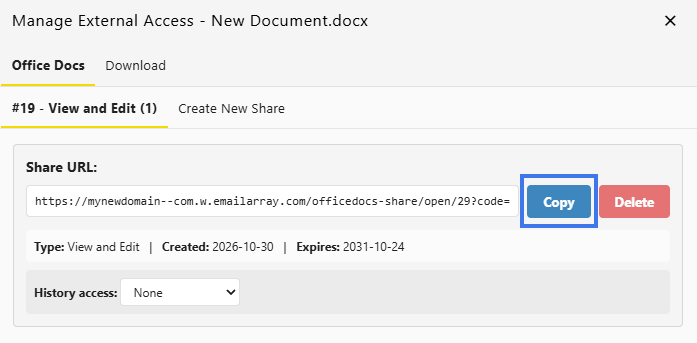
- Copy the link and send it to the recipient.

Permission Levels
- Download Only — The user can download a copy of the document without editing the original online
- View in browser — The user can open and read the document only
- View & Edit collaboratively — The user can make changes to the document
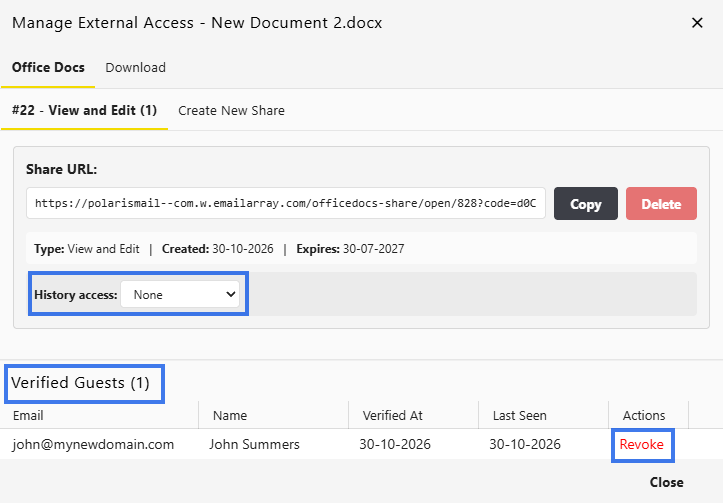
Managing Existing Shares
Email Notifications
- Users usually receive an email when a file is shared with them
- You may be able to include a message with your share
- External share links may need to be sent separately
Share Folders
- Go to the folder you want to share.
- Right-click the folder.
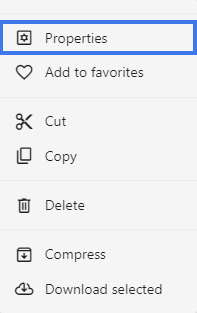
- Select Properties.

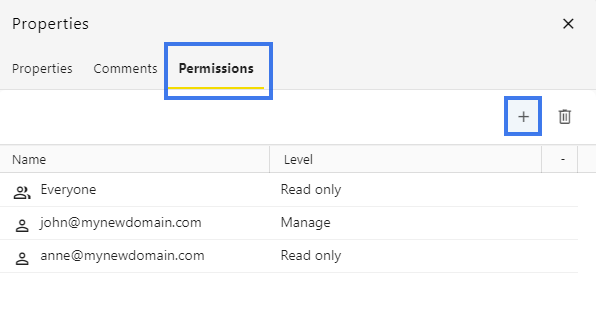
- Choose the folder Permissions then the + icon.

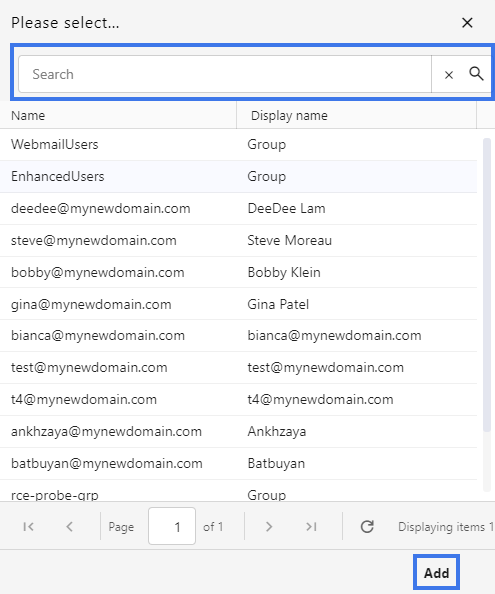
- Share it then click Add.