Moving Files and Folders
Reorganize your documents by moving them between folders. Moving items helps you keep your file structure clean and organized.
Drag and Drop
- Click and hold the file or folder.
- Drag it to the destination folder.
- Drop it to complete the move.
Cut and Paste
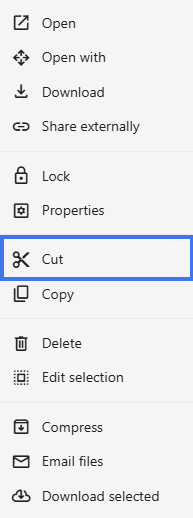
- Right-click the file or folder.
- Select Cut.

- Navigate to the destination folder.
- Compose Ctrl+V — Paste
Keyboard Shortcuts
- Ctrl+X — Cut
- Ctrl+V — Paste
Moving Multiple Files
- Select multiple files:
- Ctrl+Click for individual selection
- Shift+Click for range selection
- Use any move method.
- All selected items move together.
What Happens When You Move
- The file appears in the new location
- It is removed from the old location
- Sharing permissions may change depending on the destination folder
- Version history is preserved
Moving Shared Files
When moving files that are already shared:
- Internal sharing may be affected by the destination folder’s permissions
- External share links can continue working, depending on how the file was shared
- File owner permissions remain in place
Moving Folders
Moving a folder also moves everything inside it:
- All files inside move with it
- All subfolders move with it
- The folder structure stays intact
Undo a Move
If you moved something by mistake:
- Use Ctrl+Z right away if the action can still be undone
- Or manually move the item back to its original location