Link Expiration Dates
Expiration dates automatically disable share links after a chosen date. This helps improve security by limiting how long external users can access a document.
Setting an Expiration Date
To set an expiration date for a share link:
- Create a new share link.
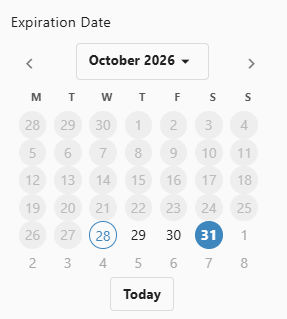
- Find the Expiration Date Field.
- Select the date when the link should stop working.

- Create the link.
How Expiration Works
When a link has an expiration date:
- the link remains active until the selected expiration date
- once the link expires, it no longer provides access
- recipients cannot continue using the expired link
- continued access requires an active link
Choosing Expiration Dates
Choose the expiration period based on how long access is needed.
Short-Term (Days)
Use short-term expiration dates for:
- quick reviews
- temporary meeting access
- time-sensitive documents
Medium-Term (Weeks)
Use medium-term expiration dates for:
- project collaboration with deadlines
- document review cycles
- contract or approval discussions
Long-Term (Months)
Use longer expiration periods for:
- ongoing partnerships
- reference materials
- longer collaboration windows
Expiration Notifications
Depending on the sharing setup, you may see or receive reminders related to link expiration.
These may include:
- a reminder before the link expires
- a notice when the link has expired
- an alert for the document owner or person managing the link
After Expiration
When a link expires:
- recipients see that the link is no longer active
- they cannot access the document through that link
- a new active link is needed for continued access
- earlier link activity could still remain part of the link history
Best Practices
- match the expiration period to the business need
- review and extend links only when necessary
- use shorter expiration periods for sensitive documents
- let recipients know when their access will expire
Expiration vs. Manual Revocation
Both expiration and manual revocation can end link access, but they work differently.
Expiration
- access ends automatically on the chosen date
- works well for planned access periods
- usually needs less follow-up once it is configured
Manual Revocation
- access ends when you remove or disable the link
- works well when access must stop immediately
- requires someone to take action to revoke the link