Find and Replace
Find and Replace helps you quickly locate text in a document and, if needed, replace it with new content. This is useful when you want to make the same change throughout the document or review repeated terms one by one.
Finding text
Use the search tools to locate words, phrases, or repeated content in your document. You can open a small search panel for quick results or the full panel for more options.
Basic find
- Press Ctrl+F to open the search panel.
- Type the word or phrase you want to find.
- Press Enter or use the navigation arrows.
- Move through the matches one by one until you find the result you need.

Find options
Use search options to make your results more precise.
- Match Case finds only text with the same uppercase and lowercase letters
- Whole Words Only finds complete words and ignores partial matches
- Highlight All highlights every match in the document when available in the search panel options
Replacing text
If you want to update text after finding it, you can use the replace tools to change one match at a time or all matches at once.
Basic replace
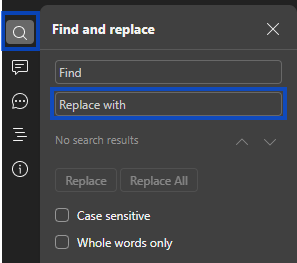
- Press Ctrl+H or the search icon to open the full Find and Replace panel.
- Enter the text you want to find in the Find field.
- Enter the new text in the Replace with field.
- Choose how you want to apply the change.
Replace options
You can choose the replacement method that fits your task.
- Replace changes the current match and moves to the next one
- Replace All changes all matches in the document at once
- Use the navigation arrows to skip a match and move to the next result without replacing it
Advanced find
You can refine your search further when you need to find formatting or special characters instead of regular text.
Using special characters
You can search for certain nonprinting or special characters when cleaning up document formatting.
Common examples include:
- Paragraph marks (Code: ^p)
- Tab characters (Code: ^t)
- Line break (Code: ^l)
- Page break (Code: ^m)
- Any character (Code: ^?)
- Any digit (Code: ^#)
- Any letter (Code: ^$)
Finding formatting
You can search for text that uses a specific format.
- Open Find and Replace.
- Choose the formatting you want to search for, such as font style or other text formatting.
- Run the search to find matching content.
Replacing formatting
You can also replace formatting throughout the document without necessarily changing the text itself.
- Open Find and Replace.
- Leave the Find field empty if you want to apply formatting broadly, or enter text if you want to target specific content.
- Click in the Replace field.
- Choose the new formatting you want to apply.
- Use Replace or Replace All to apply the change.
These shortcuts help you work faster when searching through a document.
- Ctrl+F opens the search panel
- Ctrl+H opens the Find and Replace panel
- Enter moves to the next result from the search field
- Esc closes the search panel
Tips
These habits can help avoid unwanted changes when using replace tools.
- Review matches carefully before using Replace All
- Use Match Case when letter case matters
- Use Whole Words Only to avoid partial matches
- Check the document after bulk changes to make sure the results are correct