Downloading and Exporting
OfficeDocs lets you download a copy of your file to your computer or export it to another format for sharing, printing, or continued work in another app. Depending on the editor you are using, the list of available formats may vary.
Downloading a document
You can download a file directly from the editor while you are working on it.
From the editor
- Open the file you want to download.
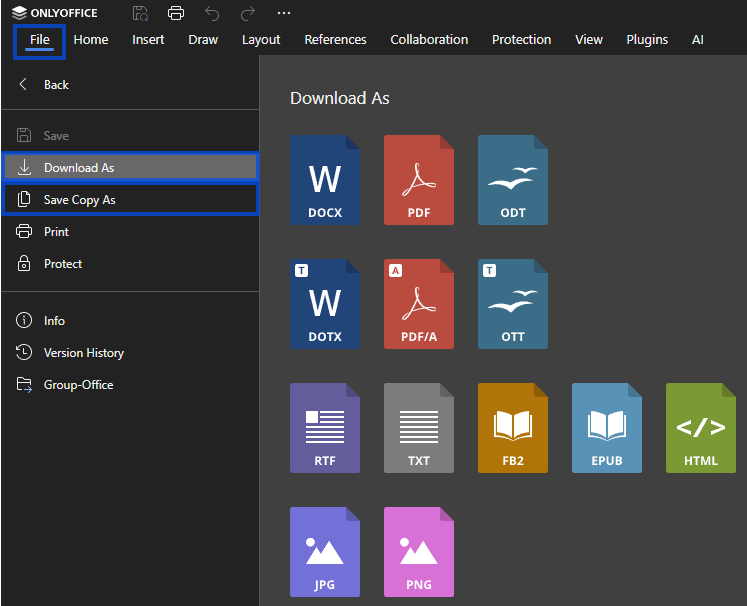
- Click File.
- Select Download as or Save Copy as, depending on the editor.
- Choose the format you want.
- The file is downloaded to your computer.
From the file browser
If your workspace includes a file browser, you may also be able to download the original file directly from there.
- Locate the file in the file browser.
- Right-click the file.
- Select Download.
- The file is downloaded in its current format.
Export formats
OfficeDocs supports different download and export formats depending on the type of file you are working with.
Documents
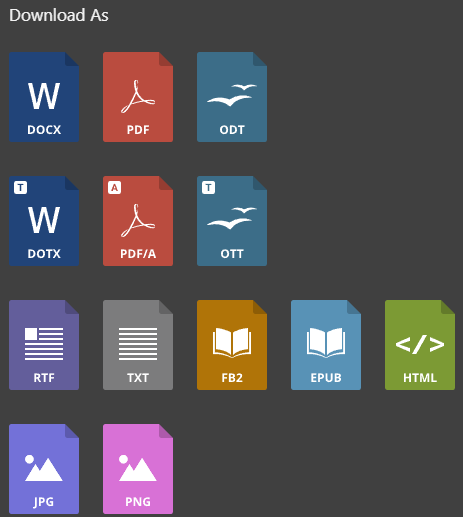
Common document export formats include:
- DOCX for Microsoft Word
- PDF for sharing or printing
- ODT for OpenDocument text files
- RTF for rich text documents
- TXT for plain text files
Spreadsheets
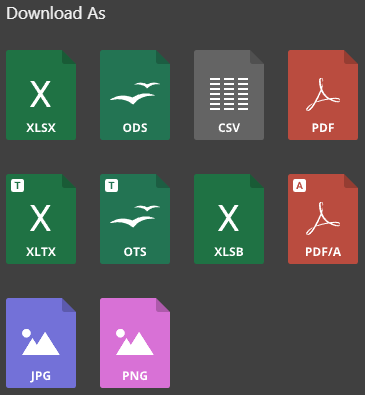
Common spreadsheet export formats include:
- XLSX for Microsoft Excel
- ODS for OpenDocument spreadsheets
- CSV for data-only export
- PDF for sharing or printing
- In some cases, other formats such as PDF/A, XLTX, OTS, JPG, or PNG may also be available.
Presentations
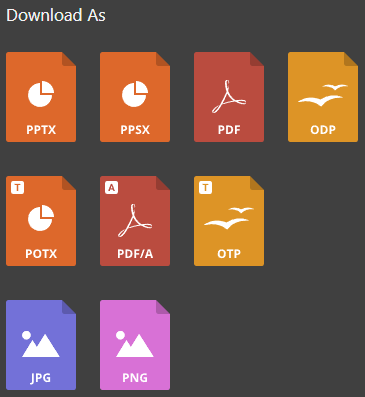
Common presentation export formats include:
- PPTX for Microsoft PowerPoint
- PDF for sharing or distribution
- ODP for OpenDocument presentations
- In some cases, presentation templates or PDF/A may also be available.
Exporting to PDF
PDF is a useful option when you want to share a file without expecting further edits.
PDF export is useful for:
- Sharing a file with users who do not use office software
- Printing a document or spreadsheet
- Keeping the layout more consistent
- Creating a version intended mainly for viewing
PDF options
Some editors may offer extra PDF export settings, such as:
- Page range selection
- Output quality
- Print-related settings
- Comment visibility, depending on the editor and file type
Download vs. export
Downloading and exporting are similar, but they are not always the same.
- Download keeps the file in its current or original format
- Export creates a copy in a different format
- Download is useful when you want to keep editing the file later
- Export is useful when you need a file for sharing, printing, or compatibility with another app
Tips
- Use PDF when you want to share a more stable final version
- Keep the original format if you plan to continue editing
- Use CSV only when you need spreadsheet data without formatting
- Review exported files to make sure the formatting looks correct after conversion