Controlling Version History Access
When sharing documents externally, you may be able to control whether recipients can access the document’s version history. This helps you decide how much document history should be visible to external users.
Version History Options
Possible options can include:
- None — recipients can only work with the current version
- View Only — recipients can view earlier versions but cannot restore them
- View & Restore — recipients can view version history and, where allowed, restore earlier versions
Version History Access
To configure version history access for a share link:
- Create a new share link.
- Find the version history.
- Choose the access level you want.

- Close the link panel.
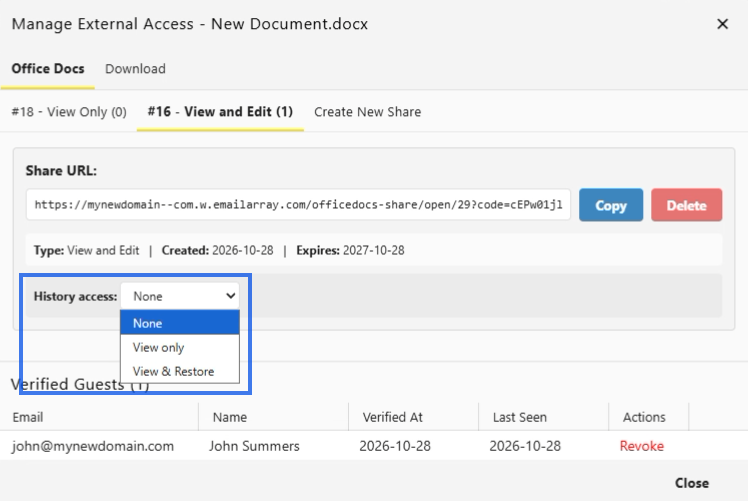
The available settings may vary depending on your workspace configuration and the type of link you are creating.
Why Control Version History Access
Controlling version history access helps you decide how much information external users can see about earlier document states.
Reasons to Restrict
You may want to restrict version history access when:
- previous versions contain sensitive information
- draft versions should not be visible externally
- internal comments or earlier edits should stay private
- you want to simplify the recipient’s experience
Reasons to Allow
You may want to allow version history access when:
- transparency is important during collaboration
- recipients need to track changes over time
- earlier versions may help recover important content
- it is useful for others to see how the document evolved
View-Only Version Access (View Only)
When external users have view-only version access:
- they can browse the version history list
- they can open previous versions for review
- they can compare older document states
- they cannot restore a version as the current document
This option is useful when recipients need visibility into document changes without being able to roll the file back.
Full Version Access (Edit & Restore)
When external users have full version access:
- they can do everything available with view-only version access
- they can access earlier versions more fully
- they may be able to restore a previous version, if the workspace allows it
- restored versions affect the shared document, so this level should be used carefully
Use this option only when the recipient is a trusted collaborator and needs deeper control over the file.
No Version Access (None)
When version history access is disabled:
- external users only work with the current version
- version history is not available through the shared link
- earlier document states are hidden from the recipient
This option is often the safest choice when you want to share a final or controlled version of a document.
Best Practices
- use the most limited version history access that still meets the recipient’s needs
- enable view access for review situations where history visibility is helpful
- use full access only for trusted collaborators
- check version history before sharing if older drafts contain sensitive information
- consider sharing a clean current copy if earlier versions should remain private
Per-Link Settings
Version history access can often be managed separately for each share link.
This means:
- different links can have different version history settings
- one recipient may receive broader access than another
- access can be adjusted based on trust level and business need