Connecting Your Account
Connect the mobile app to your OfficeDocs account so you can access your cloud files from your phone or tablet.
Adding Your OfficeDocs Account
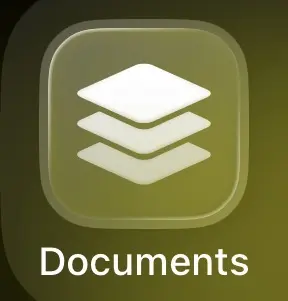
- Open the OnlyOffice Documents app.

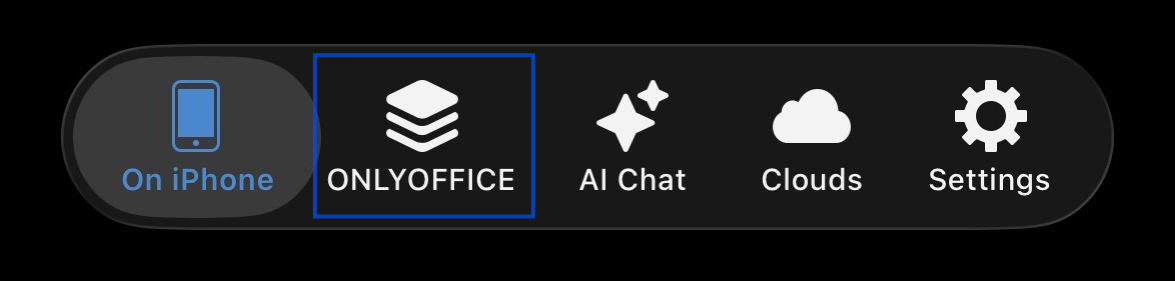
- Open the ONLYOFFICE tab.

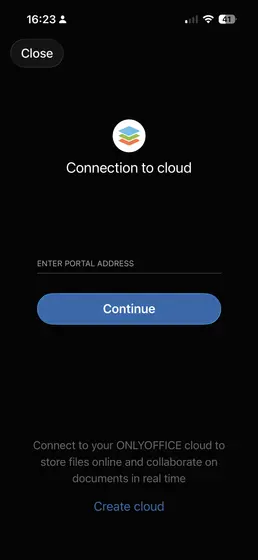
- Enter your OfficeDocs server address.

- Tap Continue.
Signing In
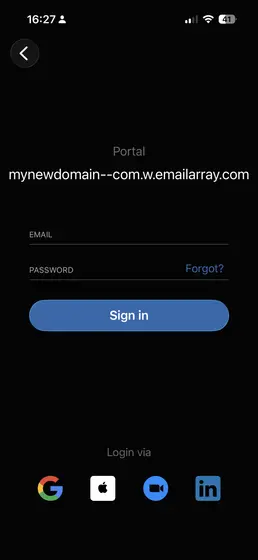
- Enter your email address and password.
- Tap Sign In.

- Your account connects and your files appear in the app.
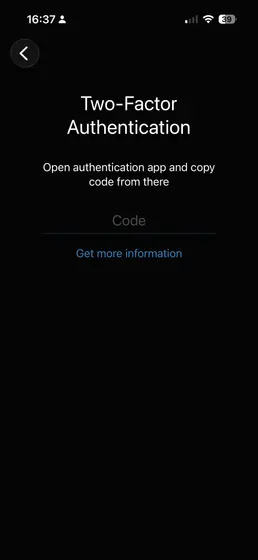
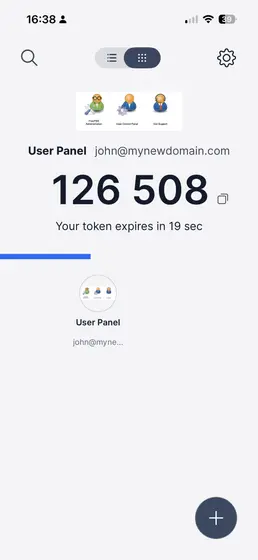
Two-Factor Authentication
If two-factor authentication is enabled on your account:
- Enter your username and password as usual.
- A verification code screen appears.

- Open your authenticator app.

- Enter the current 6-digit code.
Server Address
Your OfficeDocs server address is usually:
- Provided by your administrator
- The same web address you use in your browser
- Written in a format similar to
https://your-officedocs-server.com
If you do not know the correct address, contact your administrator.
After Connecting
Once your account is connected:
- Your files and folders appear in the app
- You can tap folders to navigate
- You can tap files to open them
- You are ready to start working on your documents
Multiple Accounts
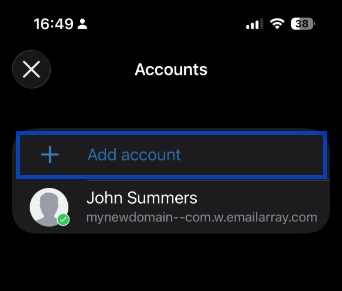
If you want to connect more than one account:
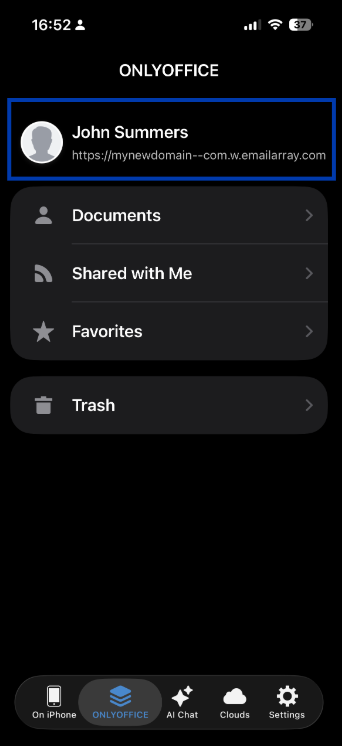
- Tap the account or profile icon.

- Select Add account.

- Enter the new account details.
- Switch between accounts from the profile menu.


Staying Signed In
- The app remembers your account
- You usually do not need to sign in every time
- You can use device security such as a PIN or biometrics for extra protection
- Your session may expire from time to time, and you may be asked to sign in again
Disconnecting an Account
- Tap the account or profile icon.
- Touch and hold the account you want to remove.
- Tap Delete from device.

- Confirm the action.
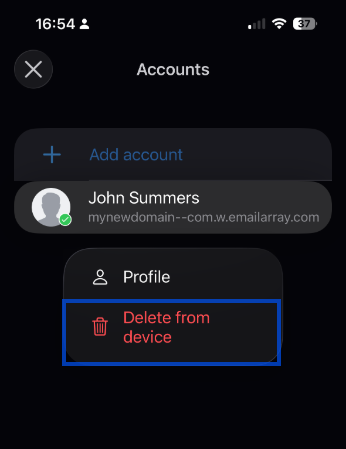
Your files remain safe in OfficeDocs. Only the mobile connection is removed.
Troubleshooting
Can’t Connect
- Verify that the server address is correct
- Check your internet connection
- Make sure your username and password are correct
- Try signing in through a web browser first
Invalid Certificate
- Your server may use a self-signed certificate
- Contact your administrator if you are unsure
- The app may give you an option to continue anyway