# Getting started
# Introduction to OfficeDocs
OfficeDocs is a document editing and collaboration platform included with your email hosting account. It allows you to create, edit, and share documents, spreadsheets, and presentations directly from your web browser
#### What you can do with OfficeDocs
- **Create documents**: Start new text documents, spreadsheets, presentations, and PDF forms.
- **Edit documents**: Make changes using the full-featured editor.
- **Collaborate in real time**: Work with colleagues on the same document at the same time.
- **Share externally**: Send secure links to people outside your organization.
- **Track version history**: Review previous changes and restore earlier versions.
- **Access your files anywhere**: Use OfficeDocs from a web browser, desktop application, or mobile app.
#### Access Levels
You can access OfficeDocs in several ways:
1. **Web browser**: Open your file manager and select a document to launch it in OfficeDocs.
2. **Desktop application**: Use the OnlyOffice desktop editors connected to your account.
3. **Mobile app**: Use the OnlyOffice mobile app on Android or iOS.
#### Getting Help
Use the table of contents to navigate to specific OfficeDocs topics, or browse the related guides to learn more about the available features.
# Opening Documents
OfficeDocs allows you to open and edit documents directly from your web browser. This guide explains the different ways to open a document, depending on where it is stored or how it was shared with you.
##### **Opening from the File Manager**
To open a document from the File Manager:
1. Open the **Files** module in your account. [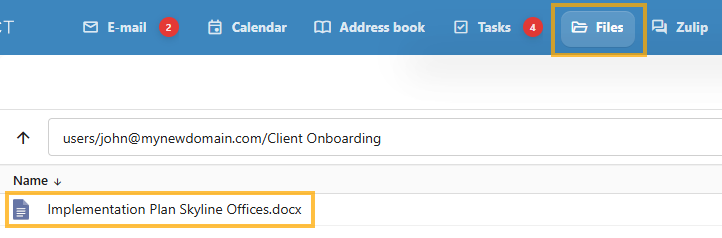](https://wikidev.emailarray.com/uploads/images/gallery/2026-10/7pgimage.png)
2. Browse to the folder that contains the document.
3. Click the document name.
4. The document will open in the OfficeDocs editor in a new tab.
##### **Opening from Recent Files**
Recently opened documents can be accessed from your recent files list.
1. Open the **Files** module.
2. Locate the **Recent Files** section or filter.
3. Click the document you want to open.
##### **Opening from a Share Link**
If a document has been shared with you by link:
1. Click the share link you received.
2. If prompted, verify your email address using the code sent to you.
3. The document will open in the editor.
##### **Opening from Desktop Editors**
You can also open documents using the OnlyOffice Desktop Editors.
1. Open **OnlyOffice Desktop Editors**.
2. Connect the application to your account, if it is not already connected.
3. Browse to the document using the file browser. [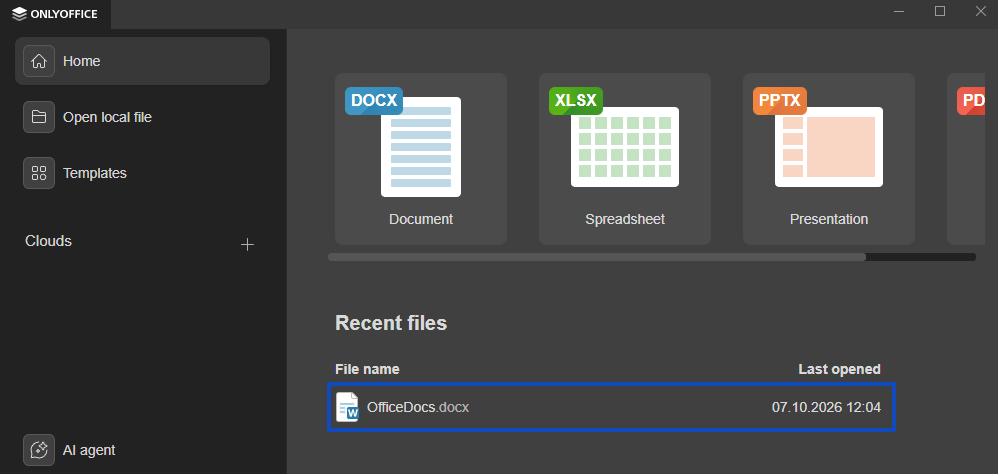](https://wikidev.emailarray.com/uploads/images/gallery/2026-10/hTMimage.png)
4. Double-click the document to open it.
##### **Opening from the Mobile App**
To open a document from the mobile app:
1. Open the **OnlyOffice** mobile app.
2. Sign in to your account.
3. Browse to the document in the file list.
4. Tap the document to open it.
##### **Supported File Types**
OfficeDocs supports a variety of file formats, including:
- **.docx**: Microsoft Word documents
- **.xlsx**: Microsoft Excel spreadsheets
- **.pptx**: Microsoft PowerPoint presentations
- **.pdf**: PDF documents
- **.docxf**: OnlyOffice form documents
##### **Troubleshooting**
**Document does not open**
- Make sure you have permission to access the file.
- Confirm that the file format is supported.
- Refresh the page and try opening the document again.
**Document opens in read-only mode**
- Your account may have view-only access.
- The file may have been shared with limited permissions.
- Another user may currently have the document locked for editing.
# Creating Documents
OfficeDocs allows you to create new documents, spreadsheets, presentations, and forms directly from your file storage. This guide explains the main ways to create a new file and the account requirements to do so.
##### **Create a document from the File Manager**
1. Open the **Files** module in your account.
2. Browse to the folder where you want to create the document.
3. Click **New** or the **+** menu. [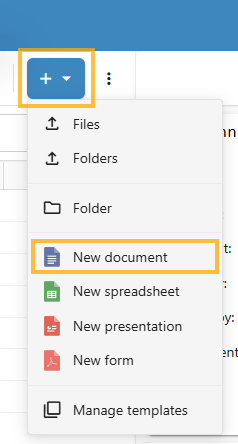](https://wikidev.emailarray.com/uploads/images/gallery/2026-10/A3gimage.png)
4. Select the document type you want to create.
5. Enter a name for the new document.
6. The file will open automatically in the OfficeDocs editor.
You can create:
- **Document**: Word document (**.docx**)
- **Spreadsheet**: Excel spreadsheet (**.xlsx**)
- **Presentation**: PowerPoint presentation (**.pptx**)
- **Form document**: Fillable form (**.docxf**)
##### **Create a document from Desktop Editors**
1. Open **OnlyOffice Desktop Editors**.
2. Connect the application to your account, if needed.
3. Click **Create new**.
4. Select the document type.
5. The file will be created and opened for editing.
##### **Create a document from the Mobile App**
1. Open the **OnlyOffice** mobile app.
2. Sign in to your account.
3. Open the folder where you want to create the document.
4. Tap the **+** or **Create** button.
5. Select the document type. [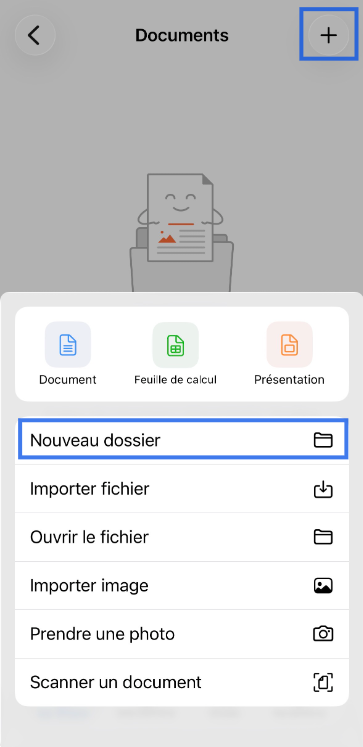](https://wikidev.emailarray.com/uploads/images/gallery/2026-10/2szimage.png)
6. Enter a file name.
7. The document will open for editing.
##### **Account requirements**
Creating new documents requires an **Enhanced** account. Users with a **Basic** account can view documents shared with them, but cannot create new files.
##### **File naming tips**
- Use clear, descriptive names.
- Avoid unsupported special characters such as: **\\ / : \* ? " < > |**
- The correct file extension is added automatically based on the document type.
# Saving Documents
OfficeDocs saves your work automatically while you edit. This guide explains how saving works, how version history is created, and how to download a copy of your document when needed.
##### **How saving works**
OfficeDocs automatically saves changes as you work, so in most cases you do not need to save manually. A status indicator in the editor shows when changes are being saved.
If you want to save manually, you can:
- Press **Ctrl+S** on Windows or Linux
- Press **Cmd+S** on Mac
- Click the **Save** icon in the toolbar
- Use **File > Save**
Manual saves can create version history entries, making it easier to return to earlier points in the document.
##### **Version history**
Each saved version can be reviewed later. Version history allows you to:
- View previous versions of a document
- Compare changes between versions
- Restore an earlier version if needed
If you want to learn more, refer to the [Viewing Version History](https://test88a--com.w.emailarray.com/go/modules/emailarray/officedocs/docs/wiki/versions/viewing-history.html) guide.
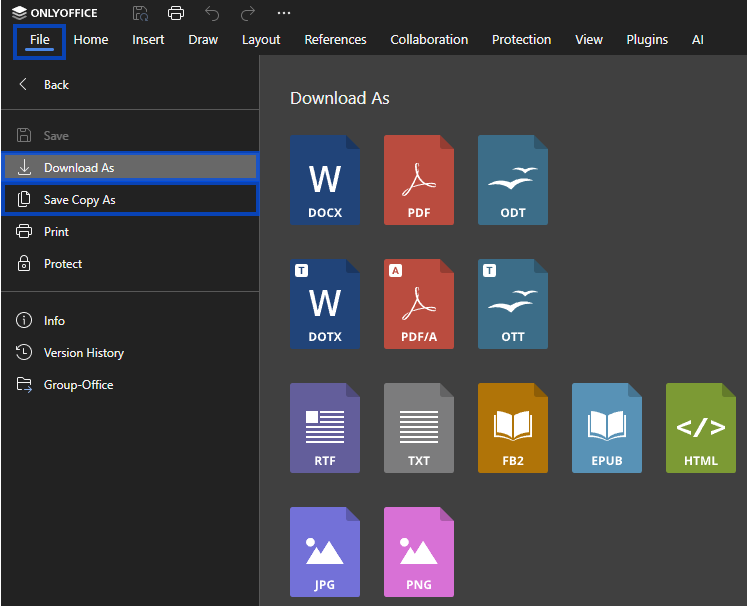
##### **Download a copy of your document**
To save a copy of the document to your device:
1. Open the **File** menu in the editor.
2. Select **Download as** or **Save as**.
3. Choose the file format you want.
4. The file will be downloaded to your computer.
[](https://wikidev.emailarray.com/uploads/images/gallery/2026-10/8RQimage.png)
Available formats may include:
- Original format **(.docx, .xlsx, .pptx**)
- **PDF**
- Other compatible file types
##### **Offline editing**
When using **OnlyOffice Desktop Editors**, documents may be cached locally for offline access. Any changes made offline are synchronized when the application reconnects to the server.
##### **Troubleshooting**
**Changes are not saving**
- Check your internet connection.
- Verify that you have edit permissions for the document.
- Refresh the page and reopen the document if needed.
**A version does not appear in history**
- Wait a few moments for the save to complete.
- Refresh the version history panel.
- Very small changes may be grouped with later saves.
# Supported File Formats
OfficeDocs supports a wide range of file formats for viewing and editing. This guide outlines the main supported formats, how legacy files are handled, and which formats are not currently supported.
##### **Document formats**
OfficeDocs supports the following document formats:
- **.docx**: Microsoft Word document
- **.doc**: Legacy Microsoft Word format, converted to `.docx` for editing
- **.odt**: OpenDocument text file
- **.rtf**: Rich Text Format
- **.txt**: Plain text file
- **.docxf**: OnlyOffice form document
##### **Spreadsheet formats**
Supported spreadsheet formats include:
- **.xlsx**: Microsoft Excel workbook
- **.xls**: Legacy Microsoft Excel format, converted to `.xlsx` for editing
- **.ods**: OpenDocument spreadsheet
- **.csv**: Comma-separated values file
##### **Presentation formats**
Supported presentation formats include:
- **.pptx**: Microsoft **PowerPoint** presentation
- **.ppt**: Legacy PowerPoint format, converted to `.pptx` for editing
- **.odp**: OpenDocument presentation
##### **PDF formats**
OfficeDocs also supports:
- **.pdf**: PDF document for viewing, annotation, and form filling
##### **Format conversion**
When downloading files, OfficeDocs can convert them into other supported formats.
Examples:
- Documents can be downloaded as **.docx, .pdf, .odt, .rtf, or .txt**
- Spreadsheets can be downloaded as **.xlsx, .pdf, .ods, or .csv**
- Presentations can be downloaded as .**pptx, .pdf, or .odp**
##### **Legacy format support**
Legacy Microsoft Office formats such as **.doc** , **.xls** , and **.ppt** are automatically converted to modern formats for editing. This allows changes to be saved in a more current and compatible file type.
##### **Unsupported formats**
The following formats are not currently supported:
- Apple iWork formats such as .**pages** , **.numbers** , and **.keynote**
- Native Google Docs formats
- Specialized proprietary formats such as Microsoft Visio or Publisher files