Getting started
- Introduction to OfficeDocs
- Opening Documents
- Creating Documents
- Saving Documents
- Supported File Formats
Introduction to OfficeDocs
OfficeDocs is a document editing and collaboration platform included with your email hosting account. It allows you to create, edit, and share documents, spreadsheets, and presentations directly from your web browser
What you can do with OfficeDocs
- Create documents: Start new text documents, spreadsheets, presentations, and PDF forms.
- Edit documents: Make changes using the full-featured editor.
- Collaborate in real time: Work with colleagues on the same document at the same time.
- Share externally: Send secure links to people outside your organization.
- Track version history: Review previous changes and restore earlier versions.
- Access your files anywhere: Use OfficeDocs from a web browser, desktop application, or mobile app.
Access Levels
You can access OfficeDocs in several ways:
- Web browser: Open your file manager and select a document to launch it in OfficeDocs.
- Desktop application: Use the OnlyOffice desktop editors connected to your account.
- Mobile app: Use the OnlyOffice mobile app on Android or iOS.
Getting Help
Use the table of contents to navigate to specific OfficeDocs topics, or browse the related guides to learn more about the available features.
Opening Documents
OfficeDocs allows you to open and edit documents directly from your web browser. This guide explains the different ways to open a document, depending on where it is stored or how it was shared with you.
Opening from the File Manager
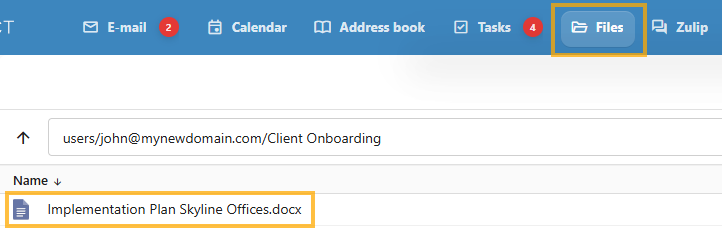
To open a document from the File Manager:
- Open the Files module in your account.

- Browse to the folder that contains the document.
- Click the document name.
- The document will open in the OfficeDocs editor in a new tab.
Opening from Recent Files
Recently opened documents can be accessed from your recent files list.
- Open the Files module.
- Locate the Recent Files section or filter.
- Click the document you want to open.
Opening from a Share Link
If a document has been shared with you by link:
Opening from Desktop Editors
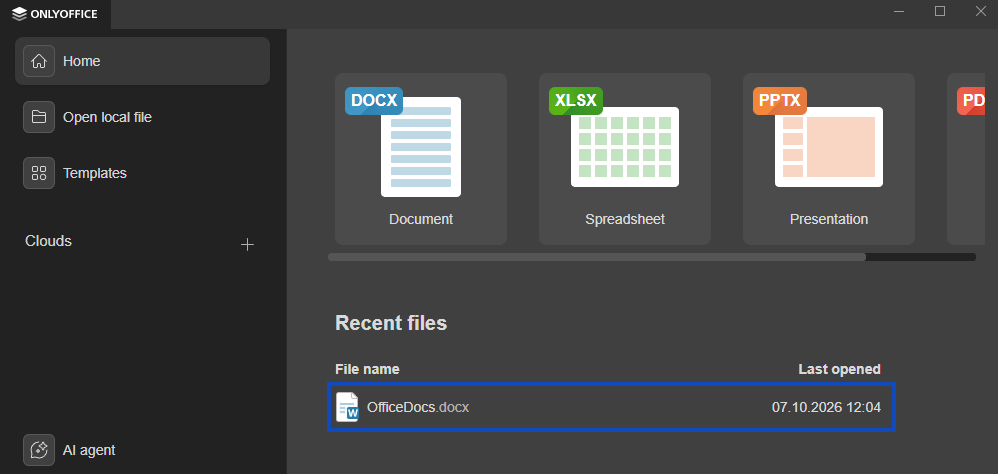
You can also open documents using the OnlyOffice Desktop Editors.
- Open OnlyOffice Desktop Editors.
- Connect the application to your account, if it is not already connected.
- Browse to the document using the file browser.

- Double-click the document to open it.
Opening from the Mobile App
To open a document from the mobile app:
- Open the OnlyOffice mobile app.
- Sign in to your account.
- Browse to the document in the file list.
- Tap the document to open it.
Supported File Types
OfficeDocs supports a variety of file formats, including:
- .docx: Microsoft Word documents
- .xlsx: Microsoft Excel spreadsheets
- .pptx: Microsoft PowerPoint presentations
- .pdf: PDF documents
- .docxf: OnlyOffice form documents
Troubleshooting
Document does not open
- Make sure you have permission to access the file.
- Confirm that the file format is supported.
- Refresh the page and try opening the document again.
Document opens in read-only mode
- Your account may have view-only access.
- The file may have been shared with limited permissions.
- Another user may currently have the document locked for editing.
Creating Documents
OfficeDocs allows you to create new documents, spreadsheets, presentations, and forms directly from your file storage. This guide explains the main ways to create a new file and the account requirements to do so.
Create a document from the File Manager
- Open the Files module in your account.
- Browse to the folder where you want to create the document.
- Click New or the + menu.

- Select the document type you want to create.
- Enter a name for the new document.
- The file will open automatically in the OfficeDocs editor.
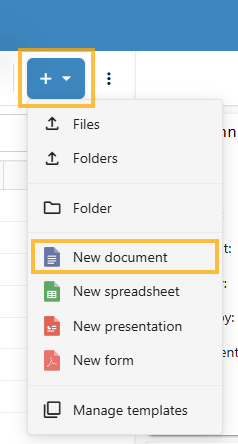
You can create:
- Document: Word document (.docx)
- Spreadsheet: Excel spreadsheet (.xlsx)
- Presentation: PowerPoint presentation (.pptx)
- Form document: Fillable form (.docxf)
Create a document from Desktop Editors
- Open OnlyOffice Desktop Editors.
- Connect the application to your account, if needed.
- Click Create new.
- Select the document type.
- The file will be created and opened for editing.
Create a document from the Mobile App
- Open the OnlyOffice mobile app.
- Sign in to your account.
- Open the folder where you want to create the document.
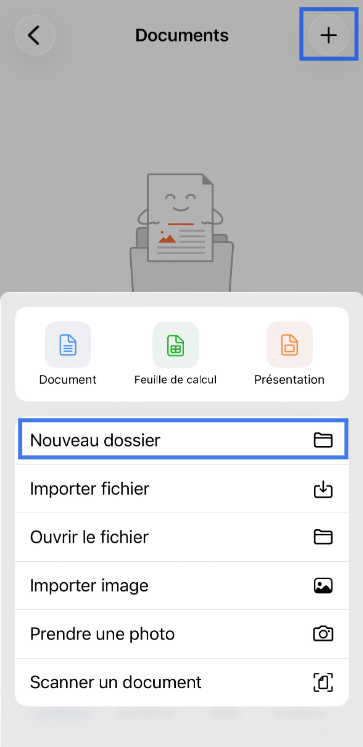
- Tap the + or Create button.
- Select the document type.

- Enter a file name.
- The document will open for editing.
Account requirements
Creating new documents requires an Enhanced account. Users with a Basic account can view documents shared with them, but cannot create new files.
File naming tips
- Use clear, descriptive names.
- Avoid unsupported special characters such as:
\ / : * ? " < > |
- The correct file extension is added automatically based on the document type.
Saving Documents
OfficeDocs saves your work automatically while you edit. This guide explains how saving works, how version history is created, and how to download a copy of your document when needed.
How saving works
OfficeDocs automatically saves changes as you work, so in most cases you do not need to save manually. A status indicator in the editor shows when changes are being saved.
If you want to save manually, you can:
- Press Ctrl+S on Windows or Linux
- Press Cmd+S on Mac
- Click the Save icon in the toolbar
- Use File > Save
Manual saves can create version history entries, making it easier to return to earlier points in the document.
Version history
Each saved version can be reviewed later. Version history allows you to:
- View previous versions of a document
- Compare changes between versions
- Restore an earlier version if needed
If you want to learn more, refer to the Viewing Version History guide.
Download a copy of your document
To save a copy of the document to your device:
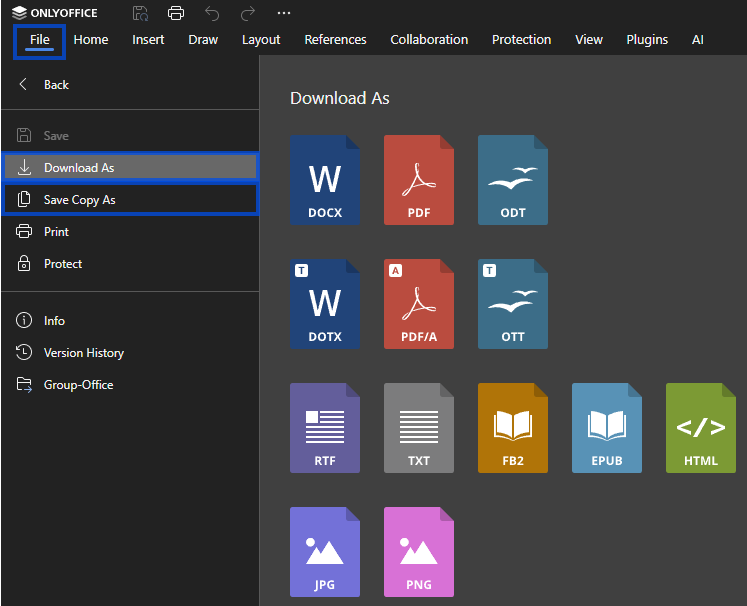
Available formats may include:
- Original format (.docx, .xlsx, .pptx)
- Other compatible file types
Offline editing
When using OnlyOffice Desktop Editors, documents may be cached locally for offline access. Any changes made offline are synchronized when the application reconnects to the server.
Troubleshooting
Changes are not saving
- Check your internet connection.
- Verify that you have edit permissions for the document.
- Refresh the page and reopen the document if needed.
A version does not appear in history
- Wait a few moments for the save to complete.
- Refresh the version history panel.
- Very small changes may be grouped with later saves.
Supported File Formats
OfficeDocs supports a wide range of file formats for viewing and editing. This guide outlines the main supported formats, how legacy files are handled, and which formats are not currently supported.
Document formats
OfficeDocs supports the following document formats:
- .docx: Microsoft Word document
- .doc: Legacy Microsoft Word format, converted to
.docxfor editing - .odt: OpenDocument text file
- .rtf: Rich Text Format
- .txt: Plain text file
- .docxf: OnlyOffice form document
Spreadsheet formats
Supported spreadsheet formats include:
- .xlsx: Microsoft Excel workbook
- .xls: Legacy Microsoft Excel format, converted to
.xlsxfor editing - .ods: OpenDocument spreadsheet
- .csv: Comma-separated values file
Presentation formats
Supported presentation formats include:
- .pptx: Microsoft PowerPoint presentation
- .ppt: Legacy PowerPoint format, converted to
.pptxfor editing - .odp: OpenDocument presentation
PDF formats
OfficeDocs also supports:
- .pdf: PDF document for viewing, annotation, and form filling
Format conversion
When downloading files, OfficeDocs can convert them into other supported formats.
Examples:
- Documents can be downloaded as .docx, .pdf, .odt, .rtf, or .txt
-
Spreadsheets can be downloaded as .xlsx, .pdf, .ods, or .csv
-
Presentations can be downloaded as .pptx, .pdf, or .odp
Legacy format support
Legacy Microsoft Office formats such as .doc , .xls , and .ppt are automatically converted to modern formats for editing. This allows changes to be saved in a more current and compatible file type.
Unsupported formats
The following formats are not currently supported:
- Apple iWork formats such as .pages , .numbers , and .keynote
- Native Google Docs formats
- Specialized proprietary formats such as Microsoft Visio or Publisher files