File Management
Using the File Browser
The file browser is your main place for managing documents in OfficeDocs. You can use it to move through folders, locate files, and perform common file actions.
Accessing the File Browser
- Log in to your account.
- Open the Files module.
- Your files and folders are displayed in the file browser.
File Browser Interface
- Navigation Panel — Shows folders and quick-access areas
- File List — Displays the files in the current location
- Toolbar — Provides actions and view options
- Breadcrumb — Shows your current path and helps you move back to earlier folders

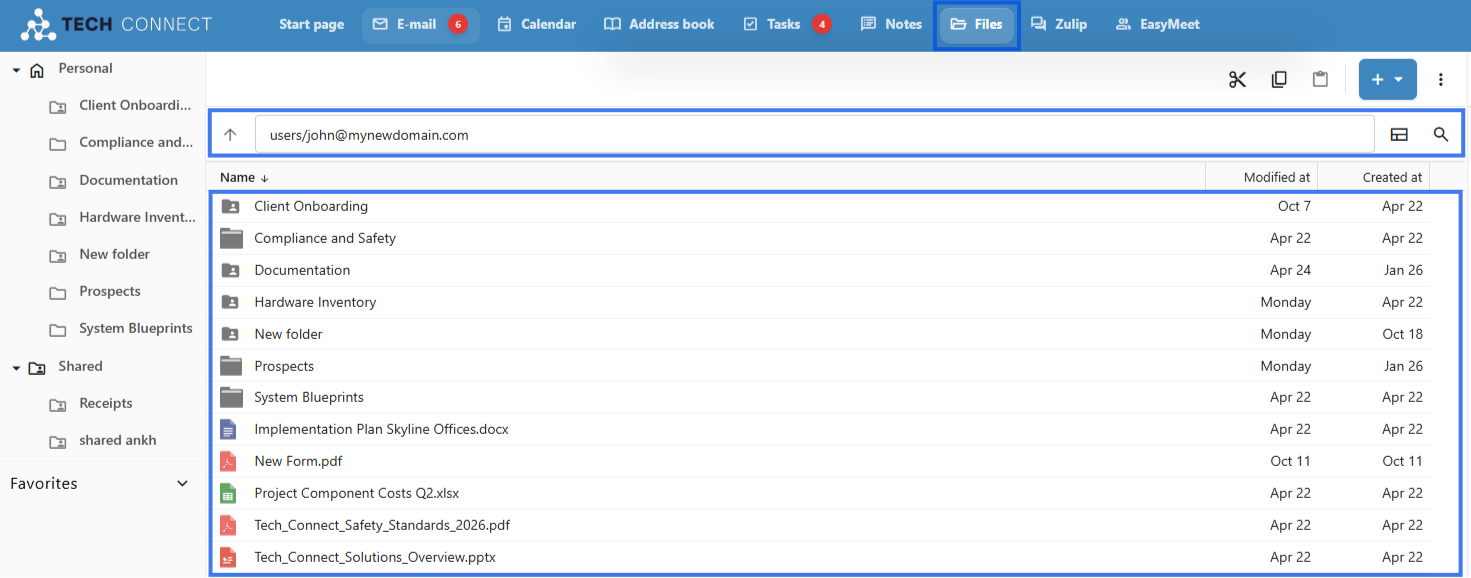
- Click a folder to open it
- Use the breadcrumb to move back up through locations
- Use the navigation panel for quick jumps to other areas
- Double-click a file to open it
View Options
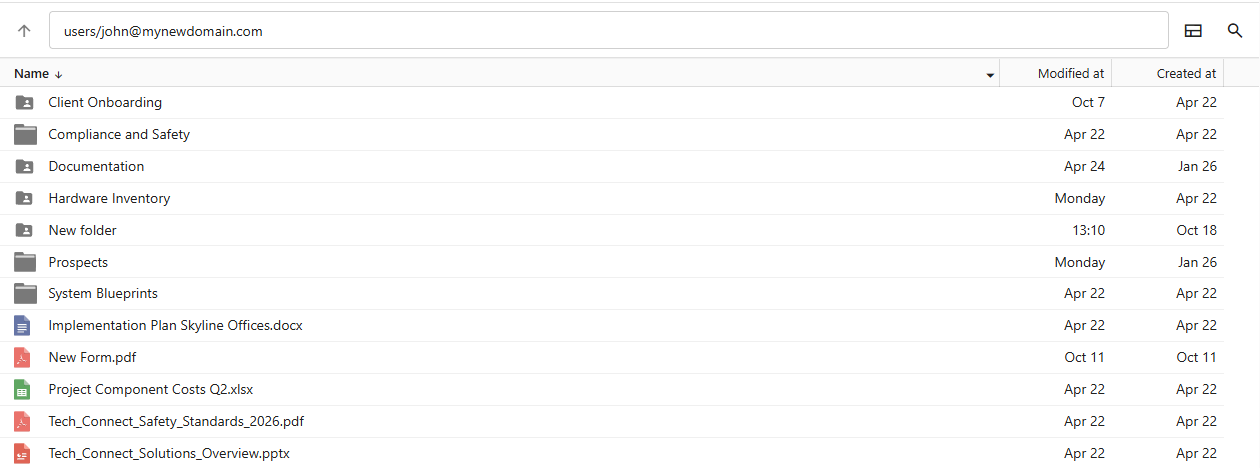
List View
- Files appear in rows with details
- Useful when you want to see file information more clearly
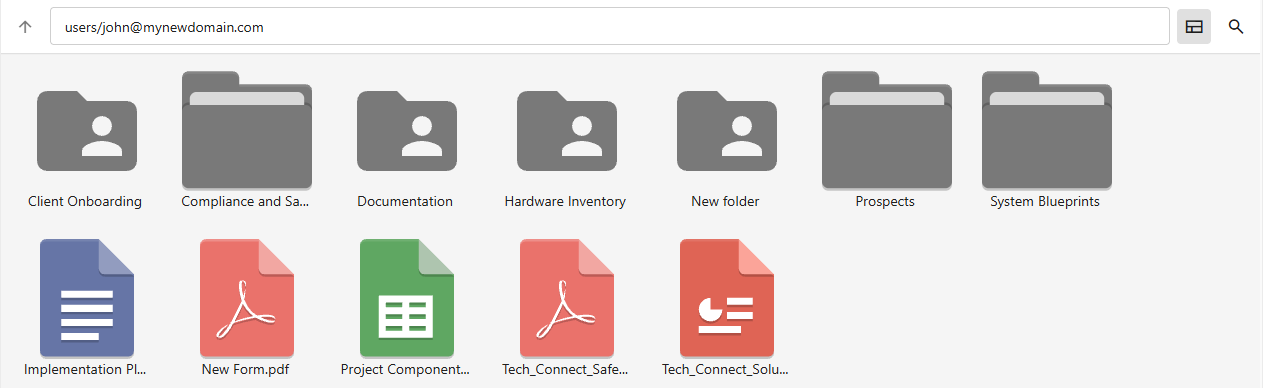
Grid View
- Files appear as thumbnails
- Useful for more visual browsing
Quick Access Areas
- Personal — Your personal files
- Shared — Files shared by other users
File Actions
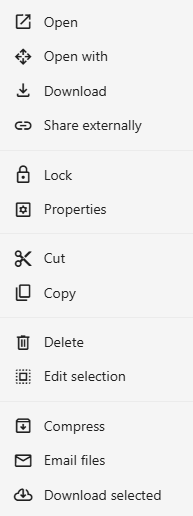
Right-click a file to access actions such as:
Searching
- Use the search box.
- Type a file name or keyword.
- Results appear as you type.
- Click a result to open its location or access the file.

Creating New Items
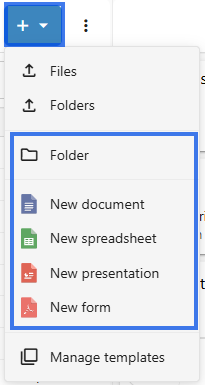
Creating Folders
Organize your documents by creating folders. Folders help you group related files and keep your file space clean and easy to manage.
Creating a New Folder
- Navigate to the location where you want the folder.
- Click the New button or the + Icon button.
- Select Folder.

- Enter a name for the folder.

- Click on Ok.
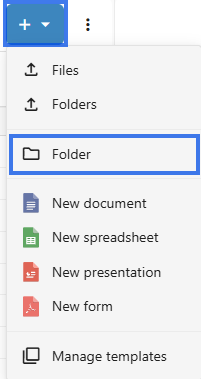
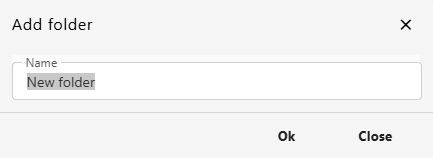
Folder Naming Tips
- Use clear, descriptive names
- Keep names reasonably short
- Avoid special characters such as
\ / : * ? " < > |
- Use a consistent naming style across folders
Creating Nested Folders
- Open an existing folder.
- Create a new folder inside it.

- Continue nesting as needed.

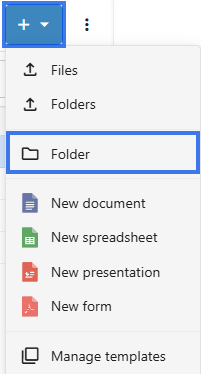

Tip: Try not to nest folders too deeply. In most cases, 3 to 4 levels is enough.
Folder Structure Ideas
By Project
Use project-based folders when you want to group all files related to one job or client.
Projects/
├── Project Alpha/
├── Project Beta/
└── Project Gamma/
By Date
Use date-based folders when you want to organize files by year, quarter, or another time period.
2026/
├── Q1/
├── Q2/
├── Q3/
└── Q4/
By Type
Use type-based folders when you want to separate documents by purpose.
Documents/
├── Reports/
├── Proposals/
└── Contracts/
After Creating
- Move files into the new folder
- Share the folder if needed
- Add it to favorites for faster access later