External User Access
- Accessing a Shared Document
- Email Verification Process
- Editing as an External User
- Viewing Version History as External User
Accessing a Shared Document
This guide is for external users who have received a share link to access a document in OfficeDocs. Follow these steps to open the document and complete the email verification process.
Step 1: Click the Share Link
Click the link you received by email, chat, or another communication method.
- The link opens the OfficeDocs access page
- You may be asked to verify your email before the document opens
- This helps confirm that the document is being accessed by the intended recipient
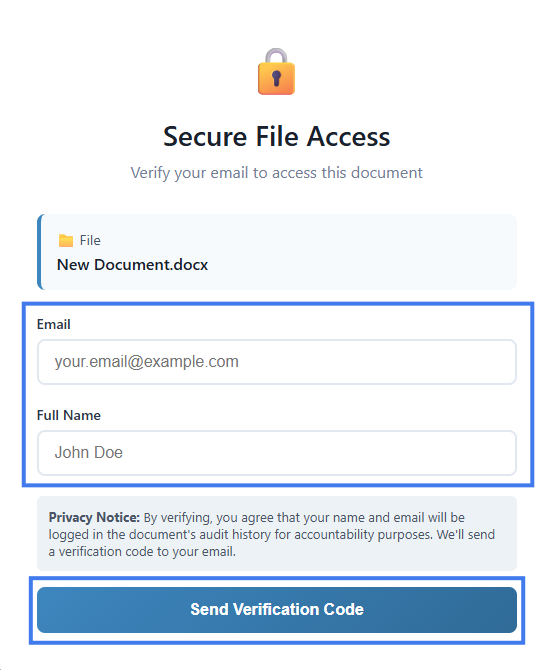
Step 2: Enter Your Email and Full Name
- Enter your email address and full name in the field provided.
- Use the same email address the link was intended for.
- Click Send Verification Code.

Step 3: Check Your Email
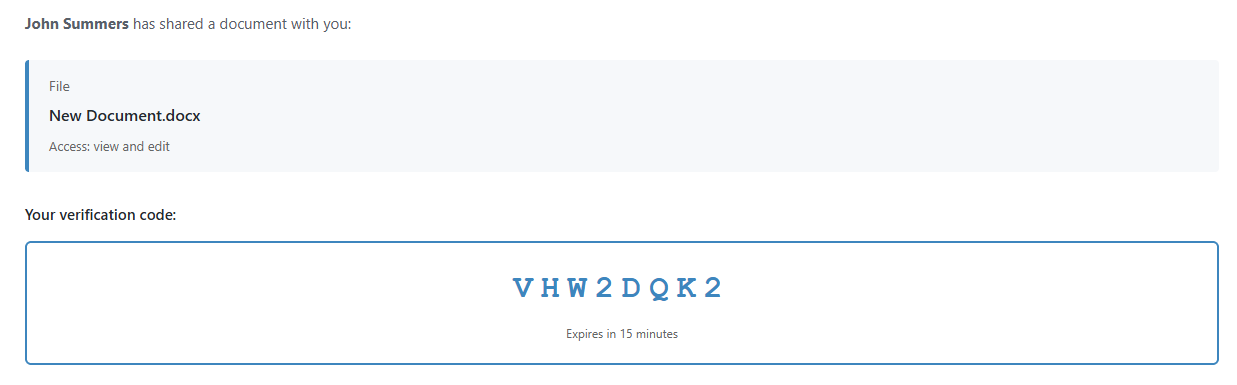
A verification code will be sent to your email address.
- Check your inbox for the verification message
- If you do not see it, check your spam or junk folder
- The email contains a 6-digit verification code

Step 4: Enter the Code
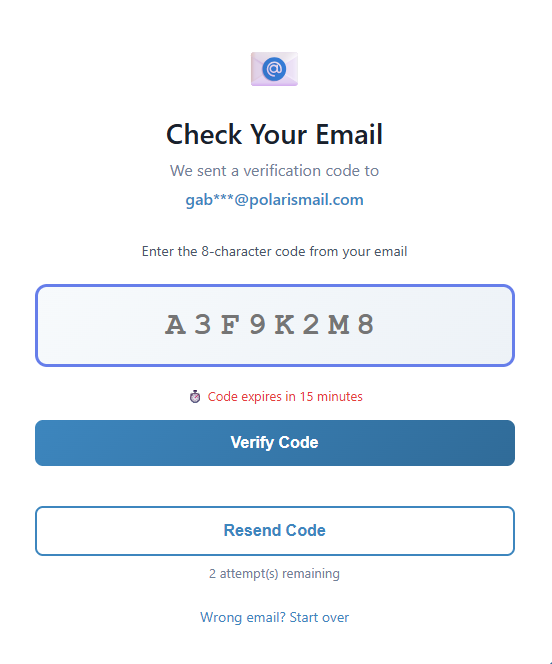
- Return to the verification page.
- Enter the 6-digit code.

- Click Verify.
- The document directly opens in your browser.
Using the Document
View-Only Access
If you have view-only access:
- You can read and move through the document
- You cannot make changes
- You may be allowed to download a copy, depending on the share settings
View and Edit Access
If you have view and edit access:
- You can make changes directly in the document
- Your changes are saved as you work
- Your activity may be associated with your verified email address
Session Duration
Your access session is usually valid for a limited period.
- You may stay signed in for a set amount of time
- If the session expires, you may need to verify your email again
- The share link itself may still work if it has not been revoked or expired
Returning to the Document
Troubleshooting
Link doesn't work
- The link may have expired
- The owner may have revoked access
- The document may no longer be shared externally
- Contact the person who shared the document if you still need access
Code not received
- Check your spam folder
- Wait a moment and request a new code if the option is available
- Make sure you entered the correct email address
- Confirm that you are using the email address the link was created for
No Account Required
As an external user, you do not need to create a full account to open a shared document.
- Email verification is enough to confirm your identity
- You can access the document through the share link you received
- Your available actions depend on the permission level assigned to that link
Email Verification Process
External users must verify their email address before accessing shared documents. This extra step helps make sure only the intended recipient can open the file.
How Verification Works
- The external user clicks the share link.
- They enter their email address.
- A verification code is sent to that email.
- They enter the code on the verification page.
- Once verified, they can access the document.
The Verification Steps
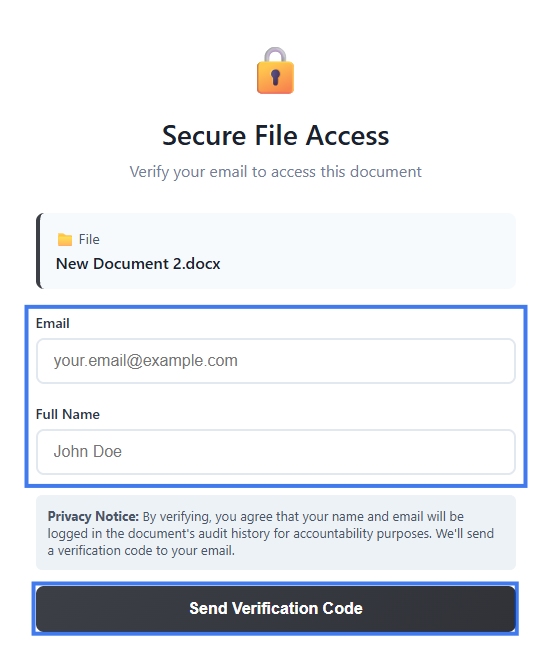
Step 1: Enter Email and Full Name
Enter your email address and full name in the field provided.
- If the link is restricted to a specific email address, only that address will work
- Make sure you type the email correctly before continuing

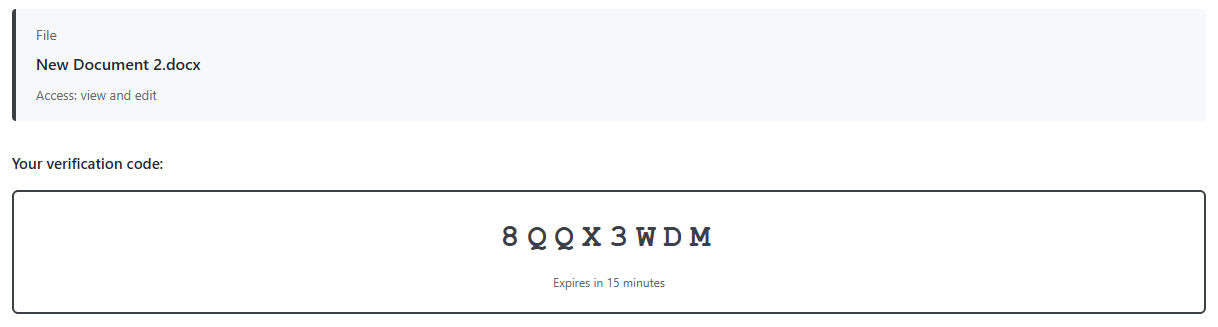
Step 2: Receive Code
A 6-digit verification code is sent to your email.
The email typically includes:
- The verification code
- Information about which document is being accessed
- Information about who shared the document

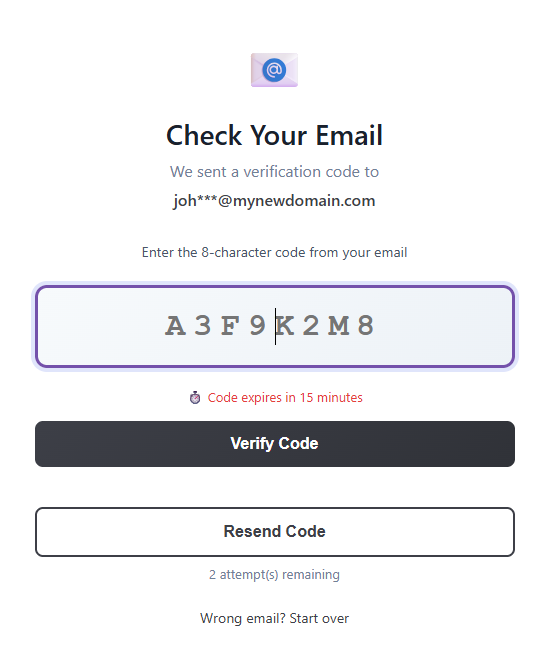
Step 3: Enter Code
Enter the code on the verification page.
- The code is valid for a limited time
- Enter it as soon as you receive it
- If the code expires, request a new one

Step 4: Access Granted
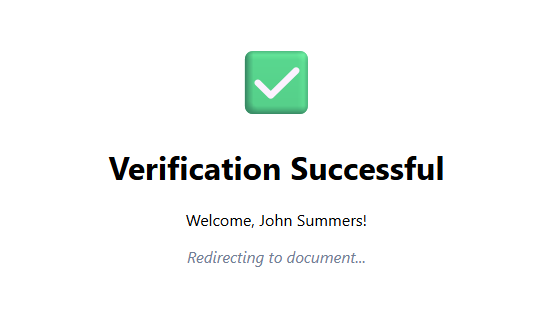
After successful verification:
- The document opens in your browser
- A session is created for continued access
- You may not need to verify again right away during the same session

Session Duration
Your verified session usually remains active for a period of time.
- Access may stay active for several hours or longer
- You may need to verify again later
- Closing the browser or being inactive for too long may end the session
Troubleshooting
Code Not Received
- Check your spam folder
- Confirm that your email address was entered correctly
- Wait a moment and request a new code
- Check whether your email filters blocked the message
Code Expired
- Request a new verification code
- Enter the new code promptly after receiving it
Wrong Email Error
- The link may be restricted to a specific email address
- Make sure you are using the intended recipient address
- Contact the document owner if a different email address needs access
Security Benefits
- Confirms the recipient’s identity
- Helps prevent unauthorized link sharing
- Creates a record of verified access
- Connects document access to a verified email address
Re-verification
You may need to verify again when:
- Your session expires
- You open the link from a new device or browser
- Browser cookies have been cleared
- There has been a long period of inactivity
Editing as an External User
If you have received a share link with edit permissions, you can make changes directly in OfficeDocs without needing a full internal account. Your access depends on the permission level assigned to the link.
Confirming View & Edit Access
You have view & edit access if:
- The toolbar shows editing tools
- You can click into the document and type
- The document opens in editing mode instead of read-only mode
Making Edits
With view & edit access, you can:
- Add, delete, and modify text
- Format content such as bold, italic, and similar styling
- Insert images, tables, and other supported elements
- Add comments
- Use the standard editing tools available in the document editor
Saving Your Work
- Changes are saved while you work
- You can also save manually at important moments
- Your edits may appear in version history, depending on the sharing settings and access options applied to the document
Collaboration Features
Real-Time Editing
If other people are editing at the same time:
- You may see their cursors and changes in real time
- You can collaborate in the same document during the same session
- Your presence may be shown to others using your verified email
Comments
- Add comments on specific text or content
- Reply to existing comments
- Resolve comments when appropriate
Your Identity
Your contributions are connected to your verified email address.
- Version history may show your email as the author of changes
- Comments may display your verified email
- Other collaborators may identify your activity through that email address
Limitations
As an external user, you may not be able to:
Session Timeout
If your session expires while you are editing:
- Recent changes should already be saved
- You may need to verify your email again to continue
- Re-verifying quickly helps you return to the document with less interruption
Best Practices
- Save manually at important milestones
- Use comments to communicate with the document owner or collaborators
- Finish important edits before the link expires
- Keep the share link available in case you need to re-open the document later
Viewing Version History as External User
Depending on how the document was shared, you may be allowed to view or restore previous versions of the document.
Version History Access Levels
Your access depends on the share link settings:
- None — Version history is hidden
- View Only — You can see versions but not restore them
- View & Edit — You can view and restore versions
Viewing Version History
If you have access:
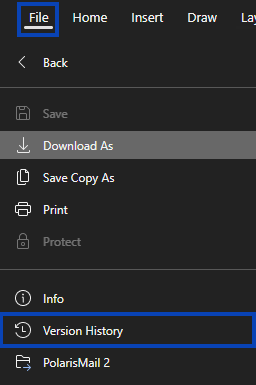
- Look for Version History in the File menu.

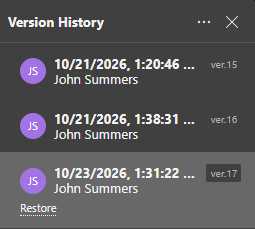
- Click to open the version history panel.
- Browse the list of saved versions.

- Click a version to view it.
What You Can See
- Date and time of each version
- Who made the changes
- Version notes, if they were added
Viewing Past Versions
- Click a version entry.
- The document opens in that historical state.
- Review the content as it was saved at that time.
- Return to the current version when you are done.
Restoring Versions
If your link includes restore permissions:
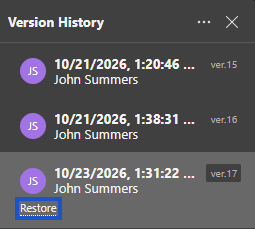
- Select the version you want.
- Click Restore.

- Confirm the restoration.
- The document returns to that version.
Note: Restoring a version affects the live document for everyone who has access to it. It is a good idea to communicate with the document owner first.
Your Contributions
When you edit the document:
- Your changes can create new versions
- Your verified email may identify you as the author
- Other collaborators may be able to see your contributions in version history
No Version History Access
If version history is not available:
- The option does not appear in the menus
- You can only work with the current version
- Contact the document owner if you need additional access
Why It Matters
Version history can help you:
- Review how the document has evolved
- Recover content that was changed or removed
- Understand changes made by other collaborators