External Sharing
- Creating Share Links
- Share Link Types
- Link Expiration Dates
- Controlling Version History Access
- Managing External Shares
- Revoking External Access
Creating Share Links
Creating a Share Link
- Navigate to the file in the Files module.
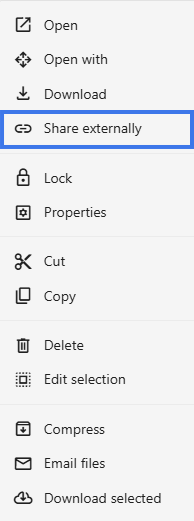
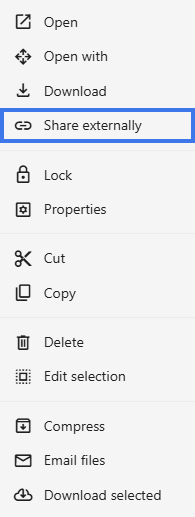
- Right-click the file and open Share Externally.

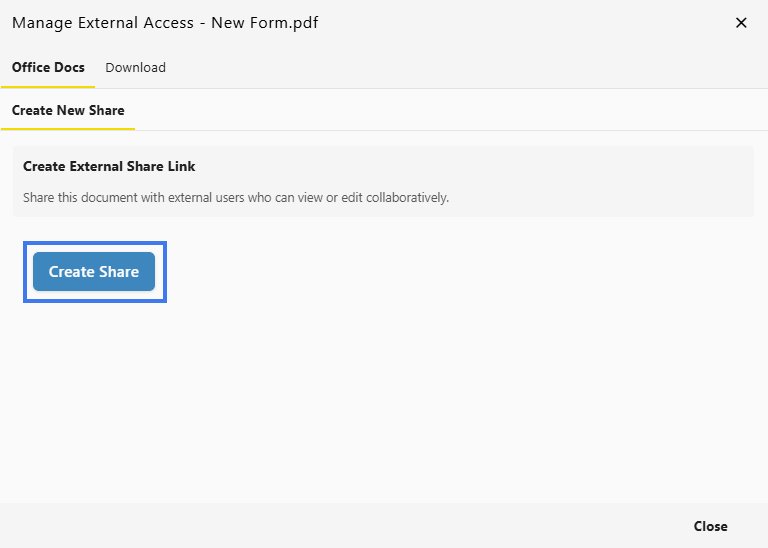
- Select Create Share.

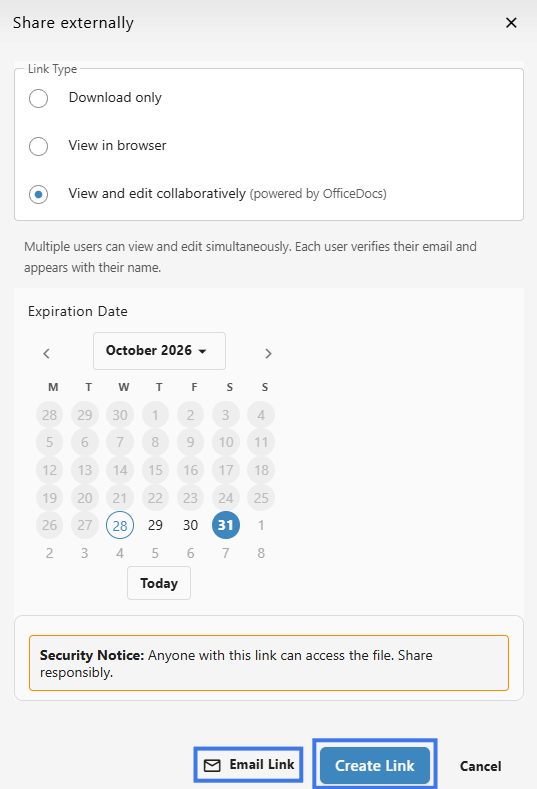
- Configure the link settings.
- Click Create or save the link.

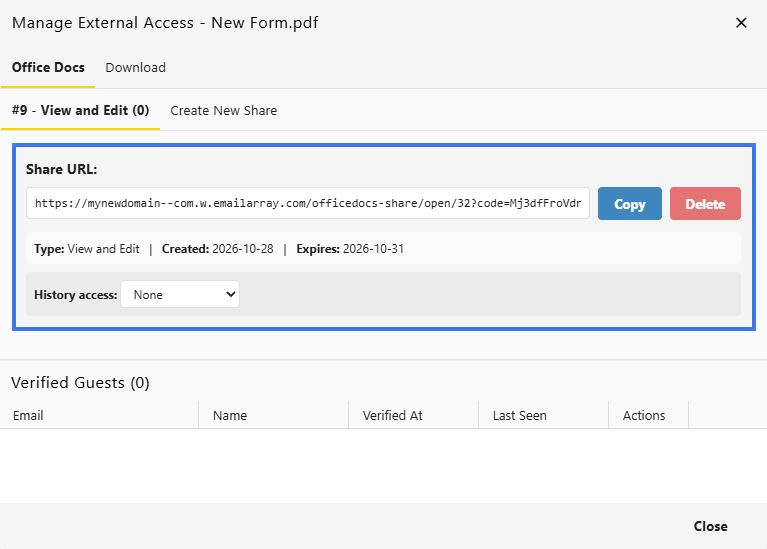
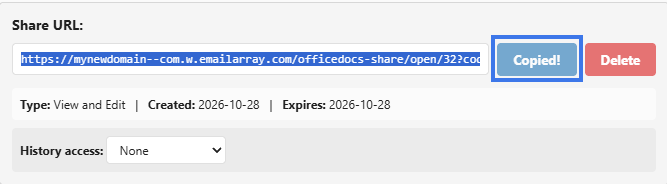
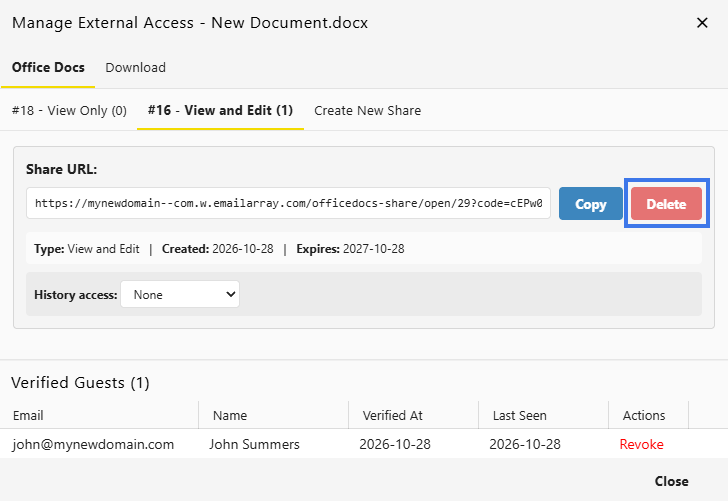
- A link is then generated and can be Copied or Deleted.
Link Settings
When creating a share link, you can configure different access and security options.
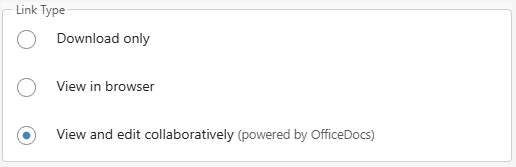
Permission Level
- Download Only
- View in Browser lets recipients read the document without editing it
- View and Edit lets recipients modify the document if editing access is allowed through the link

Expiration Date
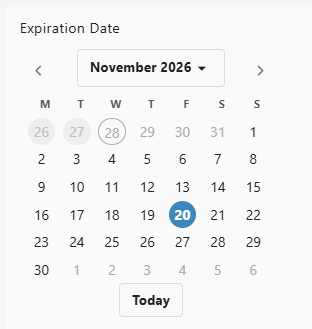
You can set a time limit for the link.
- choose a date when the link stops working
- after the expiration date, recipients can no longer use the link

Sharing the Link
Once the link is created:
- Copy the generated link.

- Send it to recipients by email, chat, or another method.
- Recipients use the link to open the shared document.
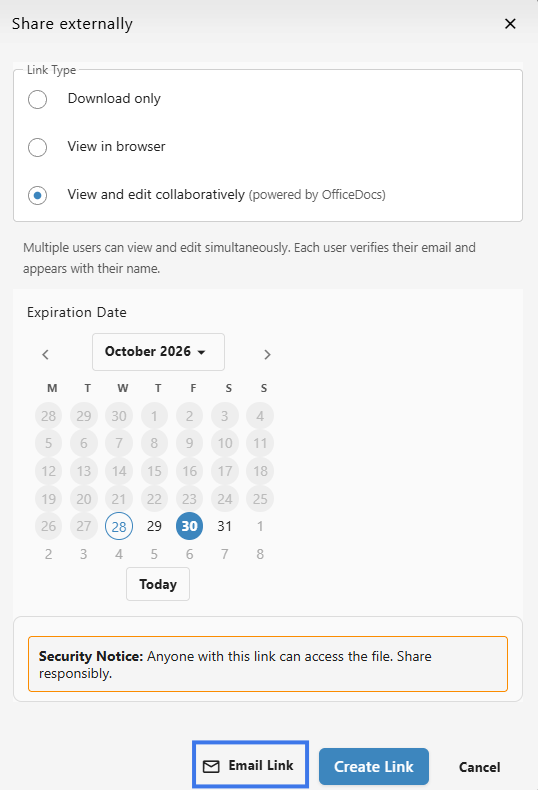
You may also be able to send the link directly from the sharing window.
What Recipients Experience
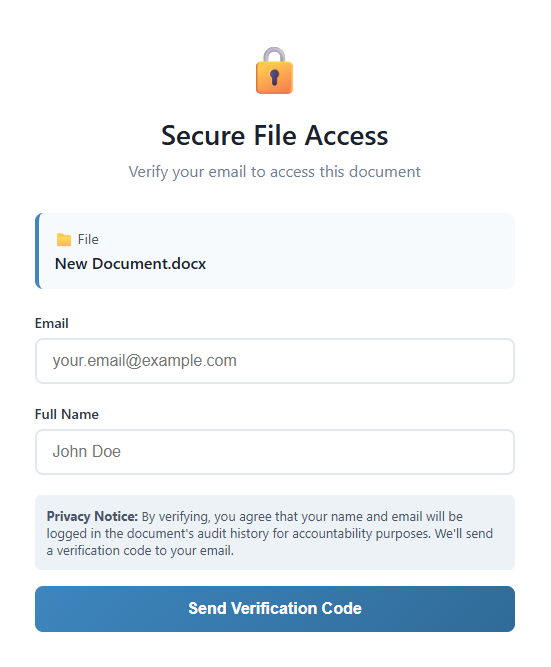
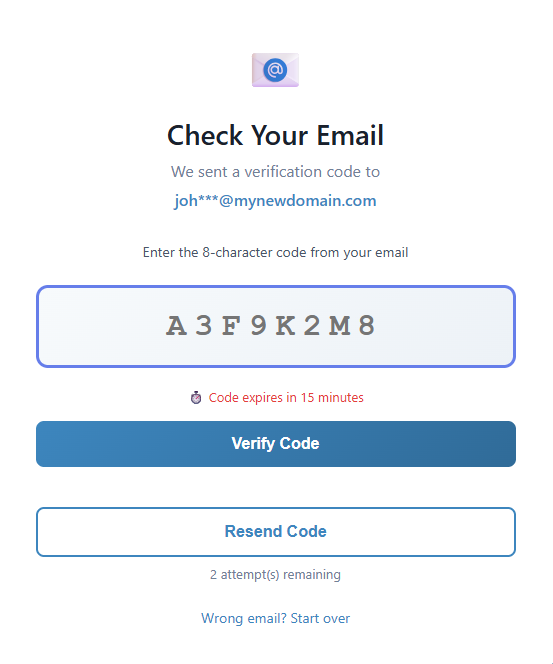
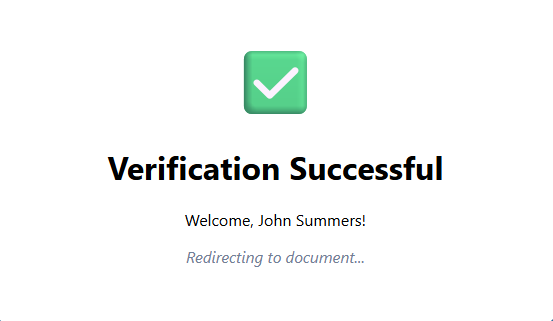
When someone opens a shared link, they may go through a short access process before opening the file.
A recipient may need to:
- Click the share link.
- Enter their Email Address and Full Name if requested.

- Receive a verification code by email.


- Enter the code to verify access.

- The document will open automatically.

Managing Share Links
You can review and manage active links after they are created.
View Existing Links
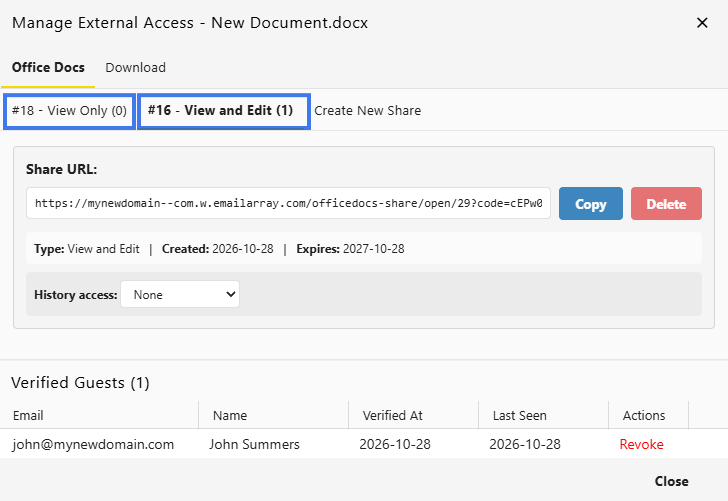
- Open the External Sharing Window for the document.
- View the active links and their settings.
Delete a Link
- Find the link you want to remove.
- Click Delete.

- Confirm the deletion if prompted.
- The link stops working immediately.
Multiple Links
You can create more than one share link for the same document.
This can be useful when you need:
- different links for different recipients
- different permission levels for different use cases
- separate links for easier tracking and control
Security Considerations
- use recipient restrictions for sensitive documents
- set an expiration date when possible
- use View Only when editing is not required
- review active links regularly
- remove links that are no longer needed
Link Access Tracking
You may be able to review how a link has been used.
This can include:
- when the link was used
- which email addresses accessed the document

Share Link Types
When creating external share links, you can choose different link types based on what you want recipients to be able to do with the document.
Download Links
Download links let recipients download a copy of the document.
Features
- recipients get a copy on their device
- there is no need to view the file in the browser
- the file can be downloaded for offline use
- the shared document remains separate from the downloaded copy
Use Cases
- distributing final documents
- sharing files for offline use
- providing copies recipients can keep
View-Only Links
View-only links let recipients read the document in their browser without changing it.
Features
- the document opens in a web viewer
- recipients can navigate and read the file online
- they cannot edit the document
- downloading may still be allowed, depending on the link settings
Use Cases
- sharing reports for review
- distributing reference documents
- providing read access without edit risk
Edit Links
Edit links let recipients modify the original document through the shared link.
Features
- recipients can edit the original document
- changes are saved to the original file
- users can collaborate in real time
- changes can appear in version history
Use Cases
- collaborating with external partners
- collecting feedback directly in the file
- co-authoring with clients or contractors
Comparing Link Types
Each link type supports a different level of access.
Download
- recipients get a separate copy of the file
- changes made to the downloaded file do not affect the original
- real-time collaboration is not used
View
- recipients can read the document online
- the original file stays unchanged
- editing is not allowed
Edit
- recipients can modify the original file
- changes are saved back to the shared document
- real-time collaboration is available
Choosing the Right Type
Choose the link type based on what the recipient needs to do.
Choose Download When:
- the recipient needs a permanent copy
- the document is final and should not change
- offline access is needed
Choose View When:
- the recipient only needs to read the document
- you want to prevent edits
- the file may continue to be updated later
Choose Edit When:
- the recipient needs to make changes
- you are collaborating together
- feedback should happen directly in the document
Security Considerations
- download links create copies you cannot control afterward
- view links keep the original content on your server
- edit links allow changes to the original document
- use expiration dates when possible for time-limited access
Link Expiration Dates
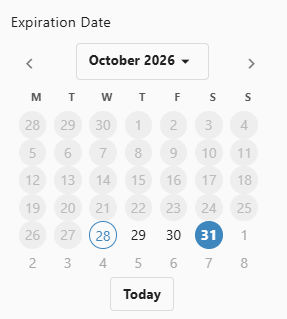
Expiration dates automatically disable share links after a chosen date. This helps improve security by limiting how long external users can access a document.
Setting an Expiration Date
To set an expiration date for a share link:
- Create a new share link.
- Find the Expiration Date Field.
- Select the date when the link should stop working.

- Create the link.
How Expiration Works
When a link has an expiration date:
- the link remains active until the selected expiration date
- once the link expires, it no longer provides access
- recipients cannot continue using the expired link
- continued access requires an active link
Choosing Expiration Dates
Choose the expiration period based on how long access is needed.
Short-Term (Days)
Use short-term expiration dates for:
- quick reviews
- temporary meeting access
- time-sensitive documents
Medium-Term (Weeks)
Use medium-term expiration dates for:
- project collaboration with deadlines
- document review cycles
- contract or approval discussions
Long-Term (Months)
Use longer expiration periods for:
- ongoing partnerships
- reference materials
- longer collaboration windows
Expiration Notifications
Depending on the sharing setup, you may see or receive reminders related to link expiration.
These may include:
- a reminder before the link expires
- a notice when the link has expired
- an alert for the document owner or person managing the link
After Expiration
When a link expires:
- recipients see that the link is no longer active
- they cannot access the document through that link
- a new active link is needed for continued access
- earlier link activity could still remain part of the link history
Best Practices
- match the expiration period to the business need
- review and extend links only when necessary
- use shorter expiration periods for sensitive documents
- let recipients know when their access will expire
Expiration vs. Manual Revocation
Both expiration and manual revocation can end link access, but they work differently.
Expiration
- access ends automatically on the chosen date
- works well for planned access periods
- usually needs less follow-up once it is configured
Manual Revocation
- access ends when you remove or disable the link
- works well when access must stop immediately
- requires someone to take action to revoke the link
Controlling Version History Access
When sharing documents externally, you may be able to control whether recipients can access the document’s version history. This helps you decide how much document history should be visible to external users.
Version History Options
Possible options can include:
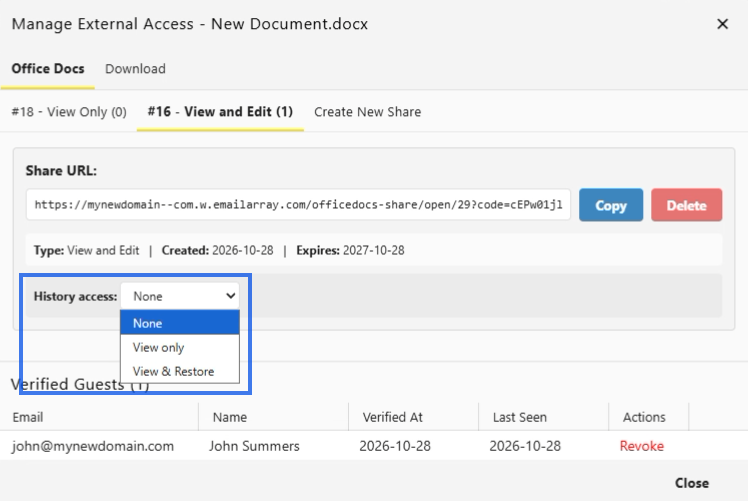
- None — recipients can only work with the current version
- View Only — recipients can view earlier versions but cannot restore them
- View & Restore — recipients can view version history and, where allowed, restore earlier versions
Version History Access
To configure version history access for a share link:
- Create a new share link.
- Find the version history.
- Choose the access level you want.

- Close the link panel.
The available settings may vary depending on your workspace configuration and the type of link you are creating.
Why Control Version History Access
Controlling version history access helps you decide how much information external users can see about earlier document states.
Reasons to Restrict
You may want to restrict version history access when:
- previous versions contain sensitive information
- draft versions should not be visible externally
- internal comments or earlier edits should stay private
- you want to simplify the recipient’s experience
Reasons to Allow
You may want to allow version history access when:
- transparency is important during collaboration
- recipients need to track changes over time
- earlier versions may help recover important content
- it is useful for others to see how the document evolved
View-Only Version Access (View Only)
When external users have view-only version access:
- they can browse the version history list
- they can open previous versions for review
- they can compare older document states
- they cannot restore a version as the current document
This option is useful when recipients need visibility into document changes without being able to roll the file back.
Full Version Access (Edit & Restore)
When external users have full version access:
- they can do everything available with view-only version access
- they can access earlier versions more fully
- they may be able to restore a previous version, if the workspace allows it
- restored versions affect the shared document, so this level should be used carefully
Use this option only when the recipient is a trusted collaborator and needs deeper control over the file.
No Version Access (None)
When version history access is disabled:
- external users only work with the current version
- version history is not available through the shared link
- earlier document states are hidden from the recipient
This option is often the safest choice when you want to share a final or controlled version of a document.
Best Practices
- use the most limited version history access that still meets the recipient’s needs
- enable view access for review situations where history visibility is helpful
- use full access only for trusted collaborators
- check version history before sharing if older drafts contain sensitive information
- consider sharing a clean current copy if earlier versions should remain private
Per-Link Settings
Version history access can often be managed separately for each share link.
This means:
- different links can have different version history settings
- one recipient may receive broader access than another
- access can be adjusted based on trust level and business need
Managing External Shares
Viewing All External Shares
For a Single Document
- Navigate to the document.
- Open the sharing settings for that file.
- Find the External Links section.

- Review all active share links linked to that document.

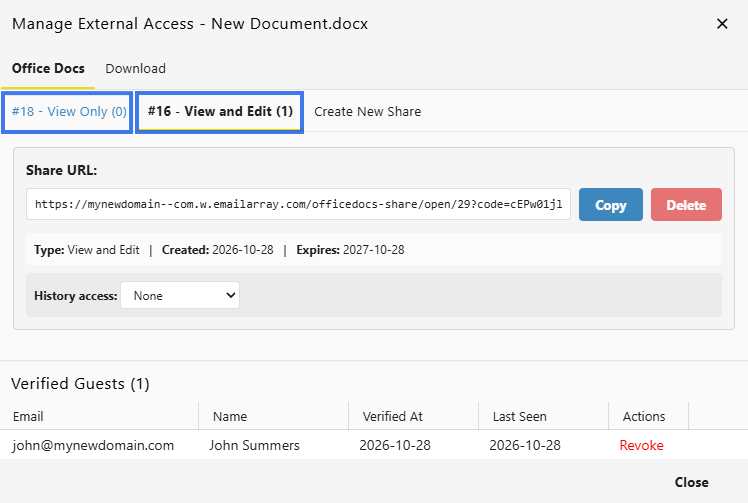
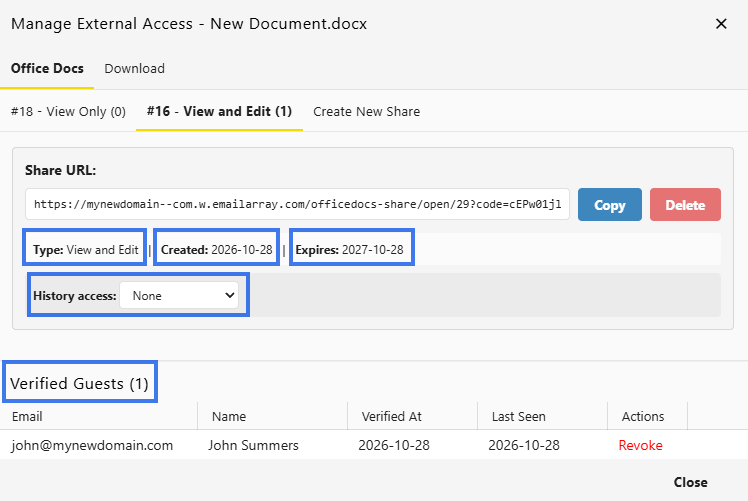
- Created Date — when the link was created
- Permission — whether the link allows View or Edit
- Expiration — when the link will stop working
- History Access — whether recipients can view the document’s version history
- Verified Guests — who currently has access, with their verified email details
Regular Maintenance
Periodic Review
- Review active external shares on a regular schedule
- Identify expired or unused links
- Remove links that are no longer needed
After Projects End
- Revoke project-related share links
- Archive or secure completed documents
- Keep a record of who had access when needed
Bulk Management
If bulk tools are available in your environment, you may be able to:
- Remove multiple expired links
- Export sharing activity or access reports
Best Practices
- Review external shares regularly
- Remove unnecessary access promptly
- Use expiration dates whenever possible
- Keep notes about why a link was created
- Pay extra attention when sharing sensitive documents
Revoking External Access
When external users no longer need access to a document, you can remove that access by revoking the share link.
When to Revoke Access
You may want to revoke external access when:
- A project or collaboration has ended
- Your relationship with the external party has changed
- The document is no longer relevant
- A security concern has come up
- Access was granted by mistake
- The person who shared the file is no longer with the organization
- Navigate to the document.
- Open the External Sharing option.
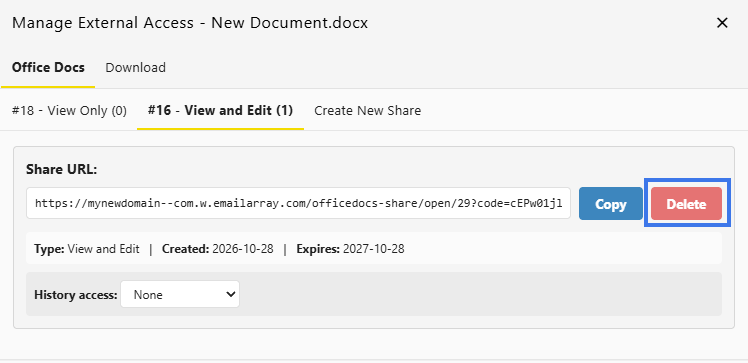
- Find the share link you want to revoke.
- Click Delete.

- Confirm the deletion.
What Happens When Revoked
- The link stops working immediately
- Recipients will no longer be able to use it
- Any active access through that link may end
- Future access with that link is no longer possible
Revoking a Single User
If you only need to remove access for one external user without deleting the entire share link, you can revoke that user individually from the Verified Guests list.
- Open the document sharing settings.
- Find the external share link.
- View the Verified Guests list for that link.
- Locate the user you want to remove.
- Click Revoke in the Actions column.

- Confirm the change.

After revoking that user:
- That person can no longer use the share link
- Other verified users on the same link keep their access
- The share link itself remains active
- The revoked user would need to be verified again or receive new access if needed later
Revocation Is Immediate
Unlike an expiration date, revocation happens as soon as you remove the link.
- Revocation takes effect instantly
- No scheduled end date is required
- It is useful when immediate action is needed
Impact on Recipients
Once access is revoked:
- Users can no longer open the document through that link
- Saved or bookmarked links stop working
- Email links previously sent become invalid
- A new link is required if access needs to be granted again later
Revoking vs. Expiration
Revocation
- Takes effect immediately
- Requires manual action
- Best for unexpected situations
- Does not rely on a scheduled date
Expiration
- Takes effect on a set date
- Ends automatically
- Best for planned access periods
- Works well when you already know when access should end
After Revocation
After a link has been revoked:
- The old link cannot be used again
- A new link must be created if access is needed later
- Access records may still remain available for review or audit purposes
Communicating Revocation
When appropriate, you may want to notify affected users.
- Let them know access has ended
- Share an updated link if continued access is still needed
- Provide context if the change affects an active project
Security Incidents
If access is being revoked because of a security concern:
- Revoke access immediately.
- Review recent access activity.
- Check what may have been opened or viewed.
- Follow any required reporting process.
- Consider additional security steps if needed