Collaboration
Real-Time Co-Editing
OfficeDocs lets multiple users work on the same document at the same time. This makes it easier to collaborate, review updates, and keep everyone working in the same file instead of sending separate copies back and forth.
How It Works
When multiple people open the same document, they join the same editing session.
- Each person works in the same document
- Changes can appear while other users are editing
- Users do not need to take turns editing separate copies
- The document stays synchronized during collaboration
Starting a Co-Editing Session
To start working together on a document:
Seeing Other Users
OfficeDocs shows when other people are active in the same document.
User Presence
- Names or avatars can appear in the editor interface
- You can see how many users are currently in the document
- Each collaborator can be identified while working in the file
Cursor Tracking
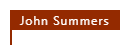
- You may see colored cursors showing where others are editing
- Cursor labels can show collaborator names
- In live collaboration, text can appear as others type
Collaboration Modes
OfficeDocs includes two collaboration modes that control how updates from other users appear while you work.
Fast Mode
Fast mode is best for active, real-time collaboration.
- Changes sync character by character
- You can see typing in real time
- This mode works well when several users are editing together at the same time
Strict Mode
Strict mode gives you more control over when updates from others appear.
- Changes sync when you save
- Text being edited can be marked while another user is working in that area
- This mode can help prevent conflicts in sensitive documents
Conflict Handling
When several users edit the same document, OfficeDocs includes tools that help manage overlapping changes.
- Edits made in different parts of the document can be combined during collaboration
- If two people work on the same content, saved updates determine what other users receive next
- You can use version history to review or recover earlier changes if needed
Best Practices
These habits can make co-editing easier and more organized:
- Communicate about who is working on which section
- Use comments when questions or feedback are needed
- Save regularly, especially in Strict mode
- Work in different areas of the document when possible
Requirements
To use co-editing effectively:
- All collaborators need access to the document
- Users need permission to edit the file
- Depending on your workspace setup, editing may require the appropriate account access
- A stable internet connection is recommended for smooth online collaboration
Viewing Active Users
OfficeDocs shows when other people are viewing or editing the same document. These presence indicators help teams stay aware of who is active in the file and make collaboration easier to manage.
Where to see active users
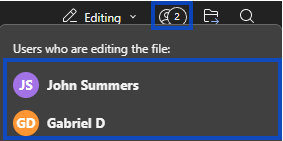
You can usually see active user indicators in the editor interface while a shared document is open. These indicators may appear in the editor header and show how many people are currently working in the file.
Look for active users in:
- the editor header or toolbar area
- user avatars or initials
- participant count indicators or user badges
User information displayed
When you hover over or click a user indicator, you may see more details about that person’s activity in the file.
This information can include:
- Name — the user’s display name
- Status — whether the user is viewing or editing
- Color — the color associated with that user during collaboration
Cursor presence
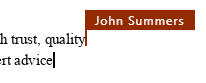
During collaborative editing, OfficeDocs can show where other people are working in the document. In some collaboration modes, edited areas and active cursors are visible to help users avoid overlapping work.
In collaborative sessions:
- each user may have a colored cursor
- the cursor can show the user’s current position in the document
- labels can identify who the cursor belongs to
- selections or edited areas may appear in user-specific colors
Internal vs. external users
Depending on how the document is shared, the people shown in the active user list may include both internal users and external users. External users can access shared documents through external links, while portal users are part of your organization’s workspace.
Internal users
Internal users are users from your organization or workspace.
- they belong to your organization’s workspace
- their names can appear in the user list
- they may have profile pictures or account information associated with their account
External users
External users are people who access a document through a shared link instead of through a full portal account. In ONLYOFFICE materials, these users are tracked separately from portal users.
- they access the file through a shared external link
- they may appear separately from internal users
- depending on your setup, their displayed identity may differ from portal users
Using presence information
Presence indicators can help teams work more efficiently when several people are involved in the same file.
You can use this information to:
- avoid editing the same section as someone else
- know when to start a collaborative discussion
- see whether reviewers or collaborators have opened the document
- coordinate handoffs between team members
When presence updates
Presence information updates automatically as users join or leave a shared document session.
- opening a document adds your presence to the session
- closing the document removes your presence
- if the connection is interrupted, your status may update temporarily
- reconnecting restores your active presence in the file
Privacy note
Presence indicators are visible to people who already have access to the document.
- other users can see when you open a shared file
- collaborators may be able to see where you are working in the document
- user presence is part of the collaboration experience in shared editing sessions