Your mailbox password is the one you use when you log in to the Webmail or e-mail client, such as Apple Mail, Outlook, or the mail app on your phone. If you have set up the e-mail address on other devices, once you update the e-mail password, you should update the settings of all your e-mail clients to use this new password for IMAP and SMTP logins.
Your password must contain at least 8 characters, and at least one UPPERCASE letter, one lowercase, one number, and one special character (,./!@#$%^&\*, etc.)
#### 1. Change your mailbox password from the Webmail To change the password for your e-mail address, log in to the **GroupOffice Webmail** using your current password: - Log into the **Webmail** using your full **e-mail address** and your **current e-mail password.** - Click on the **User** icon from the top right to activate the menu. Then click on **My account.** [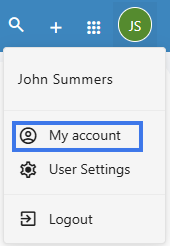](https://wikidev.emailarray.com/uploads/images/gallery/2026-06/wWqimage.png) - In the **Account** tab, in the **Password** section, you can fill in the new password. - Fill in and confirm the new password. Please note the password must meet all the requirements. - You can also generate a strong password by clicking on the **Refresh arrow** icon at the right of the **Password** field. - Click on the **Update password and log me out from everywhere** button. This will log you out of every device or email client. - Your password was updated, and you can now use it to log back in. [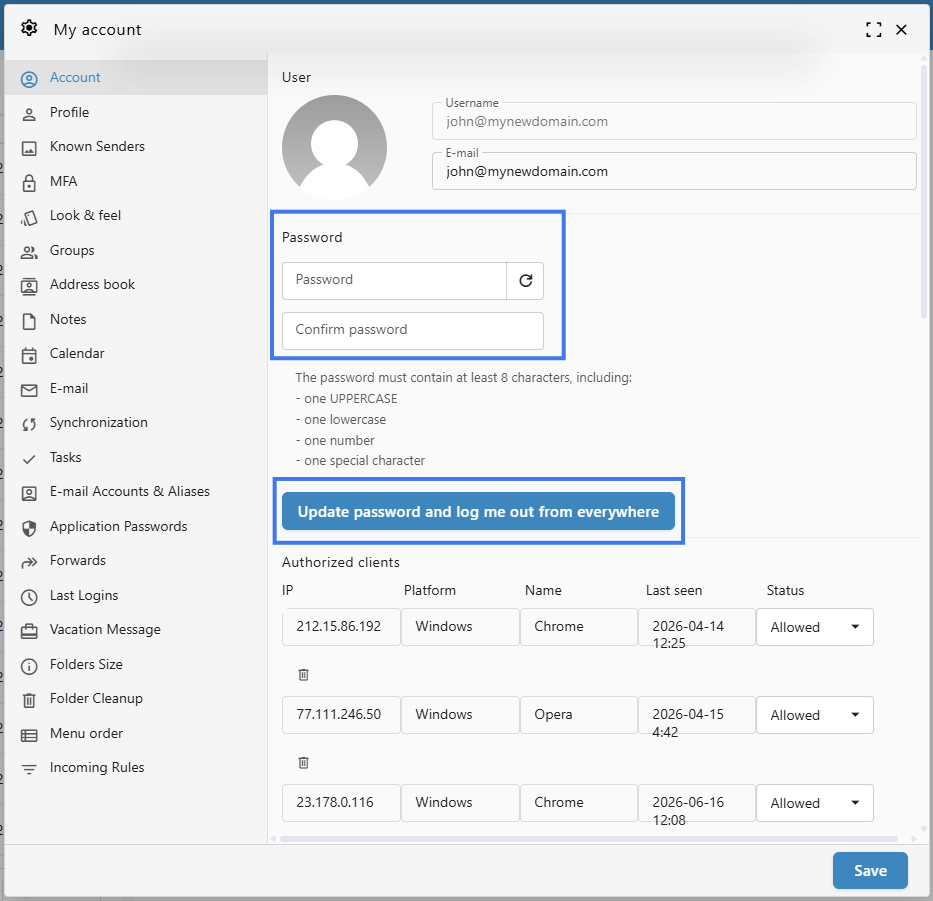](https://wikidev.emailarray.com/uploads/images/gallery/2026-06/v0limage.png) #### 2. Change your mailbox password from the User Panel To change your password for your e-mail address: - Go to the **[User Panel](https://cp.emailarray.com/)** - Log in using your **full e-mail address** ( user@domain.com ) and your current e-mail **password**. - Click on the **Password** icon from the menu - Enter your new password, confirm it and click on the **Change** button [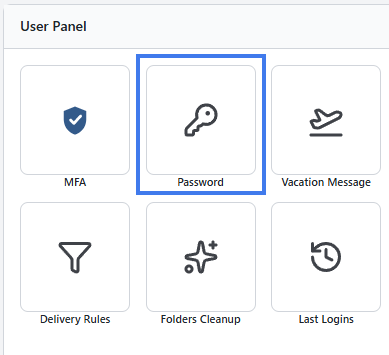](https://wikidev.emailarray.com/uploads/images/gallery/2026-06/zMjimage.png) [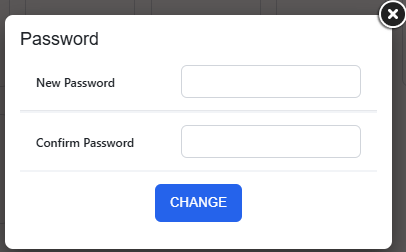](https://wikidev.emailarray.com/uploads/images/gallery/2026-06/yQ0image.png) #### 3. Change the mailbox password from the Admin Panel If you have administration permissions, you can update the password of a mailbox without knowing the current one. To update the password: - Go to the **[Admin Panel](https://admin.emailarray.com/)** - Log in using your **Admin username** and **password** - Go to the **Users** tab from the menu - From the **Select Domain** dropdown, select the desired domain name - Click on the **Edit (pencil)** icon to update the desired mailbox [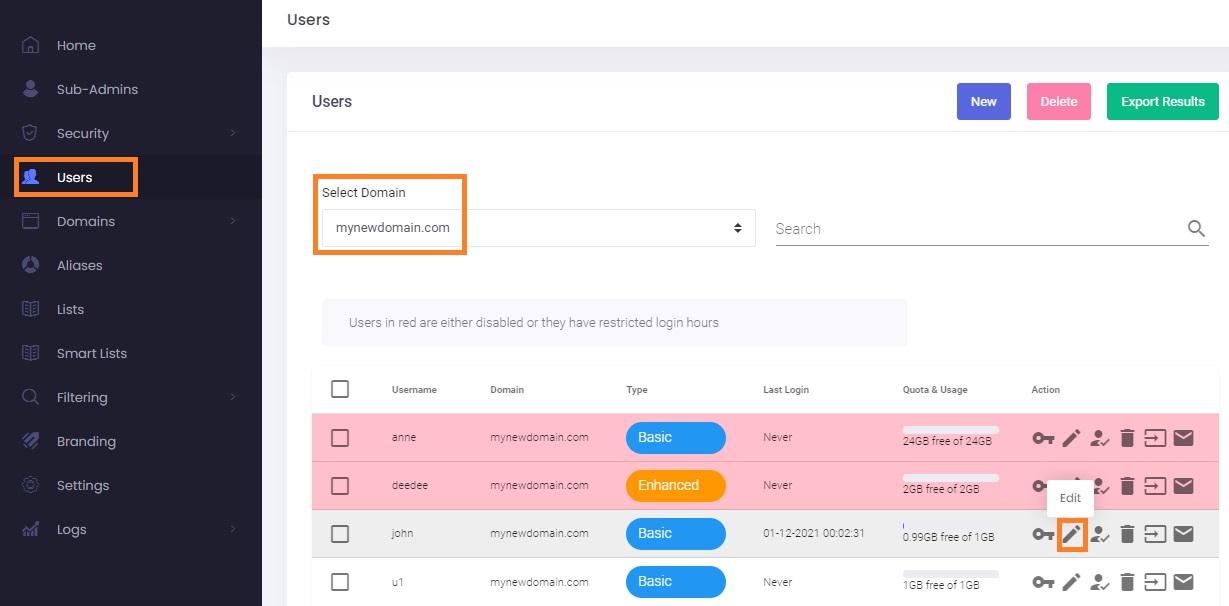](https://wikidev.emailarray.com/uploads/images/gallery/2024-08/admin-panel-edit-user-to-update-a-mailbox-details.jpg) - In the new pop-up window, you can fill in the new **Password** for the e-mail address. - You can also use the **New** button to generate a complex password and copy it to clipboard using the **Copy** button. - Click on the **Update User** button to save the changes. [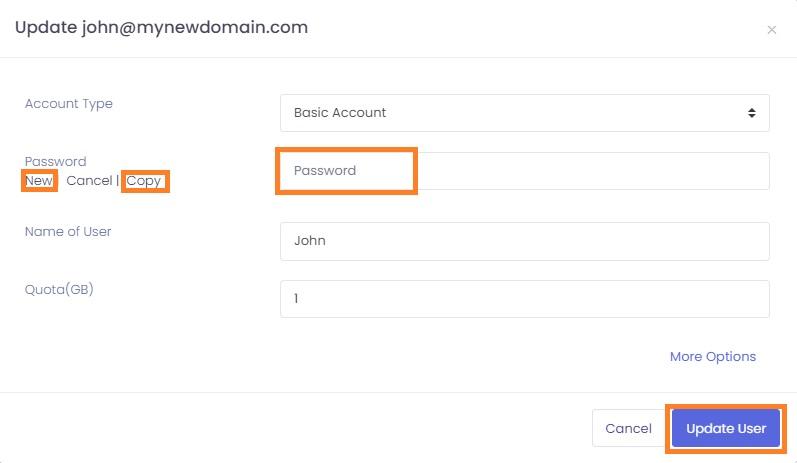](https://wikidev.emailarray.com/uploads/images/gallery/2024-08/admin-panel-how-to-update-the-user-password.jpg)