# Application Passwords

Application passwords act as alternative, app-specific passwords for your email account. They are incredibly useful when you want to connect your mailbox to third-party email clients (like Outlook, Apple Mail, or Thunderbird) without sharing your primary account password. If you have Multi-Factor Authentication (MFA) enabled, many email clients cannot prompt you for the verification code. In these cases, you use an application password instead of your main password to log in securely.

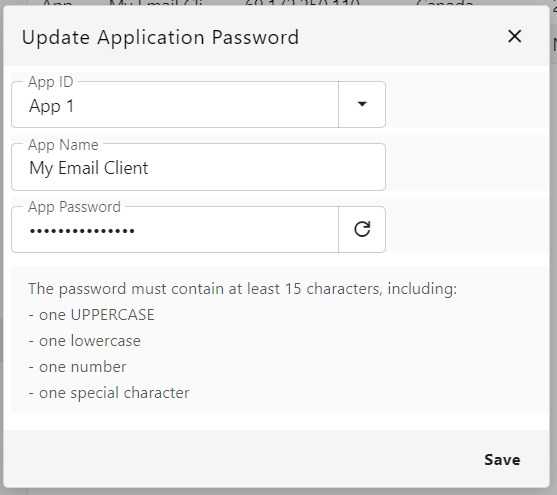
<span data-path-to-node="2,0">When generating an application password, the system requires it to contain at least 15 characters</span><span data-path-to-node="2,1"><sup class="superscript"></sup></span><span data-path-to-node="2,2">. This must include at least one uppercase letter, one lowercase letter, one number, and one special character</span><span data-path-to-node="2,3"><sup class="superscript"></sup></span><span data-path-to-node="2,4">.</span>

### How to create an Application Password from Webmail

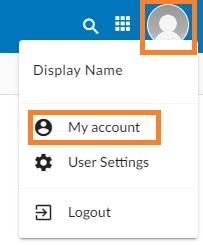
1. Log in to your Webmail and navigate to your settings.  
      
    [![Webmail - how to access advanced settings for your email account.jpg](https://wikidev.emailarray.com/uploads/images/gallery/2024-08/scaled-1680-/etxwebmail-how-to-access-advanced-settings-for-your-email-account.jpg)](https://wikidev.emailarray.com/uploads/images/gallery/2024-08/etxwebmail-how-to-access-advanced-settings-for-your-email-account.jpg)
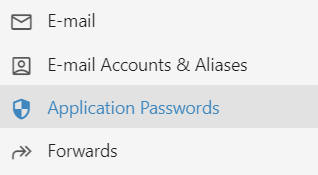
2. <span data-path-to-node="4,1,0,0">Click on **Application Passwords** from the left-hand menu</span><span data-path-to-node="4,1,0,1"><sup class="superscript"></sup></span><span data-path-to-node="4,1,0,2">.  
      
    [![Webmail - Settings - access Application Passwords.PNG](https://wikidev.emailarray.com/uploads/images/gallery/2026-09/scaled-1680-/webmail-settings-access-application-passwords.PNG)](https://wikidev.emailarray.com/uploads/images/gallery/2026-09/webmail-settings-access-application-passwords.PNG)  
      
    </span>
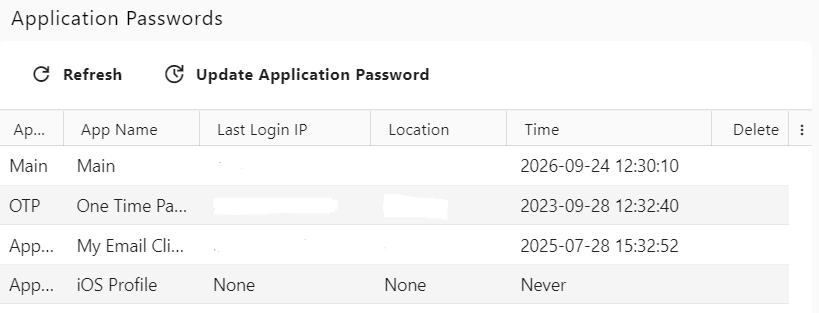
3. <span data-path-to-node="4,2,0,0">Click the **Update Application Password** button at the top of the screen</span><span data-path-to-node="4,2,0,1"><sup class="superscript"></sup></span><span data-path-to-node="4,2,0,2">.  
      
    [![Webmail - Application passwords list.PNG](https://wikidev.emailarray.com/uploads/images/gallery/2026-09/scaled-1680-/webmail-application-passwords-list.PNG)](https://wikidev.emailarray.com/uploads/images/gallery/2026-09/webmail-application-passwords-list.PNG)  
      
    </span>
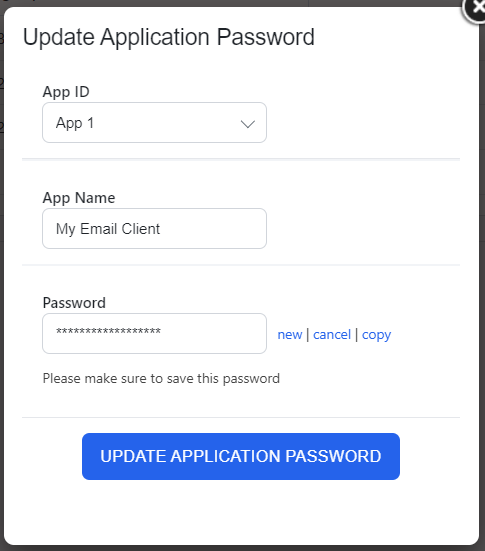
4. <span data-path-to-node="4,3,0,0">In the popup window, select an **App ID** from the dropdown menu</span><span data-path-to-node="4,3,0,1"><sup class="superscript"></sup></span><span data-path-to-node="4,3,0,2">.</span>
5. <span data-path-to-node="4,4,0,0">Type a descriptive **App Name** so you can easily identify it later (for example, "My Email Client")</span><span data-path-to-node="4,4,0,1"><sup class="superscript"></sup></span><span data-path-to-node="4,4,0,2">.</span>
6. <span data-path-to-node="4,5,0,0">Generated the **App Password**</span><span data-path-to-node="4,5,0,1"><sup class="superscript"></sup></span><span data-path-to-node="4,5,0,2">. Make sure to copy this password now. For your security, you will not be able to view it again once you close this window.</span>
7. <span data-path-to-node="4,6,0,0">Click **Save** to confirm</span><span data-path-to-node="4,6,0,1"><sup class="superscript"></sup></span><span data-path-to-node="4,6,0,2">.  
      
    [![Webmail - Application passwords setup.PNG](https://wikidev.emailarray.com/uploads/images/gallery/2026-09/scaled-1680-/webmail-application-passwords-setup.PNG)](https://wikidev.emailarray.com/uploads/images/gallery/2026-09/webmail-application-passwords-setup.PNG)  
      
      
    </span>

###  

### How to create an Application Password from the User Panel

1. Log in to your [User Control Panel](https://cp.emailarray.com).
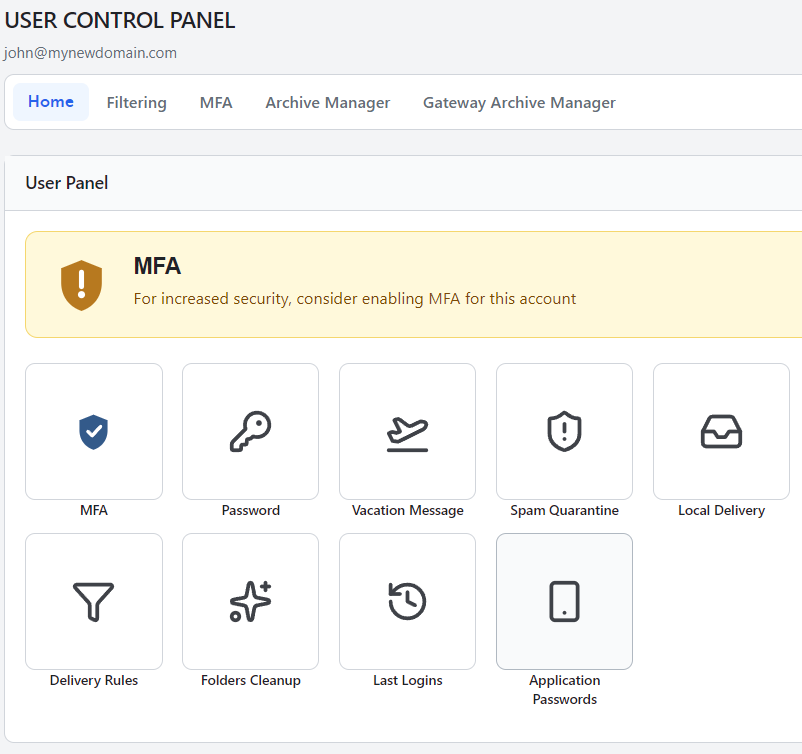
2. <span data-path-to-node="6,1,0,0">Click on the **Application Passwords** icon from the main dashboard</span><span data-path-to-node="6,1,0,1"><sup class="superscript"></sup></span><span data-path-to-node="6,1,0,2">.  
      
    [![User Panel - access Application Passwords.PNG](https://wikidev.emailarray.com/uploads/images/gallery/2026-09/scaled-1680-/user-panel-access-application-passwords.PNG)](https://wikidev.emailarray.com/uploads/images/gallery/2026-09/user-panel-access-application-passwords.PNG)  
      
    </span>
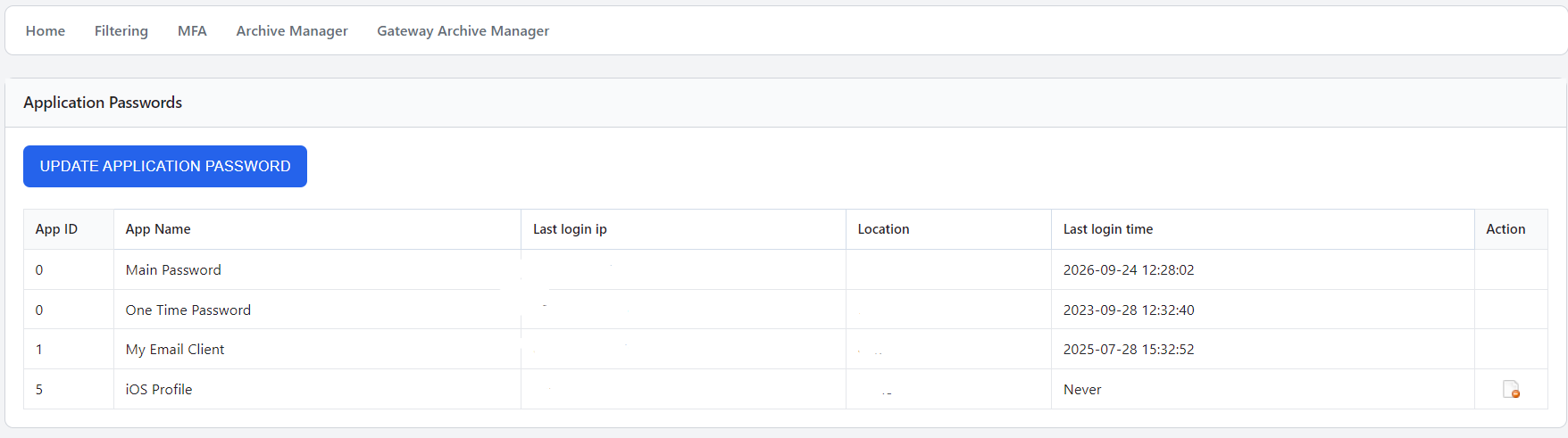
3. <span data-path-to-node="6,2,0,0">Click the blue **UPDATE APPLICATION PASSWORD** button</span><span data-path-to-node="6,2,0,1"><sup class="superscript"></sup></span><span data-path-to-node="6,2,0,2">.  
      
    [![User Panel - Application passwords list.PNG](https://wikidev.emailarray.com/uploads/images/gallery/2026-09/scaled-1680-/user-panel-application-passwords-list.PNG)](https://wikidev.emailarray.com/uploads/images/gallery/2026-09/user-panel-application-passwords-list.PNG)  
      
    </span>
4. <span data-path-to-node="6,3,0,0">Select an **App ID** from the dropdown menu</span><span data-path-to-node="6,3,0,1"><sup class="superscript"></sup></span><span data-path-to-node="6,3,0,2">.</span>
5. <span data-path-to-node="6,4,0,0">Enter an **App Name** for your reference</span><span data-path-to-node="6,4,0,1"><sup class="superscript"></sup></span><span data-path-to-node="6,4,0,2">.</span>
6. <span data-path-to-node="6,5,0,0">Copy the generated **Password**</span><span data-path-to-node="6,5,0,1"><sup class="superscript"></sup></span><span data-path-to-node="6,5,0,2">. Make sure to copy this password now. For your security, you will not be able to view it again once you close this window.</span>
7. <span data-path-to-node="6,6,0,0">Click the **UPDATE APPLICATION PASSWORD** button at the bottom of the window to save</span><span data-path-to-node="6,6,0,1"><sup class="superscript"></sup></span><span data-path-to-node="6,6,0,2">.  
      
    [![User Panel - Application passwords setup.PNG](https://wikidev.emailarray.com/uploads/images/gallery/2026-09/scaled-1680-/user-panel-application-passwords-setup.PNG)](https://wikidev.emailarray.com/uploads/images/gallery/2026-09/user-panel-application-passwords-setup.PNG)  
    </span>

###  

### <span data-path-to-node="6,6,0,2">Managing your Application Passwords</span>

<span data-path-to-node="6,6,0,2">  
Both the Webmail and User Panel display a list of all your active application passwords, showing the app name, last login IP, location, and the time of the last login. If you ever lose a device or stop using an application, you can quickly revoke its access by clicking the delete icon next to that specific application password in the list.</span>