In the Webmail, you will be prompted to enter the 2FA code in a new pop-up window.
[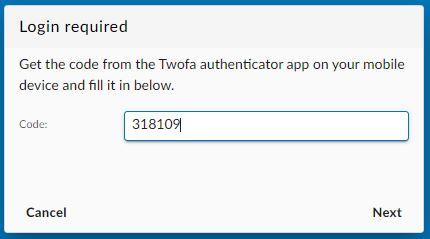](https://wikidev.emailarray.com/uploads/images/gallery/2024-08/webmail-2fa-code-required-at-login.JPG)When logging into the User Panel, if you have 2FA enabled for your mailbox, you must add at the end of the password the 6-digit code provided by the app on your phone. For example, if your password is **T9D3K!px** and the 6-digit code is **189 145**, you must enter **T9D3K!px189145** in the login form of the User Panel.
[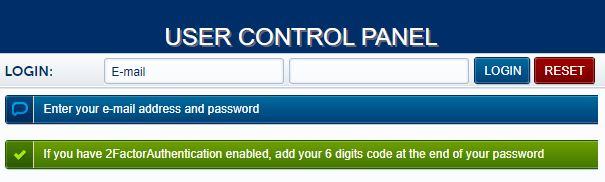](https://wikidev.emailarray.com/uploads/images/gallery/2024-08/user-panel-login-form.JPG) #### 1. How to enable 2FA for your mailbox First, you need a smartphone with a two-factor authenticator App installed (OTP / 2-Step Verification / 2-Factor Authentication), such as [Authy](https://play.google.com/store/apps/details?id=com.authy.authy&hl=en) or [Google Authenticator](https://play.google.com/store/apps/details?id=com.google.android.apps.authenticator2&hl=en). To enable 2FA for your e-mail address: - Log in to the **[User Panel](https://cp.emailarray.com/)** - From the menu, go to **2-Factor Auth** **[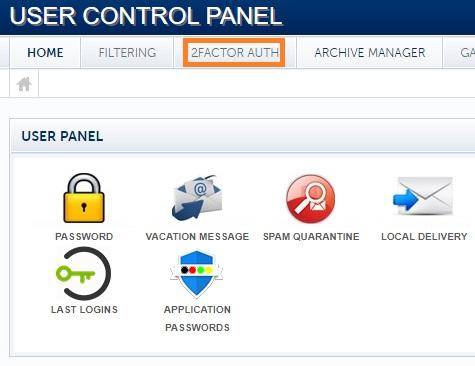](https://wikidev.emailarray.com/uploads/images/gallery/2024-08/user-panel-2fa-menu.jpg)** - Update the dropdown **Status** to **Enabled**. Click on the **Save** button. [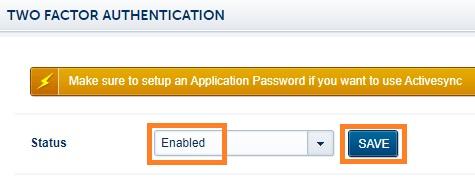](https://wikidev.emailarray.com/uploads/images/gallery/2024-08/user-panel-how-to-activate-2fa-for-your-mailbox.jpg) - Recheck the requirements: have a 2FA App installed on your phone, such as [ Authy ](https://play.google.com/store/apps/details?id=com.authy.authy&hl=en)or [Google Authenticator](https://play.google.com/store/apps/details?id=com.google.android.apps.authenticator2&hl=en) - When ready, click on the **Next** button [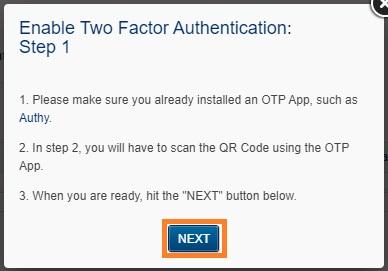](https://wikidev.emailarray.com/uploads/images/gallery/2024-08/user-panel-how-to-activate-2fa-for-your-mailbox-step-1.jpg) - Scan the QR code with the installed 2FA App and fill in the generated six-digit code in the **Challenge** input field. - **Click on the Save button before your token expires. It is always better to wait for the app to generate a fresh token, so you have enough time before it expires.** - You have enabled 2FA, and you will be prompted to fill in the token every time you log in using Webmail. [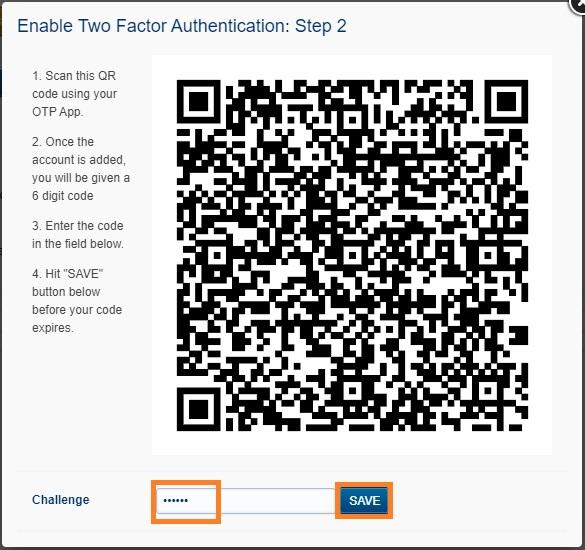](https://wikidev.emailarray.com/uploads/images/gallery/2024-08/user-panel-how-to-activate-2fa-for-your-mailbox-step-2.jpg) ### 2. Disable 2FA for your mailbox To disable 2FA for your e-mail address: - Log in to the **[U](https://admin.emailarray.com/)[ser Panel](https://cp.emailarray.com)** - From the menu, go to **2-Factor Auth** **[](https://wikidev.emailarray.com/uploads/images/gallery/2024-08/user-panel-2fa-menu.jpg)** - Update the dropdown **Status** to **Disabled**. Click on the **Save** button. [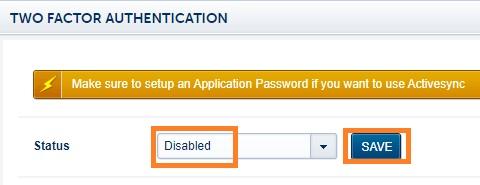](https://wikidev.emailarray.com/uploads/images/gallery/2024-08/user-panel-how-to-disable-2fa-for-your-mailbox.jpg) - Insert the token from your 2FA App (such as Authy or Google Authenticator) in the **Challenge** input field. - **Click on the Save button before the token expires. It is always better to wait for the app to generate a fresh token, so you have enough time before it expires.** - After you see the confirmation message that the 2FA was disabled, you can delete the entry from your 2FA app. [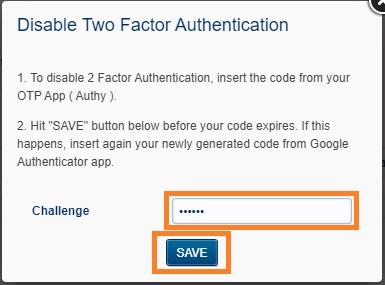](https://wikidev.emailarray.com/uploads/images/gallery/2024-08/user-panel-how-to-disable-2fa-for-your-mailbox-step-1.jpg)