# 2 - User Panel - Advanced Setup for Your Mailbox

The [User Control Panel](https://cp.emailarray.com/) is located at [http://cp.emailarray.com](http://cp.emailarray.com/) and can also be accessed via Webmail, from the "Control Panel" link.

It lets users manage several aspects, such as change their password, setup autoresponder, manage spam quarantine, forwarders, track deliveries, create delivery rules, manage white and blacklist and much more.

# Change your mailbox password

<p class="callout info">Your mailbox password is the one you use when you log in to the Webmail or e-mail client, such as Apple Mail, Outlook, or the mail app on your phone.  
If you have set up the e-mail address on other devices, once you update the e-mail password, you should update the settings of all your e-mail clients to use this new password for IMAP and SMTP logins.</p>

<p class="callout warning">Your password must contain at least 8 characters, and at least one UPPERCASE letter, one lowercase, one number, and one special character (,./!@#$%^&amp;\*, etc.)</p>

#### 1. Change your mailbox password from the Webmail

To change the password for your e-mail address, log in to the **GroupOffice Webmail** using your current password:

- Log into the **Webmail** using your full **e-mail address** and your **current e-mail password**
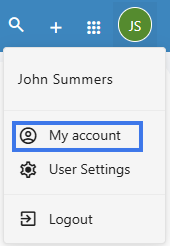
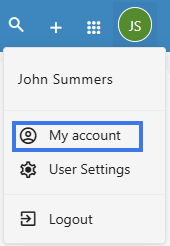
- Click on the **User** icon from the top right to activate the menu. Then click on **My account**

[![Webmail - how to access advanced settings for your email account.jpg](https://wikidev.emailarray.com/uploads/images/gallery/2024-08/scaled-1680-/webmail-how-to-access-advanced-settings-for-your-email-account.jpg)](https://wikidev.emailarray.com/uploads/images/gallery/2024-08/webmail-how-to-access-advanced-settings-for-your-email-account.jpg)

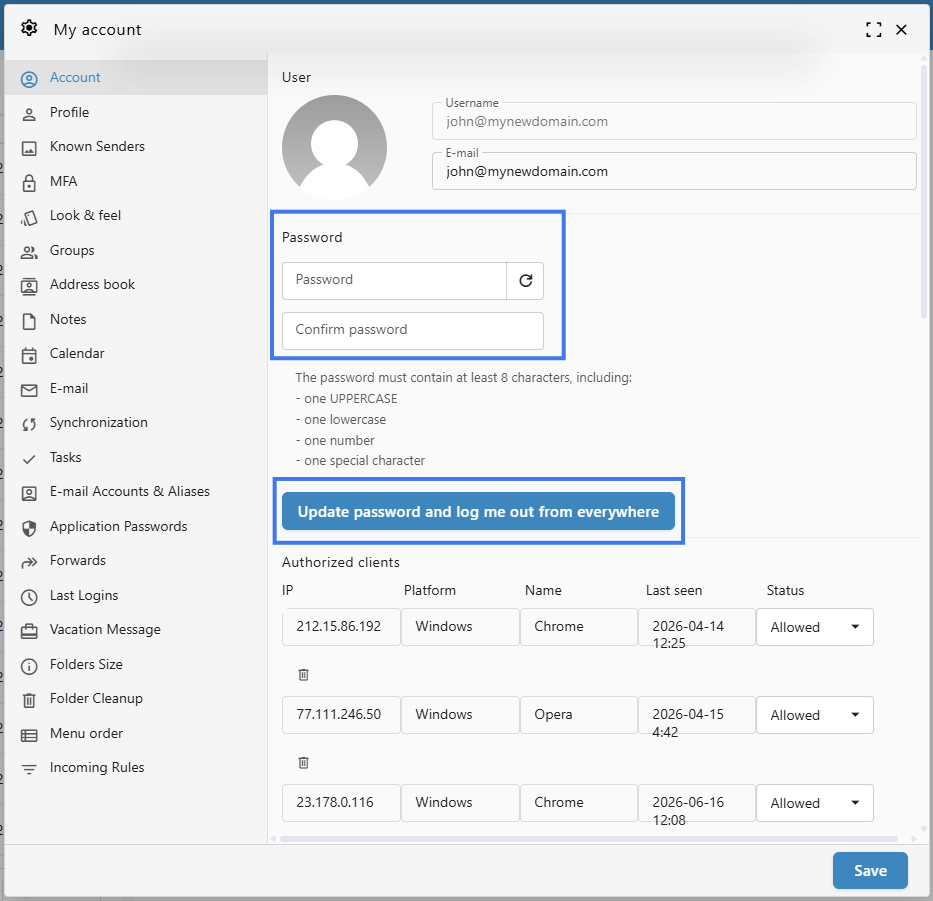
- In the **Account** tab, in the **Password** section, you can fill in the new password.
- Fill in and confirm the new password. Please note the password must meet all the requirements.
- You can also generate a strong password by clicking on the **Refresh arrow** icon at the right of the **Password** field.
- Click on the **Update password and log me out from everywhere** button. This will log you out of every device or email client.
- Your password was updated, and you can now use it to log back in.

[![Webmail - how to update the password for your mailbox.jpg](https://wikidev.emailarray.com/uploads/images/gallery/2024-08/scaled-1680-/webmail-how-to-update-the-password-for-your-mailbox.jpg)](https://wikidev.emailarray.com/uploads/images/gallery/2024-08/webmail-how-to-update-the-password-for-your-mailbox.jpg)
#### 2. Change your mailbox password from the User Panel

To change your password for your e-mail address:

- Go to the **[User Panel](https://cp.emailarray.com/)**
- Log in using your **full e-mail address** ( user@domain.com ) and your current e-mail **password**.
- Click on the **Password** icon from the menu
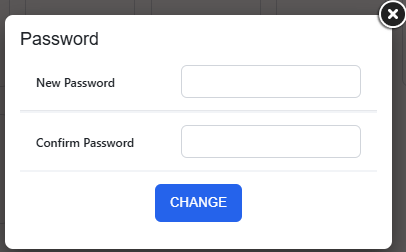
- Enter your new password, confirm it and click on the **Change** button

[![User Panel - update password for your mailbox.jpg](https://wikidev.emailarray.com/uploads/images/gallery/2024-08/scaled-1680-/user-panel-update-password-for-your-mailbox.jpg)](https://wikidev.emailarray.com/uploads/images/gallery/2024-08/user-panel-update-password-for-your-mailbox.jpg)
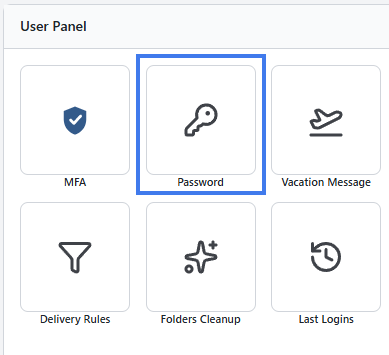
[![User Panel - form to update password for your mailbox.jpg](https://wikidev.emailarray.com/uploads/images/gallery/2024-08/scaled-1680-/user-panel-form-to-update-password-for-your-mailbox.jpg)](https://wikidev.emailarray.com/uploads/images/gallery/2024-08/user-panel-form-to-update-password-for-your-mailbox.jpg)

You can also access the control panel directly from within Webmail:

- From the Group Office Webmail , click on the **User** icon to show the menu, and then go to **User Settings**. You will be automatically logged into your User Panel.

[![Webmail - how to access the User Panel.jpg](https://wikidev.emailarray.com/uploads/images/gallery/2024-08/scaled-1680-/webmail-how-to-access-the-user-panel.jpg)](https://wikidev.emailarray.com/uploads/images/gallery/2024-08/webmail-how-to-access-the-user-panel.jpg)

####  

#### 3. Change the mailbox password from the Admin Panel

If you have administration permissions, you can update the password of a mailbox without knowing the current one.

To update the password:

- Go to the **[Admin Panel](https://admin.emailarray.com/)**
- Log in using your **Admin username** and **password**
- Go to the **Users** tab from the menu
- From the **Select Domain** dropdown, select the desired domain name
- Click on the **Edit (pencil)** icon to update the desired mailbox

[![Admin Panel - edit User to update a mailbox details.jpg](https://wikidev.emailarray.com/uploads/images/gallery/2024-08/scaled-1680-/admin-panel-edit-user-to-update-a-mailbox-details.jpg)](https://wikidev.emailarray.com/uploads/images/gallery/2024-08/admin-panel-edit-user-to-update-a-mailbox-details.jpg)
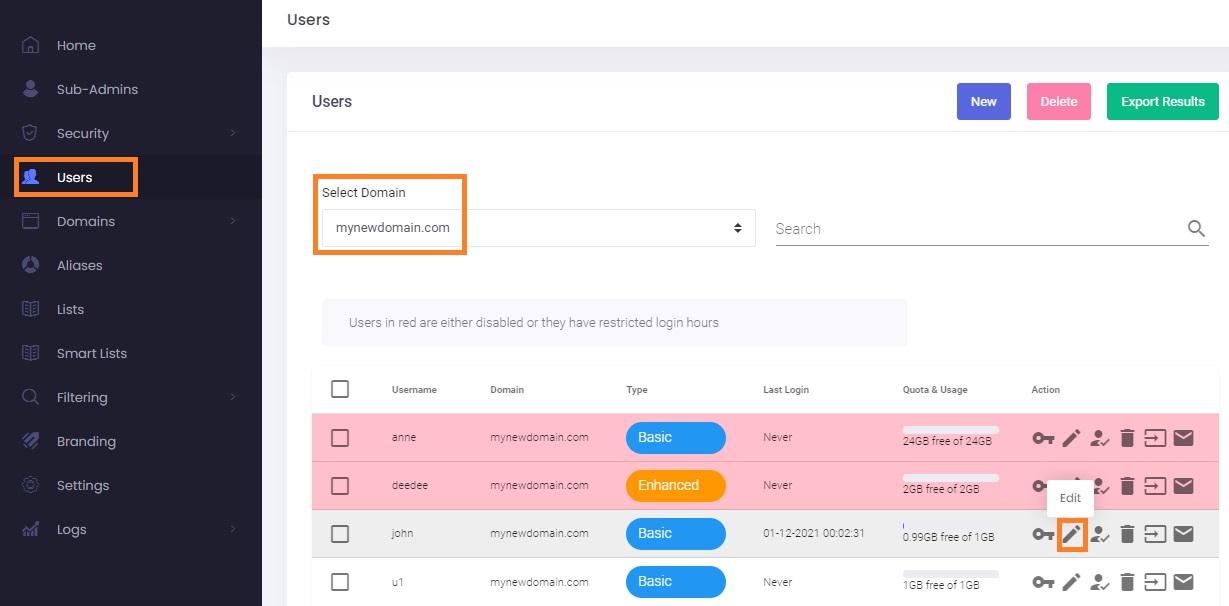
- In the new pop-up window, you can fill in the new **Password** for the e-mail address.
- You can also use the **New** button to generate a complex password and copy it to clipboard using the **Copy** button.
- Click on the **Update User** button to save the changes.

[![Admin Panel - how to update the user password.jpg](https://wikidev.emailarray.com/uploads/images/gallery/2024-08/scaled-1680-/admin-panel-how-to-update-the-user-password.jpg)](https://wikidev.emailarray.com/uploads/images/gallery/2024-08/admin-panel-how-to-update-the-user-password.jpg)
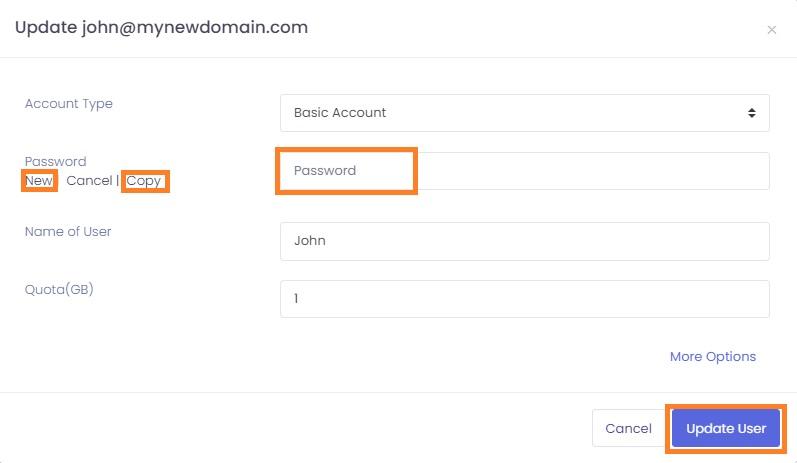
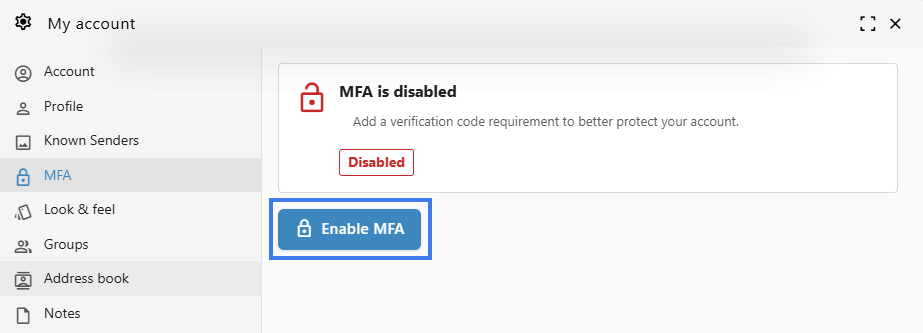
# 2FA - Two-factor authentication for your mailbox

**Two-factor authentication**, or **2FA** as it's commonly abbreviated, adds an extra step to your basic login procedure. Without 2FA, the password is your single factor of authentication: you enter your username and password, then you're done.

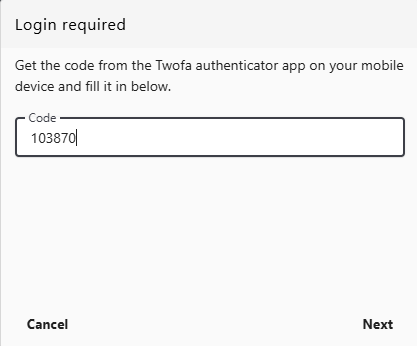
With 2FA, you log in to the Webmail by entering your username and password and the six-digit code provided by an app installed on your smartphone.

<p class="callout info">In the Webmail, you will be prompted to enter the 2FA code in a new pop-up window.</p>

[![Webmail - 2fa code required at login.JPG](https://wikidev.emailarray.com/uploads/images/gallery/2024-08/scaled-1680-/webmail-2fa-code-required-at-login.JPG)](https://wikidev.emailarray.com/uploads/images/gallery/2024-08/webmail-2fa-code-required-at-login.JPG)

<p class="callout info">When logging into the User Panel, if you have 2FA enabled for your mailbox, you must add at the end of the password the 6-digit code provided by the app on your phone. For example, if your password is **T9D3K!px** and the 6-digit code is **189 145**, you must enter **T9D3K!px189145** in the login form of the User Panel.</p>

[![User Panel - login form.JPG](https://wikidev.emailarray.com/uploads/images/gallery/2024-08/scaled-1680-/user-panel-login-form.JPG)](https://wikidev.emailarray.com/uploads/images/gallery/2024-08/user-panel-login-form.JPG)

#### 1. How to enable 2FA for your mailbox

First, you need a smartphone with a two-factor authenticator App installed (OTP / <span style="color: rgb(51,51,51);">2-Step Verification / 2-Factor Authentication</span>), such as [Authy](https://play.google.com/store/apps/details?id=com.authy.authy&hl=en) or [Google Authenticator](https://play.google.com/store/apps/details?id=com.google.android.apps.authenticator2&hl=en).

To enable 2FA for your e-mail address:

- Log in to the **[User Panel](https://cp.emailarray.com/)**
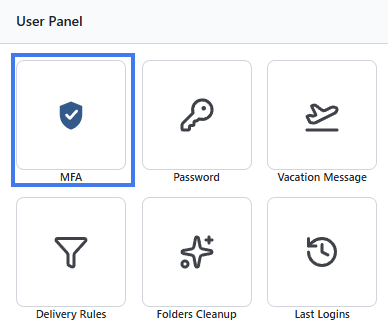
- From the menu, go to **2-Factor Auth**

**[![User Panel - 2fa menu.jpg](https://wikidev.emailarray.com/uploads/images/gallery/2024-08/scaled-1680-/user-panel-2fa-menu.jpg)](https://wikidev.emailarray.com/uploads/images/gallery/2024-08/user-panel-2fa-menu.jpg)**

- Update the dropdown **Status** to **Enabled**. Click on the **Save** button.

[![User Panel - how to activate 2fa for your mailbox.jpg](https://wikidev.emailarray.com/uploads/images/gallery/2024-08/scaled-1680-/user-panel-how-to-activate-2fa-for-your-mailbox.jpg)](https://wikidev.emailarray.com/uploads/images/gallery/2024-08/user-panel-how-to-activate-2fa-for-your-mailbox.jpg)
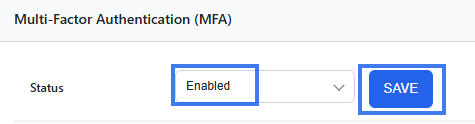
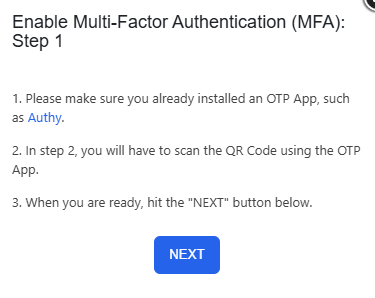
- Recheck the requirements: have a 2FA App installed on your phone, such as [ Authy ](https://play.google.com/store/apps/details?id=com.authy.authy&hl=en)or [Google Authenticator](https://play.google.com/store/apps/details?id=com.google.android.apps.authenticator2&hl=en)
- When ready, click on the **Next** button

[![User Panel - how to activate 2fa for your mailbox - step 1.jpg](https://wikidev.emailarray.com/uploads/images/gallery/2024-08/scaled-1680-/user-panel-how-to-activate-2fa-for-your-mailbox-step-1.jpg)](https://wikidev.emailarray.com/uploads/images/gallery/2024-08/user-panel-how-to-activate-2fa-for-your-mailbox-step-1.jpg)
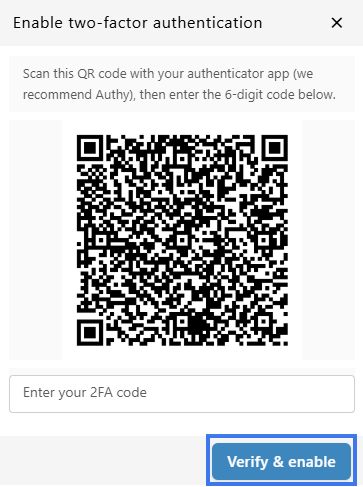
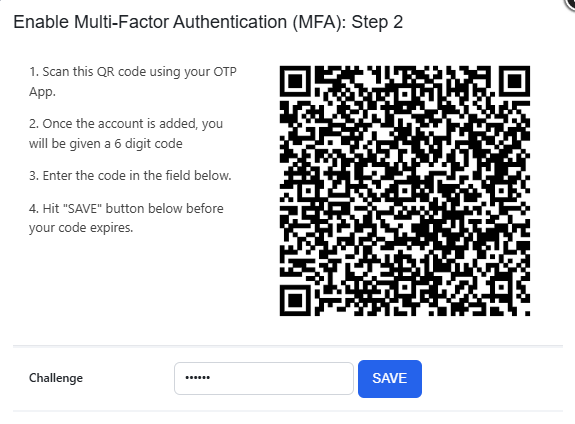
- Scan the QR code with the installed 2FA App and fill in the generated six-digit code in the **Challenge** input field.
- **Click on the Save button before your token expires. It is always better to wait for the app to generate a fresh token, so you have enough time before it expires.**
- You have enabled 2FA, and you will be prompted to fill in the token every time you log in using Webmail.

[![User Panel - how to activate 2fa for your mailbox - step 2.jpg](https://wikidev.emailarray.com/uploads/images/gallery/2024-08/scaled-1680-/user-panel-how-to-activate-2fa-for-your-mailbox-step-2.jpg)](https://wikidev.emailarray.com/uploads/images/gallery/2024-08/user-panel-how-to-activate-2fa-for-your-mailbox-step-2.jpg)
### 2. Disable 2FA for your mailbox

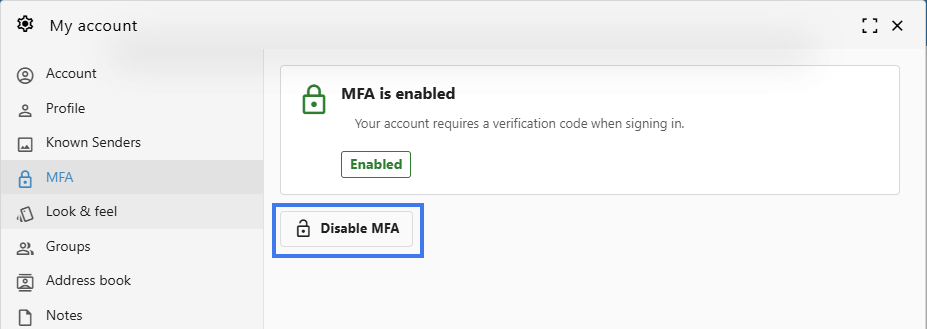
To disable 2FA for your e-mail address:

- Log in to the **[U](https://admin.emailarray.com/)[ser Panel](https://cp.emailarray.com)**
- From the menu, go to **2-Factor Auth**

**[![User Panel - 2fa menu.jpg](https://wikidev.emailarray.com/uploads/images/gallery/2024-08/scaled-1680-/user-panel-2fa-menu.jpg)](https://wikidev.emailarray.com/uploads/images/gallery/2024-08/user-panel-2fa-menu.jpg)**

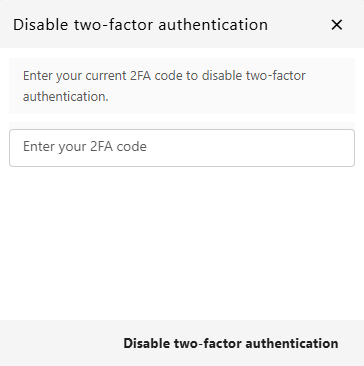
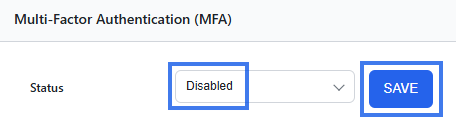
- Update the dropdown **Status** to **Disabled**. Click on the **Save** button.

[![User Panel - how to disable 2fa for your mailbox.jpg](https://wikidev.emailarray.com/uploads/images/gallery/2024-08/scaled-1680-/user-panel-how-to-disable-2fa-for-your-mailbox.jpg)](https://wikidev.emailarray.com/uploads/images/gallery/2024-08/user-panel-how-to-disable-2fa-for-your-mailbox.jpg)
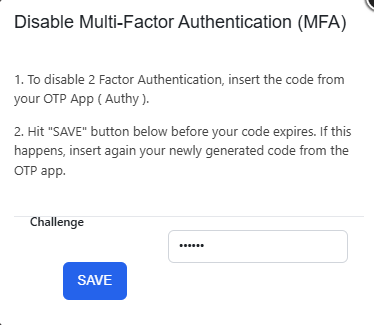
- Insert the token from your 2FA App (such as Authy or Google Authenticator) in the **Challenge** input field.
- **Click on the Save button before the token expires. It is always better to wait for the app to generate a fresh token, so you have enough time before it expires.**
- After you see the confirmation message that the 2FA was disabled, you can delete the entry from your 2FA app.

[![User Panel - how to disable 2fa for your mailbox - step 1.jpg](https://wikidev.emailarray.com/uploads/images/gallery/2024-08/scaled-1680-/user-panel-how-to-disable-2fa-for-your-mailbox-step-1.jpg)](https://wikidev.emailarray.com/uploads/images/gallery/2024-08/user-panel-how-to-disable-2fa-for-your-mailbox-step-1.jpg)

# Forward Messages

Incoming e-mail messages to your account can automatically be forwarded to other accounts while also delivering a copy locally. E-mails detected by our server as spam are not forwarded.

### Add a Forward

### Option 1: from the Webmail

<div class="wiki-content" id="bkmrk-go-to-the%C2%A0webmail-lo"><div class="contentLayout2"><div class="columnLayout two-right-sidebar" data-layout="two-right-sidebar"><div class="cell normal" data-type="normal"><div class="innerCell">- Go to the **[Webmail](https://wikidev.emailarray.com/books/1-configure-a-new-e-mail-address-getting-started/page/webmail-access)**
- Log in using your full **e-mail address** and your **current e-mail password**
- Click on the **User** icon from the top right to activate the menu. Then click on **My account**

</div></div></div></div></div>[![Webmail - how to access advanced settings for your email account (1).jpg](https://wikidev.emailarray.com/uploads/images/gallery/2024-08/scaled-1680-/webmail-how-to-access-advanced-settings-for-your-email-account-1.jpg)](https://wikidev.emailarray.com/uploads/images/gallery/2024-08/webmail-how-to-access-advanced-settings-for-your-email-account-1.jpg)

<div class="wiki-content" id="bkmrk-in-the%C2%A0forwards%C2%A0tab%2C"><div class="contentLayout2"><div class="columnLayout two-right-sidebar" data-layout="two-right-sidebar"><div class="cell normal" data-type="normal"><div class="innerCell">- In the **Forwards** tab, fill in the **Email address field** with the destination e-mail address and click on the **Add forward** button.

</div></div></div></div></div> [![Webmail - how to add a forward to your mailbox.jpg](https://wikidev.emailarray.com/uploads/images/gallery/2024-08/scaled-1680-/webmail-how-to-add-a-forward-to-your-mailbox.jpg)](https://wikidev.emailarray.com/uploads/images/gallery/2024-08/webmail-how-to-add-a-forward-to-your-mailbox.jpg)

### Option 2: from the User Panel

<div class="wiki-content" id="bkmrk-visit-the%C2%A0user-contr"><div class="contentLayout2"><div class="columnLayout two-right-sidebar" data-layout="two-right-sidebar"><div class="cell normal" data-type="normal"><div class="innerCell">- Visit the [User Control Panel (https://cp.emailarray.com)](https://cp.emailarray.com/)
- Log in using your full e-mail address ( user@domain.com ) and current password.
- Click on **Forwards** icon (envelope with arrow)
- Enter the e-mail address where you wish to forward incoming messages
- Click on the **Add Forward** button

</div></div></div></div></div>### Remove a Forward

### Option 1: from the Webmail

<div class="wiki-content" id="bkmrk-go-to-the%C2%A0webmail-lo-1"><div class="contentLayout2"><div class="columnLayout two-right-sidebar" data-layout="two-right-sidebar"><div class="cell normal" data-type="normal"><div class="innerCell">- Go to the **[Webmail](https://wikidev.emailarray.com/books/1-configure-a-new-e-mail-address-getting-started/page/webmail-access)**
- Log in using your full **e-mail address** and your **current e-mail password**
- Click on the **User** icon from the top right to activate the menu. Then click on **My account**

</div></div></div></div></div> <span class="confluence-embedded-file-wrapper confluence-embedded-manual-size">[![Webmail - how to access advanced settings for your email account.jpg](https://wikidev.emailarray.com/uploads/images/gallery/2024-08/scaled-1680-/zMgwebmail-how-to-access-advanced-settings-for-your-email-account.jpg)](https://wikidev.emailarray.com/uploads/images/gallery/2024-08/zMgwebmail-how-to-access-advanced-settings-for-your-email-account.jpg)</span>

<div class="wiki-content" id="bkmrk-in-the%C2%A0forwards%C2%A0tab%2C-1"><div class="contentLayout2"><div class="columnLayout two-right-sidebar" data-layout="two-right-sidebar"><div class="cell normal" data-type="normal"><div class="innerCell">- In the **Forwards** tab, hover over the desired forward and click on the **Delete** icon.

</div></div></div></div></div> [![Webmail - how to remove a forward to your mailbox.jpg](https://wikidev.emailarray.com/uploads/images/gallery/2024-08/scaled-1680-/webmail-how-to-remove-a-forward-to-your-mailbox.jpg)](https://wikidev.emailarray.com/uploads/images/gallery/2024-08/webmail-how-to-remove-a-forward-to-your-mailbox.jpg)

### Option 2: from the User Panel

<div class="wiki-content" id="bkmrk-visit%C2%A0user-control-p"><div class="contentLayout2"><div class="columnLayout two-right-sidebar" data-layout="two-right-sidebar"><div class="cell normal" data-type="normal"><div class="innerCell">- Visit [User Control Panel (https://cp.emailarray.com)](https://cp.emailarray.com/)
- Log in using your full e-mail address ( user@domain.com ) and current password.
- Click on **Forwards** icon (envelope with arrow)
- Click on the "**-**" icon (minus sign) next to the forward you wish to remove

</div></div><div class="cell aside" data-type="aside"><div class="innerCell"><div class="panel conf-macro output-block" data-hasbody="true" data-macro-name="panel">  
</div></div></div></div></div></div>

# Vacation Message (Autoresponder)

## Setting Up Your Vacation Message (Autoresponder)

A vacation message automatically notifies people that you are away or unavailable. To prevent email loops and technical issues, the system sends one automatic reply per sender every hour.

### How to Enable Your Vacation Message

#### Option 1: From the Webmail (Recommended)

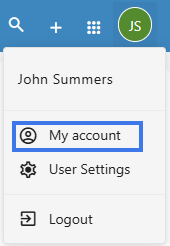
1. Go to the **[Webmail](https://wikidev.emailarray.com/books/1-configure-a-new-e-mail-address-getting-started/page/webmail-access).** Log in using your full **e-mail address** and your **current e-mail password.** Click on the **User** icon from the top right to activate the menu. Then click on **My account**
2. **Access Settings:** Click on the **User icon** in the top-right corner and select **My account**.  
      
    [![Webmail - how to access advanced settings for your email account.jpg](https://wikidev.emailarray.com/uploads/images/gallery/2024-08/scaled-1680-/etxwebmail-how-to-access-advanced-settings-for-your-email-account.jpg)](https://wikidev.emailarray.com/uploads/images/gallery/2024-08/etxwebmail-how-to-access-advanced-settings-for-your-email-account.jpg)
3. **Configure:** Navigate to the **Vacation Message** tab.  
      
    [![Webmail - Set Vacation Message.PNG](https://wikidev.emailarray.com/uploads/images/gallery/2026-02/scaled-1680-/webmail-set-vacation-message.PNG)](https://wikidev.emailarray.com/uploads/images/gallery/2026-02/webmail-set-vacation-message.PNG)
4. **Set the Schedule:**
    
    
    - Ensure the **Status** is set to **Enabled**.
    - Choose a **From** and **To** date. If you leave these blank, the message will remain active until you manually disable it.
5. **Write your Message:**
    
    
    - Enter your text in the **Vacation Message** box.
6. **Save:** Click the **Save Vacation Message** button.

#### Option 2: From the User Panel

1. Visit the **User Control Panel** ([https://cp.emailarray.com](https://cp.emailarray.com)).
2. Log in using your full email address and password.
3. Click the **Vacation Message** icon (the envelope with an arrow).  
      
    [![User Panel - Set Vacation Message.PNG](https://wikidev.emailarray.com/uploads/images/gallery/2026-02/scaled-1680-/user-panel-set-vacation-message.PNG)](https://wikidev.emailarray.com/uploads/images/gallery/2026-02/user-panel-set-vacation-message.PNG)
4. **Set the Schedule:**
    
    
    - Ensure the **Status** is set to **Enabled**.
    - Choose a **From** and **To** date. If you leave these blank, the message will remain active until you manually disable it.
5. **Write your Message:**
    
    
    - Enter your text in the **Vacation Message** box.
6. **Save**: Click the **Update** button.

### How to Disable Your Vacation Message

#### Option 1: From the Webmail (Recommended)

1. In the **Webmail**, go to **User Icon** &gt; **My account** &gt; **Vacation Message**.
2. Switch the **Status** to **Disabled**.
3. Click **Update**.

#### Option 2: From the User Panel

1. In the **User Control Panel**, click the **Vacation Message** icon.
2. Select **Disabled** from the Status menu.
3. Click **Update**.

---

<p class="callout info">**Pro-Tip:** If you are using the date range feature, your vacation message will automatically stop sending at the end of your "To" date, so you don't have to worry about turning it off the moment you get back!</p>

# Sharing Email Folders

Folder sharing allows you to give colleagues access to specific folders in your mailbox. You can grant "Read-only" access for viewing or "Full" access for those who need to manage and reply to messages on your behalf.

## How to Share a Folder

### Option 1: From the Webmail (Recommended)

1. Go to the **[Webmail](https://wikidev.emailarray.com/books/1-configure-a-new-e-mail-address-getting-started/page/webmail-access).** Log in using your full **e-mail address** and your **current e-mail password.** Click on the **User** icon from the top right to activate the menu. Then click on **My account**
2. **Access Settings:** Click on the **User icon** in the top-right corner and select **My account**.  
      
    [![Webmail - how to access advanced settings for your email account.jpg](https://wikidev.emailarray.com/uploads/images/gallery/2024-08/scaled-1680-/etxwebmail-how-to-access-advanced-settings-for-your-email-account.jpg)](https://wikidev.emailarray.com/uploads/images/gallery/2024-08/etxwebmail-how-to-access-advanced-settings-for-your-email-account.jpg)
3. **Right-Click to Share:** In the folder list on the left-hand side, find the folder you wish to share and **right-click** on it.
4. **Open Share Settings:** Select **Share** from the context menu.  
      
    [![Webmail - how to share a folder with other users.PNG](https://wikidev.emailarray.com/uploads/images/gallery/2026-02/scaled-1680-/webmail-how-to-share-a-folder-with-other-users.PNG)](https://wikidev.emailarray.com/uploads/images/gallery/2026-02/webmail-how-to-share-a-folder-with-other-users.PNG)
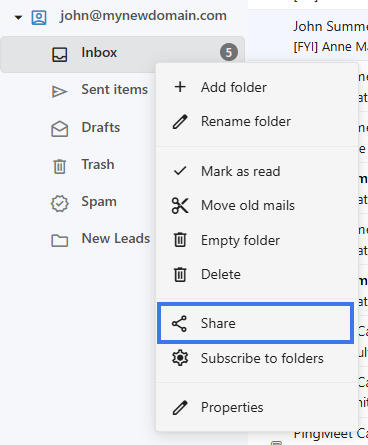
5. **Add a new User and sharing permissions:**
    
    
    - Click the **Add** button.
    - Select the user you wish to share with from the list.
    - Choose the appropriate **Permissions** (see the guide below).
    - Click on **Ok** button to save.  
          
        [![Webmail - how to share a folder with other users - select permissions for each user.PNG](https://wikidev.emailarray.com/uploads/images/gallery/2026-02/scaled-1680-/webmail-how-to-share-a-folder-with-other-users-select-permissions-for-each-user.PNG)](https://wikidev.emailarray.com/uploads/images/gallery/2026-02/webmail-how-to-share-a-folder-with-other-users-select-permissions-for-each-user.PNG)
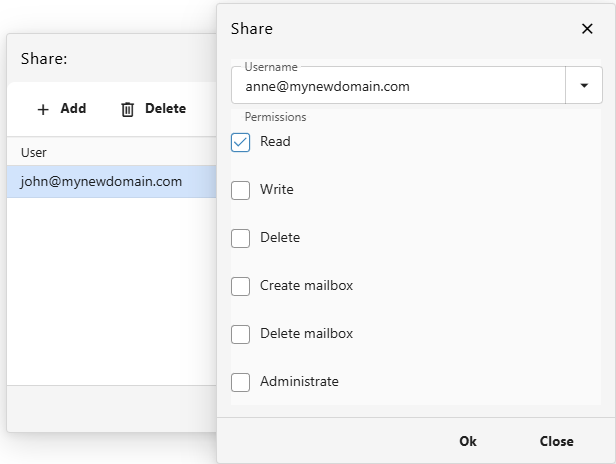
### Option 2: From the User Panel

1. Visit the **User Control Panel** ([https://cp.emailarray.com](https://cp.emailarray.com/)). Log in using your full email address and password.
2. Click on the **Folders** icon.
3. Click the **Edit (pencil) icon** next to the folder you want to share.
4. Click **New Share**, select the user and their permissions, and click **Share**.

---

## Managing or Removing Permissions

### From the User Panel

1. In the **User Control Panel**, click the **Folders** icon.
2. Click the **Edit (pencil) icon** next to the folder.
3. Click the **"-" (minus sign)** next to the user you wish to remove.

---

##  

## Understanding Permissions

<table data-path-to-node="19" id="bkmrk-level-what-can-they-"><thead><tr><td>**Level**</td><td>**What can they do?**</td></tr></thead><tbody><tr><td><span data-path-to-node="19,1,0,0">**Read-only**</span></td><td><span data-path-to-node="19,1,1,0">Can see and read messages, but cannot move, delete, or mark them as read/unread.</span></td></tr><tr><td><span data-path-to-node="19,2,0,0">**Read/Write**</span></td><td><span data-path-to-node="19,2,1,0">Can read, move, and flag messages.</span></td></tr><tr><td><span data-path-to-node="19,3,0,0">**Full**</span></td><td><span data-path-to-node="19,3,1,0">Can read, write, delete, and manage the folder's contents entirely.</span></td></tr></tbody></table>

<p class="callout warning">**Don't Lock Yourself Out:** By default, your own account has "Full" permissions. **Do not remove your own permissions** from the list, or you will lose access to that folder and will need an administrator to restore it for you.</p>

<div class="wiki-content" id="bkmrk-go-to-unknown-macro%3A-1"></div>

# Extensions

User Extensions allow you to create unique, disposable variations of your email address by adding a suffix to your username. These are perfect for tracking who is selling your data, organizing sign-ups, or creating temporary contact points without revealing your primary address.

Extensions use the format: user-extension@domain.com.

### Add a static extension

A static extension creates one specific address. For example, if your username is *kim*, creating an extension called *shopping* results in *kim-shopping@domain.com*.

- **Log in to your [User Panel](https://cp.emailarray.com/).** Use your full email address and password to sign in.
- Click the Extensions icon.
- Click the **Add Extension** button.
- Name your extension: Enter a word (e.g., *sales*).
- Set the destination: Enter the email address where messages should be delivered (usually your full email address).
- Click **Add Extension**.

### Add a dynamic (wildcard) extension

Dynamic extensions act as a "catch-all" for any variation following your keyword. If you create a wildcard extension named project, it will accept mail sent to *user-project-anything@domain.com*.

- **Log in to your [User Panel](https://cp.emailarray.com/).** Use your full email address and password to sign in.
- Click the Extensions icon.
- Click the **Add Extension** button.
- Name your extension: Enter **your keyword** followed by **-default** (e.g., **sales-default**).
- Set the destination: Enter your email address in the **Deliver** to field (usually your full email address).
- Click **Add Extension**.

Example: This will now accept mail for *user-sales-john@domain.com*, *user-sales-amy@domain.com*, and any other variation starting with *user-sales-*.

### Remove an extension

- **Log in to your [User Panel](https://cp.emailarray.com/).** Use your full email address and password to sign in.
- Click the **Extensions** icon.
- Click on the remove icon next to the extension you want to remove

# Spam filtering

### Personalizing Your Spam Filter and Security Settings

You can customize your email experience by adjusting how the system handles incoming messages. While your administrator establishes domain-wide defaults, your personal settings always take priority and will override those defaults.

<p class="callout info">The spam report is designed to list emails currently held in your spam folder. Depending on your selection for the **Spam Report Content** setting, the report will either summarize the latest messages received within your chosen delivery frequency or display every message currently residing in the spam folder at the time the report is generated.</p>

**Accessing Your User Panel**

There are two primary ways to manage your personal settings:

1. **Via Webmail:** click on the **User** icon to show the menu, and then go to **User Settings**. You will be automatically logged into your User Panel.  
    [![Webmail - how to access the User Panel.jpg](https://wikidev.emailarray.com/uploads/images/gallery/2024-08/scaled-1680-/webmail-how-to-access-the-user-panel.jpg)](https://wikidev.emailarray.com/uploads/images/gallery/2024-08/webmail-how-to-access-the-user-panel.jpg)
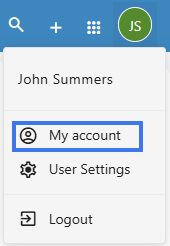
2. **Direct Login:** Navigate to the [User Panel](https://cp.emailarray.com) and log in using your full email address and current password.

###  

### Filtering Preferences

Once logged in, click **FILTERING** in the top navigation bar to view your options:

[![User Panel - Filtering - Settings.PNG](https://wikidev.emailarray.com/uploads/images/gallery/2026-03/scaled-1680-/user-panel-filtering-settings.PNG)](https://wikidev.emailarray.com/uploads/images/gallery/2026-03/user-panel-filtering-settings.PNG)
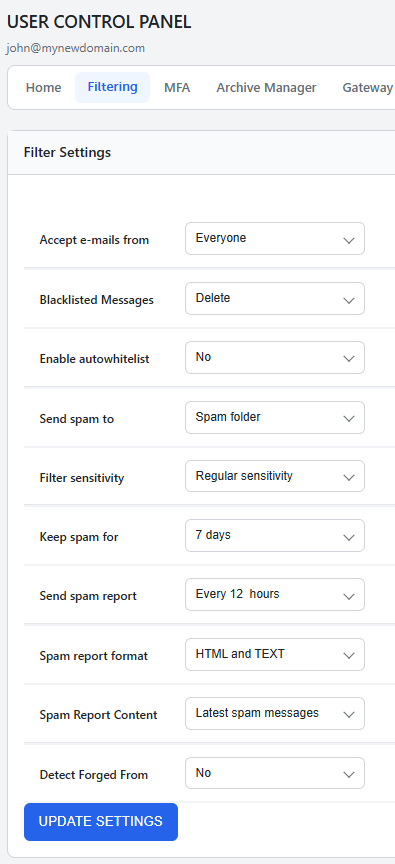
- **Accept e-mails from:** Choose **Everyone** to receive all messages by default. Alternatively, select **Whitelist &amp; Address Book** to permit only known contacts into your Inbox, sending everything else to the Spam folder.
- **Blacklisted Messages:** Decide what happens to mail from blocked senders. You can choose to move these messages to your Spam folder or select **Delete** to remove them automatically.
- **Enable autowhitelist:** When enabled, this feature automatically adds the email address of anyone you message to your whitelist, ensuring their replies reach your Inbox. This is disabled by default in the interface but can be turned on for convenience.
- **Send spam to:** Choose where identified spam is delivered. Options include the **Spam folder**, your **Inbox** (effectively disabling the filter), or **Delete**.
- **Filter sensitivity:** Adjust the scanning threshold on a scale of 1 to 10.
    
    
    - **1:** Most permissive setting; more spam may reach the inbox.
    - **10:** Most restrictive setting; a higher volume of messages will be filtered.
    - ****Regular** Sensitivity:** This is the default setting and is recommended for most organizations.
- **Keep spam for:** Set how many days messages remain in your Spam folder before they are permanently removed.
- **Send spam report:** Specify how often you receive a summary of trapped messages. This is also helpful if you use a POP connection, which cannot view the Spam folder directly.
- **Spam report format:** Select your preferred format for the email summary. **HTML and TEXT** is the default for maximum compatibility.
- **Spam Report Content:** Determine if your report shows the **Latest spam messages** received since the last report or **All spam messages** currently in the folder.
- **Detect Forged From:** This security feature checks if an incoming email claiming to be from your own address is authentic. If the message did not originate from your account, it is moved to the Spam folder to prevent spoofing. [Click here](https://wikidev.emailarray.com/books/2-user-panel-advanced-setup-for-your-mailbox/page/how-to-avoid-forged-e-mails) for our wiki page about this topic.

###  

### Note on Spam Reports

The spam report is designed to list emails currently held in your spam folder. Depending on your selection for the **Spam Report Content** setting, the report will either summarize the latest messages received within your chosen delivery frequency or display every message currently residing in the spam folder at the time the report is generated.

### Managing Spams and False Positives

Email accounts include a folder titled **Spam** where filtered messages are stored. You can view this folder via Webmail or an IMAP-configured email client.

The automated **Spam Reports** are an efficient way to manage "false positives" (legitimate mail incorrectly marked as spam). From the report, you can:

- **Whitelist:** Move the message to your Inbox and ensure the sender is never blocked again.
- **Deliver:** Move the message to your Inbox once without whitelisting the sender.
- **Delete:** Permanently remove the selected messages.
- **Blacklist**: This helps minimize future spam by deleting the message and blocking the sender. Use caution with this option, as spammers often forge addresses; you can verify the sender by rolling your mouse over the From field to see the actual address.

<p class="callout info">If you frequently encounter undetected spam or messages that are incorrectly identified, please reach out to our support team for assistance.</p>

###  

### Tips for Reducing Spam

- **Use Email Aliases**: [Create an alias](https://wikidev.emailarray.com/books/3-admin-panel-manage-users-domains-aliases-and-more/page/manage-aliases) to use when filling out web forms or registering on sites that may expose your data. If an alias begins receiving spam, you can simply remove it without affecting your primary address.
- **Avoid Common Usernames**: Spammers often target common names like "John." Using a format such as `firstname.lastname@domain.com` is more secure.
- **Never Reply to Spam:** Responding confirms your address is active and may accidentally whitelist the spammer through the Autowhitelist feature.
- **Hide Your Address**: Instead of publishing your email address directly on a website, use a contact form. If you must list your address, consider [encoding it](http://rumkin.com/tools/mailto_encoder/custom.php) to prevent automated harvesting tools from finding it.

# Whitelist or Blacklist an e-mail address

### Whitelist / Blacklist an e-mail address

Our system automatically whitelists e-mail addresses that you communicate with, for your entire domain. For example, within your domain hosted with us, you have two users: joe@domain.com and amy@domain.com. If joe e-mails mary@hotmail.com , mary@hotmail.com will become whitelisted for both joe and amy. If mary@hotmail.com decides to write to amy@domain.com or joe@domain.com, her e-mail will get through without being filtered. For more details on this, please see our page about [whitelist / blacklist on domain level](https://wikidev.emailarray.com/books/3-admin-panel-manage-users-domains-aliases-and-more/page/manage-whitelists-and-blacklists).

You can also manually add an e-mail address to the whitelist or blacklist, as described below. Notice that the best way to add whitelist records is using the Spam reports, as it automatically delivers the e-mail and adds sender to your whitelist. Our system uses the Sender instead of the From in the e-mail header, both for blacklist and whitelist, which is automatically done if you authorize e-mails through spam reports. If you enter an e-mail address manually to your black or whitelist and notice it doesn't work, check the e-mail header and look for the **X-EmailArray-EnvFrom:** field, which should be used. Yet another possibility is that the sender might change each time you receive a certain e-mail. In this case, you can use [Rules](https://wikidev.emailarray.com/books/2-user-panel-advanced-setup-for-your-mailbox/page/delivery-rules-manage-incoming-email) to delete undesired messages, based on part of the From header address or subject.

#### Add an e-mail address to the whitelist

- Go to <span class="nobr conf-macro output-inline" data-hasbody="true" data-macro-name="unmigrated-inline-wiki-markup">[https://cp.emailarray.com<sup>![](https://wiki.emailarray.com/images/icons/linkext7.gif)</sup>](https://cp.emailarray.com/)</span>
- Log in using your full e-mail address ( user@domain.com ) and current password.
- Pass your mouse over the **Filtering** menu and choose Blacklist
- Make sure you have the correct domain selected in the pull down menu on the left side
- Click on the **New Whitelist** button
- In the text field next to **Address**, enter the e-mail address you wish to whitelist
- Select whether you still wish to check for viruses ( Recommended! )
- Click on the **Add Whitelist** button

#### Add an e-mail address to the blacklist

- Go to <span class="nobr conf-macro output-inline" data-hasbody="true" data-macro-name="unmigrated-inline-wiki-markup">[https://cp.emailarray.com<sup>![](https://wiki.emailarray.com/images/icons/linkext7.gif)</sup>](https://cp.emailarray.com/)</span>
- Log in using your full e-mail address ( user@domain.com ) and current password.
- Pass you mouse over the **Filtering** menu and choose Blacklist
- Make sure you have the correct domain selected in the pull down menu on the left side
- Click on the **New Blacklist** button
- In the text field next to **Address**, enter the e-mail address you wish to blacklist
- Click on the **Add Blacklist** button

#### Remove an e-mail address from the whitelist or blacklist

- Go to <span class="nobr conf-macro output-inline" data-hasbody="true" data-macro-name="unmigrated-inline-wiki-markup">[https://cp.emailarray.com<sup>![](https://wiki.emailarray.com/images/icons/linkext7.gif)</sup>](https://cp.emailarray.com/)</span>
- Log in using your full e-mail address ( user@domain.com ) and current password.
- Pass you mouse over the **Filtering** menu and choose either **Blacklist** or **Whitelist**
- Make sure you have the correct domain selected in the pull down menu on the left side
- Click on "**-**" icon (minus sign) next to the e-mail address you wish to remove

# Retrain Messages

Sometimes it happens that messages are classified incorrectly by the filtering system.

A **false positive** refers to a message that was incorrectly classified as being Spam.

A **false negative** refers to a message that was incorrectly classified as NOT being Spam.

In other words, **false positive** messages end up in the Spam folder instead of the Inbox, while **false negative** messages end up in the Inbox instead of the Spam folder.

We have several methods to help retrain our system so that it doesn't make the same mistake again:

<div class="wiki-content" id="bkmrk-in-your-configured-i">- In your configured IMAP account or in Webmail, simply drag the message from the Inbox to the Spam folder or vice-versa and keep it there at least overnight
- Retrain using the **Spam Quarantine** feature of the User Control Panel:
- Go to <div class="error conf-macro output-inline" data-hasbody="true" data-macro-name="unmigrated-inline-wiki-markup"><span class="error">Unknown macro: {link-window}</span></div><span class="nobr">[https://cp.emailarray.com<sup>![](https://wiki.emailarray.com/images/icons/linkext7.gif)</sup>](https://cp.emailarray.com/)</span>
- Log in using your full e-mail address ( user@domain.com ) and current password.
- Click on the **Spam Quarantine** icon
- Search for the Spam message by selecting the appropriate date, optionally defining a search term and clicking on the **Display** button
- Mark the checkbox next to desired email and click on one following buttons: **deliver and whitelist** the sender, **deliver only** or **delete**
- Forward the offending message to the specific retraining address as defined by your Administrator. Usually they are of the form: spam@domain.com &amp; notspam@domain.com

</div>

# Track Remote Deliveries

You can easily determine if the messages you send out reach your recipients or not. While this is no guarantee that your recipient read the message, you can at least find out if their e-mail services provider properly received the message and warn them in case of problems.

<div class="wiki-content" id="bkmrk-go-to-the-user-panel"><div class="conf-macro output-block" data-hasbody="true" data-macro-name="unmigrated-wiki-markup">- Go to the User Panel: <span class="nobr">[https://cp.emailarray.com<sup>![](https://wiki.emailarray.com/images/icons/linkext7.gif)</sup>](https://cp.emailarray.com/)</span>
- Log in using your full e-mail address ( user@domain.com ) and current password.
- Click on the **Track Deliveries** button

</div></div>By default, after clicking on the **Search** button, you will see the list of e-mails that you sent during the current day and which were delivered. You need to click on the arrow next to each delivery's date/subject to view details.

You can alter your search criteria and filter out by: **Temporarily Rejected Messages** ( for example, user is over quota ), **Permanently Rejected Messages** ( invalid mailbox, blacklisted, etc. ) or **All Messages**. You can also specify the range of dates to search for while also specifying the e-mail address where you sent it.

Optionally, you can mark the checkbox next to **Send me a monthly PDF report**, to receive such reports via e-mail.

<table border="1" id="bkmrk-you-can-review-remot" style="border-collapse: collapse; width: 100%;"><colgroup><col style="width: 99.881%;"></col></colgroup><tbody><tr><td>You can review Remote Delivery data for up to 60 days in the past</td></tr></tbody></table>

Here's an example of a successful delivery:

2014-10-27 15:24:35 - test  
Sent From: tests@emailarray.com  
Sent To: "testsemailarray@gmail.com"  
Recipient delivery status: Message accepted  
Message delivery status: 74.125.193.26 accepted message.Remote host said: 250 2.0.0 OK 1414437875 x11si18095722icx.68 - gsmtp

In this case, email was delivered to the remote server who answered with some SMTP codes initiated by the number 2, indicating that such e-mail is in the queue to be delivered to the recipient. It does not mean the recipient received or read the email, but usually that should occur, since the remote server did receive it and queued it to be delivered, unless recipient's mail server has some technical problem.

If our server is unable to connect to the recipient server, it will try to send your e-mail for 7 days, after which it will bounce back an error message indicating that the email could not be sent. In these cases, a temporary rejection error is presented, such as the example below:

<span style="color: black;">**From and To**</span><span style="color: black;">: may show as "null", since our server did not even connect to the recipient server</span>  
<span style="color: black;">**Message delivery status**</span><span style="color: black;">:</span>Sorry, I wasn't able to establish an SMTP connection. (#4.4.1)

<table border="1" id="bkmrk-there-isn%27t-an-alway" style="border-collapse: collapse; width: 100%;"><colgroup><col style="width: 99.881%;"></col></colgroup><tbody><tr><td>There isn't an always guaranteed way to know that the recipient read an e-mail. Some email clients, such as Thunderbird, Windows Live Mail and our WebMail are able to send a delivery receipt, which can be granted if the recipient decides to do so. On the other hand, some clients such as Thunderbird and Outlook are able to send a delivery receipt, to verify if an e-mail was received by a recipient server, however, many servers don't grant such confirmation. Still, some services do offer a way to track if a user opened an email, such as the free <span class="nobr">[WhoReadMe<sup>![](https://wiki.emailarray.com/images/icons/linkext7.gif)</sup>](http://www.whoreadme.com/)</span> or <span class="nobr">[ReadNotify<sup>![](https://wiki.emailarray.com/images/icons/linkext7.gif)</sup>](http://www.readnotify.com/)</span> (paid), sometimes criticized since they do track if an email was opened through an image/link embedded in it. Such services depend on adding their domain at the end of the recipient's e-mail address, so your e-mail passes through their server, which sends to the destination and tries to verify delivery.</td></tr></tbody></table>

# Delivery Rules - Manage Incoming Email

### Manage Your Incoming Email Rules

Email rules help you stay organized by automatically processing messages before they even hit your inbox. You can use these rules to sort newsletters into specific folders, redirect important updates to a colleague, or delete unwanted clutter.

Rules apply only to clean messages (messages not marked as spam) and are processed in the order they were created.

### Create a New Rule

<p class="callout info"><span data-path-to-node="3,0,0">**Note:** New rules are created in a **DISABLED** state by default. A rule will not process any email until you manually change its status to **ENABLED**. </span><span data-path-to-node="3,0,2"><span class="citation-151">Whenever you create or modify a rule, you must click the status button to push your changes live</span></span><span data-path-to-node="3,0,3"><span class="citation-151 citation-end-151"><sup class="superscript" data-turn-source-index="1"></sup></span></span><span data-path-to-node="3,0,4">.</span></p>

1. **Log in to your [User Panel](https://cp.emailarray.com/).** Use your full email address and password to sign in.
2. Click the **Delivery Rules** icon on your dashboard.
3. Click the **New Rule** button.
4. **Name your rule.** Enter a unique name (use underscores or hyphens instead of spaces) and click **Add Rule**.  
      
    [![User Panel - delivery rules - 1.PNG](https://wikidev.emailarray.com/uploads/images/gallery/2026-02/scaled-1680-/user-panel-delivery-rules-1.PNG)](https://wikidev.emailarray.com/uploads/images/gallery/2026-02/user-panel-delivery-rules-1.PNG)
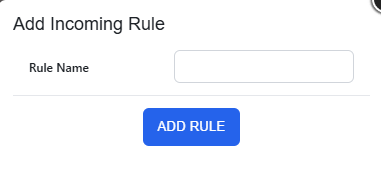
5. **Edit your rule.** Click the **pencil icon** next to your new rule to define what it does.   
    A rule consists of two parts:
    
    
    - **Conditions** (what to look for) and
    - **Actions** (what to do with the message).

  
[![User Panel - delivery rules - edit rule.PNG](https://wikidev.emailarray.com/uploads/images/gallery/2026-02/scaled-1680-/user-panel-delivery-rules-edit-rule.PNG)](https://wikidev.emailarray.com/uploads/images/gallery/2026-02/user-panel-delivery-rules-edit-rule.PNG)
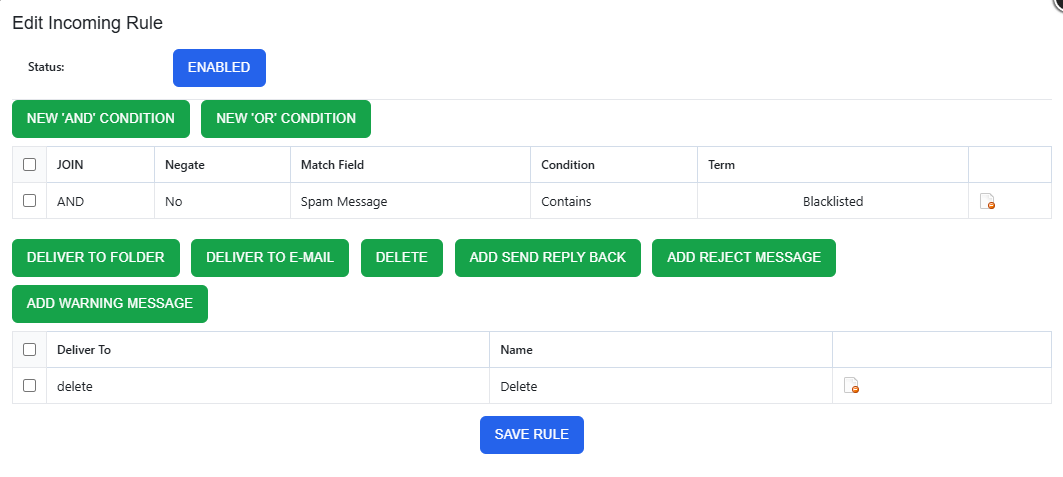
#### 1. Define the Condition

Conditions tell the system which emails to pick up. You can filter by sender, recipient, subject, message size, or List-ID.

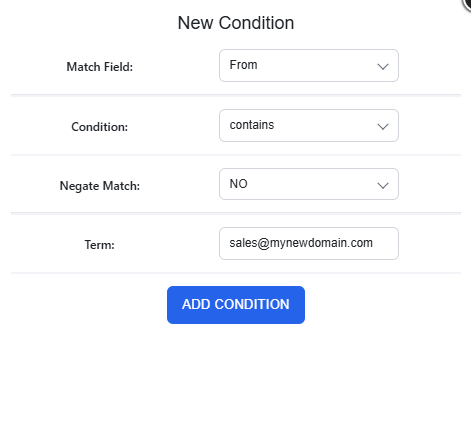
- Click **New 'AND' Condition** (if all criteria must be met) or **New 'OR' Condition** (if only one of several criteria must be met).
- **Match Field:** Select the part of the email to scan (e.g., Subject, From, To).
- **Condition**: Choose how to match the text (contains, equals, starts with, ends with).
- **Negate Match**: Select **YES** to target emails that *do not* match your term (perfect for external email warnings).
- Enter your **Term** (the specific email address, domain, word or phrase you are looking for).
- Click **Add Condition**.  
      
    [![User Panel - delivery rules - new condition.PNG](https://wikidev.emailarray.com/uploads/images/gallery/2026-02/scaled-1680-/user-panel-delivery-rules-new-condition.PNG)](https://wikidev.emailarray.com/uploads/images/gallery/2026-02/user-panel-delivery-rules-new-condition.PNG)
#### 2. Choose Your Actions

Once an email matches your condition, decide what happens next by clicking one of the action buttons

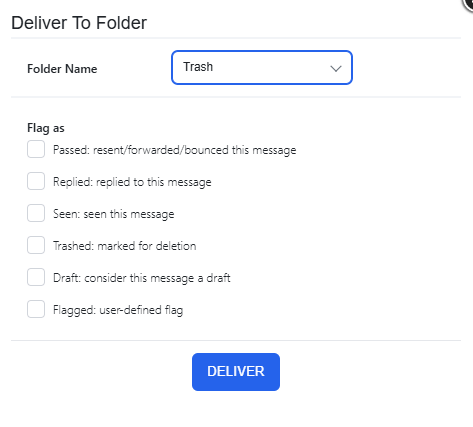
- **Deliver to Folder**: Move the email to a specific folder. Optionally "Flag" it as Seen, Answered, or Trashed.  
    For example:  
    [![User Panel - delivery rules - new action.PNG](https://wikidev.emailarray.com/uploads/images/gallery/2026-02/scaled-1680-/user-panel-delivery-rules-new-action.PNG)](https://wikidev.emailarray.com/uploads/images/gallery/2026-02/user-panel-delivery-rules-new-action.PNG)
- **Deliver to E-mail**: Redirect or forward the message to another address.
- **Delete**: Automatically discard the message.
- **Add Send Reply Back**: Set up an automated response (Autoresponder) using the built-in HTML editor.  
    For example:  
    [![User Panel - delivery rules - new action 2.PNG](https://wikidev.emailarray.com/uploads/images/gallery/2026-02/scaled-1680-/user-panel-delivery-rules-new-action-2.PNG)](https://wikidev.emailarray.com/uploads/images/gallery/2026-02/user-panel-delivery-rules-new-action-2.PNG)
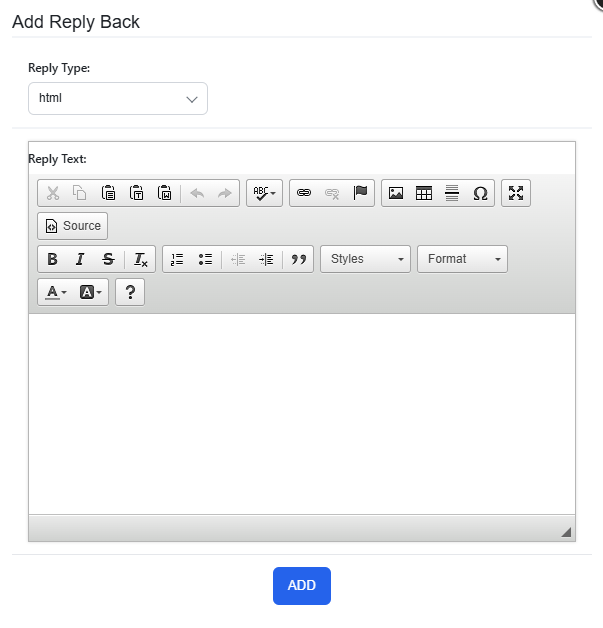
- **Add Warning Message**: Insert a security banner or custom notification at the very top of the email.  
    For example:  
    [![User Panel - delivery rules - new action - insert warning messages.PNG](https://wikidev.emailarray.com/uploads/images/gallery/2026-02/scaled-1680-/user-panel-delivery-rules-new-action-insert-warning-messages.PNG)](https://wikidev.emailarray.com/uploads/images/gallery/2026-02/user-panel-delivery-rules-new-action-insert-warning-messages.PNG)
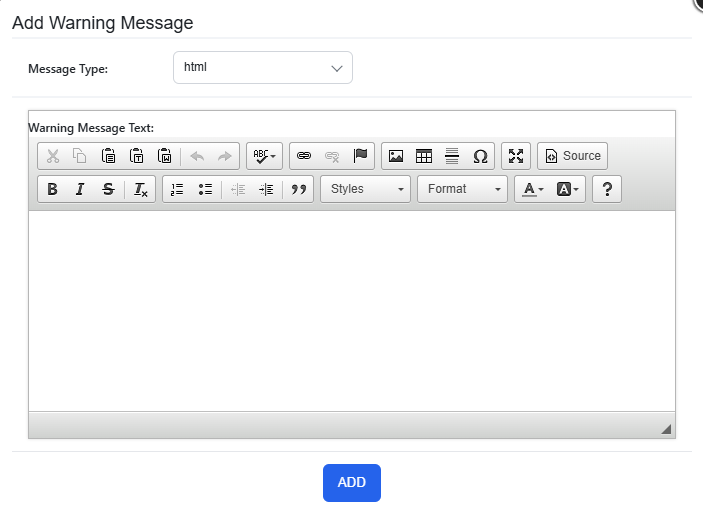
> **Pro Tip:** If you want to forward a message but also keep a copy in your own Inbox, add two actions: one to "Deliver to Email" and a second one to "Deliver to Folder" (selecting your Inbox).

#### 3. Enable and Activate Your Rule

To prevent unfinished rules from running, new rules are created in a **Disabled** state.  
To make your rule active, you must update its status within the editor:

[![User Panel - delivery rules - enable rule.PNG](https://wikidev.emailarray.com/uploads/images/gallery/2026-02/scaled-1680-/user-panel-delivery-rules-enable-rule.PNG)](https://wikidev.emailarray.com/uploads/images/gallery/2026-02/user-panel-delivery-rules-enable-rule.PNG)
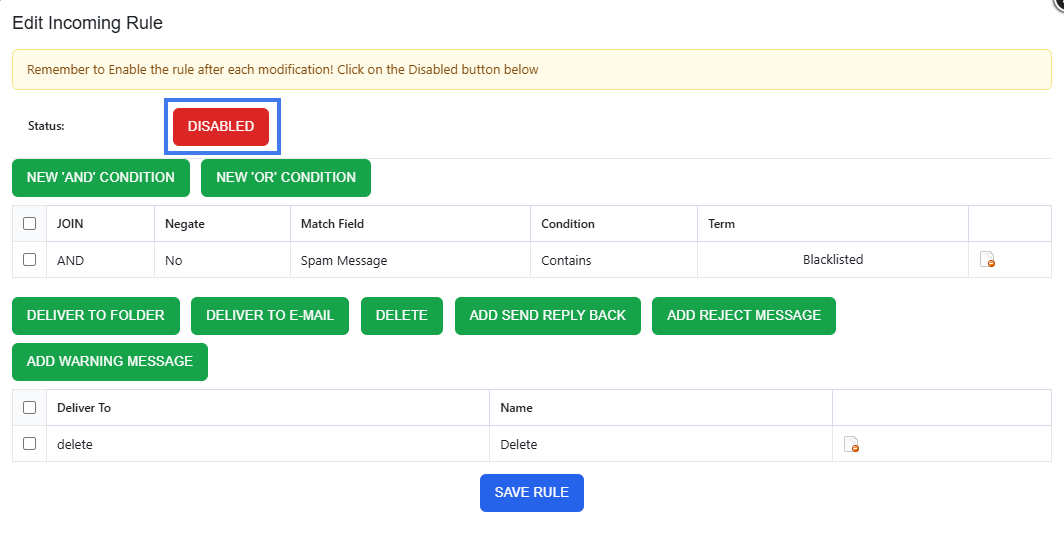
- Check the **Status**: Look for the Status indicator at the top of the "Edit Incoming Rule" screen.
- Toggle to **Enabled**: If the button shows a red DISABLED label, click it.
- The button will switch to a green ENABLED state. Click **Save Rule** at the bottom of the page to finalize your settings.


### Remove a Rule

- Go to the [User Panel](https://cp.emailarray.com/)
- Log in using your full email address ( user@domain.com ) and password.
- Click on the **Delivery Rules** icon
- Click on the delete icon next to the rule you want to remove [![image.png](https://wikidev.emailarray.com/uploads/images/gallery/2026-02/scaled-1680-/image.png)](https://wikidev.emailarray.com/uploads/images/gallery/2026-02/image.png)

### Common automation examples

Use delivery rules to build powerful sequences and manage your daily communications.

##### Smart Organization

- Departmental Routing: Route emails sent to specific aliases like sales@ or support@ into dedicated folders to keep your main inbox clear.
- Project Tagging: Automatically move messages containing specific project codes in the Subject line to project-specific folders.
- Newsletter Management: Identify newsletter emails using the From field and move them to a "Read Later" folder to reduce daily distractions.
- VIP Filtering: Ensure emails from your most important clients are always delivered to the top of your Inbox or a "High Priority" folder.

##### Security &amp; Compliance

- External Sender Alerts: Use a Negate Match on your own domain to prepend a "Caution: External Sender" warning to any email originating from outside your company.
- Sensitive Data Reminders: Search for keywords like "Invoice" or "Payment" to insert a header reminding users to verify wire instructions before proceeding.
- Attachment Quarantine: Route messages over a specific Message size to a "Large Attachments" folder to review them for security before opening.

##### Enhanced Responsiveness

- Instant Lead Acknowledgment: Combine a Deliver to Folder action with an Autoresponder to immediately thank new leads for their inquiry while sorting their request for the sales team.
- Hybrid Forwarding: Use multiple delivery actions to send a copy of a message to your CRM via email while keeping the original in your local Inbox for your records.

##### Maintenance &amp; Cleanup

- Automated Deletion: Set rules to automatically Delete known automated notifications or "Out of Office" replies that don't require your attention.

# Disabling local delivery to an account

Note that the procedure below is unusual. It may be useful, for example, if you want an account do not store received emails (to prevent the account from reaching its storage limit), but forward incoming emails to another account (case in which you'd have to setup a [forwarder](https://wikidev.emailarray.com/books/2-user-panel-advanced-setup-for-your-mailbox/page/forward-messages)). Use with caution and note that you lose the backup functionality of incoming mail for the source account.

See below how to disable local delivery to an account (incoming emails are NOT stored in the e-mail account).

### Option 1: from the Webmail

<div class="wiki-content" id="bkmrk-go-to-the%C2%A0webmail-lo">- Go to the **[Webmail](https://wikidev.emailarray.com/books/1-configure-a-new-e-mail-address-getting-started/page/webmail-access)**
- Log in using your full **e-mail address** and your **current e-mail password**
- Click on the **User** icon from the top right to activate the menu. Then click on **My account**

</div> <span class="confluence-embedded-file-wrapper confluence-embedded-manual-size">![Webmail - how to access advanced settings for your email account.jpg](https://wikidev.emailarray.com/uploads/images/gallery/2024-08/scaled-1680-/Nn0webmail-how-to-access-advanced-settings-for-your-email-account.jpg)</span>

<div class="wiki-content" id="bkmrk-in-the%C2%A0e-mail%C2%A0tab%2C-f">- In the **E-mail** tab, find the Local Delivery section.

</div> <span class="confluence-embedded-file-wrapper confluence-embedded-manual-size">![Webmail User Settings - Update local delivery.jpg](https://wikidev.emailarray.com/uploads/images/gallery/2024-08/scaled-1680-/webmail-user-settings-update-local-delivery.jpg)</span>

<div class="wiki-content" id="bkmrk-change-the-status-to">- Change the status to **Disabled**
- Click on the **Save** button

</div><div class="wiki-content" id="bkmrk-"></div>### Option 2: from the User Panel

<div class="wiki-content" id="bkmrk-visit-the%C2%A0user-contr">- Visit the [User Control Panel (https://cp.emailarray.com)](https://cp.emailarray.com/)
- Log in using your full e-mail address ( user@domain.com ) and current password.
- Click on the **Local Delivery** icon
- Change the Status to **Disabled**
- Click on the **Update** button

</div>

# How to avoid forged e-mails?

The From header of an e-mail, which you view in the header of e-mails can be anything, it doesn't even need to be a valid e-mail address and it can be different from the actual sender of the message.

For that reason, it's possible that you will receive forged e-mails as if they were sent from/to your account or from some other account in your domain to you. Usually, such emails, many times hoaxes or phishing attempts, are correctly caught as spam.

Let's start off enabling a rule that tries to catch e-mails sent from and to your account. So for example, From test@emailarray.com and To test@emailarray.com.

- Go to <span class="nobr">[https://cp.emailarray.com<sup>![](https://wiki.emailarray.com/images/icons/linkext7.gif)</sup>](https://cp.emailarray.com/)</span>
- Log in using your full e-mail address ( user@domain.com ) and current password.

Alternatively, you can login to the user control panel using the respective link while logged to Webmail.

After logging in and click on **Filtering**, on the top bar.

Change the **Detect Forged From** pull-down menu to **Yes** and click on **Update settings**.

Afterwords, click on **Home** in the top bar, followed by the **Delivery Rules** icon.

You will notice a new rule entitled "DetectForgedFrom". Click on the **pencil icon** next to it, to edit it. This is what it looks like:

[![forged_from1.png](https://wikidev.emailarray.com/uploads/images/gallery/2024-08/scaled-1680-/forged-from1.png)](https://wikidev.emailarray.com/uploads/images/gallery/2024-08/forged-from1.png)  
What the rule does is check if the user did NOT authenticate using our SMTP (notice that the Negate column for the first condition is set to Yes) and uses your address as a FROM address and in such cases, it moves such e-mails to your spam folder.

This rule can currently be created only on the user level, however, if you decide to implement it for all your users, contact us, and we will enable it automatically for everyone.

One possibility is to change the folder where such e-mails are sent to. This will let you tweak the rule in an easier way. First of all, create a folder in WebMail or an e-mail client using IMAP, such as "Forged". Then, simply click on the **minus sign icon** next to the Spam folder action (shown above), click on **Deliver to folder** button and choose your "Forged" folder.

Notice that there's another rule entiled "SpamDelivery", responsible for moving spams to your spam folder and it comes before the Forged From rule. For that reason, forged e-mails detected as spam will be moved to your spam folder. If you decide to create a separate folder, such as the suggested "Forged folder", consider clicking on the **up arrow** next to the Forged From rule and moving this rule above the SpamDelivery rule. This way, all forged e-mails will be sent to your "Forged" folder, avoiding clutter in your spam folder.

Besides catching forged e-mails, this rule may catch legitimate messages that were send as being you, from some other SMTP server. For example, some website form or application that sends emails using your e-mail address in the From header.

You can tweak the rule by denying such cases, so the filter does not catch such cases.

For example, let's say you receive legitimate e-mails that come From your email and to your e-mail address, sent from a remote server called otherhost.domain.com, which is the hostname of the system that sends our server the e-mail, shown in the e-mail header. What we do is click on **New And Condition**. This new condition should have the **Match field** menu set to **Received** and **Negate Match** set to **Yes**. In the **term** field, type in otherhost.domain.com and click on **Add Condition**. Notice that rule is not set to Disabled. Click on the **Disabled** button to enable the rule and click on **Save rule**. What we did, is inform the system to NOT run the rule for e-mails that come from otherhost.domain.com.

This is how the rule now looks:

[![forged_from_2.png](https://wikidev.emailarray.com/uploads/images/gallery/2024-08/scaled-1680-/forged-from-2.png)](https://wikidev.emailarray.com/uploads/images/gallery/2024-08/forged-from-2.png)  
Let's consider one last scenario. Consider that you want to avoid forged e-mails coming from ANY account of your domain, not just your own account.

In such case, click on the **minus sign icon** next to the FROM condition and add a **New And Condition** of the **type FROM** and for **Term**, type in **your domain**, in this case "emailarray.com" (without quotes).

It might give you a bit of work to fine tune the rule so that it is near perfect, but many customers and companies consider it a good idea.

# ownCloud - Free File Storage and Sharing on the Cloud

With ownCloud, we provide fully-featured file sync and sharing solution, with access to your data through a web interface, sync clients or WebDAV, while providing a platform to view, sync and share files across your devices easily all under your control.

This is an extremely useful feature, as it lets you synchronize your most important files to our cloud storage, keeping them safely backed up for up to 30 days. Besides that, it lets you install the ownCloud app on your mobile devices, such as smartphones and tablets, so that your files are easily accessible from wherever you are. There's more... You can also view and edit your files with an easy to use, visually clear and fast interface and share files with external users, using safe links generated by ownCloud, protect them my password and even set an expiration date for them.

You can even edit PDF, text and Office files using the web interface ([https://files.emailarray.com](https://files.emailarray.com/)), complete with revisions available for each copy you edited, with the option to roll back to a previous version of the file (up to 30 days).

Enhanced accounts have the advantage of being able to share files between users, including revision control, which details changes made to a file which is accessed by several users. You can even work at one same file at the same time as a colleague and, in real time, owncloud shows you who is editing what (text) with a differentiated color. If you have an existing Enhanced account, please open a ticket so that we can enable Owncloud in your account.

We are offering 5GB of space on ownCloud FREE to each Basic email account and 15GB for Enhanced accounts.

You can easily setup ownCloud to sync files from your local computer/devices (smartphones/tablets) to our ownCloud storage.

### **Logging in**

Authentication credentials are the same as your e-mail account, thanks to our single sign-on technology.

Server address: *files.emailarray.com*  
Username: your email address  
Password: your email's password

#### **Web interface**

Access [https://files.emailarray.com](https://files.emailarray.com/) and login with your e-mail address and respective password.

#### **ownCloud applications**

ownCloud has [desktop clients (Windows, OSX or Linux)](https://owncloud.com/desktop-app/) and [apps for both Android and iOS](https://owncloud.com/mobile-apps/).

### **Sharing**

You can share files with external users, using safe links generated by ownCloud, protect them my password and even set an expiration date for them.

You can also share files with other users of your domain, by clicking on the "Share" link next to each file and typing in your colleague's e-mail address. The system will find the address and you must click on it. The file will be shown on the side in "Shared with others" and for the user you shared it with, in "Shared with you". You can also click on the Share link and then mark the check box "Share Link", which is a very useful feature that lets you provide a secure link for anyone to be able to download the file, with options such as password protection and expiration of the link.

### **Other features**

Regarding deleted files, you can restore them in the "Deleted files" link, on the bottom left. Then, pass your mouse over the file you want to restore and click on the "Restore" link.

Consider watching this short introduction video (5:14 min.): [https://www.youtube.com/watch?v=RrAhClhrRAc](https://www.youtube.com/watch?v=RrAhClhrRAc)

# Folder Cleanup Rules

Folder Cleanup allows you to automate your mailbox maintenance by automatically deleting items older than a specific number of days. This is a powerful tool for managing storage and keeping folders like **Trash** or **Spam** from accumulating excessive data.

<p class="callout warning">**System Default:** Please note that by default, the **Trash** folder is automatically emptied of all emails older than **30 days**. You can create additional rules to manage other folders or adjust this timeframe as needed.</p>

### 1. Set up Folder Cleanup from Webmail

Managing your cleanup rules directly in Webmail is the most efficient way to maintain your folders.

1. Log into the **Webmail** using your full email address and current password.
2. Click on the **User icon** in the top right corner to open the menu and select **My account**.  
      
    [![Webmail - how to access advanced settings for your email account.jpg](https://wikidev.emailarray.com/uploads/images/gallery/2024-08/scaled-1680-/etxwebmail-how-to-access-advanced-settings-for-your-email-account.jpg)](https://wikidev.emailarray.com/uploads/images/gallery/2024-08/etxwebmail-how-to-access-advanced-settings-for-your-email-account.jpg)
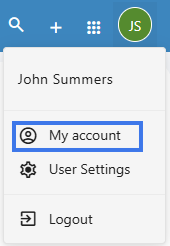
3. In the sidebar on the left, click on **Folder Cleanup**.  
      
    [![Webmail - Folders Cleanup.PNG](https://wikidev.emailarray.com/uploads/images/gallery/2026-01/scaled-1680-/webmail-folders-cleanup.PNG)](https://wikidev.emailarray.com/uploads/images/gallery/2026-01/webmail-folders-cleanup.PNG)
4. **Add a new rule:** \* Select the **Folder** you wish to clean (e.g., Trash, Monitor, or Inbox).
    
    
    - Enter the **Interval of days** (1-90). Items older than this number will be permanently deleted.
    - Click **+ Add rule**.  
          
        [![Webmail - Folders Cleanup - add new rule.PNG](https://wikidev.emailarray.com/uploads/images/gallery/2026-01/scaled-1680-/webmail-folders-cleanup-add-new-rule.PNG)](https://wikidev.emailarray.com/uploads/images/gallery/2026-01/webmail-folders-cleanup-add-new-rule.PNG)
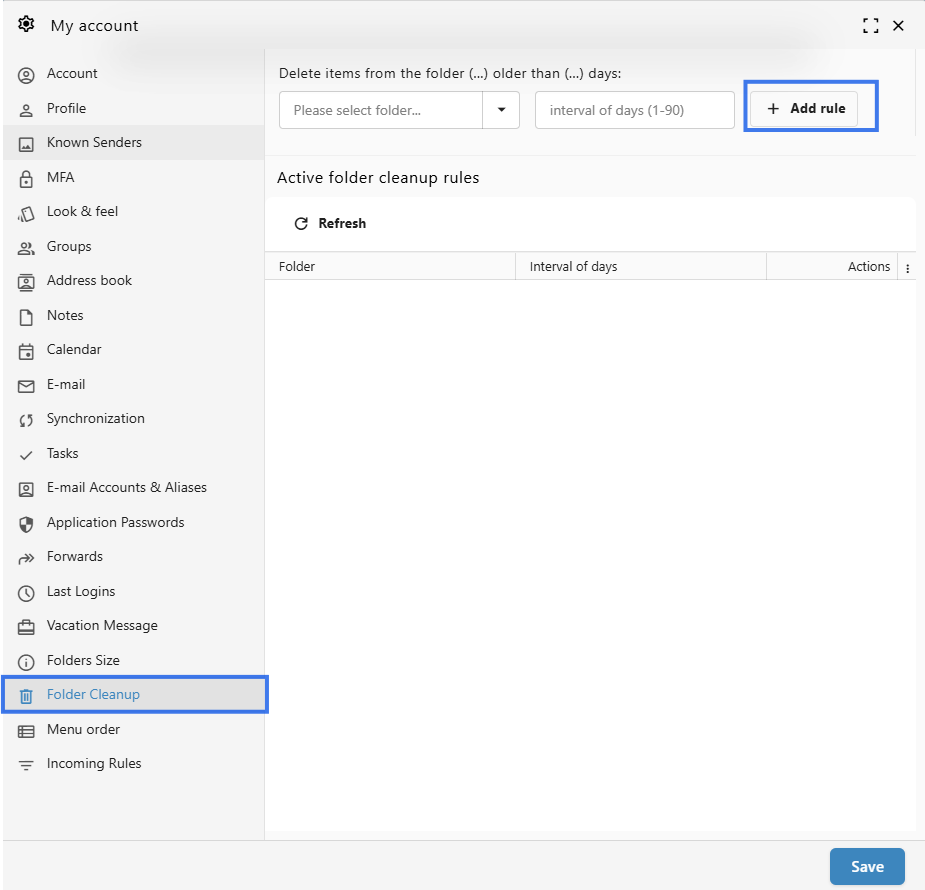
5. **Manage existing rules:** Your active rules are listed at the bottom.
    
    
    - **Edit:** Hover over the **Actions** column and click the **pencil icon** to change the number of days for an existing rule.
    - **Delete:** Hover over the **Actions** column and click the **delete (trash) icon** to remove a rule and stop automatic cleanup for that folder.

### 2. Set up Folder Cleanup from the User Panel

You can also manage these rules through the central User Control Panel.

1. Go to the **User Panel**.
2. Log in using your **full email address** and current password.
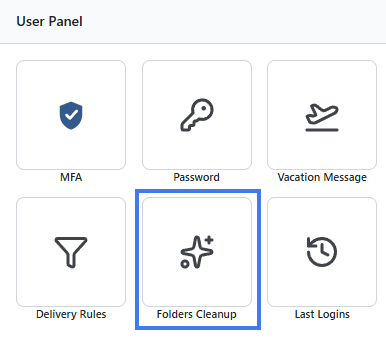
3. Click on the **Folders Cleanup** icon.  
      
    [![user panel.PNG](https://wikidev.emailarray.com/uploads/images/gallery/2026-01/scaled-1680-/user-panel.PNG)](https://wikidev.emailarray.com/uploads/images/gallery/2026-01/user-panel.PNG)
4. **Add a condition:**
    
    
    - From the **Folders** dropdown, select the desired folder.
    - From the **Interval of days** dropdown, select the timeframe (up to 120 days depending on your account configuration).
    - Click the **ADD CONDITION** button.  
          
        [![user panel - folders cleanup - add new rule.PNG](https://wikidev.emailarray.com/uploads/images/gallery/2026-01/scaled-1680-/user-panel-folders-cleanup-add-new-rule.PNG)](https://wikidev.emailarray.com/uploads/images/gallery/2026-01/user-panel-folders-cleanup-add-new-rule.PNG)
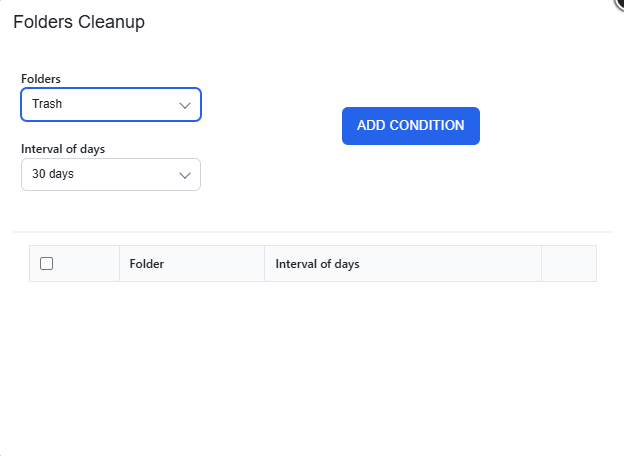
5. Your new rule will appear in the list below. You can use the icons in the right-hand column to edit the interval or remove the condition entirely.

# Recovering Your Emails: Archive vs. Gateway Manager

Mistakes happen. Whether you accidentally emptied your trash or a filter rule moved a message to a mystery location, we have two powerful tools to help you get your data back.

Think of these as your "Safety Nets." While they look similar, they serve different purposes.

#### Which tool should I use?

<table data-path-to-node="10" id="bkmrk-feature-best-for...-"><thead><tr><td>**Feature**</td><td>**Best For...**</td><td>**How it works**</td></tr></thead><tbody><tr><td><span data-path-to-node="10,1,0,0">**Archive Manager**</span></td><td><span data-path-to-node="10,1,1,0">Restoring a message from a specific folder or a snapshot of your mailbox from a previous day.</span></td><td><span data-path-to-node="10,1,2,0">A daily "photo" of your entire mailbox.</span></td></tr><tr><td><span data-path-to-node="10,2,0,0">**Gateway Archive**</span></td><td><span data-path-to-node="10,2,1,0">Finding an incoming email from the last 30 days, regardless of which folder it ended up in.</span></td><td><span data-path-to-node="10,2,2,0">A log of every external message received.</span></td></tr></tbody></table>

## 1. Archive Manager (Mailbox Snapshots)

The Archive Manager allows you to look back at your mailbox exactly as it appeared on a specific date. This is best if you know exactly where the email was before it went missing.

### How to restore messages:

Go to the **[User Panel](https://cp.emailarray.com/)** and log in using your **full e-mail address** ( user@domain.com ) and your current e-mail **password**.   
Go to **Archive Manager**.

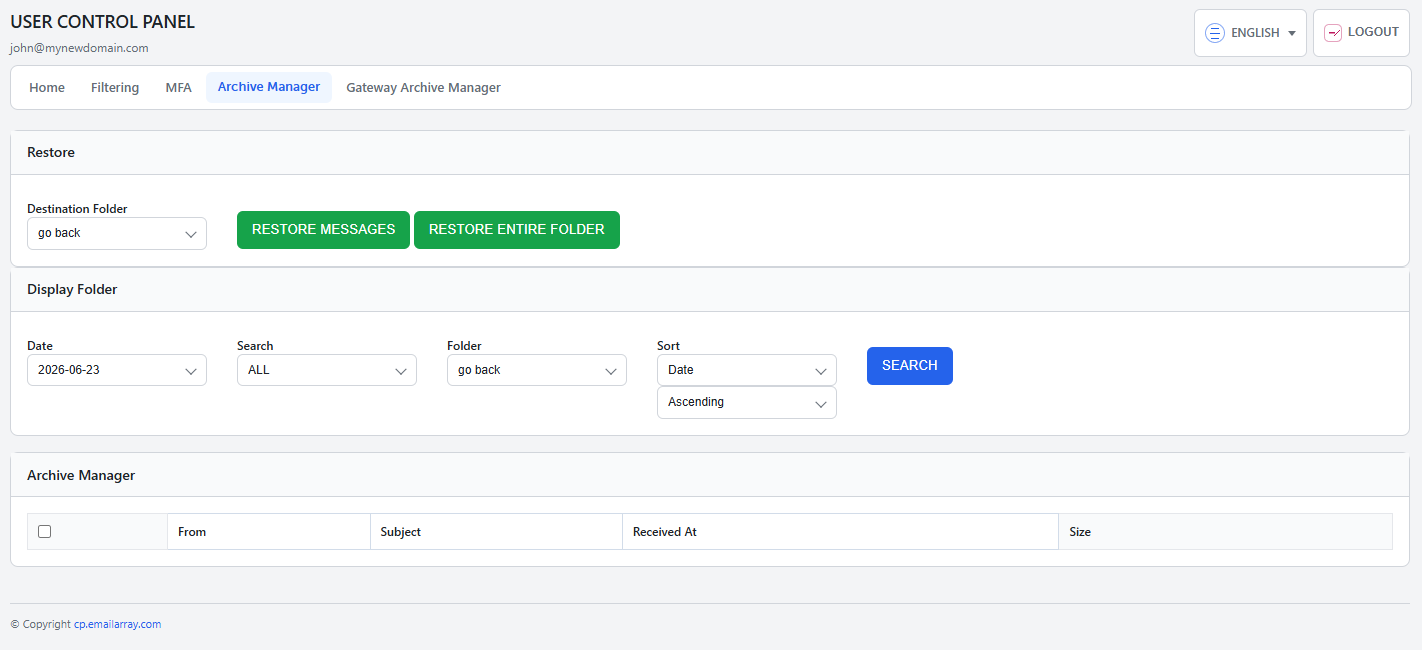
1. **Choose your date:** In the **Display Folder** section, select the date you’d like to view.
2. **Select the folder:** Choose the folder you want to inspect. The **Archive Manager** section will automatically load a list of every message that existed in that folder on that specific day.
3. **Find your email:** Use the search and sort tools to narrow down the list.
4. **Select and Restore:**
    
    
    - Check the box next to the message(s) you need.
    - Scroll back to the **Restore** section at the top.
    - **Choose a destination:** You can restore the email to its original folder or a temporary "Troubleshooting" folder to keep things organized.
    - Click **Restore Messages**.

<p class="callout info">**Select Folder**: The folder menus act as a hierarchy navigator. You can click into subfolders to go deeper into your mailbox structure. If you need to return to a previous level, simply select the **"go back"** option at the top of the menu to move up one level.</p>

<p class="callout warning">**Restore Entire Folder:** You can also restore a full folder at once. Note that this may create duplicates of emails that are already in your mailbox.</p>

[![User Panel - Archive Manager - select messages to be restored to the selected destination folders - explained.png](https://wikidev.emailarray.com/uploads/images/gallery/2026-02/scaled-1680-/user-panel-archive-manager-select-messages-to-be-restored-to-the-selected-destination-folders-explained.png)](https://wikidev.emailarray.com/uploads/images/gallery/2026-02/user-panel-archive-manager-select-messages-to-be-restored-to-the-selected-destination-folders-explained.png)

## 2. Gateway Archive Manager (30-Day Incoming Log)

The Gateway Archive is your "Master Log" for incoming mail. If you received an email in the last 30 days but can't find it (perhaps because a rule moved it or you don't remember the folder) look here.

### How to restore messages:

Go to the **[User Panel](https://cp.emailarray.com/)** and log in using your **full e-mail address** ( user@domain.com ) and your current e-mail **password**.   
Go to **Gateway Archive Manager**.

1. **Select the date:** In the **Display Folder** section, pick the day the email was received. A list of all incoming mail for that day will load below.
2. **Filter your results:** Use the search bar to find the specific sender or subject line.
3. **Select and Restore:**
    
    
    - Select your messages.
    - Scroll up to the **Restore** section.
    - Select your destination folder.
    - Click **Restore Messages**.

<p class="callout info">**Select Folder**: The folder menus act as a hierarchy navigator. You can click into subfolders to go deeper into your mailbox structure. If you need to return to a previous level, simply select the **"go back"** option at the top of the menu to move up one level.</p>

<p class="callout success">**Note:** Messages restored from the Gateway bypass your existing filters and rules, delivering them straight to your chosen folder.</p>

<p class="callout info">**Seeing a "Could not get folder list" error?** Don't worry! This just means the system is currently indexing your folders. Please wait about 10 minutes and try again.</p>