# Thunderbird - Syncing Contacts and Calendars

<span data-path-to-node="1,1"><span class="citation-785">Keep your schedule and address book in sync across all your devices using </span>**<span class="citation-785">CalDAV</span>**<span class="citation-785"> and </span>**<span class="citation-785">CardDAV</span>**<span class="citation-785"> protocols</span></span><span data-path-to-node="1,2"><span class="citation-785 citation-end-785"><sup class="superscript" data-turn-source-index="1"></sup><sup class="superscript" data-turn-source-index="1"></sup><sup class="superscript" data-turn-source-index="1"></sup><sup class="superscript" data-turn-source-index="1"></sup><sup class="superscript" data-turn-source-index="1"></sup><sup class="superscript" data-turn-source-index="1"></sup></span></span><span data-path-to-node="1,3">. </span><span data-path-to-node="1,5"><span class="citation-784">This allows you to manage your data directly within Thunderbird rather than using a web interface</span></span><span data-path-to-node="1,6"><span class="citation-784 citation-end-784"><sup class="superscript" data-turn-source-index="2"></sup><sup class="superscript" data-turn-source-index="2"></sup><sup class="superscript" data-turn-source-index="2"></sup><sup class="superscript" data-turn-source-index="2"></sup><sup class="superscript" data-turn-source-index="2"></sup></span></span><span data-path-to-node="1,7">.  
</span>

<p class="callout info"><span data-path-to-node="1,7"><span data-path-to-node="2,1,0">**<span class="citation-783">Note:</span>**<span class="citation-783"> Please ensure your email account is an </span>**<span class="citation-783">Enhanced</span>**<span class="citation-783"> </span><span class="citation-783">mailbox, as these mailboxes support advanced synchronization features</span></span><span data-path-to-node="2,1,1"><span class="citation-783 citation-end-783"><sup class="superscript" data-turn-source-index="3"></sup><sup class="superscript" data-turn-source-index="3"></sup><sup class="superscript" data-turn-source-index="3"></sup><sup class="superscript" data-turn-source-index="3"></sup><sup class="superscript" data-turn-source-index="3"></sup><sup class="superscript" data-turn-source-index="3"></sup><sup class="superscript" data-turn-source-index="3"></sup><sup class="superscript" data-turn-source-index="3"></sup><sup class="superscript" data-turn-source-index="3"></sup></span></span><span data-path-to-node="2,1,2">.</span></span></p>

### Step 1: Get Your Server URLs

You will need a specific URL for your Calendar and another for your Contacts. You can find these in your webmail:

1. Log into your **Webmail**.
2. Click on your **Profile Picture/Icon** in the top corner.
3. Select **My Account**.  
      
    [![Webmail - how to access advanced settings for your email account.jpg](https://wikidev.emailarray.com/uploads/images/gallery/2024-08/scaled-1680-/etxwebmail-how-to-access-advanced-settings-for-your-email-account.jpg)](https://wikidev.emailarray.com/uploads/images/gallery/2024-08/etxwebmail-how-to-access-advanced-settings-for-your-email-account.jpg)
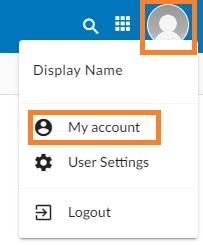
4. Navigate to the **Synchronization** tab on the left-hand menu.
5. Copy the unique links found under **CalDAV URL** and **CardDAV URL**.  
      
    [![Webmail - Synchronization tab available for Enhanced mailboxes only.png](https://wikidev.emailarray.com/uploads/images/gallery/2026-01/scaled-1680-/webmail-synchronization-tab-available-for-enhanced-mailboxes-only.png)](https://wikidev.emailarray.com/uploads/images/gallery/2026-01/webmail-synchronization-tab-available-for-enhanced-mailboxes-only.png)
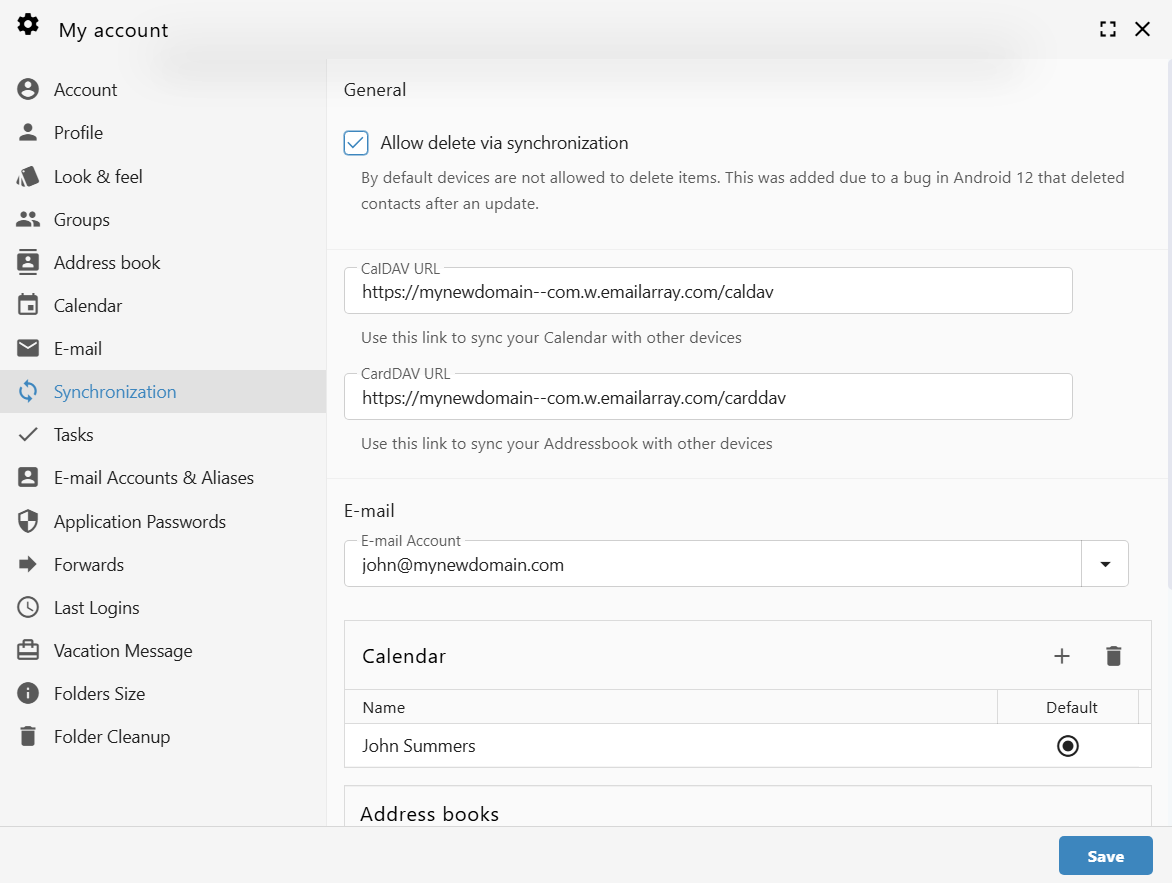
**Example URL Formats:**

- **CalDAV:** `https://yourdomain--com.w.emailarray.com/caldav`
- **CardDAV:** `<a href="https://yourdomain--com.w.emailarray.com/carddav">https://yourdomain--com.w.emailarray.com/carddav</a>`

### Step 2: Set Up Your Calendar (CalDAV)

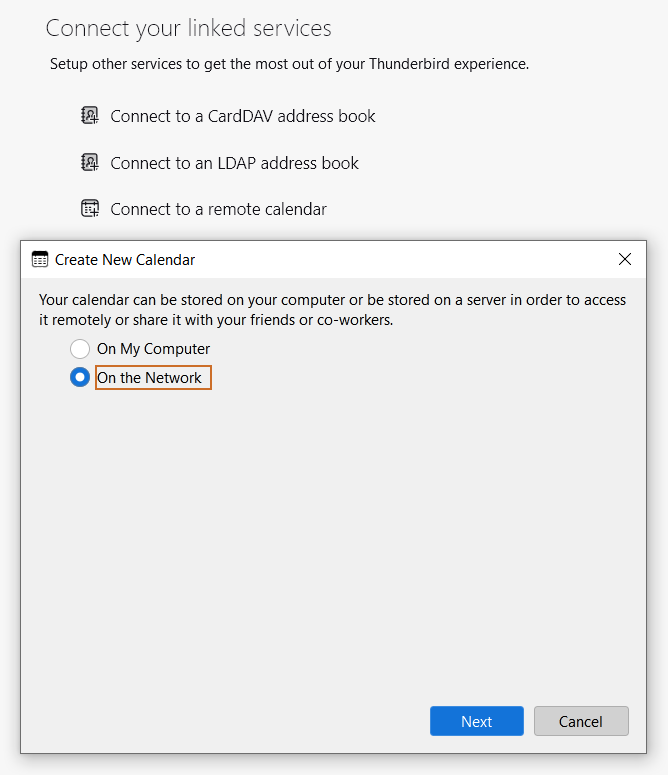
1. In Thunderbird, locate the **Connect your linked services** section and click **Connect to a remote calendar**.
2. In the "Create New Calendar" window, select **On the Network** and click **Next**.  
      
    [![Thunderbird - connect to a remote calendar.PNG](https://wikidev.emailarray.com/uploads/images/gallery/2026-01/scaled-1680-/thunderbird-connect-to-a-remote-calendar.PNG)](https://wikidev.emailarray.com/uploads/images/gallery/2026-01/thunderbird-connect-to-a-remote-calendar.PNG)
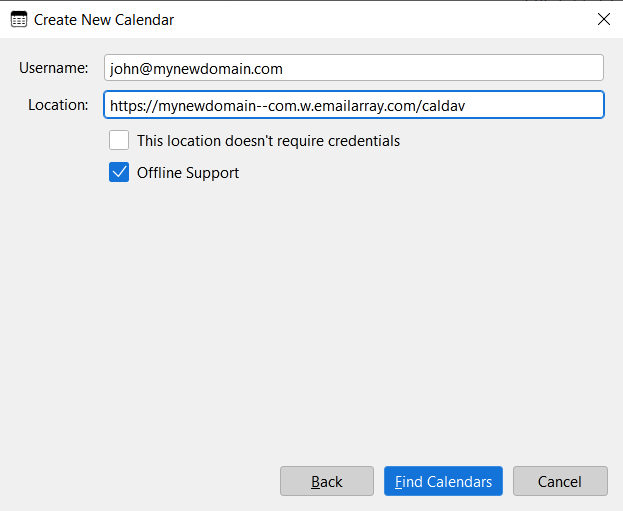
3. **Enter Connection Details:**
    
    
    - **Username:** Your full email address.
    - **Location:** Paste your unique **CalDAV URL** from Step 1.
    - Click **Find Calendars**.  
          
        [![Thunderbird - connect to a remote calendar - step 1.PNG](https://wikidev.emailarray.com/uploads/images/gallery/2026-01/scaled-1680-/thunderbird-connect-to-a-remote-calendar-step-1.PNG)](https://wikidev.emailarray.com/uploads/images/gallery/2026-01/thunderbird-connect-to-a-remote-calendar-step-1.PNG)
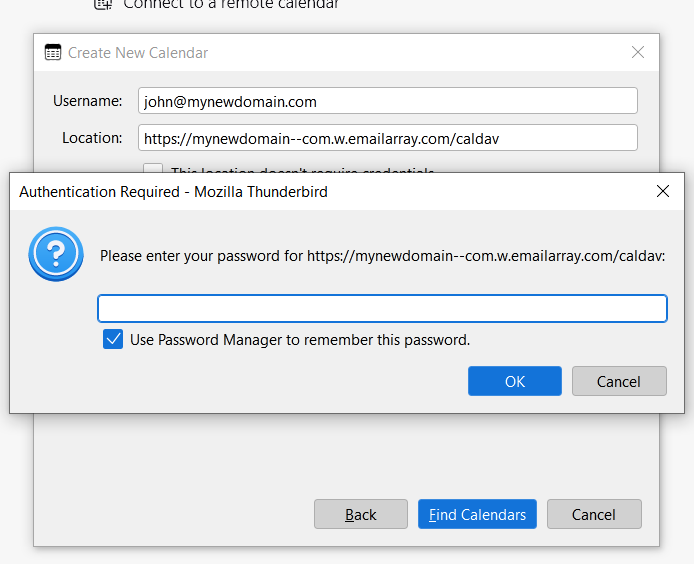
4. **Authentication:** A prompt will appear asking for your password. Enter your email password and check **Use Password Manager to remember this password**.  
      
    [![Thunderbird - connect to a remote calendar - step 2.PNG](https://wikidev.emailarray.com/uploads/images/gallery/2026-01/scaled-1680-/thunderbird-connect-to-a-remote-calendar-step-2.PNG)](https://wikidev.emailarray.com/uploads/images/gallery/2026-01/thunderbird-connect-to-a-remote-calendar-step-2.PNG)
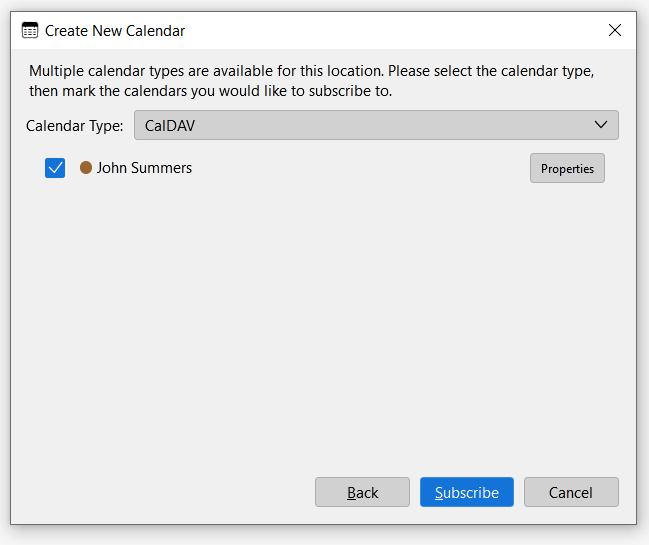
5. **Finalize:** Select the calendar(s) you wish to subscribe to and click **Subscribe**.  
      
    [![Thunderbird - connect to a remote calendar - step 3.PNG](https://wikidev.emailarray.com/uploads/images/gallery/2026-01/scaled-1680-/thunderbird-connect-to-a-remote-calendar-step-3.PNG)](https://wikidev.emailarray.com/uploads/images/gallery/2026-01/thunderbird-connect-to-a-remote-calendar-step-3.PNG)
###  

### Step 3: Set Up Your Contacts (CardDAV)

1. In the **Connect your linked services** section, click **Connect to a CardDAV address book**.
2. **Enter Connection Details:**
    
    
    - **Username:** Your full email address.
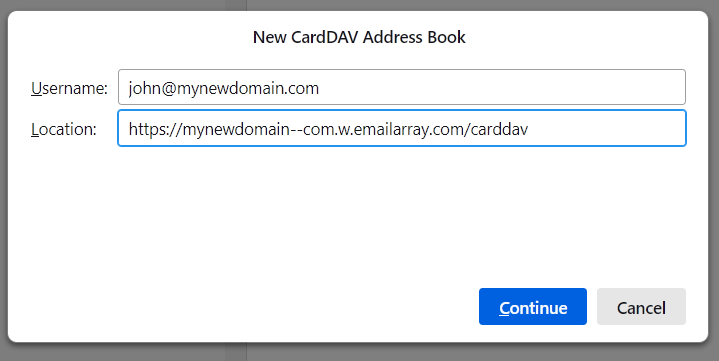
    - **Location:** Paste your unique **CardDAV URL** from Step 1.
    - Click **Continue**.  
          
        [![Thunderbird - connect to a cardDAV address book - step 1.PNG](https://wikidev.emailarray.com/uploads/images/gallery/2026-01/scaled-1680-/thunderbird-connect-to-a-carddav-address-book-step-1.PNG)](https://wikidev.emailarray.com/uploads/images/gallery/2026-01/thunderbird-connect-to-a-carddav-address-book-step-1.PNG)
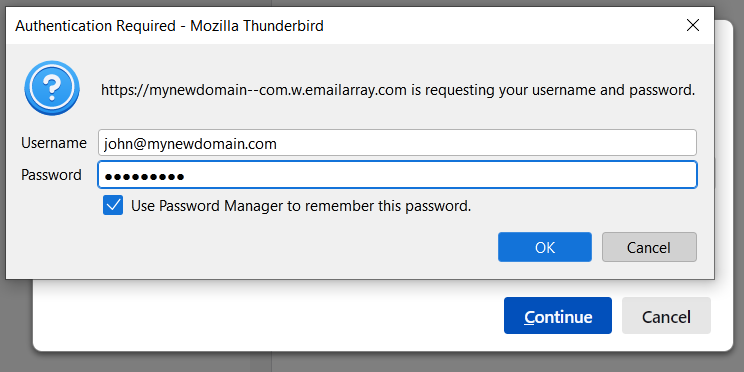
3. **Authentication:** When the "Authentication Required" window appears, verify your username and enter your email password. Check the box to remember the password and click **OK**.  
      
    [![Thunderbird - connect to a cardDAV address book - step 2.PNG](https://wikidev.emailarray.com/uploads/images/gallery/2026-01/scaled-1680-/thunderbird-connect-to-a-carddav-address-book-step-2.PNG)](https://wikidev.emailarray.com/uploads/images/gallery/2026-01/thunderbird-connect-to-a-carddav-address-book-step-2.PNG)
4. Your address book will now synchronize with Thunderbird.

#### Troubleshooting Tips

**Verify Your Plan**: Basic mailboxes support email synchronization only. If you cannot see the Synchronization tab in webmail, you may need to upgrade to an Enhanced plan.

**Check Your URL**: Ensure there are no extra spaces at the beginning or end of the URL when pasting it into Thunderbird.

**Direct Sync**: Unlike standard IMAP which only syncs email, these steps ensure your Calendar, Contacts, and Tasks stay updated across your computer, phone, and tablet.