# DNS Configuration

<p class="callout info">**DNS Updates**  
It might take some time to see the changes in your DNS based on your provider and domain settings.</p>

<p class="callout warning">**Migrating from another email hosting provider**  
If you are planning an email migration, you may choose to postpone making changes to critical records like MX records until the migration process is complete to avoid any disruption to your current email flow.  
</p>


<p class="callout success">**Cloudflare’s** proxy feature (the Orange Cloud) is designed for web traffic (HTTP/HTTPS) and will interfere with email protocols like IMAP, POP, and SMTP.  
**Action Required**: When adding or editing email records in Cloudflare, ensure the Proxy status is toggled to Off.  
**Visual Indicator**: The cloud icon next to the record should be Grey, not Orange.</p>

### 0. Verify Domain Ownership - TXT Record

Follow [these steps to obtain the details for the Verification TXT Record](https://wikidev.emailarray.com/books/3-admin-panel-manage-users-domains-aliases-and-more/page/manage-domains#bkmrk-verify-domain-owners).

- Navigate to the **[Admin Panel](https://admin.emailarray.com/)**.
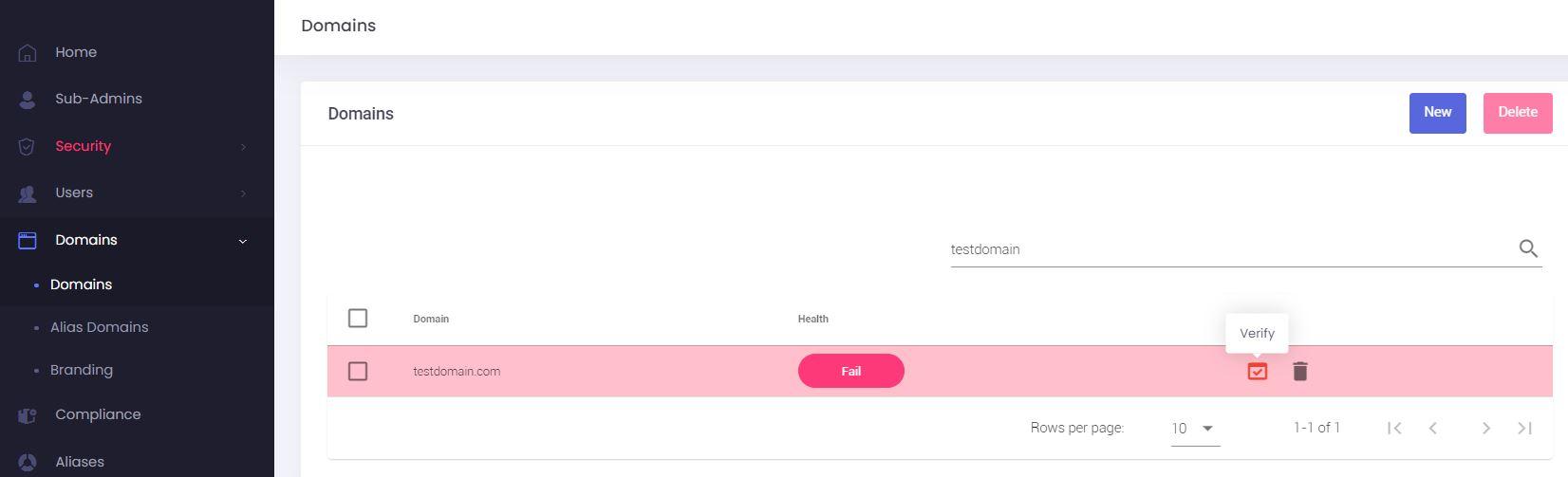
- In the side menu, click on **Domains**.
- Click on the **Verify** button (represented by a red checkmark icon).  
      
    [![Admin Panel - step 2 - click on Verify to see the TXT necessary to verify domain ownership - hover.JPG](https://wikidev.emailarray.com/uploads/images/gallery/2025-06/scaled-1680-/admin-panel-step-2-click-on-verify-to-see-the-txt-necessary-to-verify-domain-ownership-hover.JPG)](https://wikidev.emailarray.com/uploads/images/gallery/2025-06/admin-panel-step-2-click-on-verify-to-see-the-txt-necessary-to-verify-domain-ownership-hover.JPG)
- A pop-up window will appear, displaying the **Hostname**, **Type**, and the unique **Value** required for the DNS record.  
      
    [![Admin Panel - step 3 - copy the TXT value for domain verification and add it to your DNS.JPG](https://wikidev.emailarray.com/uploads/images/gallery/2025-06/scaled-1680-/admin-panel-step-3-copy-the-txt-value-for-domain-verification-and-add-it-to-your-dns.JPG)](https://wikidev.emailarray.com/uploads/images/gallery/2025-06/admin-panel-step-3-copy-the-txt-value-for-domain-verification-and-add-it-to-your-dns.JPG)
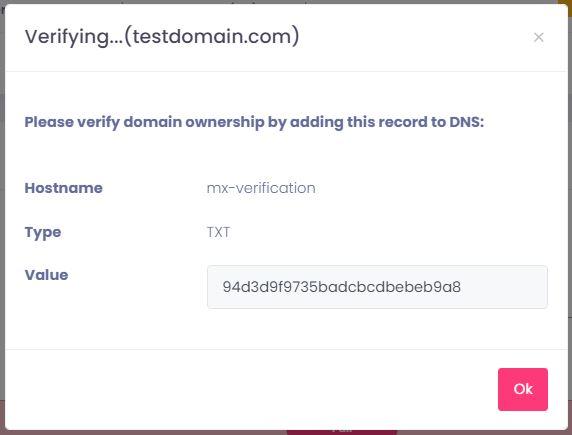
- You must add a **TXT record** with the following **value**:

<div class="table-wrap" id="bkmrk-type-host-txt-value-"><table class="wrapped confluenceTable tablesorter tablesorter-default" role="grid"><colgroup><col></col><col></col><col></col></colgroup><thead aria-label="Use column header buttons to sort"><tr class="tablesorter-headerRow" role="row"><th aria-disabled="false" class="confluenceTh tablesorter-header sortableHeader tablesorter-headerUnSorted" colspan="1" data-column="0" role="columnheader" scope="col"><div class="tablesorter-header-inner"><button class="headerButton">Type</button></div></th><th aria-disabled="false" class="confluenceTh tablesorter-header sortableHeader tablesorter-headerUnSorted" data-column="1" role="columnheader" scope="col">HOST

</th><th aria-disabled="false" class="confluenceTh tablesorter-header sortableHeader tablesorter-headerUnSorted" data-column="2" role="columnheader" scope="col">TXT Value

</th></tr></thead><tbody><tr role="row"><td class="confluenceTd" colspan="1">TXT</td><td class="confluenceTd">mx-verification

</td><td class="confluenceTd">**The unique string from your Admin Panel pop-up**

</td></tr></tbody></table>

</div>
### 1. MX Records

The first step in configuring your DNS is updating your MX records.

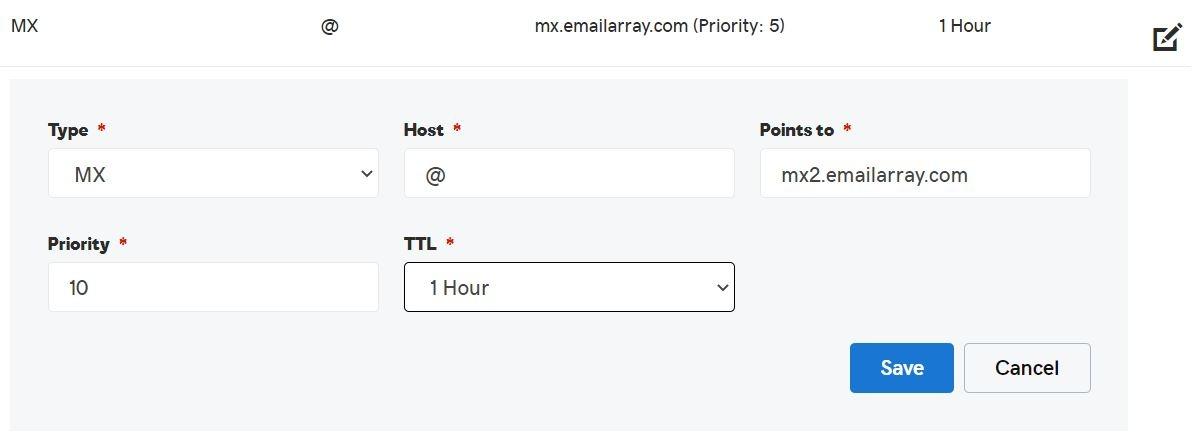
MX records tell the world which server should receive the e-mails sent to your domain and deliver them to the specified e-mail provider, straight to your mailbox. You can usually edit the MX records for your domain from the same Control Panel you use for managing your DNS. You can safely keep your website hosted with another provider and only use our hosting services for the e-mail.

You should first remove all other MX records and then add the following, with the specified preference (the Host value is usually '@'):

<div class="table-wrap" id="bkmrk-type-host%2A-points-to"><table class="wrapped confluenceTable tablesorter tablesorter-default" role="grid"><colgroup><col></col><col></col><col></col><col></col></colgroup><thead aria-label="Use column header buttons to sort"><tr class="tablesorter-headerRow" role="row"><th aria-disabled="false" class="confluenceTh tablesorter-header sortableHeader tablesorter-headerUnSorted" colspan="1" data-column="0" role="columnheader" scope="col"><div class="tablesorter-header-inner"><button class="headerButton">Type</button></div></th><th aria-disabled="false" class="confluenceTh tablesorter-header sortableHeader tablesorter-headerUnSorted" colspan="1" data-column="1" role="columnheader" scope="col"><div class="tablesorter-header-inner"><button class="headerButton">Host\*</button></div></th><th aria-disabled="false" class="confluenceTh tablesorter-header sortableHeader tablesorter-headerUnSorted" data-column="2" role="columnheader" scope="col">Points to

</th><th aria-disabled="false" class="confluenceTh tablesorter-header sortableHeader tablesorter-headerUnSorted" data-column="3" role="columnheader" scope="col">Priority / Preference

</th></tr></thead><tbody><tr role="row"><td class="confluenceTd" colspan="1">MX</td><td class="confluenceTd" colspan="1">@</td><td class="confluenceTd">mx.emailarray.com

</td><td class="confluenceTd"> 5

</td></tr><tr role="row"><td class="confluenceTd" colspan="1">MX</td><td class="confluenceTd" colspan="1">@</td><td class="confluenceTd">mx2.emailarray.com

</td><td class="confluenceTd"> 10

</td></tr></tbody></table>

</div>**Important:** It is not recommended to create CNAME records within your domain that point to EmailArray MX records and use that CNAME as your MX records.

<p class="callout info">**Update Local Delivery:** Did you temporarily set Local Delivery to "No" to prevent bounced emails? Now that your MX records are updated, it is time to switch it back to **"Yes"**.</p>

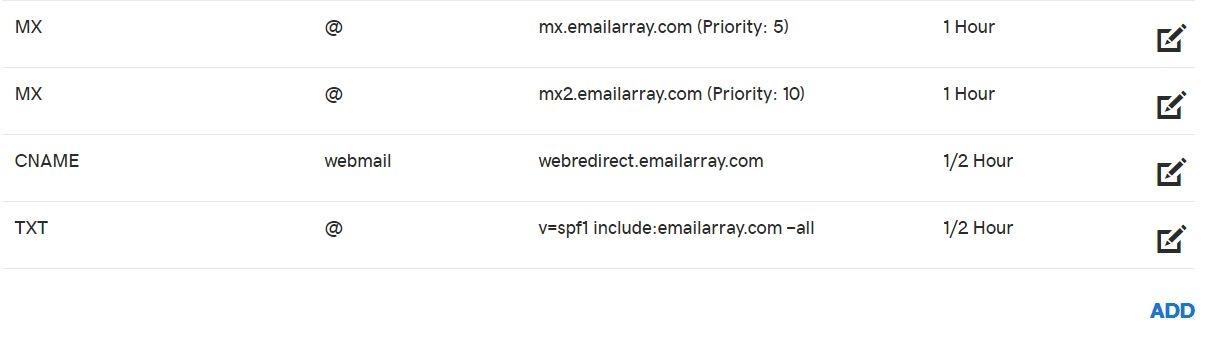
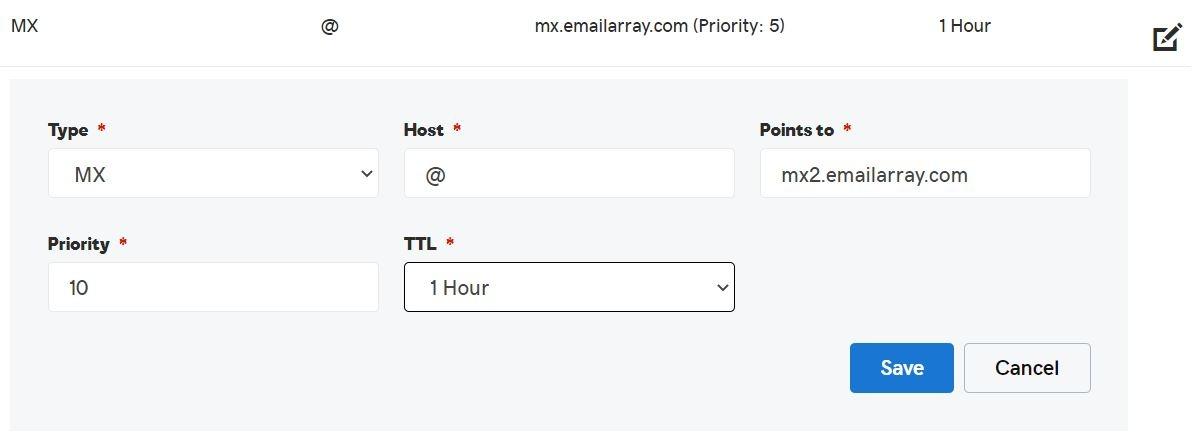
**Example configuration for MX records in GoDaddy DNS:**

[![DNS setup for email address - MX records 2.JPG](https://wikidev.emailarray.com/uploads/images/gallery/2024-08/scaled-1680-/dns-setup-for-email-address-mx-records-2.JPG)](https://wikidev.emailarray.com/uploads/images/gallery/2024-08/dns-setup-for-email-address-mx-records-2.JPG)
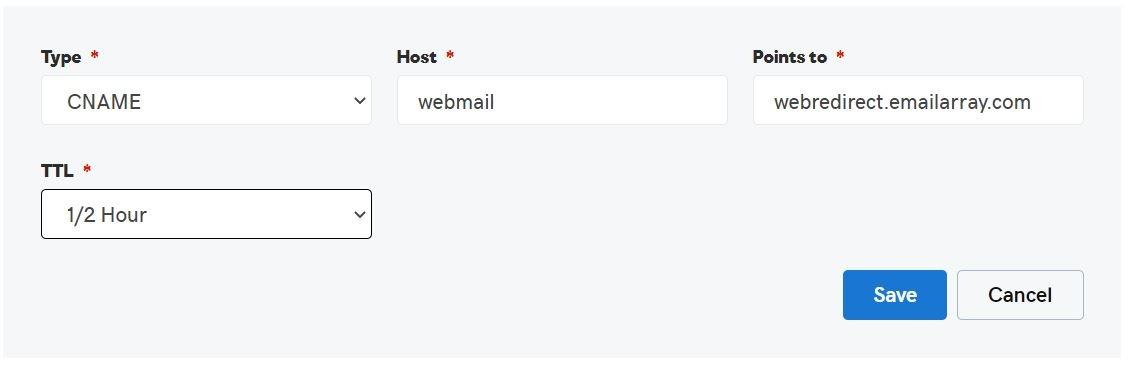
### 2. Webmail Record

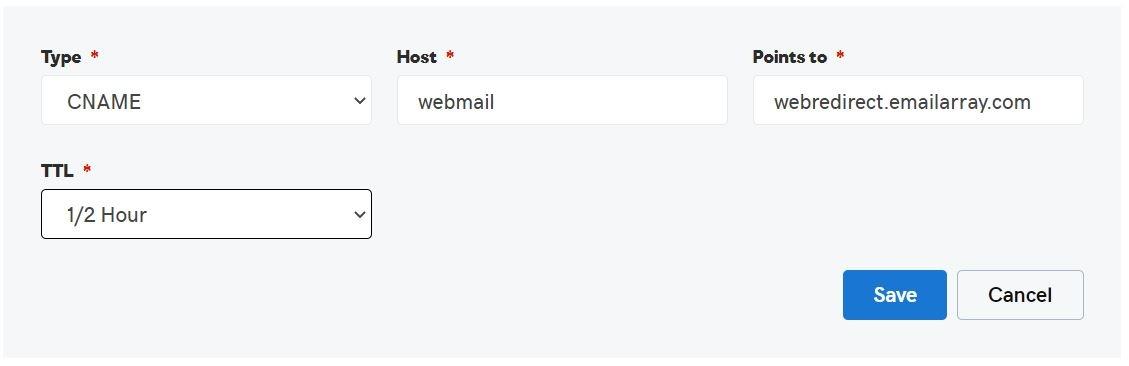
To access your webmail using a custom URL, you must configure CNAME records within your domain for the webmail host.

You must create:

<div class="table-wrap" id="bkmrk-type-host-points-to-"><table class="wrapped confluenceTable tablesorter tablesorter-default" role="grid"><thead aria-label="Use column header buttons to sort"><tr class="tablesorter-headerRow" role="row"><th aria-disabled="false" class="confluenceTh tablesorter-header sortableHeader tablesorter-headerUnSorted" colspan="1" data-column="0" role="columnheader" scope="col"><div class="tablesorter-header-inner"><button class="headerButton">Type</button></div></th><th aria-disabled="false" class="confluenceTh tablesorter-header sortableHeader tablesorter-headerUnSorted" data-column="1" role="columnheader" scope="col">HOST

</th><th aria-disabled="false" class="confluenceTh tablesorter-header sortableHeader tablesorter-headerUnSorted" data-column="2" role="columnheader" scope="col">Points to

</th><th aria-disabled="false" class="confluenceTh tablesorter-header sortableHeader tablesorter-headerUnSorted" colspan="1" data-column="3" role="columnheader" scope="col"><div class="tablesorter-header-inner"><button class="headerButton">Your Webmail URL will be</button></div></th></tr></thead><tbody><tr role="row"><td class="confluenceTd" colspan="1">CNAME</td><td class="confluenceTd">webmail

</td><td class="confluenceTd">webredirect.emailarray.com

</td><td class="confluenceTd" colspan="1">webmail.[yourdomain.com](http://yourdomain.com/)</td></tr></tbody></table>

</div><p class="callout warning">Don't forget to replace **yourdomain.com** with the actual name of your domain.</p>

<p class="callout info">Please allow 30-40 minutes for the Webmail SSL status to update in your Admin Panel domain health page.</p>

**Example configuration for Webmail records in GoDaddy DNS:**

[![DNS setup for email address - webmail records.JPG](https://wikidev.emailarray.com/uploads/images/gallery/2024-08/scaled-1680-/dns-setup-for-email-address-webmail-records.JPG)](https://wikidev.emailarray.com/uploads/images/gallery/2024-08/dns-setup-for-email-address-webmail-records.JPG)
### 3. SPF Record

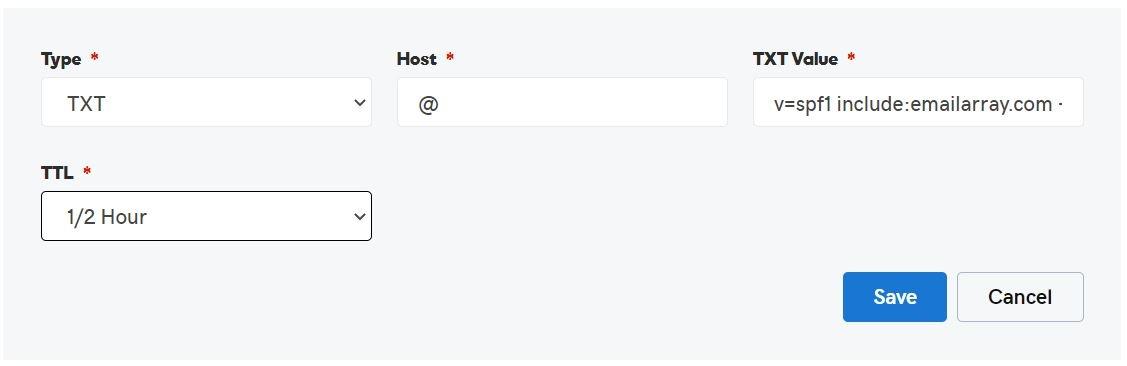
The SPF record is necessary, so your e-mail is not marked as Spam. The SPF will help with your e-mail deliverability because it specifies a list of authorized hosts that can send e-mails on behalf of a domain.

First, check for any existing TXT records with SPF.

<u>If you don't have an existing SPF record</u>, you must add a **TXT record** with the following **value** (the host value is usually '@'):

<div class="table-wrap" id="bkmrk-type-host-txt-value--1"><table class="wrapped confluenceTable tablesorter tablesorter-default" role="grid"><colgroup><col></col><col></col><col></col></colgroup><thead aria-label="Use column header buttons to sort"><tr class="tablesorter-headerRow" role="row"><th aria-disabled="false" class="confluenceTh tablesorter-header sortableHeader tablesorter-headerUnSorted" colspan="1" data-column="0" role="columnheader" scope="col"><div class="tablesorter-header-inner"><button class="headerButton">Type</button></div></th><th aria-disabled="false" class="confluenceTh tablesorter-header sortableHeader tablesorter-headerUnSorted" data-column="1" role="columnheader" scope="col">HOST

</th><th aria-disabled="false" class="confluenceTh tablesorter-header sortableHeader tablesorter-headerUnSorted" data-column="2" role="columnheader" scope="col">TXT Value

</th></tr></thead><tbody><tr role="row"><td class="confluenceTd" colspan="1">TXT</td><td class="confluenceTd">@

</td><td class="confluenceTd">**v=spf1 include:[emailarray.com](http://emailarray.com/) -all**

</td></tr></tbody></table>

</div><u>  
If you have an SPF record</u>, you should edit it and insert before the final ***-all*** directive, the following value: **include:[emailarray.com](http://emailarray.com/)**

 **Example configuration for SPF TXT records in GoDaddy DNS:**

[![DNS setup for email address - spf records.JPG](https://wikidev.emailarray.com/uploads/images/gallery/2024-08/scaled-1680-/dns-setup-for-email-address-spf-records.JPG)](https://wikidev.emailarray.com/uploads/images/gallery/2024-08/dns-setup-for-email-address-spf-records.JPG)

### 4. DKIM Records

To improve e-mail deliverability, you should enable DKIM for your domain from your [Admin Panel](https://admin.emailarray.com/) and then add the records to your DNS.

**DKIM** is an e-mail authentication method designed to detect forged sender addresses in e-mails, a technique often used in phishing and e-mail spam ([Wikipedia](https://en.wikipedia.org/wiki/DomainKeys_Identified_Mail)).

To enable DKIM for your domain:

- Go to the [Admin Panel](https://cp.emailarray.com/admin).
- Log in using your Admin username and password.
- Click on **Domains** in the menu.
- Click on the **DKIM icon** next to the domain you wish to activate DKIM for
- In the new window, switch the **Enable** option to **Yes**. This will generate your DKIM record.
- Update your DNS to include the generated DKIM record as **TXT record** (use the **Host** value for Host and the **Key** value for TXT Value).
- Note it might take some time to propagate in the DNS.

<table id="bkmrk-type-name-%28host%29-val"><thead><tr><th>Type</th><th>Name (Host)</th><th>Value (TXT)</th><th>TTL</th></tr></thead><tbody><tr><td>TXT</td><td>Provided **Host** by Admin Panel</td><td>Provided **Key** by Admin Panel</td><td>3600</td></tr></tbody></table>

### 5. Autodiscover &amp; Autoconfig Records

To simplify the configuration on some desktop &amp; mobile e-mail clients, you should use the Autodiscover / Autoconfig web service records to configure these clients automatically. You have to two **A records** in the DNS for your domain:

<div class="table-wrap" id="bkmrk-a-record-hostname-po"><table class="wrapped confluenceTable tablesorter tablesorter-default" role="grid" style="width: 39.7619%; height: 76px;"><colgroup><col style="width: 66.5122%;"></col><col style="width: 33.4216%;"></col></colgroup><thead aria-label="Use column header buttons to sort"><tr class="tablesorter-headerRow" role="row" style="height: 29.6px;"><th aria-disabled="false" class="confluenceTh tablesorter-header sortableHeader tablesorter-headerUnSorted" data-column="0" role="columnheader" scope="col" style="height: 29.6px;">A record hostname

</th><th aria-disabled="false" class="confluenceTh tablesorter-header sortableHeader tablesorter-headerUnSorted" data-column="1" role="columnheader" scope="col" style="height: 29.6px;">Points to

</th></tr></thead><tbody><tr role="row" style="height: 46.4px;"><td class="confluenceTd" style="height: 46.4px;">autodiscover.*yourdomain.com*

</td><td class="confluenceTd" style="height: 46.4px;">69.28.212.195

</td></tr><tr><td>autoconfig.*yourdomain.com*

</td><td>69.28.212.195

</td></tr></tbody></table>

</div>Visit the "[Autodiscover &amp; Autoconfig](https://wikidev.emailarray.com/books/1-configure-a-new-e-mail-address-getting-started/page/autodiscover-and-autoconfig)" page for more information.

<p class="callout warning">Don't forget to replace **yourdomain.com** with the actual name of your domain.</p>

<p class="callout info">Please allow 30-40 minutes for the Autodiscover &amp; Autoconfig SSL statuses to update in your Admin Panel domain health page.</p>


### Example Setup in GoDaddy:

[![DNS setup for email address - necessary records.JPG](https://wikidev.emailarray.com/uploads/images/gallery/2024-08/scaled-1680-/dns-setup-for-email-address-necessary-records.JPG)](https://wikidev.emailarray.com/uploads/images/gallery/2024-08/dns-setup-for-email-address-necessary-records.JPG)

[![DNS setup for email address - MX records 2.JPG](https://wikidev.emailarray.com/uploads/images/gallery/2024-08/scaled-1680-/iIGdns-setup-for-email-address-mx-records-2.JPG)](https://wikidev.emailarray.com/uploads/images/gallery/2024-08/iIGdns-setup-for-email-address-mx-records-2.JPG)
[![DNS setup for email address - spf records (1).JPG](https://wikidev.emailarray.com/uploads/images/gallery/2024-08/scaled-1680-/dns-setup-for-email-address-spf-records-1.JPG)](https://wikidev.emailarray.com/uploads/images/gallery/2024-08/dns-setup-for-email-address-spf-records-1.JPG)
[![DNS setup for email address - webmail records (2).JPG](https://wikidev.emailarray.com/uploads/images/gallery/2024-08/scaled-1680-/dns-setup-for-email-address-webmail-records-2.JPG)](https://wikidev.emailarray.com/uploads/images/gallery/2024-08/dns-setup-for-email-address-webmail-records-2.JPG)
### Example Setup in Cloudflare:

<table data-path-to-node="10" id="bkmrk-record-type-host-%2F-n"><thead><tr><td>**Record Type**</td><td>**Host / Name**</td><td>**Value / Points To**</td><td>**Proxy Status**</td></tr></thead><tbody><tr><td><span data-path-to-node="10,1,0,0">**TXT (Domain Verification)**</span></td><td><span data-path-to-node="10,1,1,0">mx-verification</span></td><td><span data-path-to-node="10,1,2,0"><span data-path-to-node="10,4,2,0">`[Provided Key]`</span></span></td><td><span data-path-to-node="10,1,3,0"><span data-path-to-node="10,3,3,1,0">**<span class="citation-589">DNS Only (Grey Cloud)</span>** </span></span></td></tr><tr><td><span data-path-to-node="10,1,0,0">**MX**</span></td><td><span data-path-to-node="10,1,1,0">`@`</span></td><td><span data-path-to-node="10,1,2,0">`mx.emailarray.com`</span></td><td><span data-path-to-node="10,1,3,0">N/A (MX records are never proxied)</span></td></tr><tr><td><span data-path-to-node="10,2,0,0">**MX**</span></td><td><span data-path-to-node="10,2,1,0">`@`</span></td><td><span data-path-to-node="10,2,2,0">`mx2.emailarray.com`</span></td><td><span data-path-to-node="10,2,3,0">N/A</span></td></tr><tr><td><span data-path-to-node="10,3,0,0">**TXT (SPF)**</span></td><td><span data-path-to-node="10,3,1,0">`@`</span></td><td><span data-path-to-node="10,3,2,0">`v=spf1 include:emailarray.com -all`</span></td><td><span data-path-to-node="10,3,3,1,0">**<span class="citation-589">DNS Only (Grey Cloud)</span>** </span>

</td></tr><tr><td><span data-path-to-node="10,4,0,0">**TXT (DKIM)**</span></td><td><span data-path-to-node="10,4,1,0">`[Provided Host]`</span></td><td><span data-path-to-node="10,4,2,0">`[Provided Key]`</span></td><td><span data-path-to-node="10,4,3,1,0">**<span class="citation-588">DNS Only (Grey Cloud)</span>** </span>

</td></tr><tr><td><span data-path-to-node="10,5,0,0">**CNAME**</span></td><td><span data-path-to-node="10,5,1,0">`webmail`</span></td><td><span data-path-to-node="10,5,2,0">`webredirect.emailarray.com`</span></td><td><span data-path-to-node="10,5,3,1,0">**<span class="citation-587">DNS Only (Grey Cloud)</span>** </span>

</td></tr><tr><td><span data-path-to-node="10,6,0,0">**A**</span></td><td><span data-path-to-node="10,6,1,0">`autodiscover`</span></td><td><span data-path-to-node="10,6,2,0">`69.28.212.195`</span></td><td><span data-path-to-node="10,6,3,1,0">**<span class="citation-586">DNS Only (Grey Cloud)</span>** </span>

</td></tr><tr><td><span data-path-to-node="10,7,0,0">**A**</span></td><td><span data-path-to-node="10,7,1,0">`autoconfig`</span></td><td><span data-path-to-node="10,7,2,0">`69.28.212.195`</span></td><td><span data-path-to-node="10,7,3,1,0">**<span class="citation-585">DNS Only (Grey Cloud)</span>** </span>

</td></tr></tbody></table>