# ActiveSync / EAS - Sync Email, Calendars and Contacts

### Sync your email, calendar, and contacts in real-time.

**ActiveSync** is the most powerful way to connect your mailbox to your mobile devices and desktop apps. Unlike standard email setups, ActiveSync provides a "push" connection that synchronizes your **email, calendar, contacts, and notes** instantly across all your devices. When you delete an email on your phone, it’s gone from your computer; when you add a meeting to your calendar, it appears everywhere.

<p class="callout info">**Note:** ActiveSync is a premium feature available for **Enhanced mailboxes**.  
</p>

<p class="callout success">**Pro Tip:** If your configured [Autodiscover](https://wikidev.emailarray.com/books/1-configure-a-new-e-mail-address-getting-started/page/dns-configuration#bkmrk-5.-autodiscover-reco) in your domain’s DNS settings, you can often skip the manual server entry. Simply enter your email and password, and the device will find the correct server settings automatically.</p>

#### Pre-requisites

Before starting, ensure you have the following details ready:

- **Your Full Email Address:** (e.g., john@mydomain.com).
- **Your Password:** The same password you use for webmail.
- You have added the [Autodiscover DNS record for your domain](https://wikidev.emailarray.com/books/1-configure-a-new-e-mail-address-getting-started/page/dns-configuration#bkmrk-5.-autodiscover-reco) to simplify the configuration. Otherwise, you can use the manual setup.


#### Step 1: Add a New Account

1. Open the **Settings** app on your smartphone or tablet.
2. Navigate to **Mail** or **Accounts** and select **Add Account**.
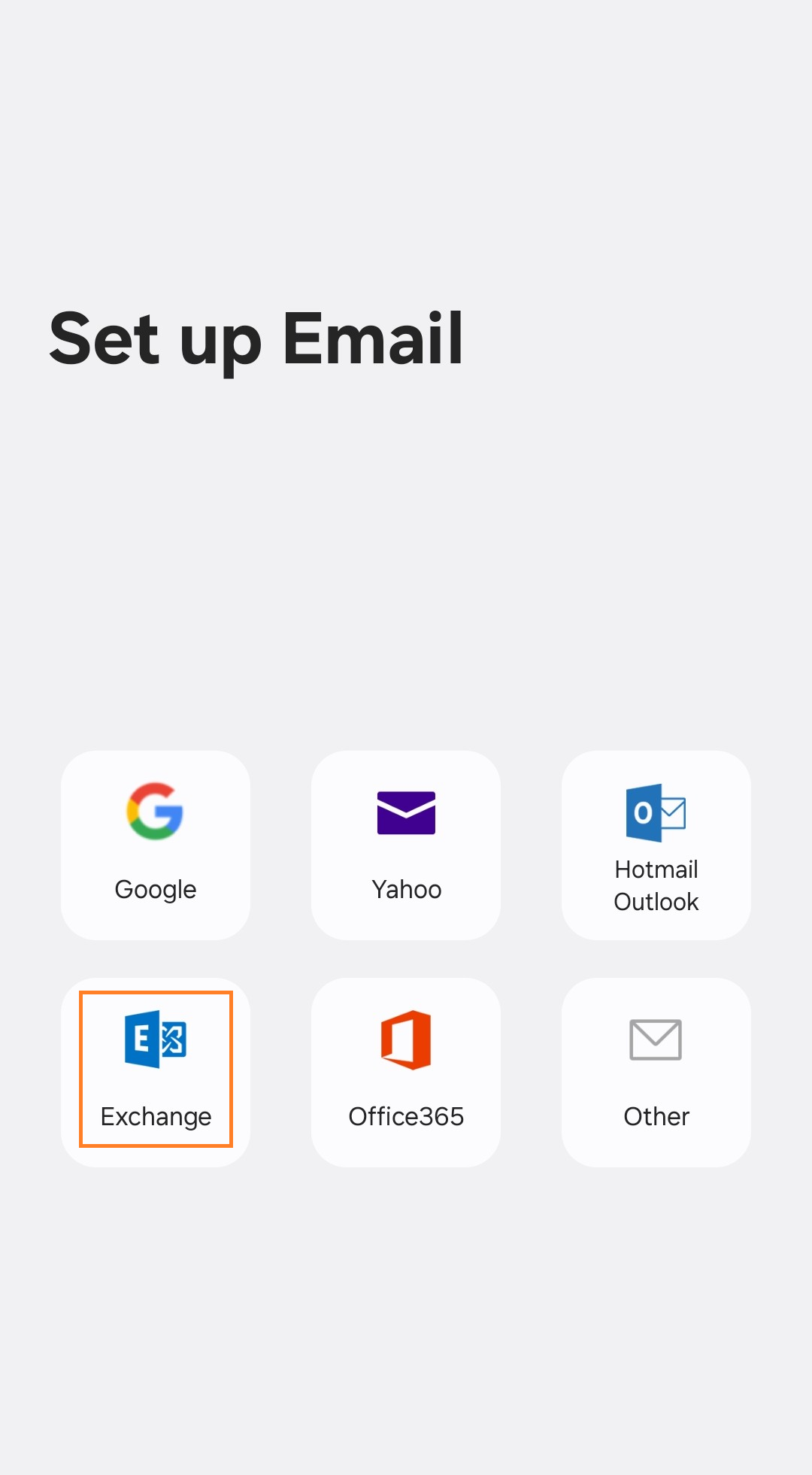
3. From the list of account types, select **Exchange**, **Microsoft Exchange**, or **ActiveSync**.

#### Step 2: Enter Account Details

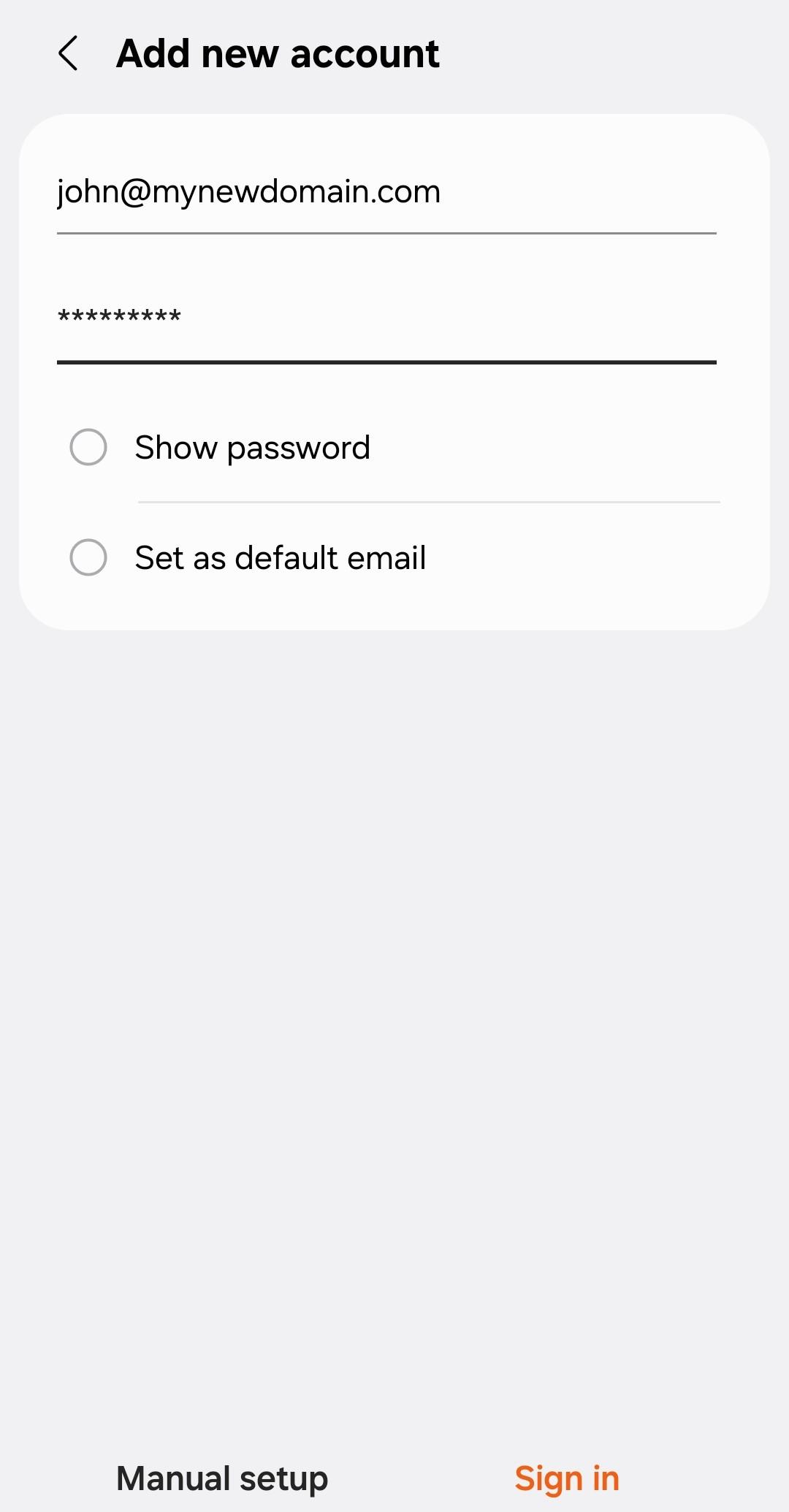
Simply enter your email and password, and the device will find the correct server settings automatically. Click on **Sign In** or **Finish**.

#### Example setup on Android with Autodiscover:

<table border="1" id="bkmrk--1" style="border-collapse: collapse; width: 100.063%;"><colgroup><col style="width: 49.8418%;"></col><col style="width: 49.8418%;"></col></colgroup><tbody><tr><td>[![Activesync - EAS - on Android - step 1 - choose Exchange type.png](https://wikidev.emailarray.com/uploads/images/gallery/2026-01/activesync-eas-on-android-step-1-choose-exchange-type.png)](https://wikidev.emailarray.com/uploads/images/gallery/2026-01/activesync-eas-on-android-step-1.jpg)  
</td><td>[![Activesync - EAS - on Android - step 2.jpg](https://wikidev.emailarray.com/uploads/images/gallery/2026-01/scaled-1680-/activesync-eas-on-android-step-2.jpg)](https://wikidev.emailarray.com/uploads/images/gallery/2026-01/activesync-eas-on-android-step-2.jpg)</td></tr></tbody></table>

### Manual Setup


#### Step 1: Add a New Account

1. Open the **Settings** app on your smartphone or tablet.
2. Navigate to **Mail** or **Accounts** and select **Add Account**.
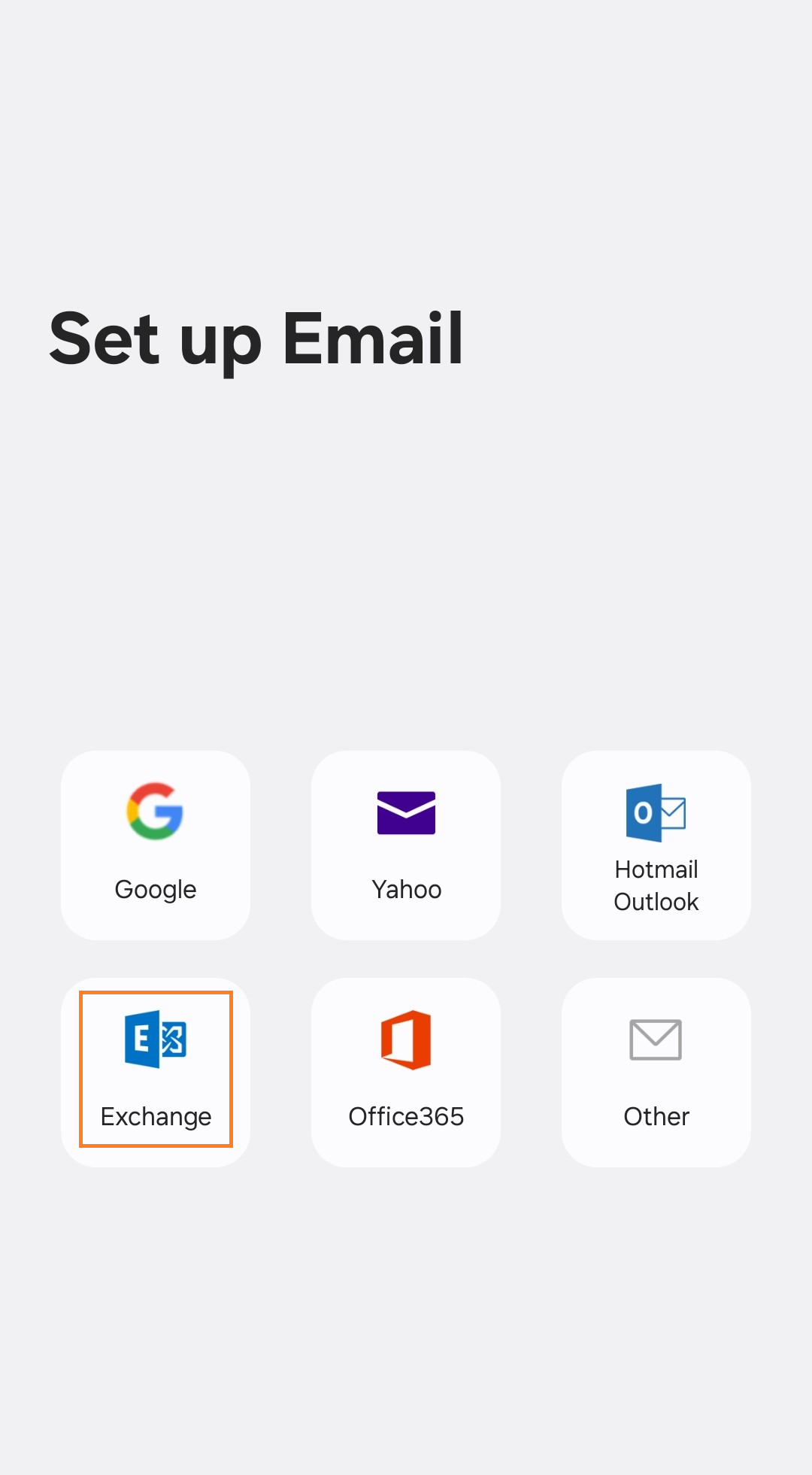
3. From the list of account types, select **Exchange**, **Microsoft Exchange**, or **ActiveSync**.

#### Step 2: Enter Account Details

Enter your **email** and **password**. Click on **Manual Setup**.


#### Step 3: Enter Server Settings

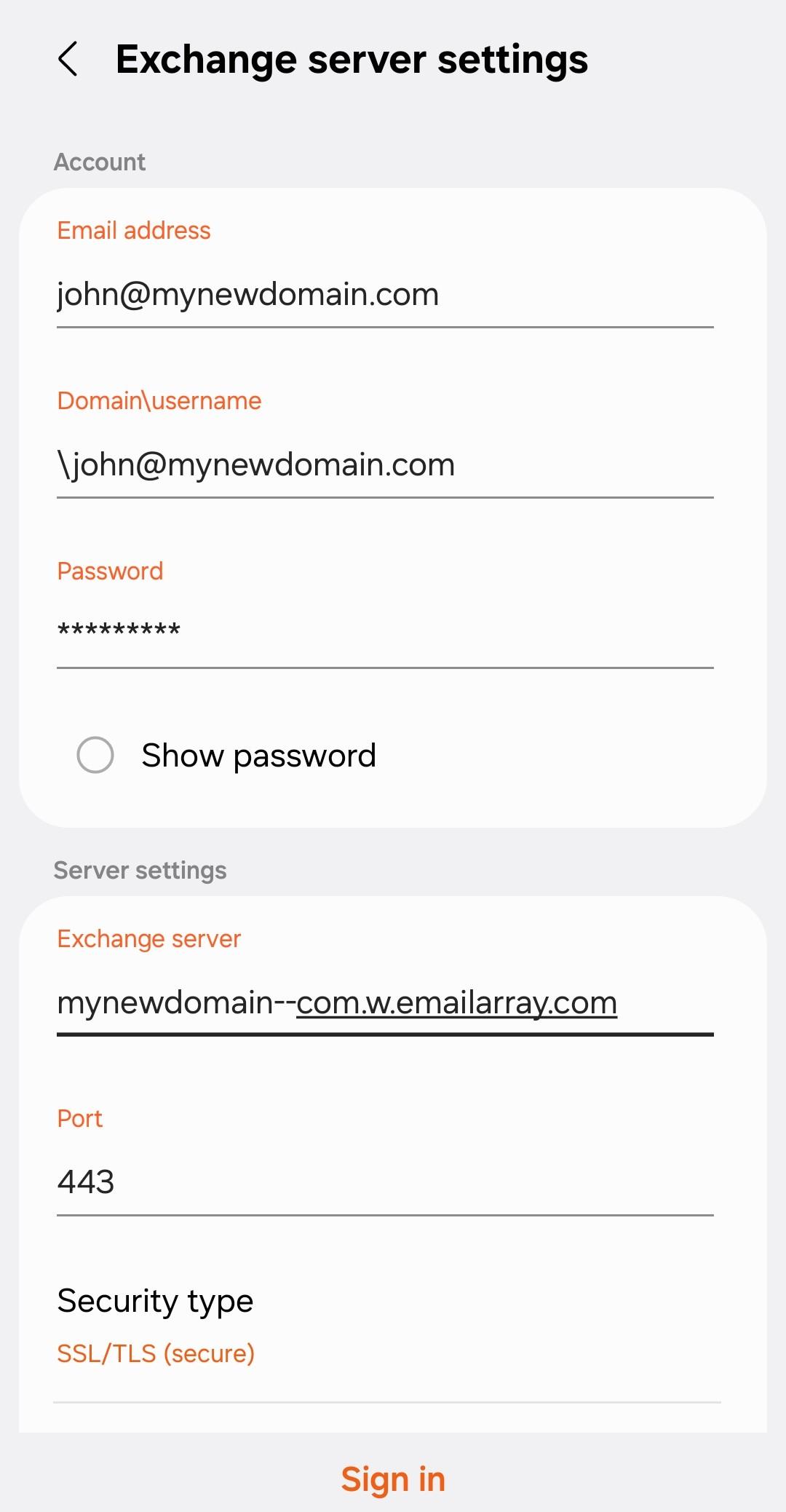
- **Server:** Use your domain name in this format: `yourdomain--com.w.emailarray.com`.  
     **Server Address Formula** To create your server address, take your domain name and:
    
    
    1. Replace any **dots (.)** with **two dashes (--)**.
    2. Add **.w.emailarray.com** to the end.
    
    **Example:** If your email is `john@my-company.com`, your server is:   
    `my-company--com.w.emailarray.com`.

- **Domain:** Leave this blank (unless your specific device requires it).
- **Username:** Your **full email address**.
- **Password:** Your email account password.
- **SSL:** Ensure "Use SSL" is turned **ON**.

Click on **Sign In**, **Continue** or **Finish**.


#### Example Setup on Android for Manual Setup:

<table border="1" id="bkmrk--2" style="border-collapse: collapse; width: 100.063%;"><colgroup><col style="width: 33.2278%;"></col><col style="width: 33.2278%;"></col><col style="width: 33.2278%;"></col></colgroup><tbody><tr><td>[![Activesync - EAS - on Android - step 1 - choose Exchange type.png](https://wikidev.emailarray.com/uploads/images/gallery/2026-01/scaled-1680-/activesync-eas-on-android-step-1-choose-exchange-type.png)](https://wikidev.emailarray.com/uploads/images/gallery/2026-01/activesync-eas-on-android-step-1-choose-exchange-type.png)</td><td>[![Activesync - EAS - on Android - step 2.jpg](https://wikidev.emailarray.com/uploads/images/gallery/2026-01/scaled-1680-/activesync-eas-on-android-step-2.jpg)](https://wikidev.emailarray.com/uploads/images/gallery/2026-01/activesync-eas-on-android-step-2.jpg)</td><td>[![Activesync - EAS - on Android - manual setup.jpg](https://wikidev.emailarray.com/uploads/images/gallery/2026-01/scaled-1680-/activesync-eas-on-android-manual-setup.jpg)](https://wikidev.emailarray.com/uploads/images/gallery/2026-01/activesync-eas-on-android-manual-setup.jpg)</td></tr></tbody></table>